

How to Stop Background Apps Permanently on Android (2025 Guide)
Are background apps draining your battery, slowing down your phone, or using unwanted data? In this guide, you will learn how to stop background apps permanently on Android using system settings, battery optimization, developer options, app restrictions, and advanced controls. These methods work on all Android phones in 2025, including Samsung, Realme, Xiaomi, Vivo, OnePlus, Motorola, and Oppo. If you want better performance and longer battery life, follow this complete step-by-step guide.
Table of Contents
- Why Background Apps Keep Running
- 1. Disable Background Activity Using App Settings
- 2. Use Battery Optimization to Stop Background Apps
- 3. Put Apps in Deep Sleep / Restricted Mode
- 4. Disable Auto-Start for Apps
- 5. Use Developer Options to Limit Background Processes
- 6. Turn Off Background Data Usage
- 7. Remove Apps from "Run in Background" Permission
- 8. Uninstall or Disable Unnecessary System Apps
- 9. Use Lite Versions or Web Versions of Apps
- 10. Restart Your Phone Regularly
- Conclusion
Why Background Apps Keep Running
Background apps run for several reasons:
- They sync notifications and messages
- They update content in the background
- They auto-start after reboot
- They use battery optimization bypass
- They need permissions to function (tracking, ads, location)
To stop background apps permanently, you need to control battery settings, restrict processes, and block auto-start features.
1. Disable Background Activity Using App Settings
This method stops apps from running when you are not using them.
Steps:
- Open Settings
- Tap Apps
- Select the app you want to stop
- Tap Battery
- Choose Restricted or Don't allow background activity
This prevents the app from running in the background permanently unless you open it manually.
2. Use Battery Optimization to Stop Background Apps
Battery optimization forces Android to control unnecessary background processes.
Steps:
- Go to Settings → Battery
- Tap Battery Optimization
- Select apps that consume more battery
- Apply Optimize
This ensures that apps cannot wake up or run background services frequently.
3. Put Apps in Deep Sleep / Restricted Mode
Many brands include their own advanced battery modes.
Available as:
- Samsung: Deep Sleep
- Realme/Oppo: Deep Clean
- Vivo: Background Lock
- Xiaomi: Restrict Background Apps
Steps (Samsung example):
- Go to Settings → Battery and Device Care
- Select Background Usage Limits
- Add apps to Deep Sleep
Apps in Deep Sleep remain completely off until you manually open them.
4. Disable Auto-Start for Apps
Apps often restart automatically after reboot or when triggered by system events.
Steps:
- Open Settings
- Search for Auto-start
- Turn off auto-start for unnecessary apps
Brands like Xiaomi, Vivo, Realme, and Oppo include dedicated auto-start control.
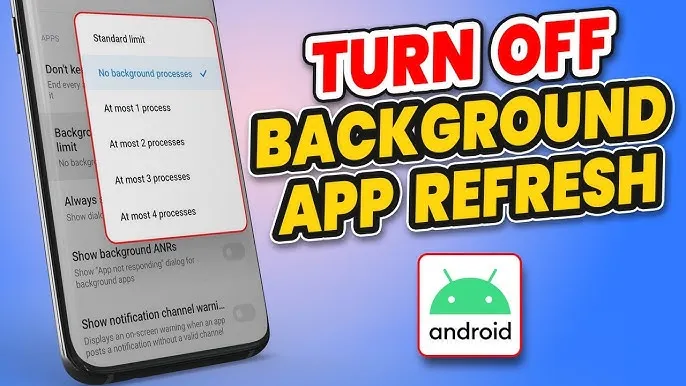
5. Use Developer Options to Limit Background Processes
This is one of the most effective ways to stop background apps permanently.
Enable Developer Options:
- Go to Settings → About Phone
- Tap Build Number 7 times
Limit background processes:
- Open Developer Options
- Scroll to Background process limit
- Choose:
- No background processes
- or At most 1 process
This forces Android to kill background apps instantly.
6. Turn Off Background Data Usage
Apps that cannot access data in the background will stop refreshing automatically.
Steps:
- Go to Settings → Network & Internet
- Select Data Saver
- Enable Data Saver Mode
- Go to individual apps and turn off Background Data
This helps stop apps that rely on data to operate silently.
7. Remove Apps from "Run in Background" Permission
Newer Android versions allow controlling background permissions.
Steps:
- Go to Settings
- Tap Privacy
- Open Permission Manager
- Select Run in Background
- Revoke access for unnecessary apps
This immediately stops apps from launching or running background services.
8. Uninstall or Disable Unnecessary System Apps
Bloatware apps keep running in the background even if you don't use them.
Steps:
- Open Settings → Apps
- Select unused system apps
- Tap Disable
This prevents them from consuming battery or resources.
9. Use Lite Versions or Web Versions of Apps
Apps like Facebook, Instagram, and Messenger are heavy and run multiple background processes.
Use instead:
- Facebook Lite
- Instagram Lite
- Messenger Lite
- Web version via browser
These versions use fewer background resources.
10. Restart Your Phone Regularly
Restarting clears background processes that apps often restart automatically.
Try:
- Restart once every 2–3 days
- Enable scheduled restart (Samsung/OnePlus feature)
This ensures background apps stay under control.
Conclusion
Stopping background apps permanently on Android requires using multiple settings such as app restrictions, battery optimization, developer options, auto-start controls, and background data blocks. These methods help improve battery life, reduce lag, and keep your phone running fast. Apply these steps regularly to keep your Android device optimized in 2025 and beyond.