How to Use Instagram Broadcast Channels (Full Guide 2025)
Instagram Broadcast Channels have become one of the most powerful tools for creators and influencers in 2025. Whether you want to send announcements, exclusive updates, behind-the-scenes content, polls, or sneak peeks — Broadcast Channels allow you to reach your audience instantly with higher visibility than regular posts or Stories.
👉 If you want to combine Broadcast Channels with a complete Instagram growth strategy, understand reach, engagement, and algorithm behavior, read our master guide: Instagram Growth 2025: The Ultimate Hub to Boost Reach, Followers & Engagement .
In this complete guide, you will learn what Instagram Broadcast Channels are, how to create and join them, how to grow followers using them, and proven engagement strategies.
📌 What Are Instagram Broadcast Channels?
Instagram Broadcast Channels are one-to-many messaging spaces where creators send updates directly into followers' inboxes. Unlike Group DMs, Channels are one-way (creator → followers) with limited follower reactions (emoji replies, poll responses) to keep the conversation focused and manageable.
Why use a Broadcast Channel? Because it increases visibility (DMs are higher attention than regular posts), improves retention, and enables early access or exclusive messaging to your most engaged followers.
✨ Benefits of Using Instagram Broadcast Channels
- High visibility: Messages land in followers' inboxes with notification control.
- Opt-in audience: Followers choose to join, so engagement is usually better.
- Direct feedback: Quick poll results and reaction rates.
- Monetization-ready: Works for paid subscribers and special offers.
- Cross-promotion: Use channels to drive Reels views, Story engagement, and traffic to products.
📱 How to Join an Instagram Broadcast Channel (2025)
Users can join via Story stickers, a bio link, a DM invitation, or in-app prompts. Offer a clear value proposition (e.g., "Join for weekly behind-the-scenes tips and early discounts") and enable the bell icon to encourage notifications.
Quick Steps for Followers:
- Tap the channel link or "Join" sticker.
- Confirm joining and enable notifications (optional).
- Interact via polls or quick reactions when prompted.
🛠 How to Create Your Own Instagram Broadcast Channel
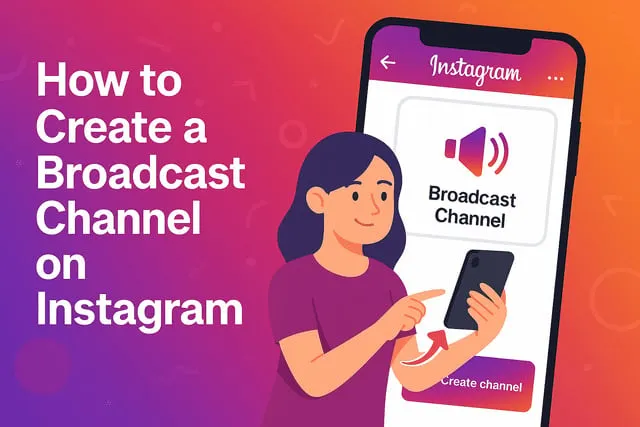
Start from your DM inbox: tap "Create Broadcast Channel", choose a name, pick audience (all followers, paid subscribers, or Close Friends), and add a short description and post rules. Use the channel description to set expectations (frequency, content type, exclusivity).
Channel setup checklist:
- Clear channel name + short description
- Define posting cadence (e.g., 2 updates/week)
- Decide if it's free or paid
- Set moderation rules (no spam, respect privacy)
- Prepare an onboarding message/template
👋 Onboarding & Welcome Message Templates
First messages set tone and retention. Use short, friendly templates to welcome subscribers and tell them what to expect.
Welcome Template — Free Channel
"Welcome to the channel! 🎉 Expect 2–3 weekly tips, early access to new Reels, and occasional polls — reply with 'Hi' so I know you're here!"
Welcome Template — Paid Channel
"Thanks for joining the VIP channel! 🚀 You get weekly deep-dives, exclusive tutorials, and early beta access to tools. First post drops this Friday — saved to your member-only folder."
Sample Weekly Welcome Flow
- Welcome message + quick poll (What do you want to see more of?)
- Pin a highlight: 'Pinned resources/links'
- Send a follow-up with a quick exclusive tip within 24–48 hours to prove value
💬 What You Can Send in a Broadcast Channel
- Short text updates (quick wins, links)
- Image/video teasers (behind-the-scenes)
- Voice notes for a personal touch
- Polls for instant research
- Links to Reels, products, signups
Mix formats to keep the channel fresh — combine a short text update with a 10–20s clip or a poll for high engagement.
📅 Message Cadence & Content Calendar
Recommended cadence: 1–3 quality messages per week. Over-communicating reduces retention while under-communicating reduces perceived value.
Sample 4-Week Cadence
- Week 1: Welcome + poll
- Week 2: Exclusive behind-the-scenes clip + CTA
- Week 3: Quick tip + link to full Reel
- Week 4: Member-only discount or Q&A
Tip: Use analytics to adjust cadence — increase messages during launches, reduce to 1 message/week during maintenance phases.
📌 How to Get More Followers Using Broadcast Channels
- Use Story join stickers regularly and highlight the value in captions
- Create an evergreen "Join our channel" pinned Story highlight
- Offer channel-exclusive giveaways that require joining
- Cross-promote in Reels and Posts — show snippets of channel content
- Invite collaborators to promote the channel in their Stories
💰 Monetization & Paid Channels
Creators can monetize via paid channel subscriptions, exclusive product drops, affiliate offers, or sponsored messages. Best practices:
- Deliver clear value to paid members (exclusive tutorials, PDFs, templates)
- Limit ads and keep sponsored content clearly disclosed
- Offer a trial or limited-time discount to convert skeptics
Example: Charge a small monthly fee for a VIP channel that includes two exclusive video tutorials and a monthly live AMA.
📊 Analytics & KPIs to Track
Track these metrics weekly:
- Join rate (new members/day)
- Open rate (message views / members)
- Reaction & poll response rate
- Conversion rate (channel → follow / website / sale)
- Unsubscribe rate
Target examples: Open rate 40–60% (good), reaction rate 10–25% (strong), unsubscribe rate <2% per month (healthy).
🛡 Moderation, Privacy & Safety
- Pin clear rules in the channel description
- Remove or restrict abusive members
- Respect DMs and do not share personal data
- Use channel settings to limit who can join (paid/close friends)
- Report harassment to Instagram when necessary
For privacy-sensitive accounts, consider a paid or Close Friends channel to reduce random joiners.
🔧 Troubleshooting & Common Issues
- Channel not visible: Feature may be rolling out in some regions — try updating app or reinstalling.
- Low open rates: Rework welcome message, test different send times, and run a re-engagement poll.
- High unsubscribe spikes: Audit recent messages for frequency/quality; apologize and adjust cadence.
- Payment issues for paid channels: Check Instagram commerce settings and payout country restrictions.
📈 Mini Case Studies
Case Study 1 — Creator Launch
A fitness creator used a free Broadcast Channel to share three early-look videos and a members-only discount code. Result: 18% conversion to a product landing page and a 34% bump in early sales during launch week.
Case Study 2 — News & Updates Channel
A tech reviewer created a daily summary channel for new gadget finds. Result: High open rates (55%) and increased traffic to long-form reviews (15% increase in weekly pageviews).
✅ Publishing & Channel Checklist
- Set expectations in the channel description (frequency & content)
- Schedule messages and batch-create content
- Use polls to measure interest topics before sending long tutorials
- Test send times and monitor open rates
- Keep 20% of messages exclusive and 80% value-driven
Related Guides (Instagram Growth HUB)
- Instagram Growth 2025 — Master Hub
- How to Download Instagram Reels Without Any App
- YouTube Shorts vs Instagram Reels
- How to Make Viral AI Reels for Free
- Facebook Reels vs Instagram Reels — Views Comparison
📝 Final Thoughts
Broadcast Channels are a high-impact, low-friction tool for creators in 2025—use them to build loyalty, distribute exclusive content, and drive high-conversion traffic. Start small, test cadence, and use analytics to scale what works.
For a full Instagram growth framework, use this guide in tandem with our Master Hub: Instagram Growth 2025.