Android Privacy Dashboard Explained: How to See Which Apps Track You (2025)
Have you ever felt that some apps know too much about you? Maybe your phone heats up, battery drains faster, or ads feel oddly personal. In many cases, the reason is hidden app access to your camera, microphone, or location.
Android’s Privacy Dashboard was introduced to fix this exact problem. It shows which apps accessed sensitive permissions and when — giving you full control instead of blind trust.
This complete 2025 guide explains what Android Privacy Dashboard is, why it exists, how to use it properly, and how to stop unwanted tracking without breaking apps.
📌 Table of Contents
- What Is Android Privacy Dashboard?
- Why Android Introduced Privacy Dashboard
- How Privacy Dashboard Works
- What Data Apps Can Access
- How to Use Privacy Dashboard (Step-by-Step)
- Which Android Versions Support Privacy Dashboard?
- What Are Privacy Indicators (Green Dot) on Android?
- Privacy Dashboard vs Permission Manager
- Problems Caused by Uncontrolled App Permissions
- Complete Solution Guide to Stop App Tracking
- Final Verdict
What Is Android Privacy Dashboard?
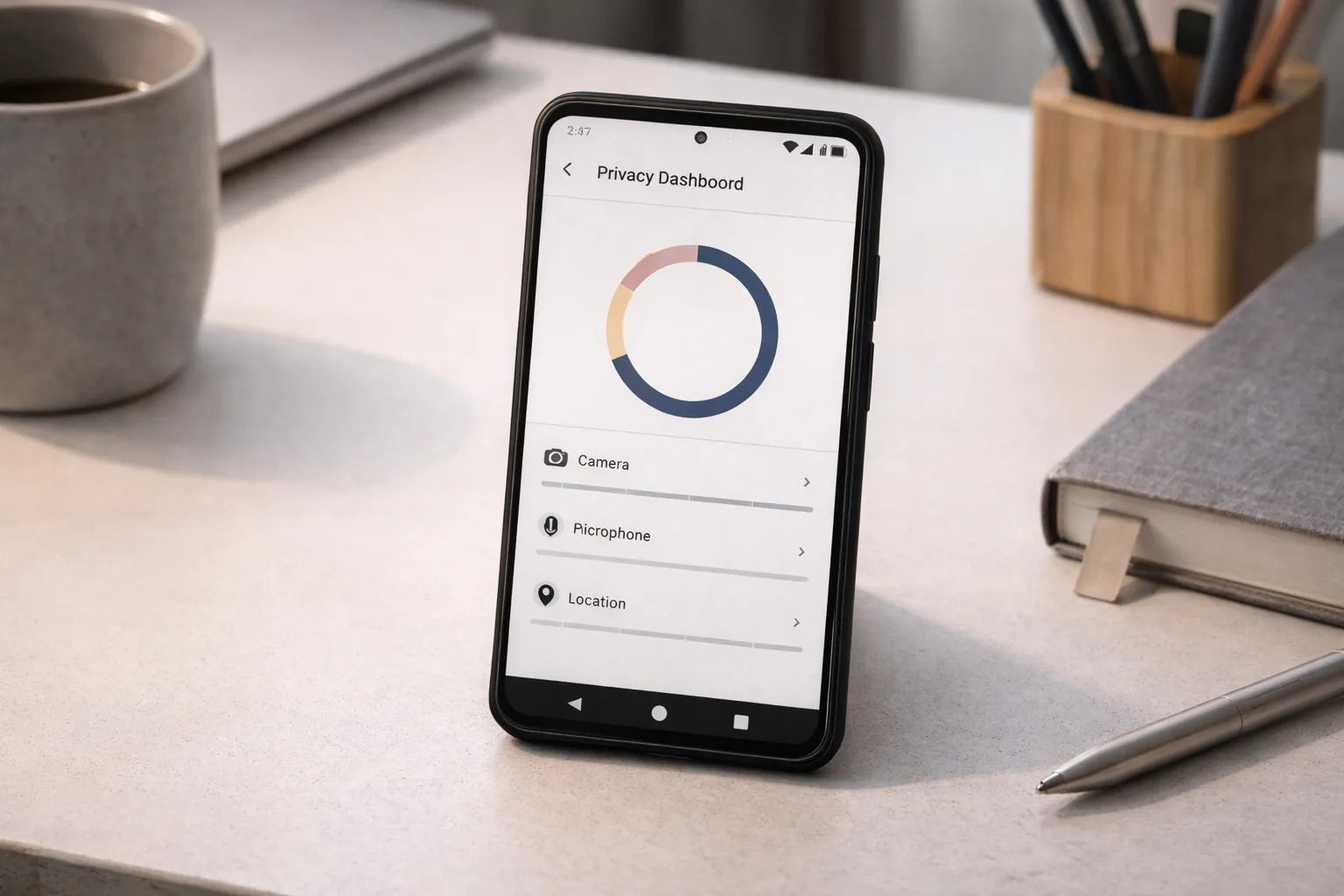
Android Privacy Dashboard is a built-in feature available on Android 12 and newer that shows which apps accessed sensitive permissions like your camera, microphone, and location — along with exact timestamps.
It works like an activity log for privacy, helping you see app behavior instead of relying on assumptions or app descriptions.
Rather than guessing or trusting apps blindly, you get a clear, centralized view of what accessed what and when — including background activity.
Example: If a social media app used your microphone late at night while you weren’t actively using the app, Privacy Dashboard will clearly display the app name, the microphone permission, and the exact time it was accessed.
Use case: This is especially helpful for spotting apps that access permissions even when you’re not interacting with them.
Why this helps: It turns hidden background access into visible information, allowing you to decide whether to keep the permission, limit it to “only while using the app”, or uninstall the app if the access feels unnecessary.
Why Android Introduced Privacy Dashboard
In older Android versions, apps could continue using permissions in the background after you allowed them once. Most users never reviewed these permissions again.
Over time, this created common problems:
- Apps tracking location or mic access silently
- Growing privacy concerns
- Faster battery drain and unexpected heating
- Performance slowdowns, as explained in this Android performance guide
Example: A navigation or social app might keep accessing your location in the background long after you stop using it, without you noticing.
Why Privacy Dashboard matters: It brings this hidden activity into the open, so users can spot misuse and take action instead of guessing.
How Privacy Dashboard Works
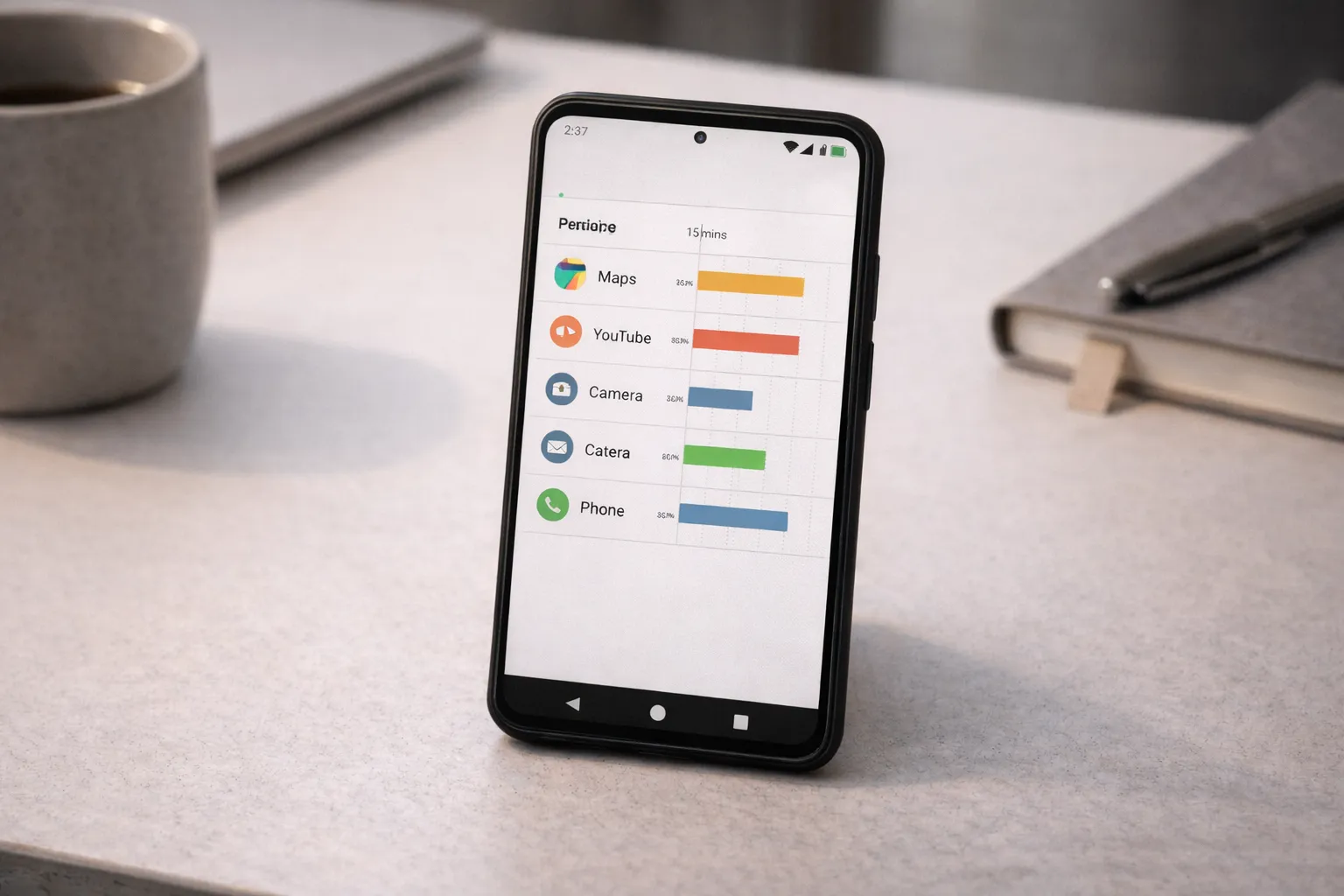
Privacy Dashboard continuously records how apps use sensitive permissions and displays this data in a clean, easy-to-read timeline. You can review permission activity from the last 24 hours or extend it up to 7 days.
Permissions like camera, microphone, and location are grouped separately, making it simple to understand which type of access is being used the most.
Within each permission, apps are listed along with the exact time they accessed it, including background usage.
Example: If a social media app accessed your microphone late at night, the dashboard will show the app name, the microphone permission, and the precise time it was used—even if the app wasn’t open on screen.
Use case: This helps you catch apps that access permissions outside normal usage, such as location updates when you’re not traveling or mic access when you’re not on a call.
How this helps: Instead of manually checking every app’s settings, unusual or unnecessary access stands out instantly, allowing you to review the app, limit permissions to “only while using the app”, or revoke access completely.
What Data Apps Can Access

Privacy Dashboard highlights access to the most sensitive parts of your phone — areas that directly affect privacy, battery life, and performance.
- Camera: Used for photos, video calls, document scanning, and QR codes.
- Microphone: Used for calls, voice messages, voice search, and sometimes background listening.
- Location: Used for navigation, food delivery, ride apps, and targeted ads.
Example: A weather or social app accessing your location in the background multiple times a day may not be necessary for normal use.
Why this matters: Unneeded background access can lead to faster battery drain and issues like phone overheating. Limiting permissions to “only while using the app” often fixes this.
How to Use Android Privacy Dashboard (Step-by-Step)
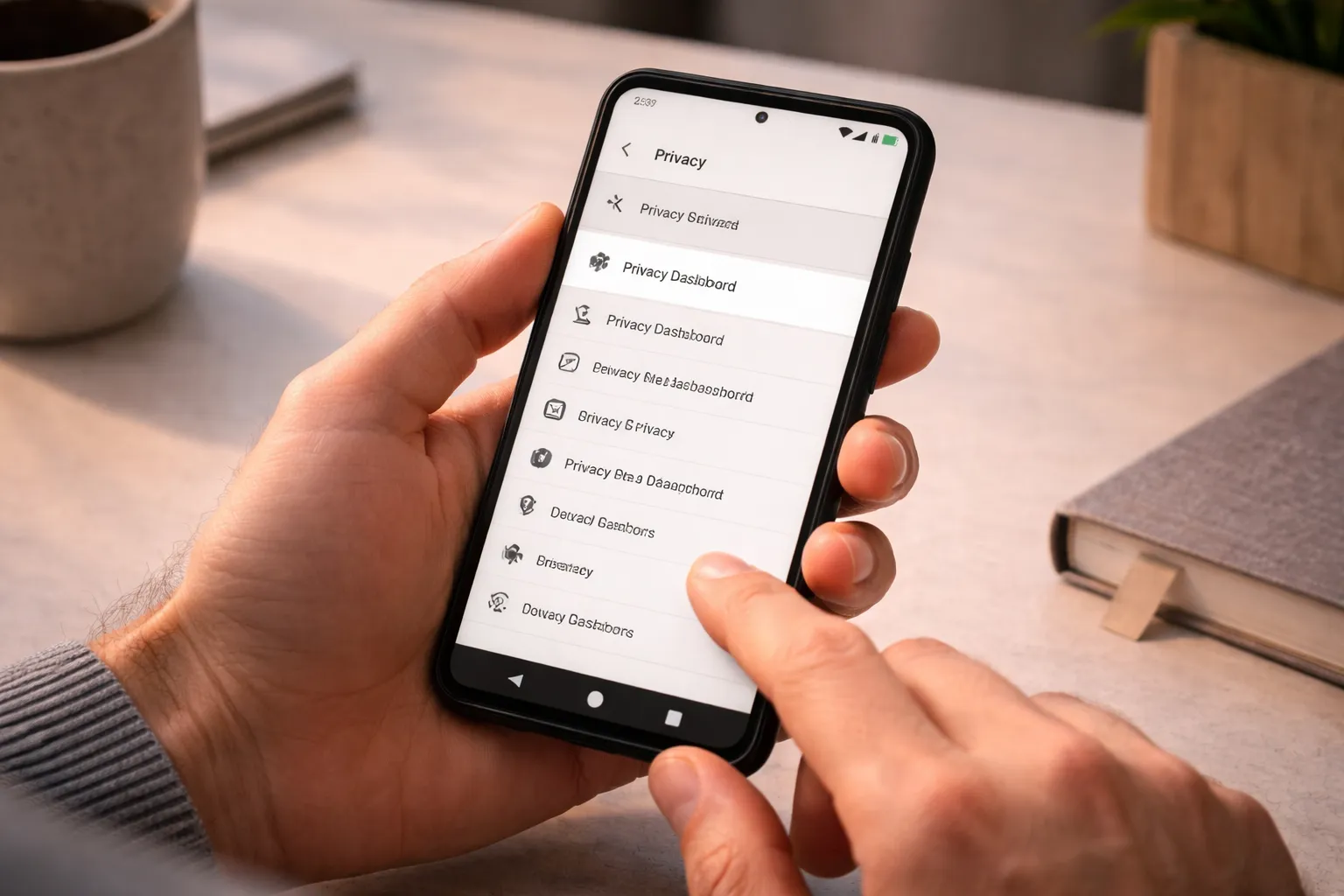
- Open Settings on your Android phone
- Go to Privacy & Security
- Tap Privacy Dashboard
Once inside, you’ll see permissions like camera, microphone, and location listed with a quick usage overview.
Tapping any permission opens a timeline showing which apps accessed it and at what time.
Example: If you tap Microphone, you may notice an app using it even when you weren’t actively interacting with that app.
Tap an app name to jump directly to its permission settings, where you can allow, limit, or revoke access.
Suggestion: For apps you don’t use often, set permissions to “Only while using the app”. If an app still works fine without a permission, keeping it disabled is usually the safer choice.
Which Android Versions Support Privacy Dashboard?
Privacy Dashboard is available only on newer versions of Android, so not every phone will have this feature.
- Android 12 and newer: Full Privacy Dashboard support
- Android 11 and older: Privacy Dashboard not available
Example: If your phone is running Android 11 or below, you won’t see Privacy Dashboard in settings. Instead, you’ll need to rely on Permission Manager for basic control.
Suggestion: If your phone supports Android 12 or later but you don’t see Privacy Dashboard, make sure your system is fully updated and search for “Privacy” in Settings.
What Are Privacy Indicators (Green Dot) on Android?
Privacy indicators are small green dots that appear at the top of your screen when an app is using your camera or microphone.
This feature works alongside Privacy Dashboard to give you real-time visibility instead of showing information only later.
Example: If you see a green dot while scrolling social media or when your phone is idle, it means an app is actively using your camera or microphone.
Use case: Tapping the green dot shows which app is using the permission, allowing you to quickly decide whether the access is expected.
Why this matters: Privacy indicators help you catch suspicious access instantly, while Privacy Dashboard helps you review the full usage history later.
Privacy Dashboard vs Permission Manager
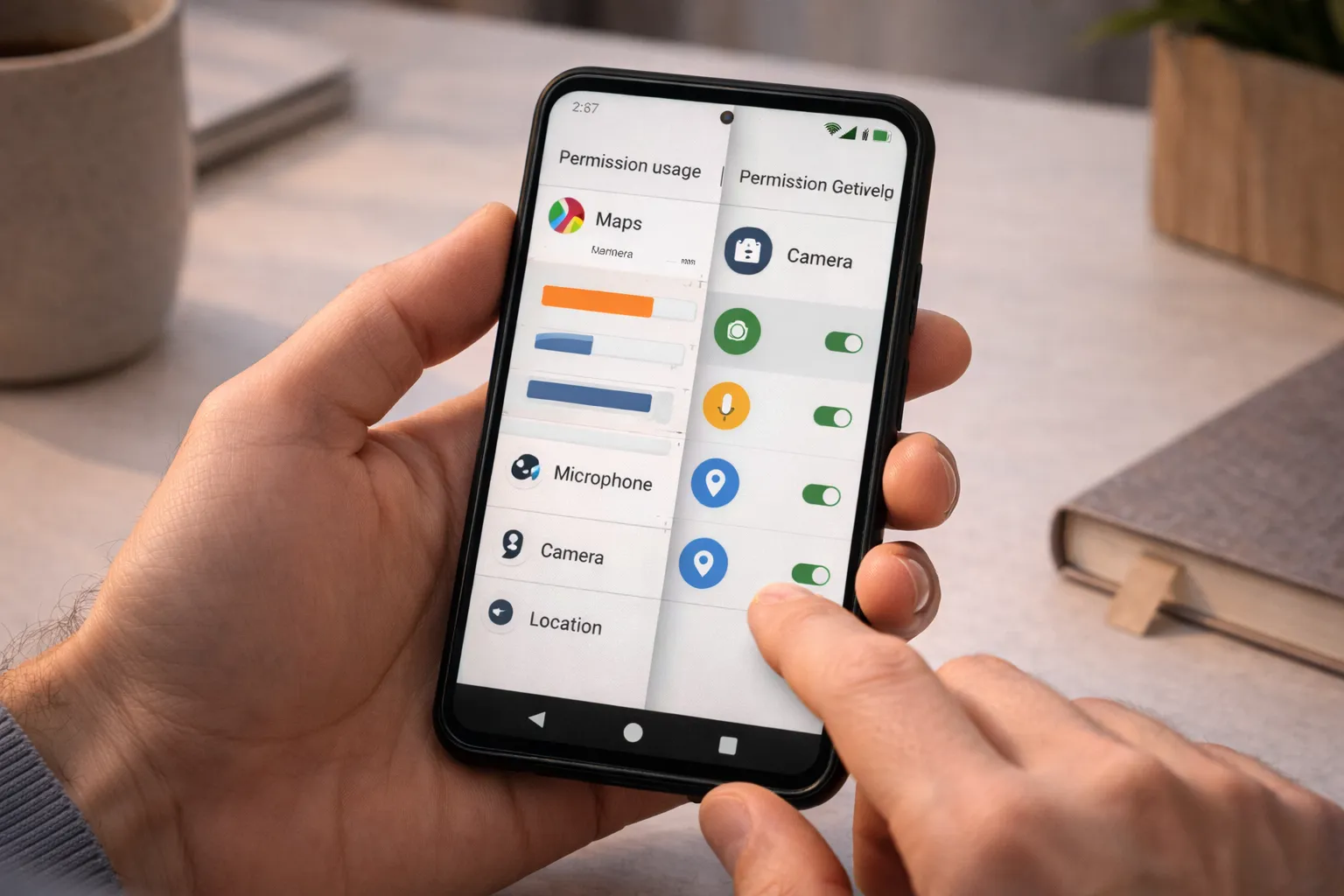
Many users mix up these two features because both deal with app permissions, but they serve different purposes.
- Privacy Dashboard: Shows when and which app accessed sensitive permissions, along with usage history.
- Permission Manager: Lets you decide which apps are allowed to use those permissions going forward.
Example: If you notice an app using your microphone at odd hours in Privacy Dashboard, you can open Permission Manager to change that app’s access or revoke it completely.
Use case: Privacy Dashboard helps you spot unusual behavior, while Permission Manager is where you actually fix it.
How to use them together: First identify suspicious or unnecessary access using Privacy Dashboard, then correct it using Permission Manager. This method is especially useful when checking suspicious phone behavior.
Problems Caused by Uncontrolled App Permissions
When apps have more permissions than they actually need, the impact often shows up in everyday phone usage.
- Silent background tracking: Apps continue accessing location, mic, or camera without visible signs.
- Unexpected battery drain: Background permissions keep apps active even when you’re not using them.
- Phone heating during idle time: The device feels warm despite no active usage.
- Slower performance: System resources are used in the background, causing lag.
- Privacy risks: Sensitive data may be accessed more often than necessary.
Example: If your phone heats up overnight or loses battery without use, a background permission is often the reason.
Important: These issues are frequently blamed on software updates, but uncontrolled permissions are usually the real cause.
Complete Solution Guide to Stop App Tracking
Step 1: Review Permission Usage
- Open Privacy Dashboard
- Check camera, mic, and location history
Step 2: Limit Permissions Smartly
- Set location to Only while using the app
- Revoke mic/camera access if not required
Step 3: Remove Unnecessary Apps
- Uninstall apps you no longer use
- Avoid free utility apps from unknown developers
Step 4: Review Special App Access
- Accessibility
- Device admin
- Usage access
This is especially important for security, similar to steps covered in Android anti-theft protection.
Final Verdict
Android Privacy Dashboard is one of the most useful privacy features that many users overlook. It clearly shows which apps are accessing your camera, microphone, or location — and when.
Example: Catching an app using your microphone or location in the background can help you stop unnecessary tracking before it affects battery life or privacy.
Final advice: Check Privacy Dashboard once a month or after installing new apps. This small habit helps prevent privacy risks, reduces battery drain, and keeps your phone running smoothly.
More awareness = better privacy + smoother Android experience.