How to Check Battery Health on Any Android Phone (2025 Complete Guide)
Is your Android phone battery draining faster than before, overheating, or shutting down unexpectedly? In most cases, the real issue isn’t the phone — it’s battery health. Problems like phone overheating or sudden slow performance are often linked to a weak battery.
This complete 2025 guide explains what battery health is, why it degrades, how to check it accurately, and the exact steps to fix battery-related problems on any Android phone — before you consider drastic options like factory resetting your device or buying a new one.
📌 Table of Contents
- 1. What Is Battery Health?
- 2. Why Battery Health Degrades Over Time
- 3. Signs of Poor Battery Health
- 4. How to Check Battery Health on Android
- 5. Check Battery Health Without Any App
- 6. Battery Health vs Battery Percentage
- 7. Complete Battery Health Solution Guide
- 8. When to Replace Your Battery
- 9. Final Verdict
1. What Is Battery Health?
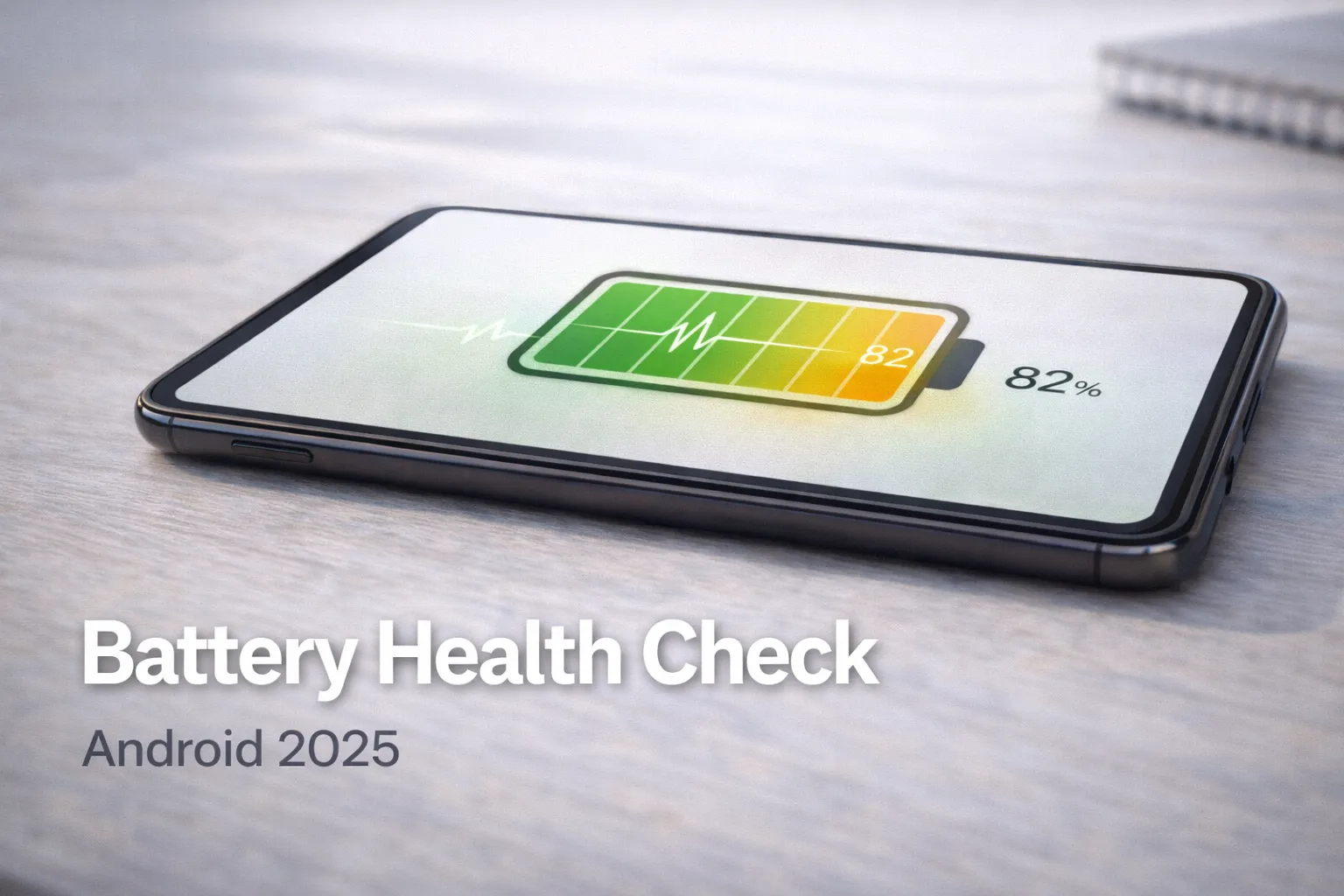
Battery health shows how much power your phone’s battery can still store compared to when it was brand new. Over time, every battery loses capacity, even if the phone itself works perfectly.
- 100% – New or recently replaced battery
- 90–85% – Normal wear, no major issues
- Below 80% – Noticeable battery drain and performance drops
Example: If your phone originally lasted 10 hours on a full charge, a battery health of 80% means you’ll now get roughly 7–8 hours under similar usage.
Most Android phones use lithium-ion batteries, which slowly degrade due to heat, charging cycles, and fast charging habits. This is normal and unavoidable, but poor charging practices can speed it up.
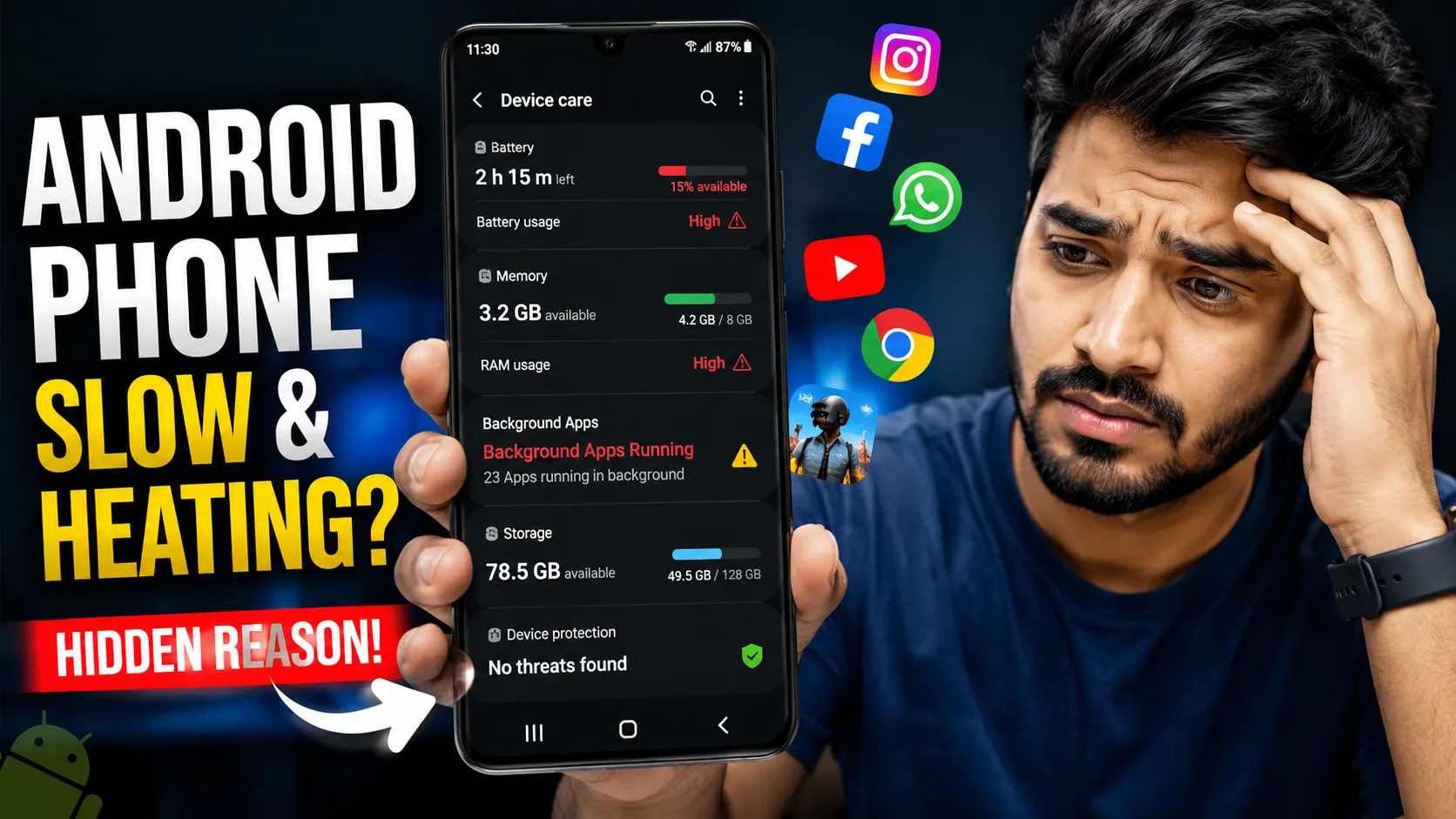
Why this matters: Low battery health doesn’t just affect battery life — it can cause heating, lag, and sudden shutdowns even when the battery percentage looks fine. This is also why many users experience issues explained in this Android performance guide.
2. Why Battery Health Degrades Over Time
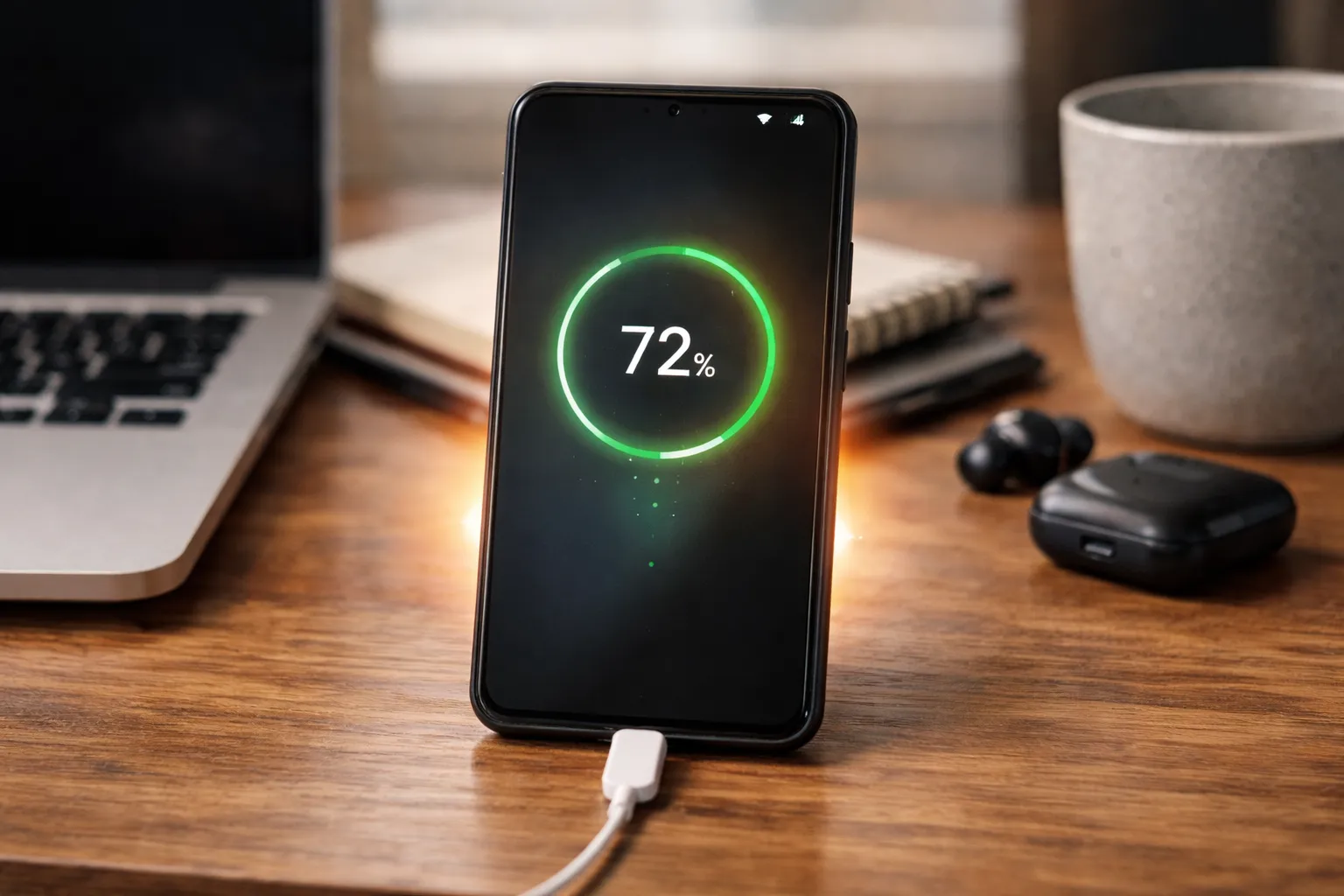
Battery degradation is normal and happens to every smartphone. However, certain daily habits can make the battery wear out much faster than it should.
Main Reasons Battery Health Drops Faster
- Frequent fast charging: Generates more heat, especially during short top-ups
- Overnight charging every day: Keeps the battery under stress at 100%
- Phone heating during gaming or video recording: High temperature damages battery cells
- Using the phone while charging: Increases heat and slows healthy charging
- Cheap chargers or cables: Deliver unstable power that harms the battery
Example: If you play games while fast-charging your phone, the battery heats up from both charging and usage. Over time, this combination can reduce battery health much faster than normal.
Key takeaway: Heat is the biggest enemy of battery health. If your phone frequently feels warm, even during light use, it’s worth checking both battery condition and common overheating causes.
3. Signs of Poor Battery Health
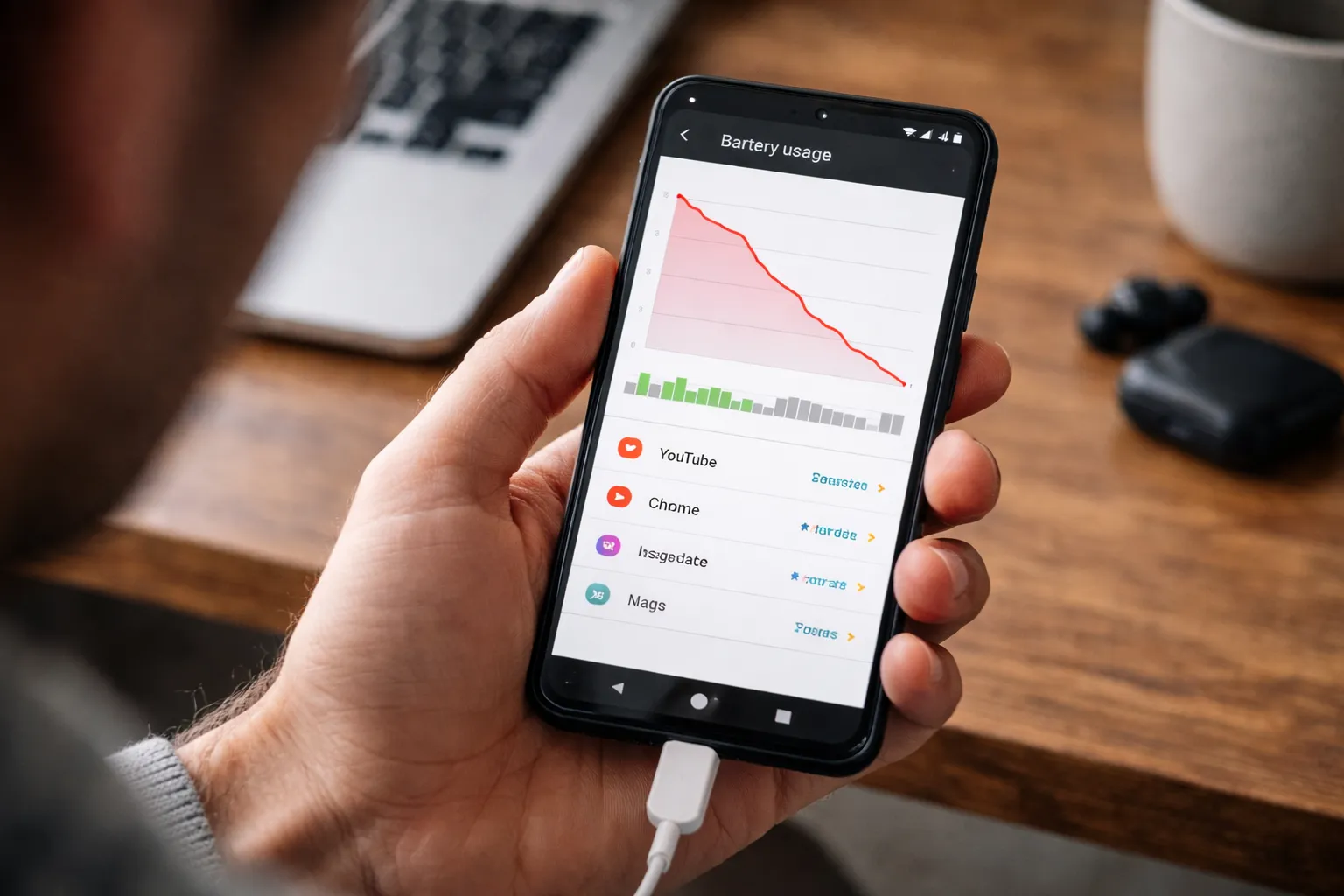
When a battery starts degrading, the phone usually shows clear warning signs during daily use. These issues often appear gradually, which is why many users ignore them.
- Battery drains even when idle: You leave your phone unused for a few hours and still lose 10–15% battery.
- Sudden shutdown at 20–30%: The phone powers off even though the battery percentage isn’t low.
- Phone heats during simple tasks: The device becomes warm while scrolling, calling, or using social apps.
- Charging takes longer than usual: The phone reaches 80% quickly but struggles to charge beyond that.
- Performance drops after updates: Apps feel slower because the system limits performance to protect the weak battery.
What this means: If you notice two or more of these symptoms together, your battery health has likely degraded. This often goes hand-in-hand with issues like slow Android performance and unexpected lag.
4. How to Check Battery Health on Android
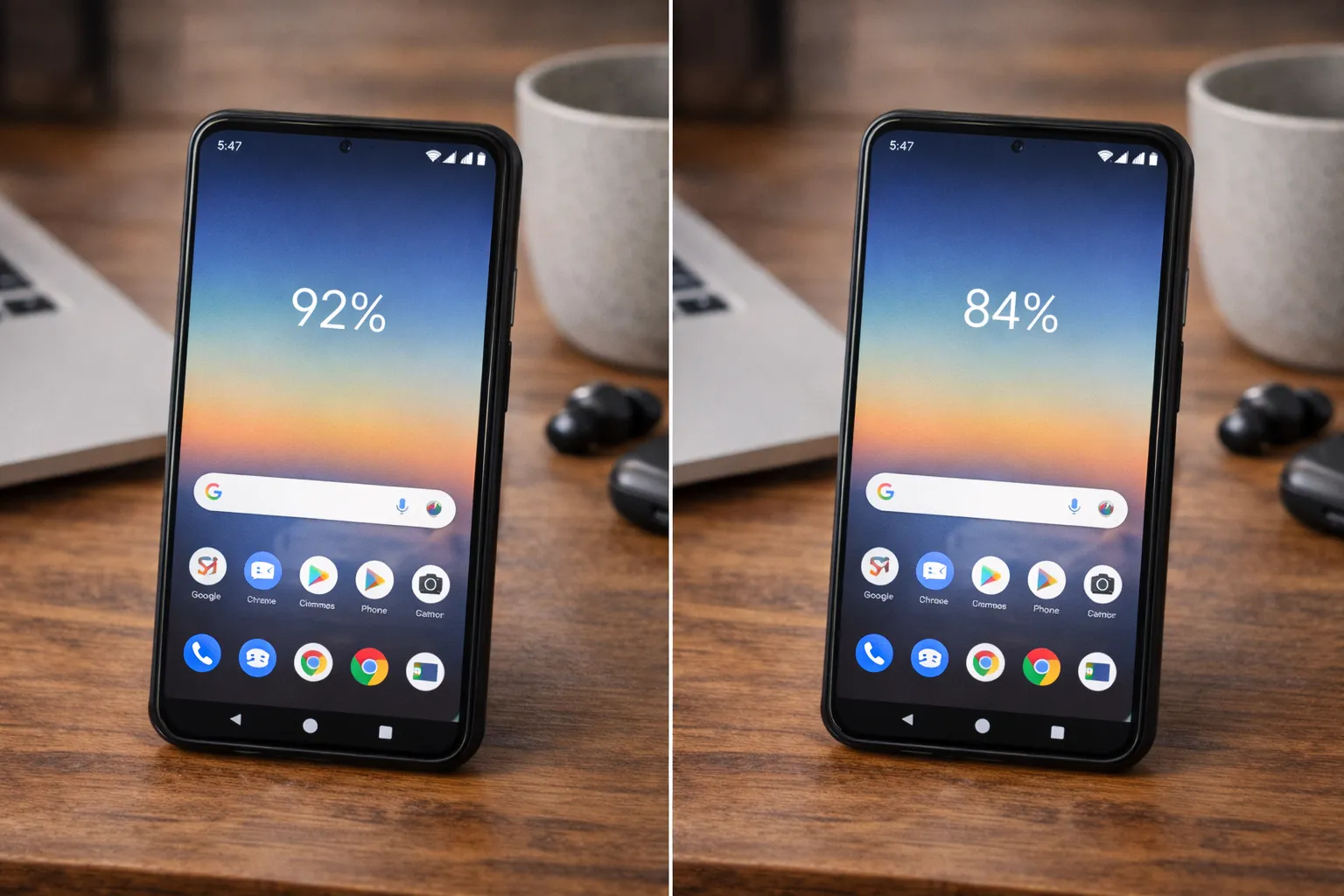
Android does not show battery health clearly by default, but there are a few reliable ways to check it depending on your phone model and preference.
Method 1: Android Secret Code (No App)
- Open the Phone dialer
- Dial *#*#4636#*#*
- Tap Battery Information
This screen shows battery temperature, voltage, and charging status. Some phones may also show health-related data.
Example: If the battery temperature is consistently high (above normal) even during light use, it usually indicates battery wear.
Best for: Quick checks without installing any app. If you want deeper system access, you can also explore Android Developer Options for advanced diagnostics.
Method 2: Built-in Battery Settings (Brand Dependent)
Some Android brands provide limited battery health or charging condition details inside system settings.
- Samsung: Settings → Battery → Diagnostics
- OnePlus / Oppo / Realme: Settings → Battery → Health or Charging Protection
Example: If charging optimization is automatically enabled, it usually means the system is trying to protect a slightly aged battery.
Limitation: Exact battery health percentage is often not shown.
Method 3: Use Trusted Battery Health Apps
If you want a clearer estimate, third-party apps are the most practical option.
- AccuBattery: Estimates battery health based on charge cycles
- Device Info HW: Shows battery capacity and condition
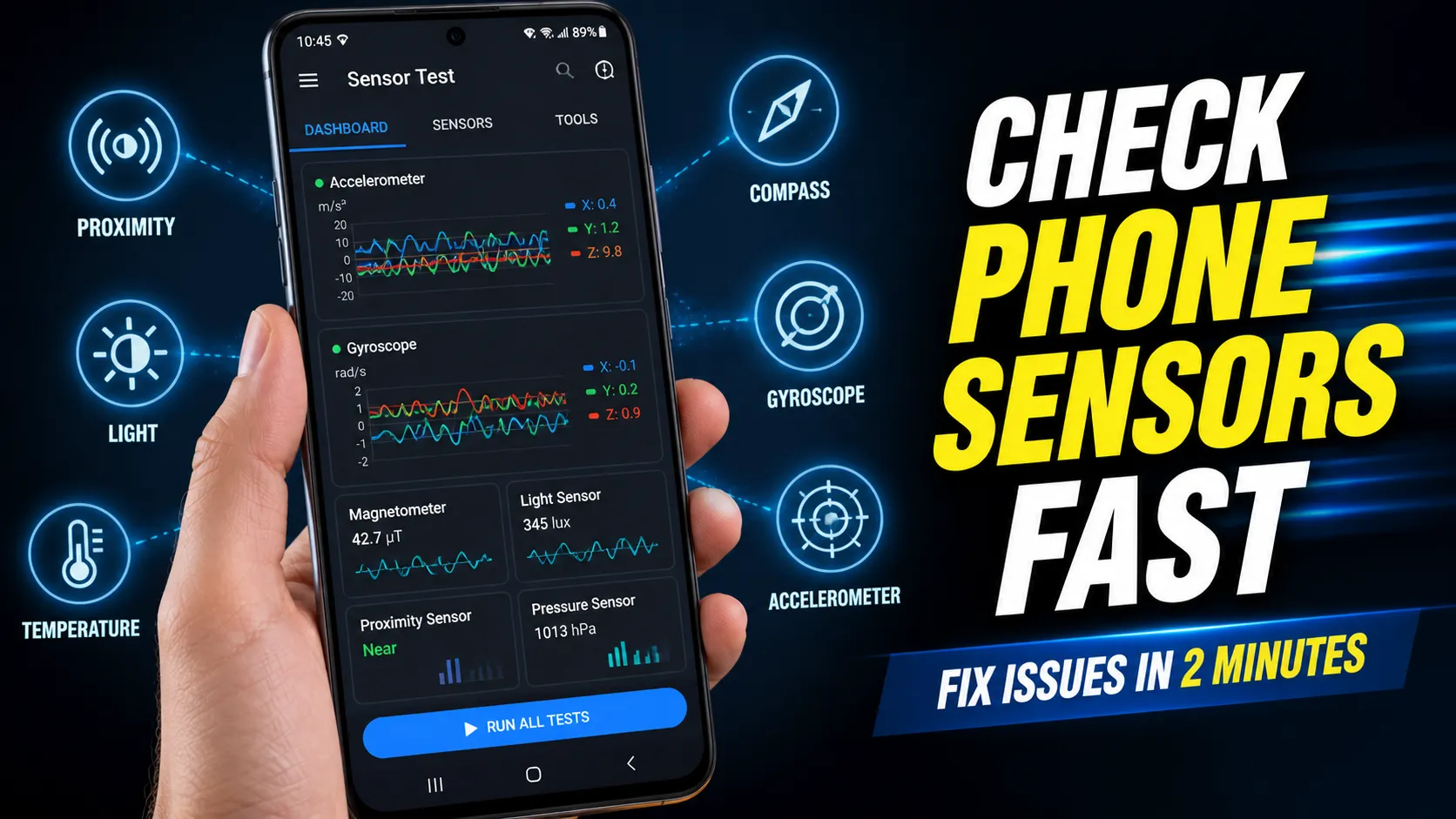
- CPU-Z: Displays battery temperature and charging details
Example: After 2–3 full charge cycles, AccuBattery can estimate whether your battery health is closer to 90% or below 80%.
Tip: For accurate results, use these apps for a few days instead of relying on one-time readings.
5. How to Check Battery Health Without Any App
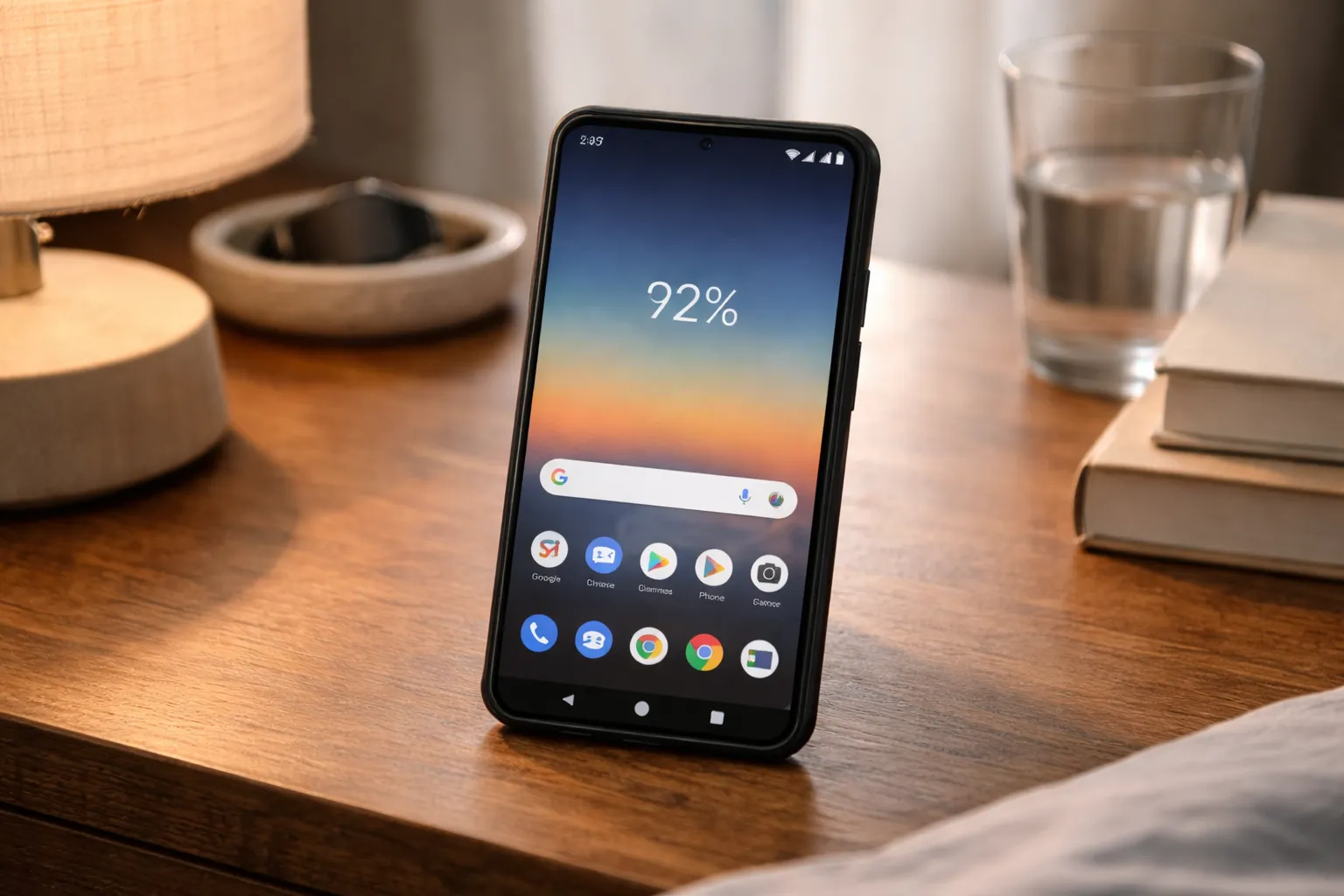
If you don’t want to install any apps, your phone’s daily behavior can still tell you a lot about battery health.
- 10–15% drop within minutes: After unplugging at 100%, the battery quickly falls to 90% with light use.
- Excessive heating: The phone gets warm during basic tasks like browsing or messaging.
- Battery drains overnight: You lose 8–12% battery even when the phone is idle.
Example: If your phone drops from 100% to 85% within 20–30 minutes without heavy usage, the battery has likely lost capacity.
Suggestion: Seeing two or more of these signs together usually means the battery is degraded and needs optimization. Before replacing the battery, try basic fixes like clearing system cache and reducing background usage.
6.Battery Health vs Battery Percentage
- Battery %: Shows how much charge is currently left in your phone.
- Battery health: Shows how much charge the battery can hold compared to when it was new.
Example: Two phones both show 100% charge. One has 95% battery health and lasts all day, while the other has 75% battery health and drains by evening.
Why this matters: A high battery percentage can be misleading. If battery health is low, the phone will drain faster, heat more, and may shut down unexpectedly.
Suggestion: If your phone reaches 100% but still doesn’t last long, battery health—not apps or updates—is usually the real problem. This is commonly mistaken after major updates, as explained in this detailed breakdown.
7. Complete Battery Health Solution Guide (2025)
Step 1: Reduce Heat
- Avoid gaming while charging
- Remove phone cover during charging
Step 2: Optimize Charging Habits
- Charge between 20%–85%
- Enable charging optimization
- Avoid overnight charging (a major cause of battery wear, similar to issues discussed in fast charging comparisons)
Step 3: Control Battery-Draining Apps
- Restrict background apps
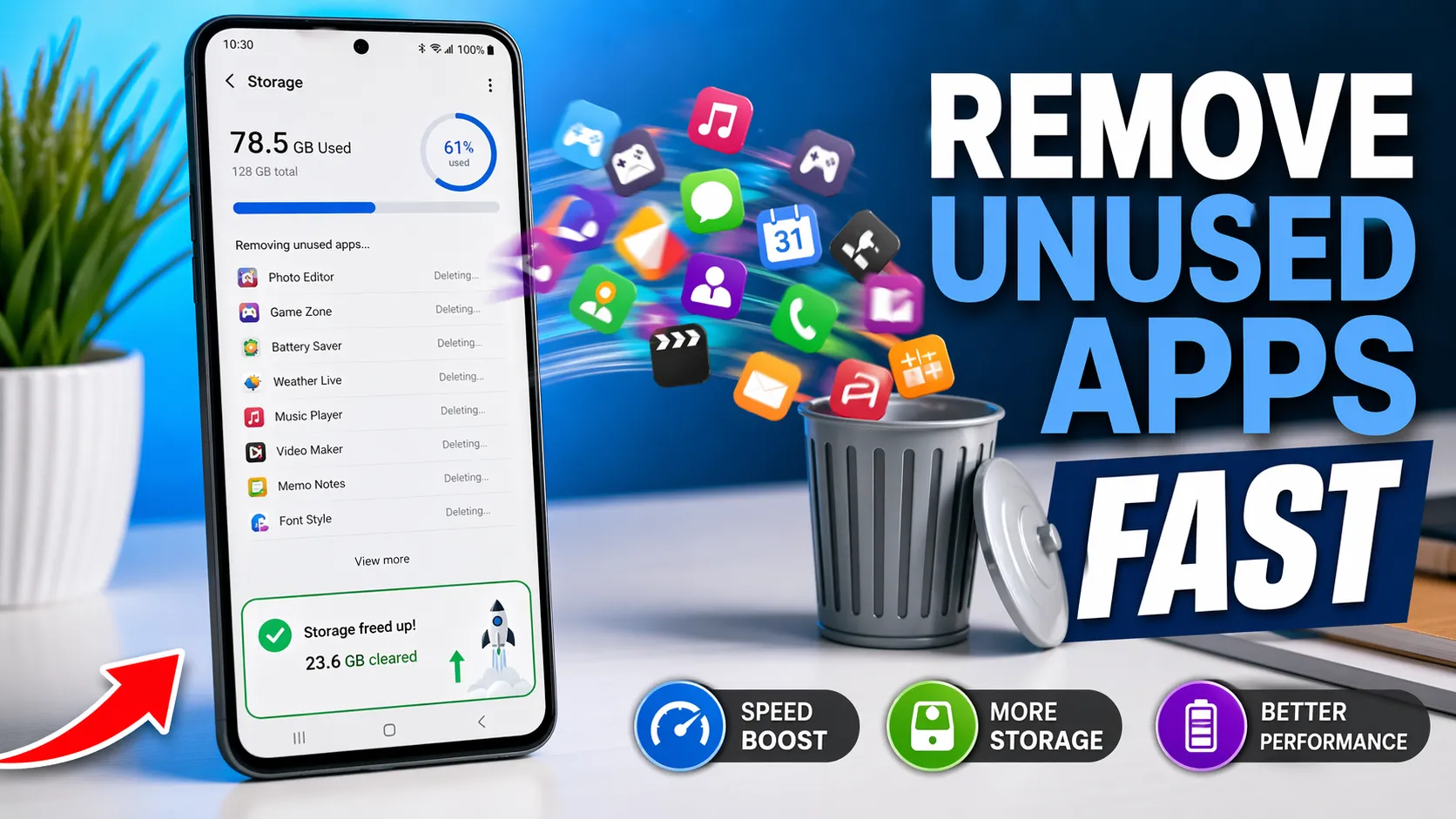
- Uninstall unused apps
Step 4: Use Original Accessories
- Certified chargers only
- Avoid cheap fast chargers
8. When Should You Replace the Battery?
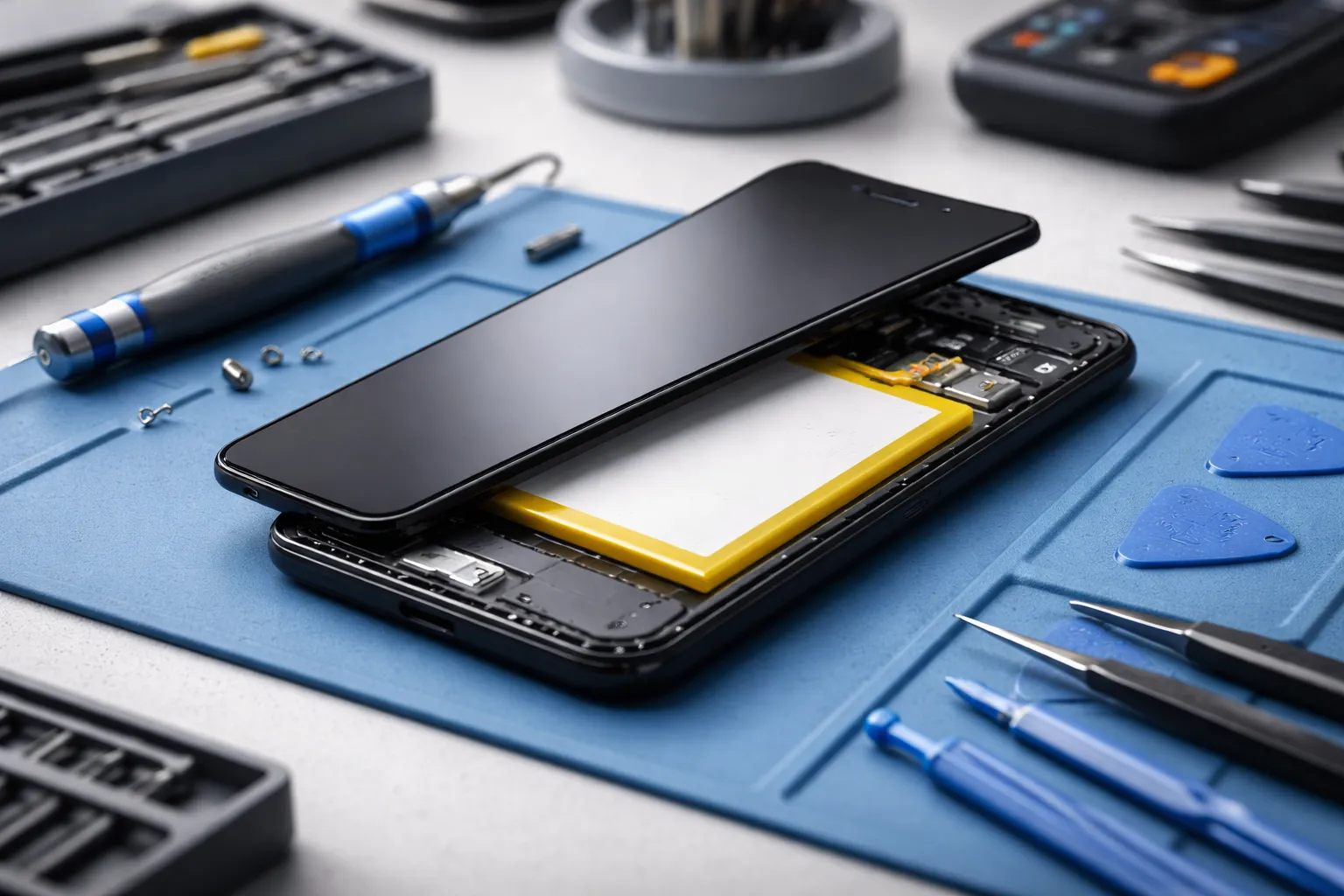
You should consider replacing your phone’s battery when basic optimization no longer improves battery life.
- Battery health below 75%: The phone can no longer hold enough charge for daily use.
- Random shutdowns: The phone turns off at 20–30% even without heavy usage.
- Abnormal battery drain: The battery drops rapidly even during light tasks like messaging.
Example: If your phone barely lasts half a day after full charge and shuts down unexpectedly, battery replacement will fix the issue more effectively than software tweaks.
Suggestion: If your phone is otherwise working fine, replacing the battery is far cheaper and smarter than upgrading to a new device.
9. Final Verdict
Battery health is often the real reason behind slow performance, heating, and fast battery drain on Android phones. Many users blame updates or apps, but the battery is usually the limiting factor.
Example: A phone that feels slow and drains quickly can feel almost new again after a battery replacement or proper charging habits.
Final advice: Check battery health first before resetting your phone or buying a new one. In many cases, proper battery care or replacement fixes issues that users often mistake as software problems, similar to those covered in our Android speed optimization guide.
Smart battery habits = better performance + longer phone lifespan.