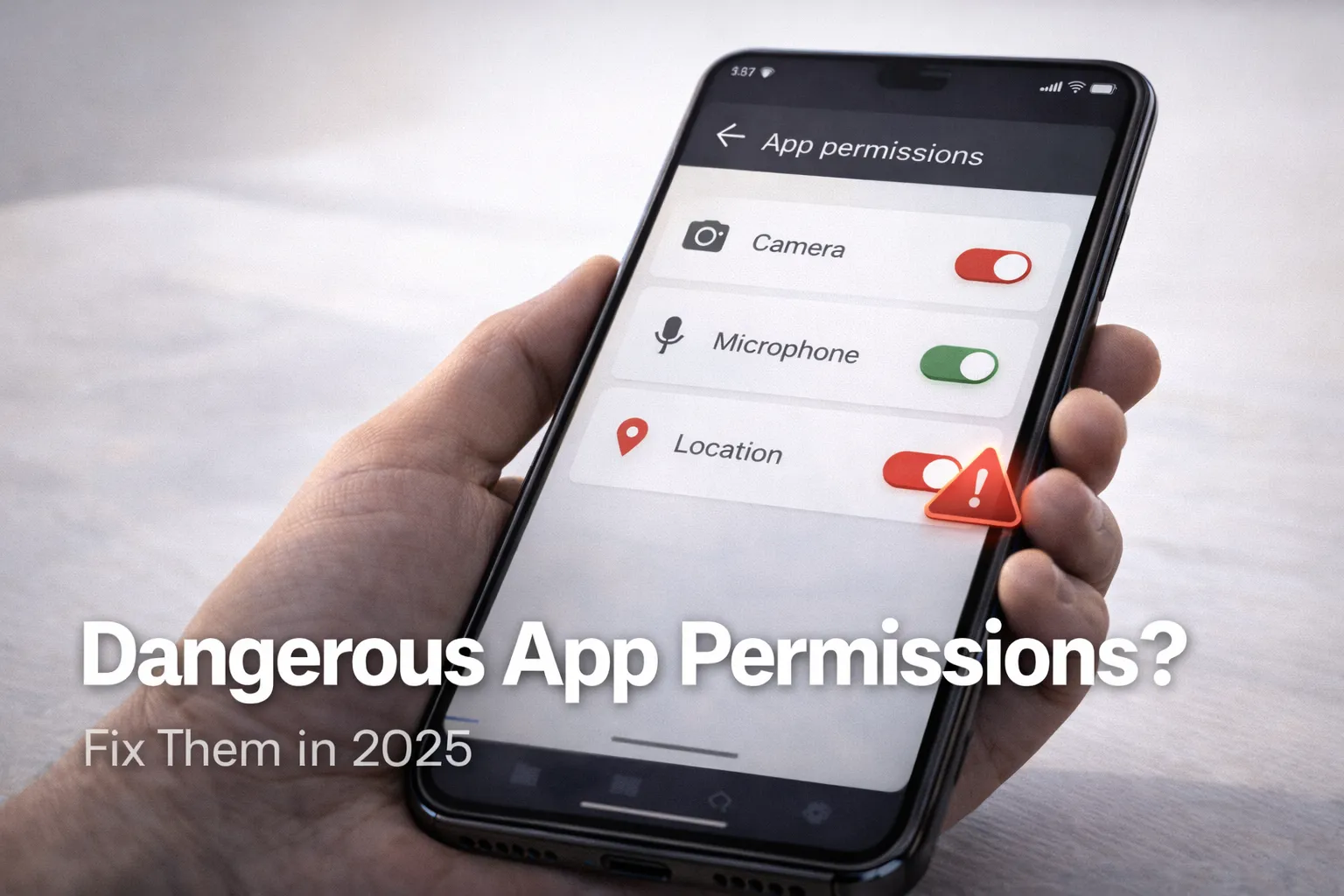
How to Check & Fix Dangerous App Permissions on Android (2025 Complete Guide)
Most Android users install apps quickly and rarely check what permissions they grant. Over time, this habit can quietly expose personal data, affect phone performance, and even create privacy risks. In this guide, you’ll learn how to check and fix dangerous app permissions on Android using simple built-in settings — no extra apps required.
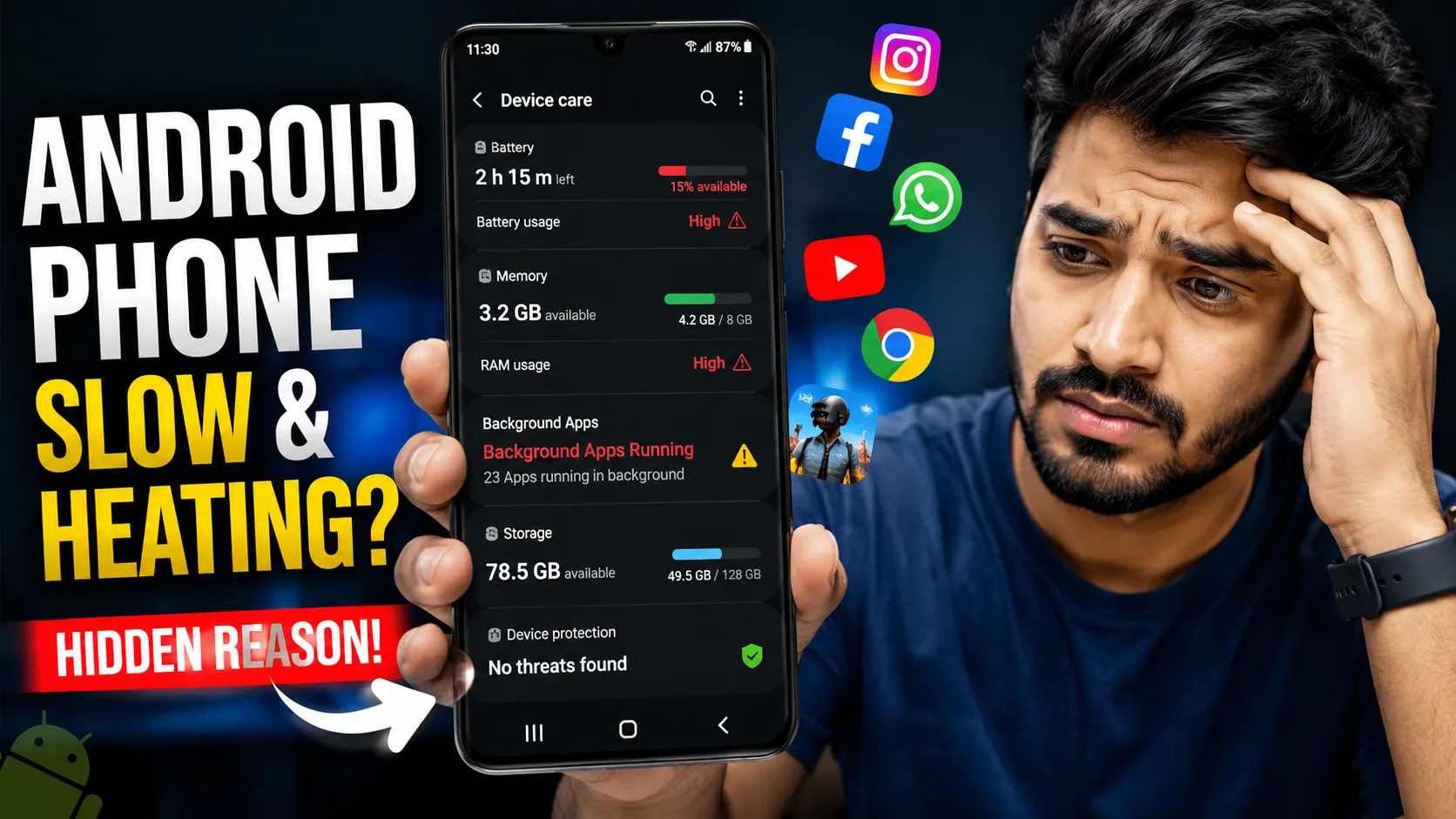
This guide is especially useful if you’ve ever felt your phone slowing down, heating up, or behaving oddly. If you want deeper security checks, you can also read our complete Android spying detection guide.
Table of Contents
- What Are Dangerous App Permissions?
- How to Open Permission Manager on Android
- How to Identify Risky or Unnecessary Permissions
- How to Revoke App Permissions Safely
- Check Special App Access Settings
- Remove or Replace Risky Apps
- Enable Built-In Android Security Features
- Final Thoughts
What Are Dangerous App Permissions?
Dangerous permissions are permissions that give apps access to sensitive parts of your phone. This includes your camera, microphone, location, contacts, messages, and stored files.
While navigation apps or camera apps may need certain access, many apps request more permissions than they realistically require. When left unchecked, this can lead to background tracking, data misuse, and unnecessary battery drain.
- Camera and microphone access
- Precise and background location
- Contacts and call logs
- Photos, videos, and file storage
- SMS and phone controls
How to Open Permission Manager on Android
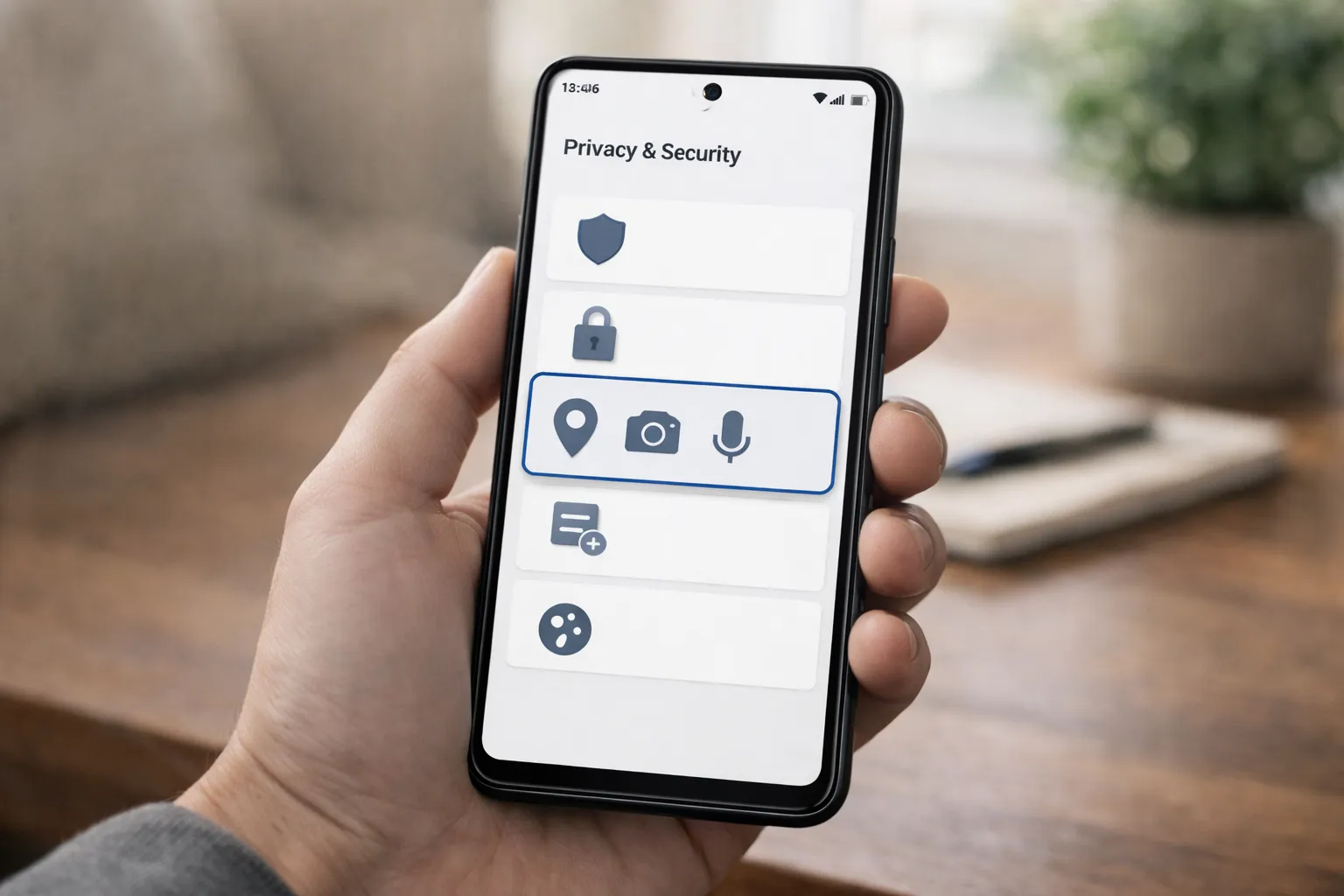
Android already gives you a clear way to review app permissions—you just need to know where to look. These steps work on most phones running recent Android versions (Android 12 and above).
- Open Settings
- Tap Privacy & Security
- Select Permission Manager
Here, permissions are grouped by type such as Camera, Location, Microphone, and Files. This layout helps you review access category-wise instead of checking apps one by one.
Example: If you open the Microphone section and notice a simple utility app (like a flashlight or scanner) listed there, that’s a sign to review or revoke its access.
Use case: This view is especially useful when your phone feels warm, battery drains faster than usual, or you suspect background activity without obvious reason. Checking permissions here often reveals the cause.
How to Identify Risky or Unnecessary Permissions
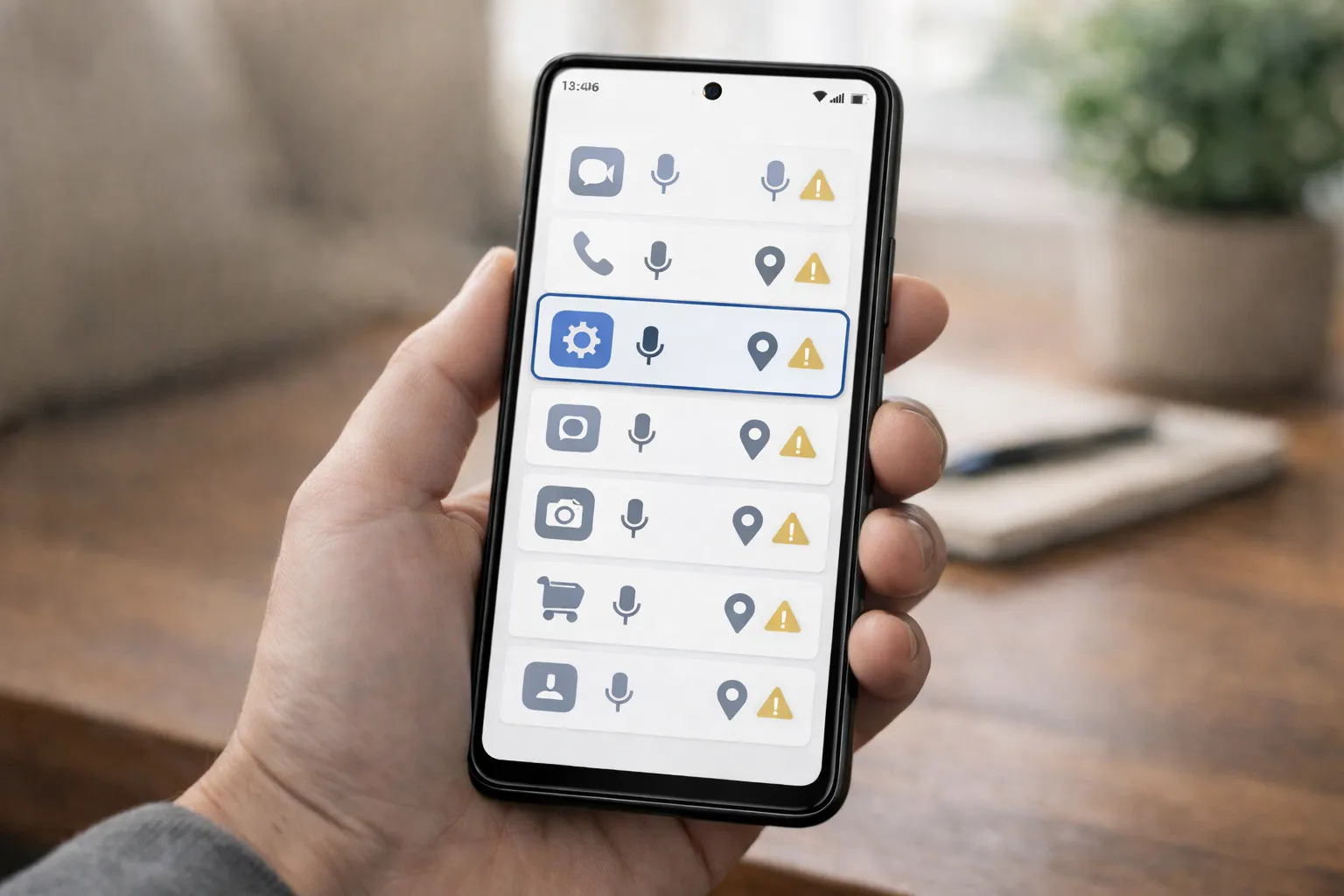
A simple way to judge permissions is to ask one question: does this permission actually match what the app does? If the answer feels unclear, it’s worth reviewing.
For example, a flashlight app doesn’t need camera access, and a wallpaper app has no reason to use your microphone. When apps ask for unrelated permissions, it often points to background tracking or unnecessary data collection.
Some common red flags to watch for:
- Utility or cleaner apps with location access set to “Allow all the time”
- Basic tools requesting contacts, call logs, or SMS permissions
- Apps you don’t recognize running in the background
Quick check: Tap any app in Permission Manager and see how often it uses access. If an app shows recent activity without you opening it, that’s a signal to restrict or remove it.
If your phone feels slow even with decent hardware, unchecked permissions can be part of the reason. You can read more here: why phones slow down even with high RAM.
How to Revoke App Permissions Safely
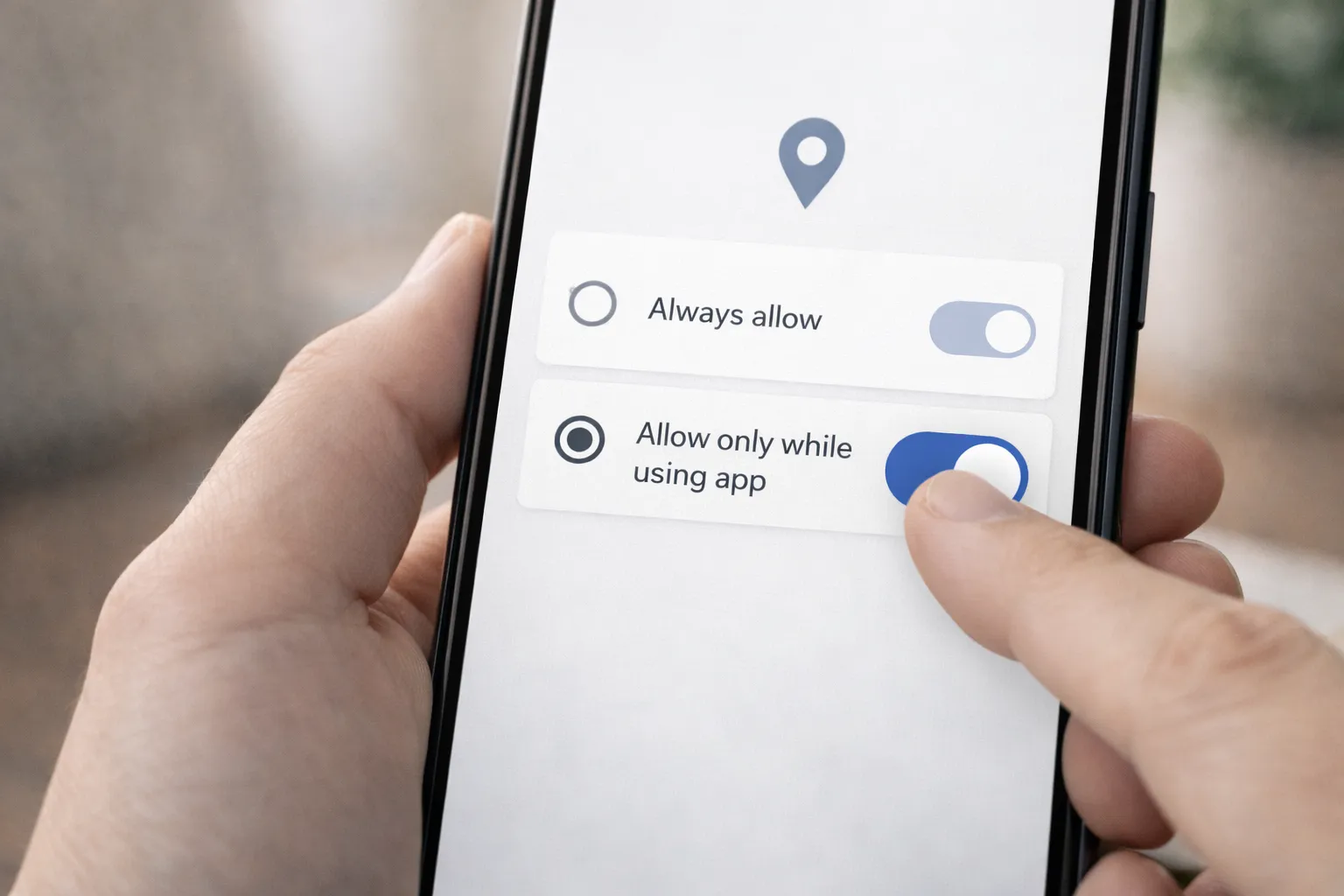
Many users hesitate to change permissions because they fear apps may stop working. In reality, most apps continue to function normally even after limiting access.
To revoke or adjust permissions safely:
- Open the app inside Permission Manager
- Tap the permission you want to change
- Select Don’t allow or Allow only while using the app
Example: A weather or delivery app may need location access, but setting it to “Allow only while using the app” is usually enough. There’s rarely a reason for such apps to track your location in the background.
As a general rule, background location access should be restricted whenever possible. Reducing unnecessary permissions also helps lower battery drain and unexpected heating.
If overheating is already an issue, this may help: why your phone overheats and how to fix it.
Check Special App Access Settings
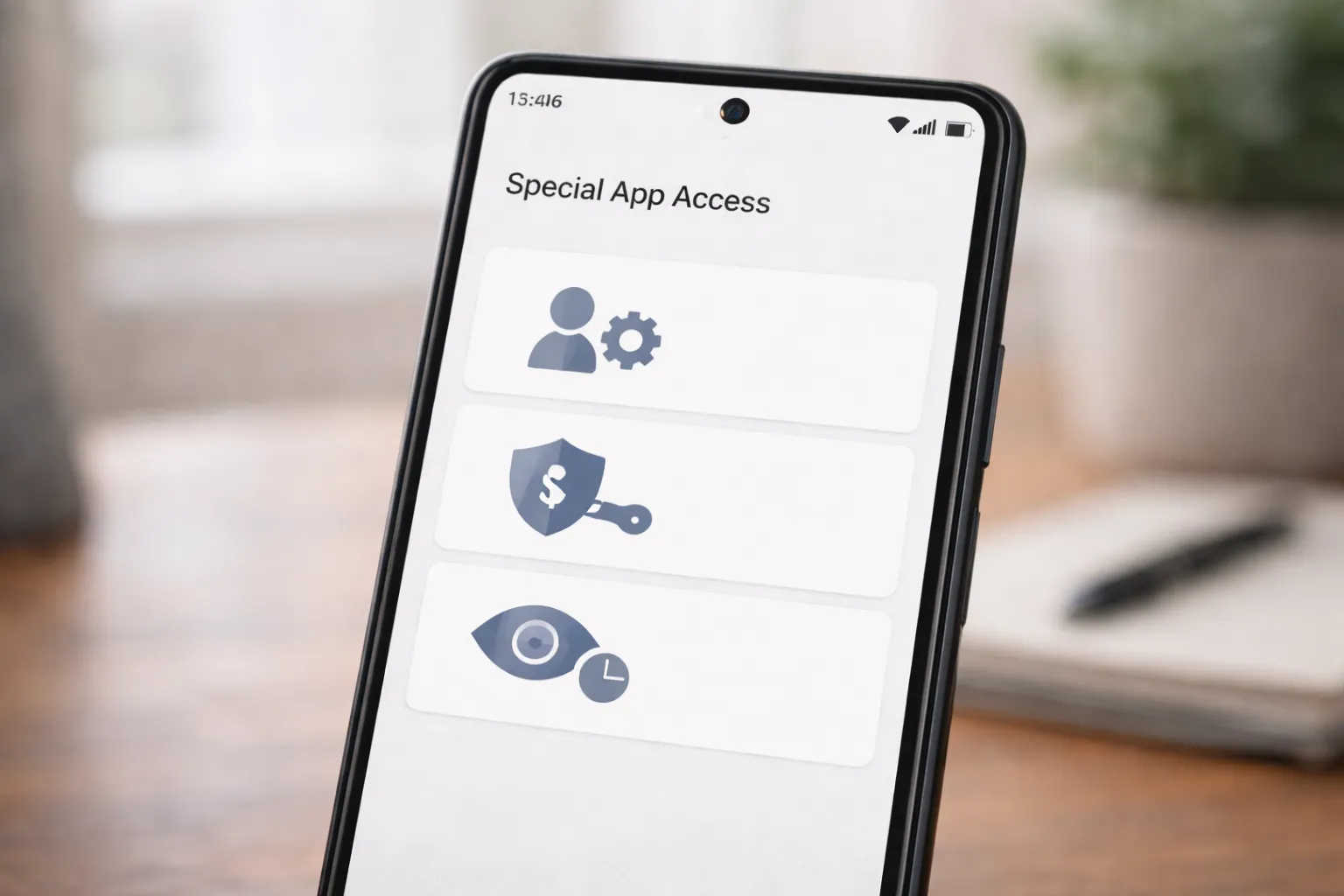
Some of the most sensitive permissions on Android are hidden under Special App Access, which many users never check. These settings control what apps can do at a deeper system level.
Go to: Settings → Privacy → Special App Access
Pay close attention to the following sections:
- Accessibility access
- Device admin apps
- Usage access
- Install unknown apps
Example: If you see a game, wallpaper, or utility app listed under Accessibility or Device Admin, that’s a red flag. These permissions are usually needed only by system tools or security apps.
Suggestion: Remove access from any app you don’t fully trust or recognize. If an app stops working after removal, it’s often a sign it was relying on unnecessary control.
If something feels off, you can dig deeper here: how to find hidden apps on Android.
Remove or Replace Risky Apps
If an app keeps asking for permissions it doesn’t need, it’s better to remove it. There are usually safer alternatives available on the Play Store.
- Uninstall apps you don’t trust
- Avoid modded or unofficial APKs
- Stick to well-reviewed developers
After uninstalling, it’s a good idea to clear leftover cache: clear cache to improve speed and storage.
Enable Built-In Android Security Features
Android already includes strong protection tools — you just need to enable them. Make sure these are turned on:
- Google Play Protect
- Android Anti-Theft Protection
- Privacy dashboard alerts
Step-by-step instructions are available here: enable Android anti-theft protection.
Final Thoughts
Checking app permissions isn’t something you need to do every day, but reviewing them once a month can make a big difference. It helps protect your privacy, improves performance, and reduces hidden risks.
For more practical Android guides, visit our How-To section on TrendsWheel and keep your phone running safely and smoothly.