How to See Saved WiFi Password on Android (Without Root) – Complete 2026 Guide
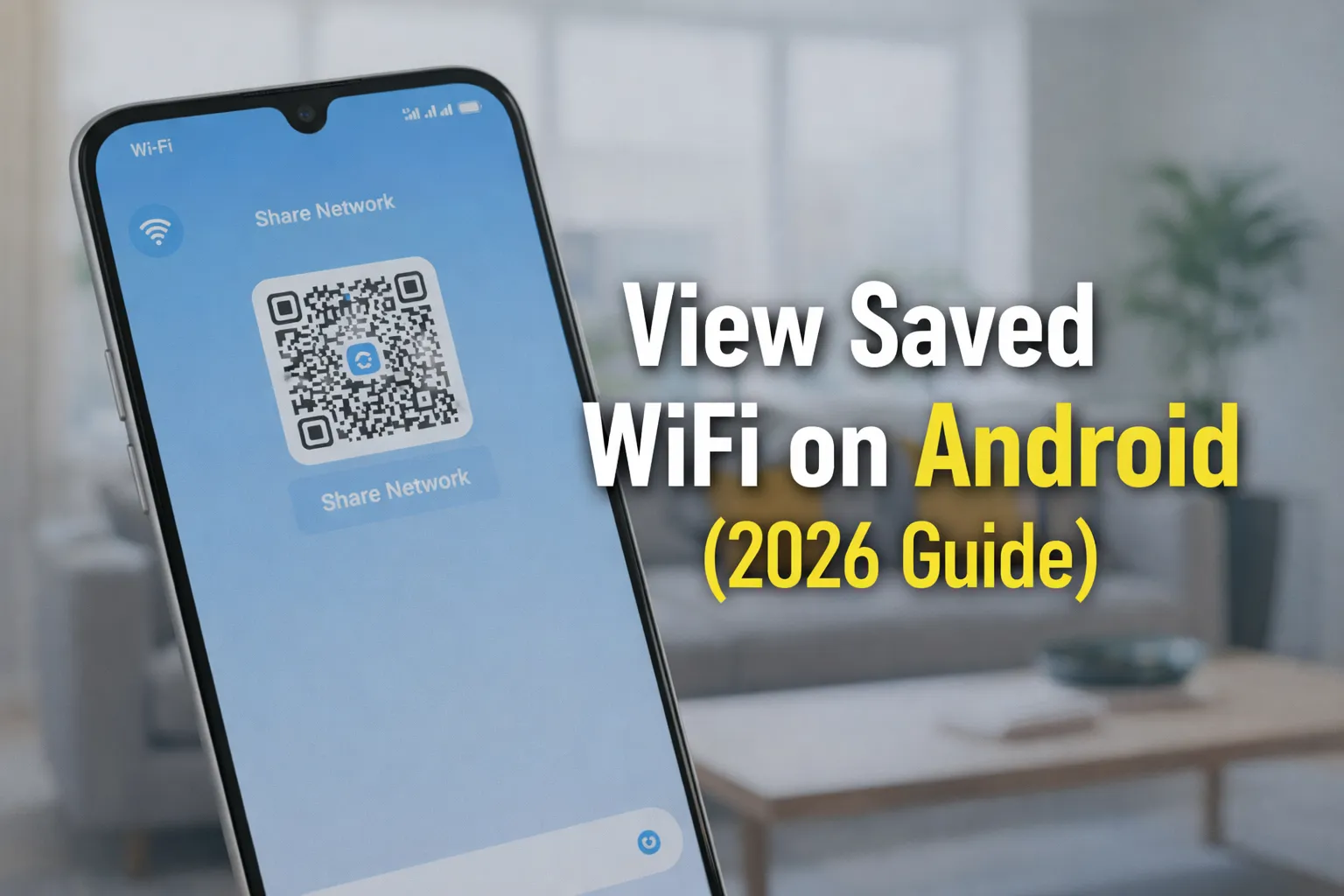
Want to see your saved WiFi password on Android without root access? If your phone is already connected to a wireless network but you forgot the password, you can still view or recover the saved WiFi password directly from Android settings. Modern Android versions (Android 10 to Android 16) include a built-in feature that allows users to check saved WiFi passwords securely using authentication methods like fingerprint, PIN, or face unlock.
Many users search for ways to view saved WiFi passwords without rooting their device or installing risky third-party apps. Fortunately, Android provides a safe, official method through its QR code sharing system and network settings. This eliminates the need for technical tools, system modifications, or router resets.
In this complete 2026 guide, you’ll learn how to see saved WiFi passwords on Android step-by-step, understand why Android hides network credentials by default, and discover the safest methods to recover your WiFi password without compromising device security.
📌 Table of Contents
- 1. Overview
- 2. Why Android Hides Saved WiFi Passwords
- 3. The Security Architecture Behind It
- 4. Why This Becomes a Real Problem
- 5. Who Commonly Needs This Feature
- 6. Method 1: QR Code Method (Android 10+)
- 7. Method 2: Using Nearby Share / Share Network
- 8. Method 3: Google Account Backup Restore
- 9. Method 4: Router Admin Panel Method
- 10. Differences Across Android Versions
- 11. Common Mistakes to Avoid
- 12. Advanced Security Tips
1. Overview
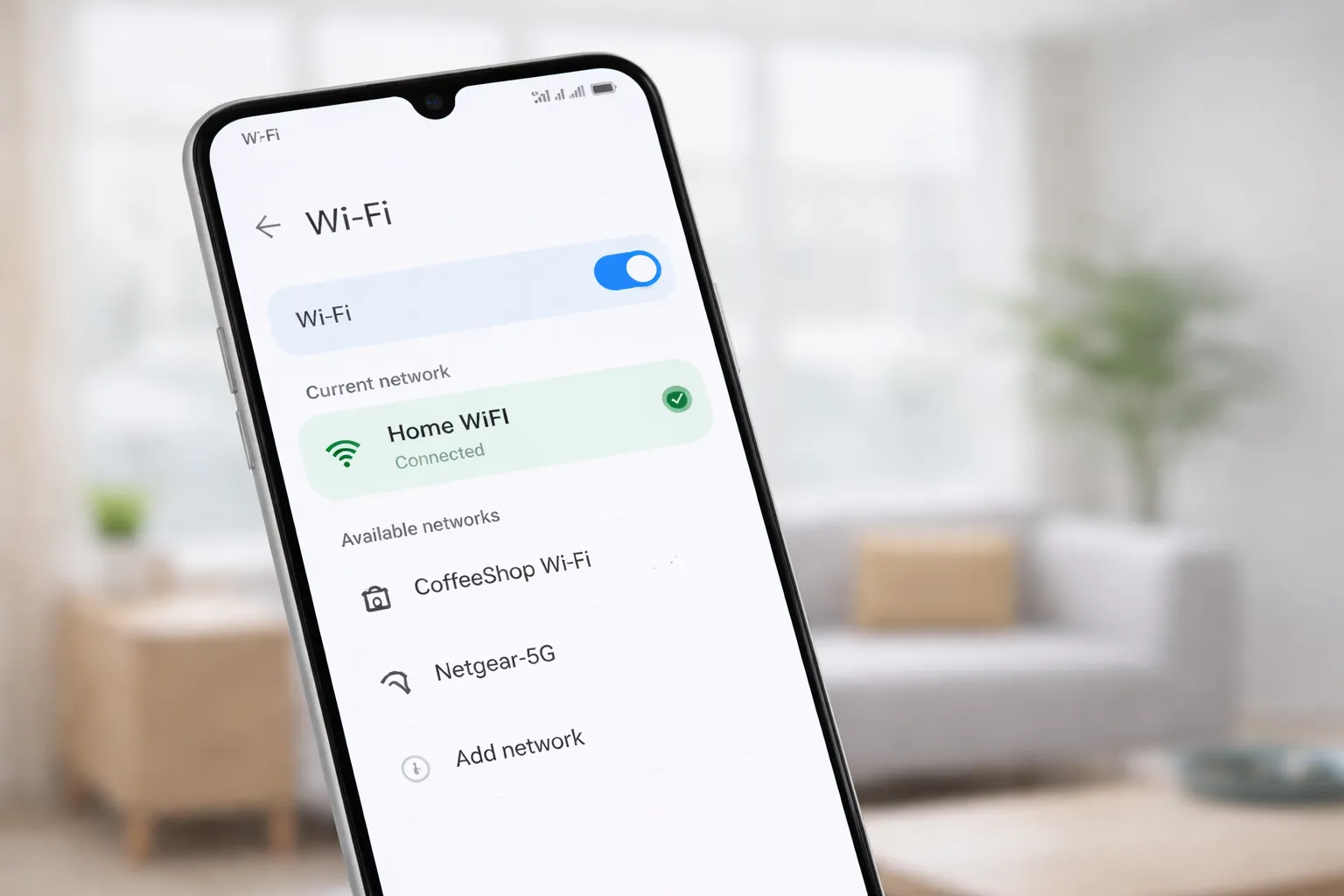
Forgetting your WiFi password is more common than you think. Most Android users connect to a network once and never need to enter the password again. But when you switch to a new phone, connect a laptop, or set up a smart TV, you suddenly need that password — and it’s nowhere to be found.
Thankfully, Android 10 and above allows users to see saved WiFi passwords without rooting their device. Google introduced a built-in sharing feature that securely displays saved credentials after verifying your identity using a PIN, fingerprint, or face unlock.
This means you don’t need:
- Third-party “WiFi password viewer” apps
- Risky rooting procedures
- Complicated technical tools
- Router resets just to recover access
Instead, Android generates a secure QR code inside WiFi settings. After authentication, the password is revealed in plain text on supported versions (Android 10–16). This balances convenience with strong device-level security.
Your WiFi credentials remain encrypted and hidden unless you verify your identity. This prevents unauthorized access if someone temporarily uses your unlocked device.
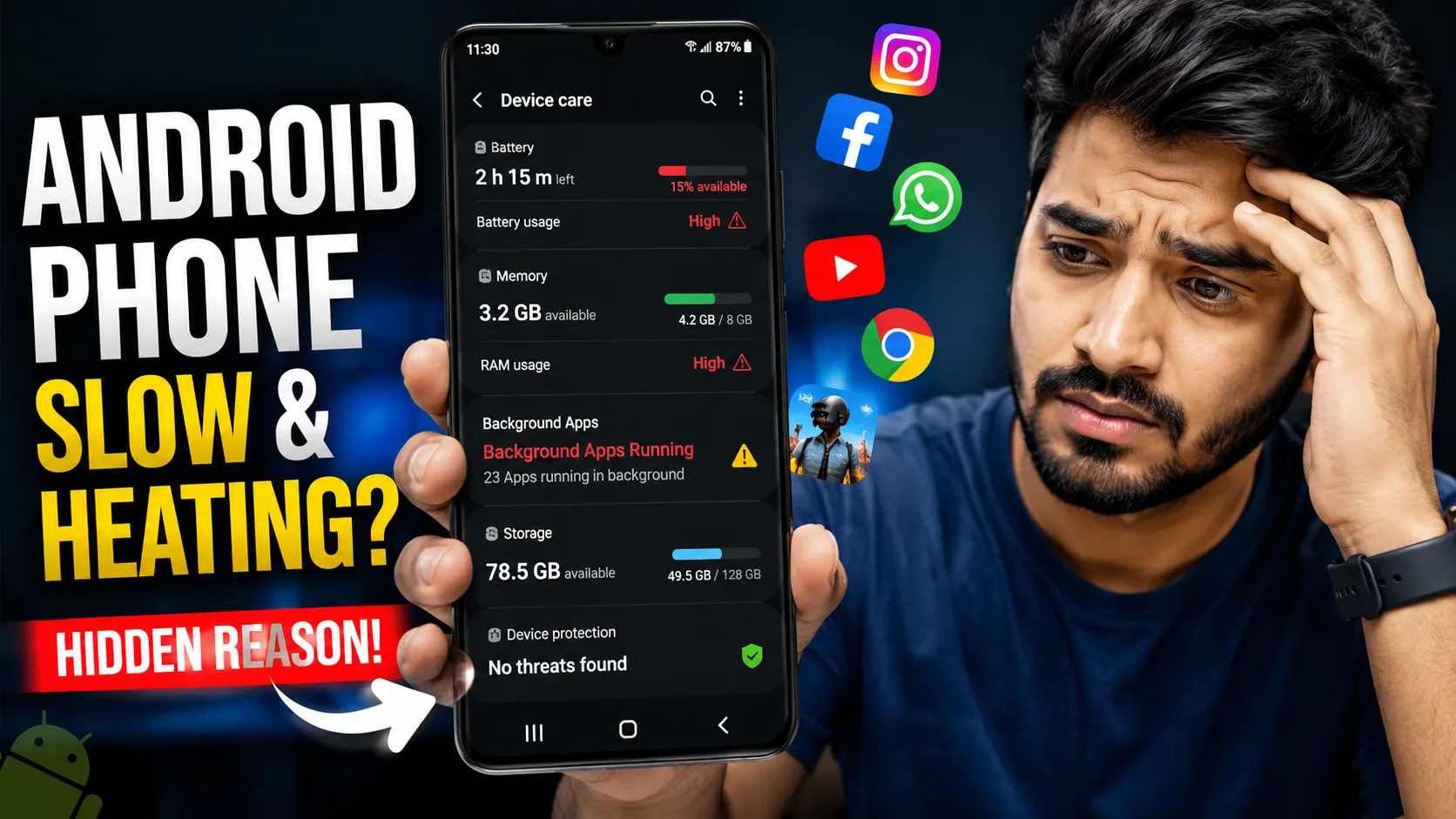
If your phone feels slow while navigating system settings, you can also improve performance by following our guide on how to speed up your Android phone.
In the next sections, we’ll explain why Android hides WiFi passwords by default, why this sometimes creates inconvenience, and the safest step-by-step methods to view or recover them.
2. Why Android Hides Saved WiFi Passwords
Android hides saved WiFi passwords by default to protect users from security and privacy risks. While it may seem inconvenient at times, this restriction is intentionally designed to prevent unauthorized access to your network credentials.
If WiFi passwords were openly visible inside device settings, anyone who briefly accesses your unlocked phone could copy the password and misuse your internet connection. This could lead to network congestion, data theft, or even unauthorized activity traced back to your IP address.
To prevent such scenarios, Android stores WiFi credentials in encrypted system storage that requires authentication before revealing sensitive information.
This security approach helps:
- Prevent unauthorized WiFi sharing
- Reduce hacking and network intrusion risks
- Protect personal data transmitted over your network
- Secure connected devices like smart TVs, laptops, and IoT gadgets
Modern Android versions use device-level authentication such as PIN, fingerprint, or face unlock before allowing access to saved WiFi passwords. This ensures that only the verified device owner can view or share network credentials.
In short, Android prioritizes encryption and user verification over convenience. Although this may create minor inconvenience when you forget your WiFi password, it significantly improves overall device and network security.
3. The Security Architecture Behind It
Android does not store WiFi passwords in plain text that users can freely access. Instead, saved WiFi credentials are encrypted and stored inside protected system files. Access to this data requires device-level authentication such as a PIN, fingerprint, or face unlock.
This security architecture ensures that even if someone temporarily uses your unlocked phone, they cannot directly extract network credentials without verification. The goal is to balance usability and protection.
Starting from Android 10, Google introduced a QR-based sharing mechanism. Instead of simply displaying the password, the system:
- Generates a secure QR code containing encrypted WiFi details
- Requires biometric or PIN authentication before showing credentials
- Prevents background apps from reading saved network data
- Keeps credentials protected within Android’s secure storage layer
This approach aligns with modern digital identity and authentication standards outlined in the NIST Digital Identity Guidelines, which emphasize strong user verification before granting access to sensitive information.
By using encrypted storage and verified access controls, Android reduces the risk of credential theft, malware exploitation, and unauthorized network access. It also ensures that saved WiFi passwords remain protected across system updates and device migrations.
If you want to explore more about Android’s built-in privacy and permission controls, read our detailed guide on Android Privacy Dashboard.
4. Why This Becomes a Real Problem
While Android hides saved WiFi passwords to improve security, this protection can become inconvenient in everyday situations. Most users connect to a WiFi network once and rarely think about the password again. But when you suddenly need it, not being able to see the saved WiFi password can feel frustrating.
This issue commonly appears in real-life scenarios such as:
- Connecting a new Android phone after an upgrade
- Setting up a laptop, tablet, or smart TV
- Sharing WiFi access with friends or family
- Router sticker password becoming faded or unreadable
- Changing the password months ago and forgetting it
In many homes and offices, the WiFi router is installed in a hidden or hard-to-reach location. Resetting the router just to recover the password can disconnect all connected devices, including smart home gadgets, CCTV cameras, and streaming devices.
Another common problem is when users rely on auto-connect features for years. Since Android automatically reconnects to known networks, people forget the actual credentials entirely.
Instead of performing a full router reset, reinstalling devices, or calling your internet provider, using Android’s built-in WiFi sharing feature is a much faster and safer solution. It allows you to view or share the saved WiFi password securely without compromising device security.
Understanding why this becomes a problem helps you choose the safest recovery method without taking unnecessary risks.
5. Who Commonly Needs This Feature?
Most Android users don’t think about their WiFi password until they urgently need it. Since devices automatically reconnect to saved networks, the actual password is rarely remembered. However, certain users frequently need to view saved WiFi passwords without root access.
This feature becomes especially useful for:
- Students living in hostels or shared apartments who often connect multiple devices like laptops, tablets, and gaming consoles.
- Office employees and remote workers setting up work laptops, printers, or meeting room devices.
- Home users installing smart TVs, CCTV cameras, or Alexa/Google Nest devices.
- People upgrading to a new Android phone and wanting quick access to their existing WiFi network.
In many cases, the router is placed in a different room, mounted on a wall, or stored in a cabinet. The original WiFi password sticker may be faded or replaced after previous password changes. Instead of resetting the router and reconnecting every device again, accessing the saved WiFi password directly from Android settings saves time and effort.
This feature is particularly helpful for users who manage multiple devices in a household or workspace. It eliminates unnecessary technical steps while keeping network credentials secure.
If you regularly connect new devices, it’s also a good idea to review your Google Account security checklist to ensure your saved networks and backups remain protected.
6. Method 1: QR Code Method (Android 10+)
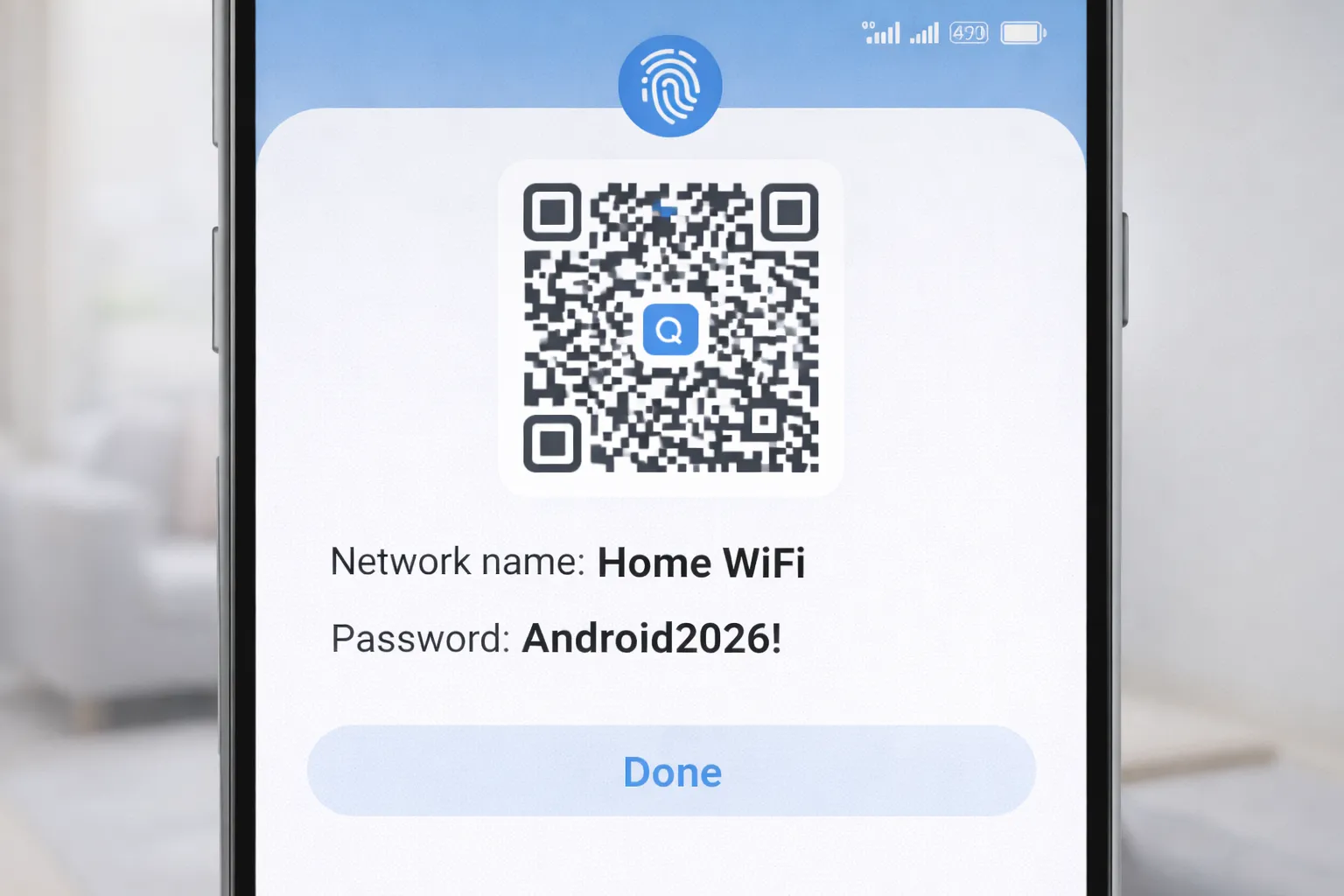
This is the safest and easiest way to see your saved WiFi password on Android devices running Android 10 or later.
- Open Settings
- Go to Network & Internet → Internet/WiFi
- Tap the connected network
- Select Share
- Verify using fingerprint, PIN, or Face unlock
Your WiFi password will appear below the QR code in plain text.
This built-in sharing feature uses device authentication (PIN, fingerprint, or face unlock) to ensure only the verified user can access the saved network credentials.
7. Method 2: Using Nearby Share / Share Network
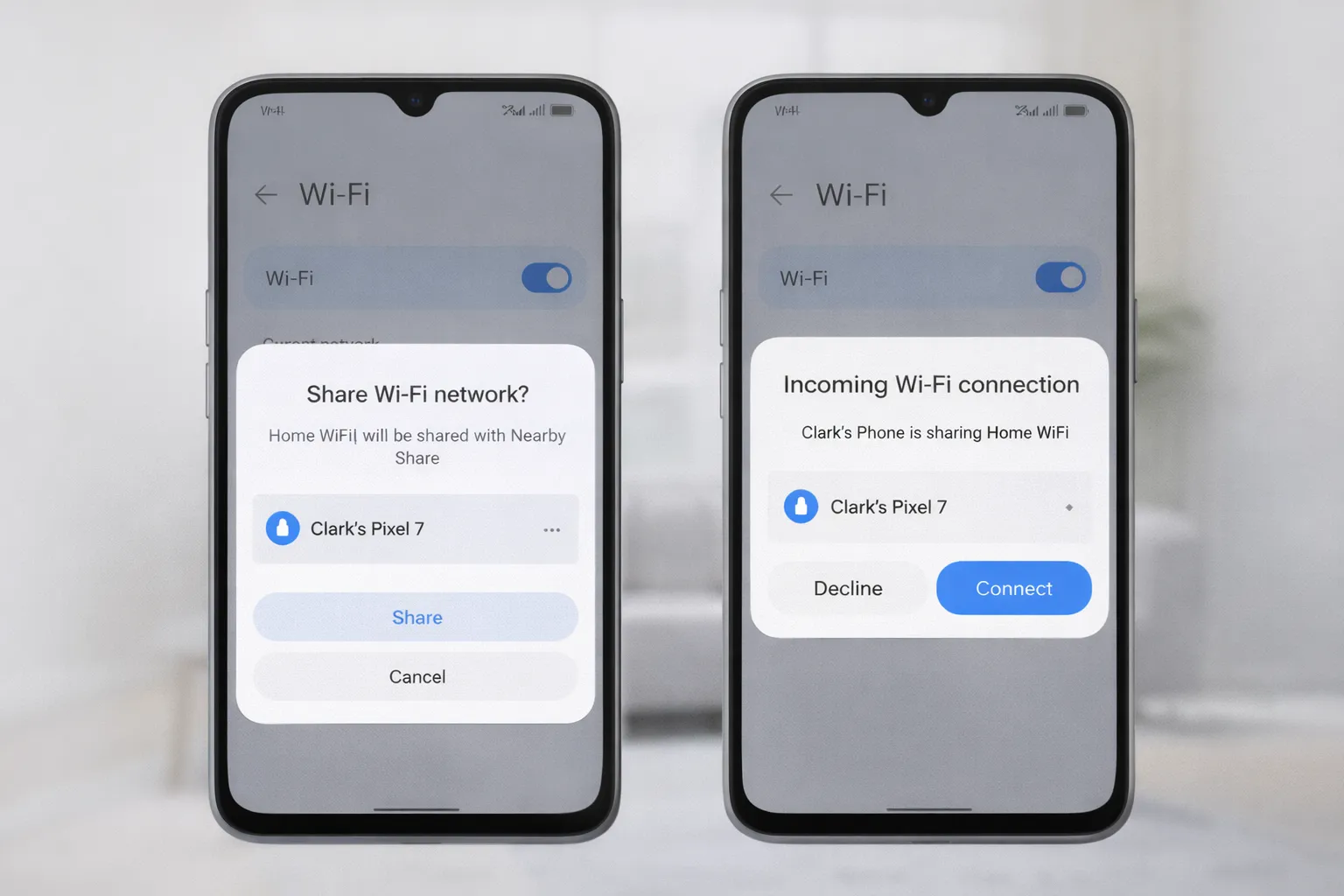
In addition to the QR code method, some Android devices allow you to share a saved WiFi network directly with another Android phone using Nearby Share (also called Quick Share on certain devices). This method is especially useful when both devices are physically close to each other.
Instead of manually typing the WiFi password, Android securely transfers the network credentials between devices after authentication.
Here’s how to use this feature:
- Open Settings on your Android phone
- Go to Network & Internet → WiFi
- Select the currently connected WiFi network
- Tap Share
- Choose Nearby Share / Quick Share
After verifying your identity (PIN, fingerprint, or face unlock), your phone will search for nearby compatible devices. Once selected, the receiving Android device connects automatically — no need to enter the WiFi password manually.
This method is secure because the password is not displayed publicly. Instead, Android transfers the encrypted network credentials directly between devices.
Nearby Share works best when:
- Both devices have WiFi and Bluetooth enabled
- Devices are within close physical range
- Both phones are running modern Android versions
If you want to understand how Android controls network access and permissions, read our Android Privacy Dashboard guide for a deeper look at system-level privacy tools.
8. Method 3: Google Account Backup & Restore
If WiFi backup is enabled, Android automatically saves your network credentials to your Google account. This makes it easier to restore saved networks when switching to a new device.
- Go to Settings → Google → Backup
- Enable WiFi network backup
- Log into a new Android device using the same Google account
Your saved WiFi networks will restore automatically during device setup, so you don’t need to manually re-enter passwords.
This process uses secure account authentication and encrypted backup systems to protect your network credentials during transfer.
9. Method 4: Router Admin Panel Method
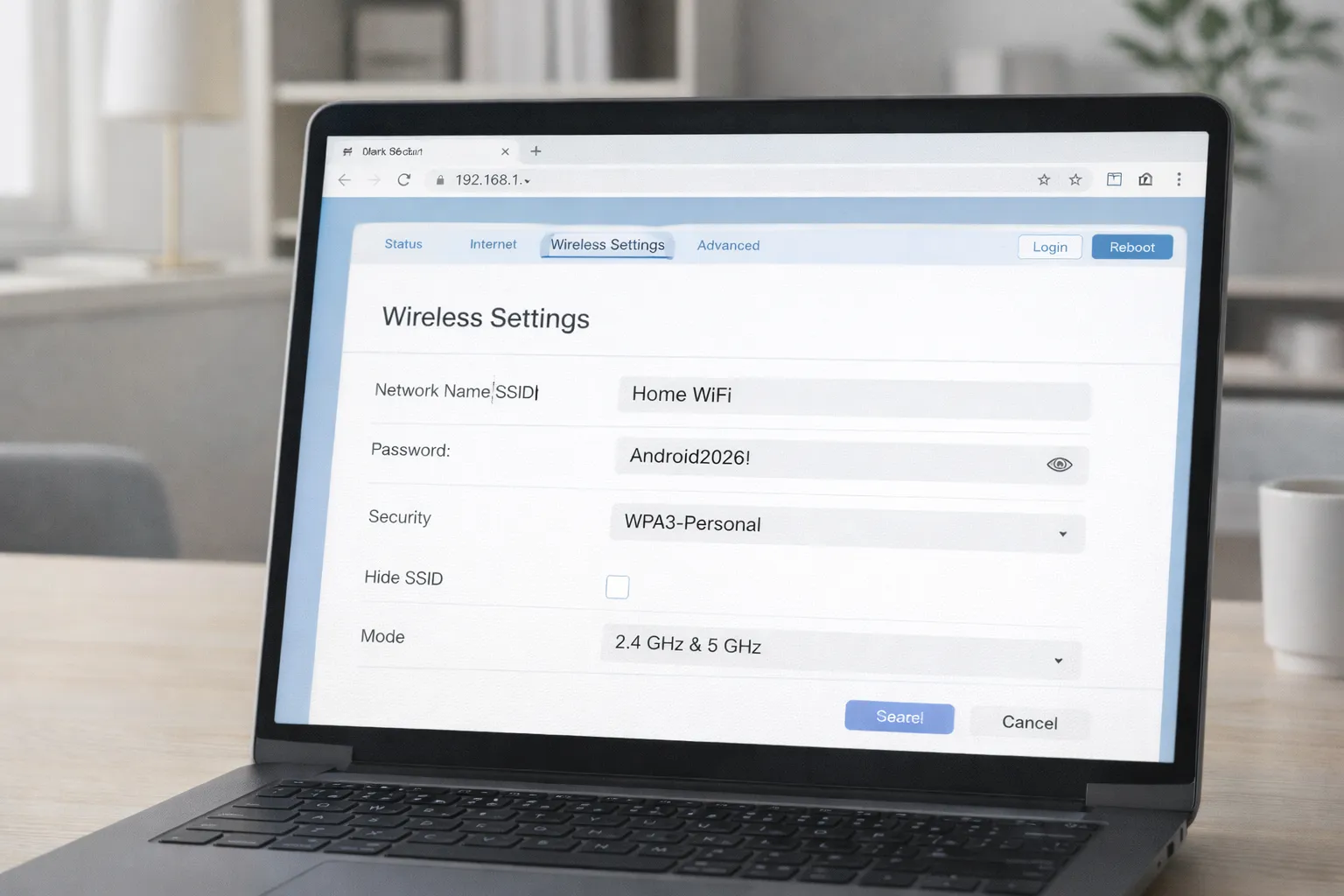
If the QR code option is unavailable or your Android device does not show the saved WiFi password, you can recover it directly from your router’s admin panel. This method works on any Android version because it does not rely on phone software — instead, it accesses the source of the network itself.
Your WiFi router stores the original network name (SSID) and password. By logging into the router dashboard, you can view or reset the WiFi password safely.
Follow these steps:
- Open a web browser on your phone or computer
- Type 192.168.1.1 or 192.168.0.1 in the address bar
- Enter your router’s admin username and password
- Go to Wireless or WiFi Settings
- Locate the current WiFi password (sometimes labeled as Security Key)
If you have never changed your router login credentials, check the label printed on the back or bottom of the router. However, for security reasons, it’s strongly recommended to update default admin passwords immediately after accessing the dashboard.
Resetting the WiFi password should be your last option, as it disconnects all connected devices and requires reconfiguration.
For best practices on securing your home network and router configuration, refer to guidance provided by the Cybersecurity & Infrastructure Security Agency (CISA).
Using the router admin panel is a reliable fallback method when Android’s built-in sharing feature is not available.
10. Differences Across Android Versions
The ability to view saved WiFi passwords depends on your Android version:
- Android 9 & below: No built-in password viewer
- Android 10–13: QR code sharing available
- Android 14–16: QR code + visible plain text password
If you’re unsure about your Android version, you can check it easily in settings. Also, keeping your device updated improves privacy and security. Learn more in our phone security guide.
11. Common Mistakes to Avoid
Many users make risky decisions when trying to recover saved WiFi passwords. Avoiding these mistakes will keep your device and network secure.
- Installing fake “WiFi password viewer” apps from unknown sources
- Rooting the device unnecessarily just to access passwords
- Sharing WiFi password screenshots publicly
- Keeping default router admin credentials unchanged
Weak authentication practices and careless sharing can expose your network to unauthorized access. Always rely on built-in Android features and secure router settings instead of third-party tools.
12. Advanced Security Tips
Once you recover your WiFi password, strengthen your network security:
- Enable WPA3 encryption in router settings
- Use a 12+ character strong password
- Disable WPS if not required
- Regularly review connected devices
For better device-level privacy, read our Android Privacy Dashboard guide to monitor app access and permissions.
Stay updated with more Android security and tech guides on TrendsWheel.