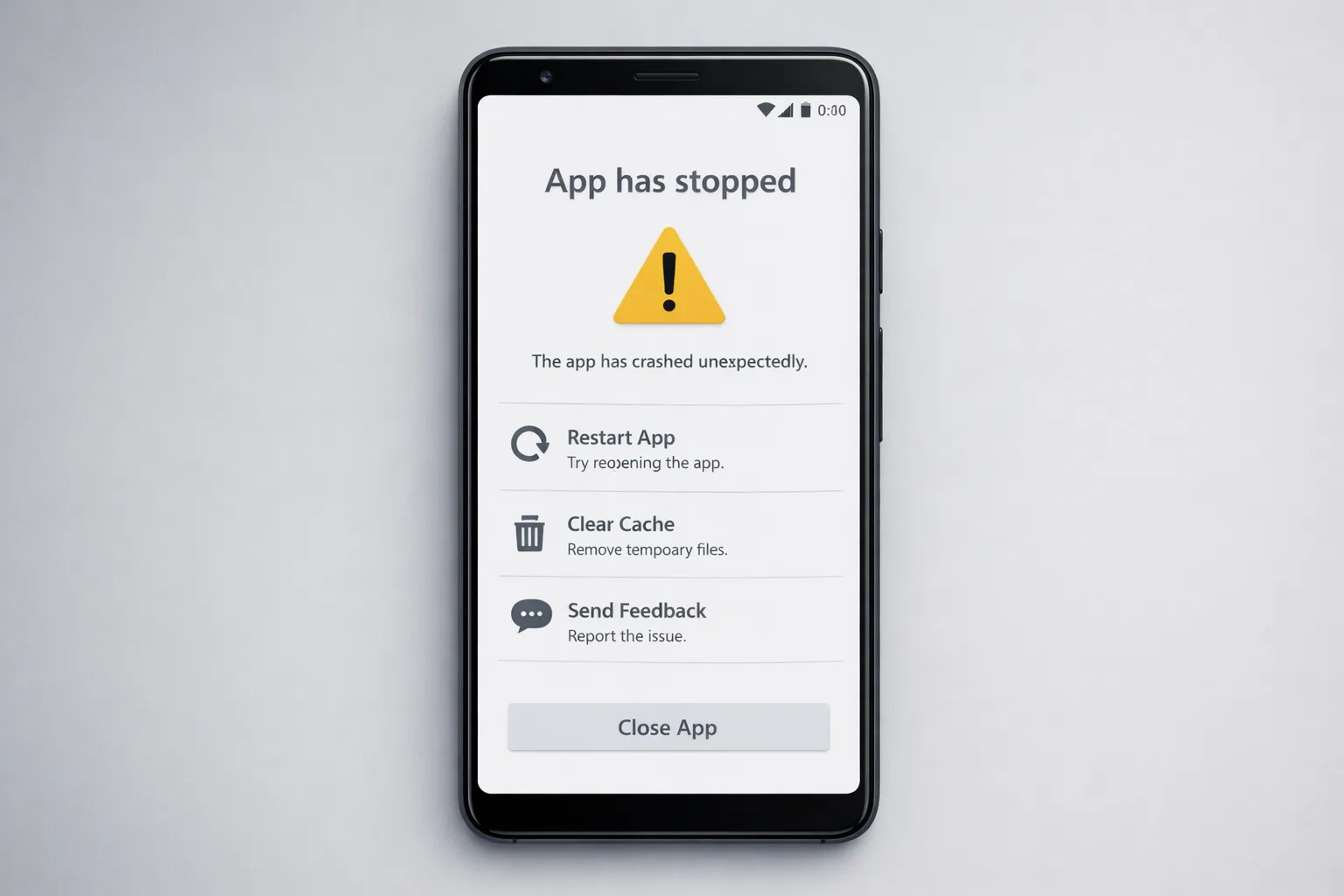
How to Fix App Crashes on Android: Step-by-Step Guide (2025)
App crashes on Android can interrupt work, media, or gaming unexpectedly. While quick fixes like restarting often help, persistent crashes usually indicate deeper performance or system-level issues. If your device feels slow overall, you should also review this complete guide on how to speed up your Android phone in 2025.
This guide takes you from simple checks to advanced diagnostics (safe ADB commands and logs), plus a practical maintenance plan so you can reduce crash frequency and improve app stability without needing developer-level skills.
📑 Table of Contents – Android App Crash Fix Guide
- Symptoms & When to Worry
- Quick Fixes — The Fast 5
- Diagnostic Workflow — One Step at a Time
- Advanced: ADB & Logcat (Safe)
- Real Examples & Mini Case Studies
- How to Report the Bug
- 30-Day App Stability Plan
- KPIs: Measuring Improvements
- Recommended Tools
- Related Guides
- Final Checklist
1. Symptoms & When to Worry
Not every app hiccup is a serious crash. Identifying the pattern helps you decide whether it’s an app bug, a memory issue, or a system performance problem.
- Force close pop-ups or sudden app exits
- Frequent freezes before closing
- App restarts repeatedly on launch
- Crashes during specific actions (camera, upload, video playback)
- Crashes after Android or app updates
If crashes happen even on powerful phones, this explanation on why phones feel slow despite high RAM helps explain the root causes.
2. Quick Fixes — The Fast 5
- Restart the device — clears temporary system states.
- Force stop and reopen — resets the app process.
- Update the app — many crashes are fixed via updates.
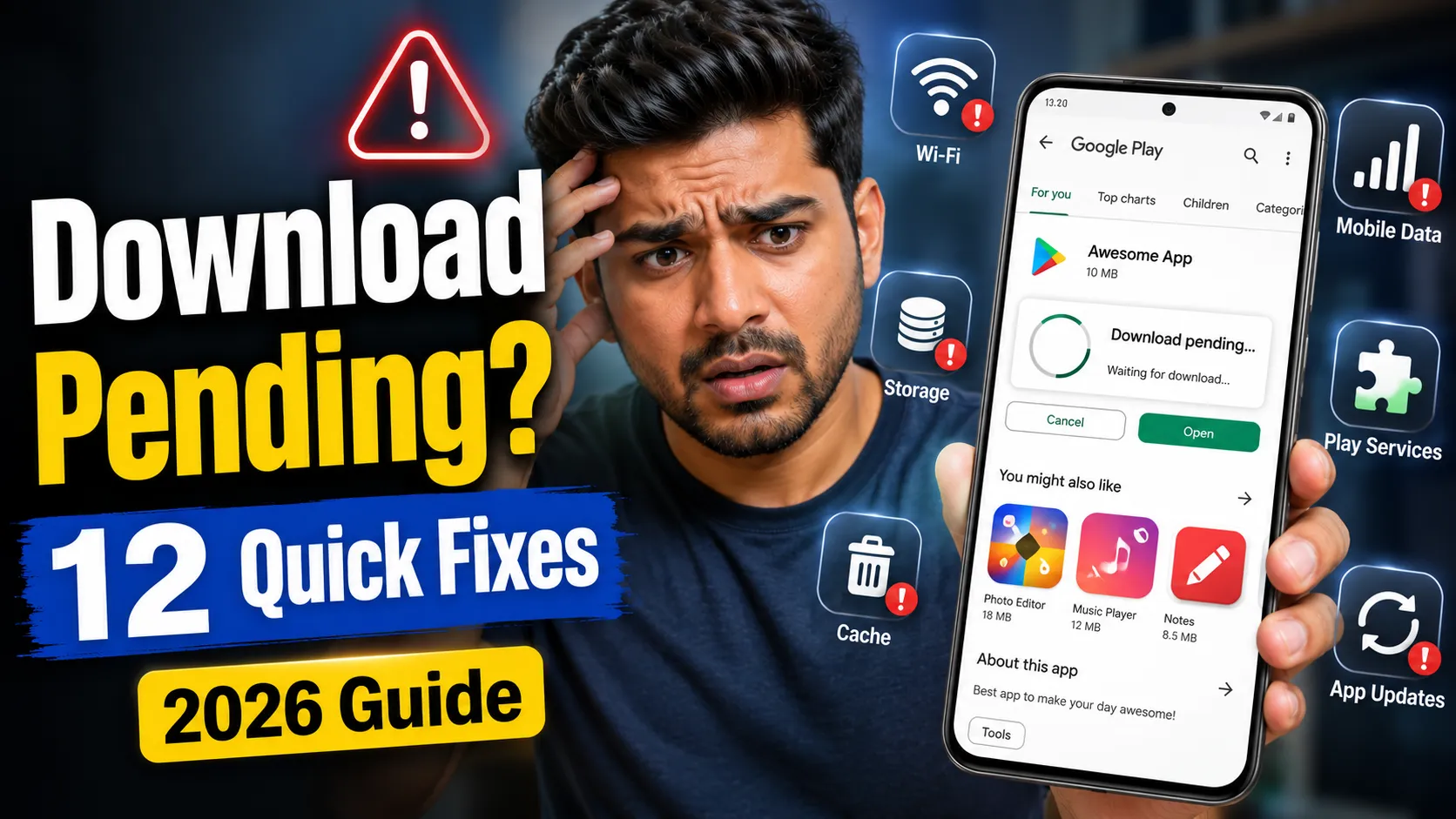
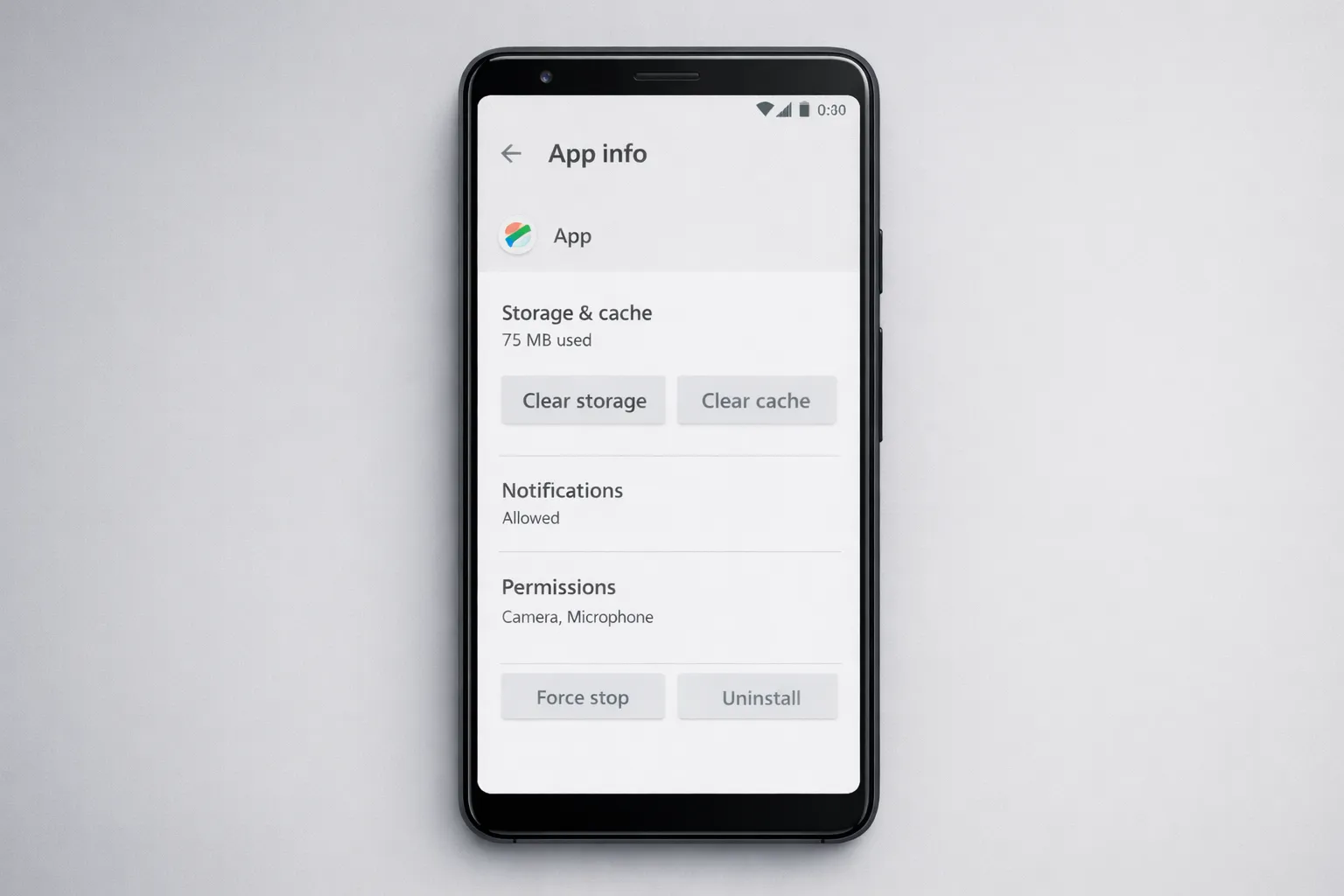
- Clear cache — corrupted cache is a common reason for crashes. Follow this safe guide on how to clear cache on Android .
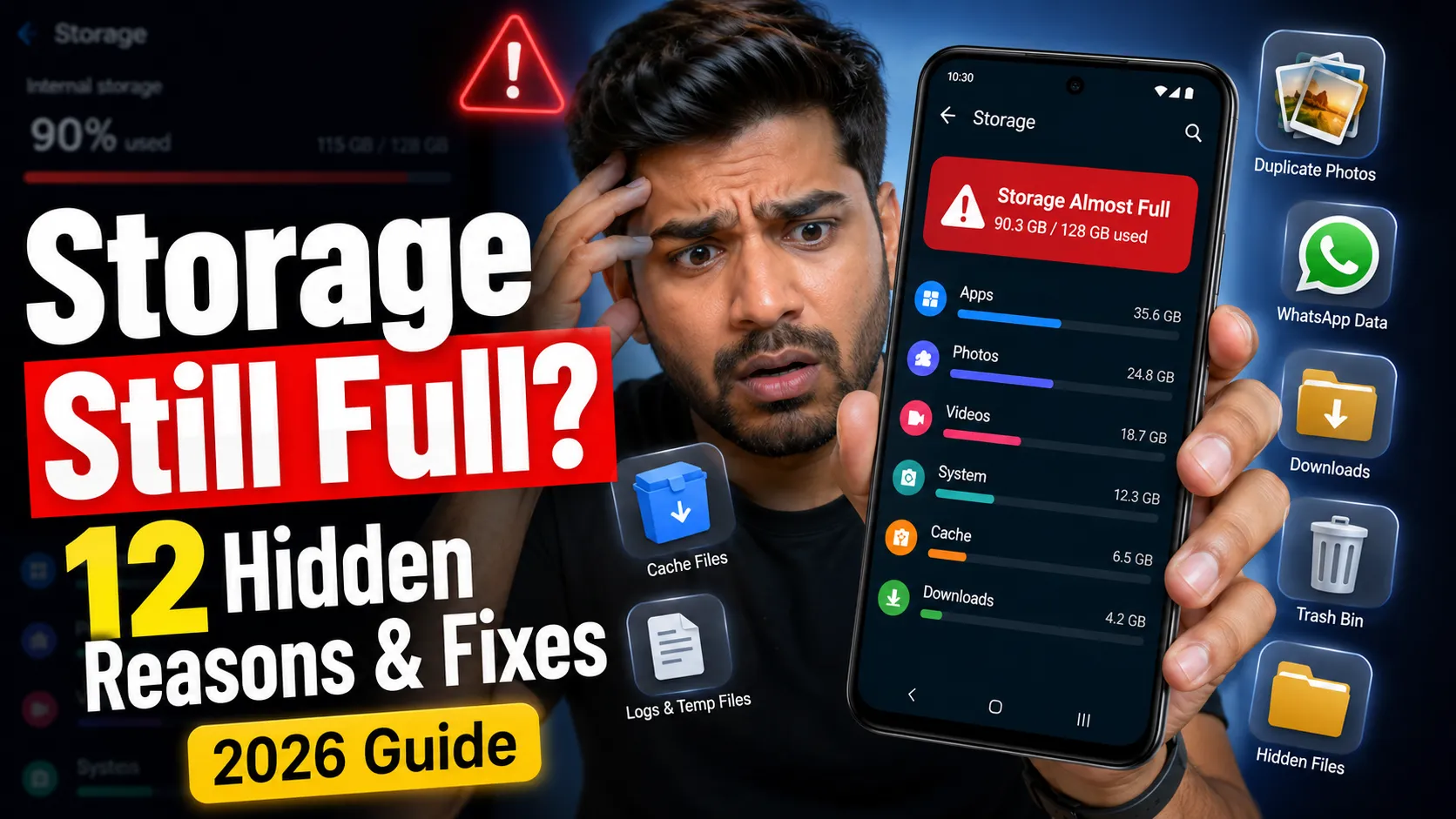
- Check storage — keep at least 10–15% free storage.
3. Diagnostic Workflow — One Step at a Time

Use this workflow to isolate the cause without losing important data.
Step A — Reproduce and note steps
Document the exact steps, Android version, app version, and network type. Reproducible crashes are much easier to fix or report.
Step B — App-specific checks
- Check recent Play Store reviews for similar complaints.
- Inspect app cache size — unusually large cache often causes instability.
Step C — Network & account issues
If crashes happen only online, test airplane mode or switch networks. Server-side changes often trigger crashes in social, banking, or streaming apps.

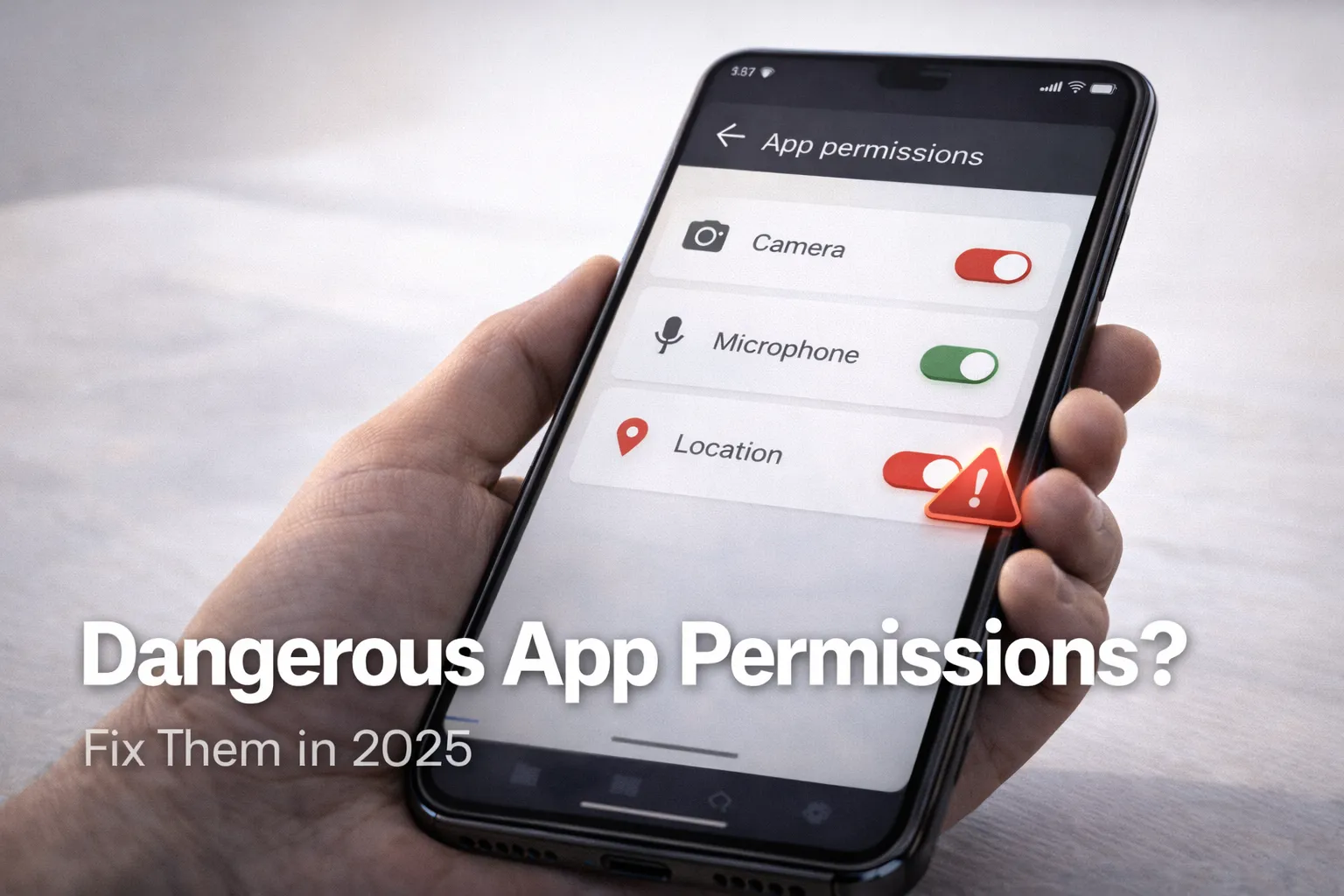
Step D — Permissions & battery restrictions
Missing permissions or aggressive battery optimization can kill background services. Also consider whether virtual memory features like RAM expansion on Android are affecting performance.
Step E — Reinstall vs Clear Data
Reinstall the app if cache clearing fails. Use Clear Storage only as a last resort and confirm cloud backups first.
Step F — Safe Mode & third-party interference
Safe Mode disables third-party apps. If crashes stop, recently installed apps are likely interfering.
If basic troubleshooting doesn’t resolve the issue, advanced diagnostics can help identify deeper causes safely.
4. Advanced: ADB & Logcat (Safe)
ADB is optional but useful for collecting crash logs. Enable Developer Options carefully and run only safe commands. If you’re new to advanced Android settings, read this guide on enabling Developer Options on Android .

adb devicesadb logcat -v timeadb bugreport
5. Real Examples & Mini Case Studies
Cache corruption (Social app)
Clearing a 1GB+ cache fixed repeated camera crashes caused by corrupted temporary files.
Memory pressure (Gaming app)
Crashes after updates were resolved by closing background apps and reducing memory load — common on low-RAM devices.
Server API failure (Banking app)
ADB logs showed HTTP errors; a server-side fix resolved the crash within hours.
6. How to Report the Bug Effectively
Clear reproduction steps and logs help developers prioritize fixes.
7. 30-Day App Stability Plan
- Weekly: update apps and clear cache of heavy apps.
- Bi-weekly: uninstall unused apps.
- Monthly: reboot and install system updates.
- Quarterly: clean reinstall essential apps if crashes persist.
8. KPIs: Measuring Improvements
- Crash count per week
- App launch time
- Storage freed
- Successful task completion rate
9. Recommended Tools
- Files by Google — cleanup & duplicates
- CPU-Z / System Monitor — memory usage
- ADB & logcat — crash analysis
Related Android Performance & App Stability Guides
If app crashes are happening frequently, the issue is often connected to overall device performance, storage health, or background system behavior. These in-depth guides will help you diagnose and fix the root causes more effectively.
- improve overall Android speed and responsiveness
- safely clear cache files that cause app instability
- understand why Android phones overheat and crash
- learn how RAM expansion affects app performance
Final Checklist
- Start with cache, updates, and storage.
- Escalate to Safe Mode and ADB only if needed.
- Track improvements for at least two weeks.
This article is part of the Android performance optimization series. For a complete system-level approach, revisit the Android Speed Optimization Hub.