How to Stop Android System Apps from Draining Battery Without Root
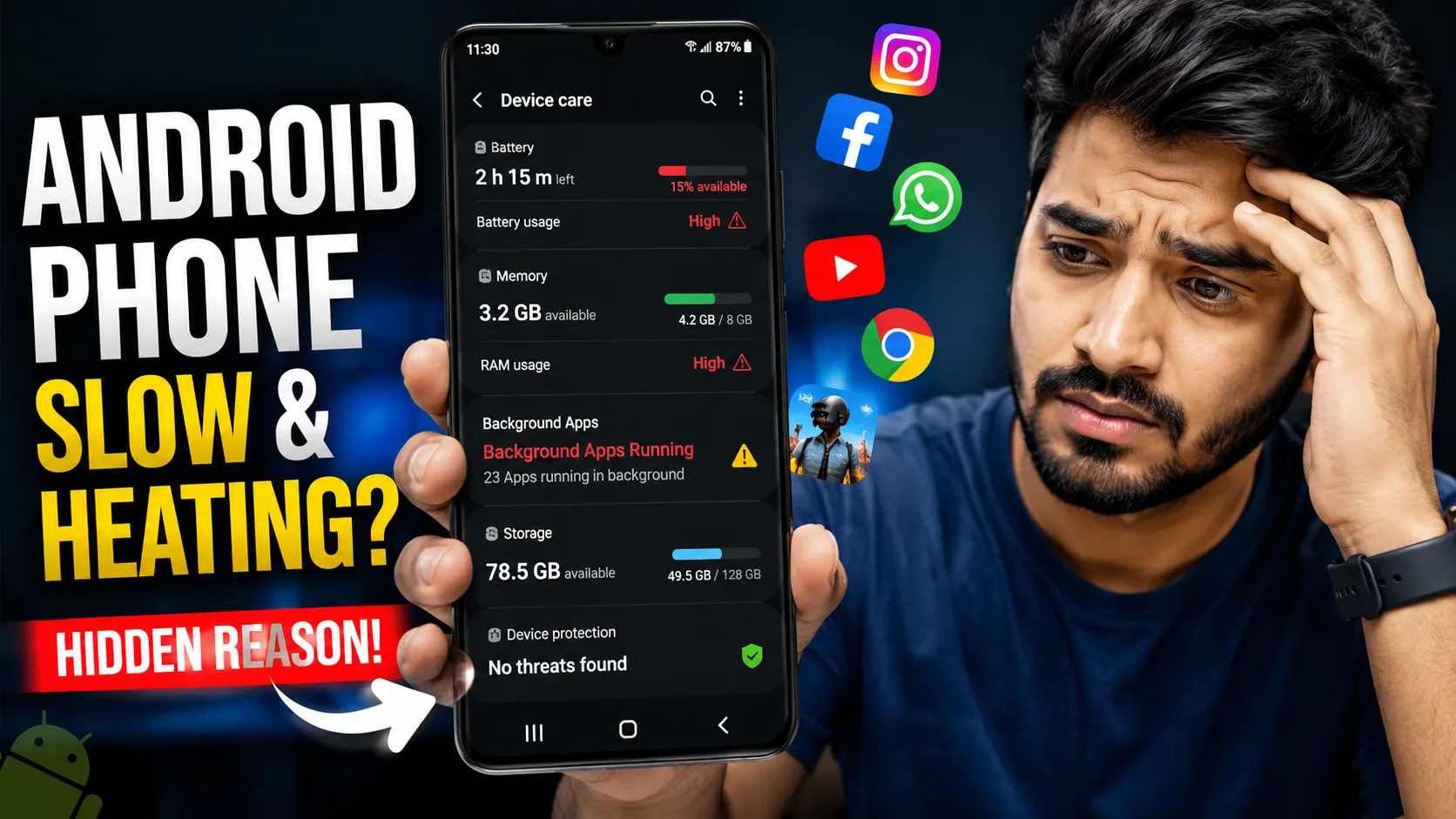
Is your Android phone losing battery much faster than usual, even when you are not actively using it? When you check battery usage, does it show Android System, Google Play Services, or System UI at the top?
This problem is extremely common in 2026 and affects almost all Android brands, especially after recent Android updates that increased background system activity. Many users first notice this issue while reading about apps that drain battery in the background, but system apps behave very differently.
This complete guide explains what Android system apps are, why they suddenly start draining battery, why ignoring the issue makes things worse, and the safest step-by-step methods to fix it permanently — without root.
📌 Table of Contents
- Overview: Android System Battery Drain Explained
- What Are Android System Apps?
- Why Android System Apps Drain Battery
- Why This Battery Drain Is a Serious Problem
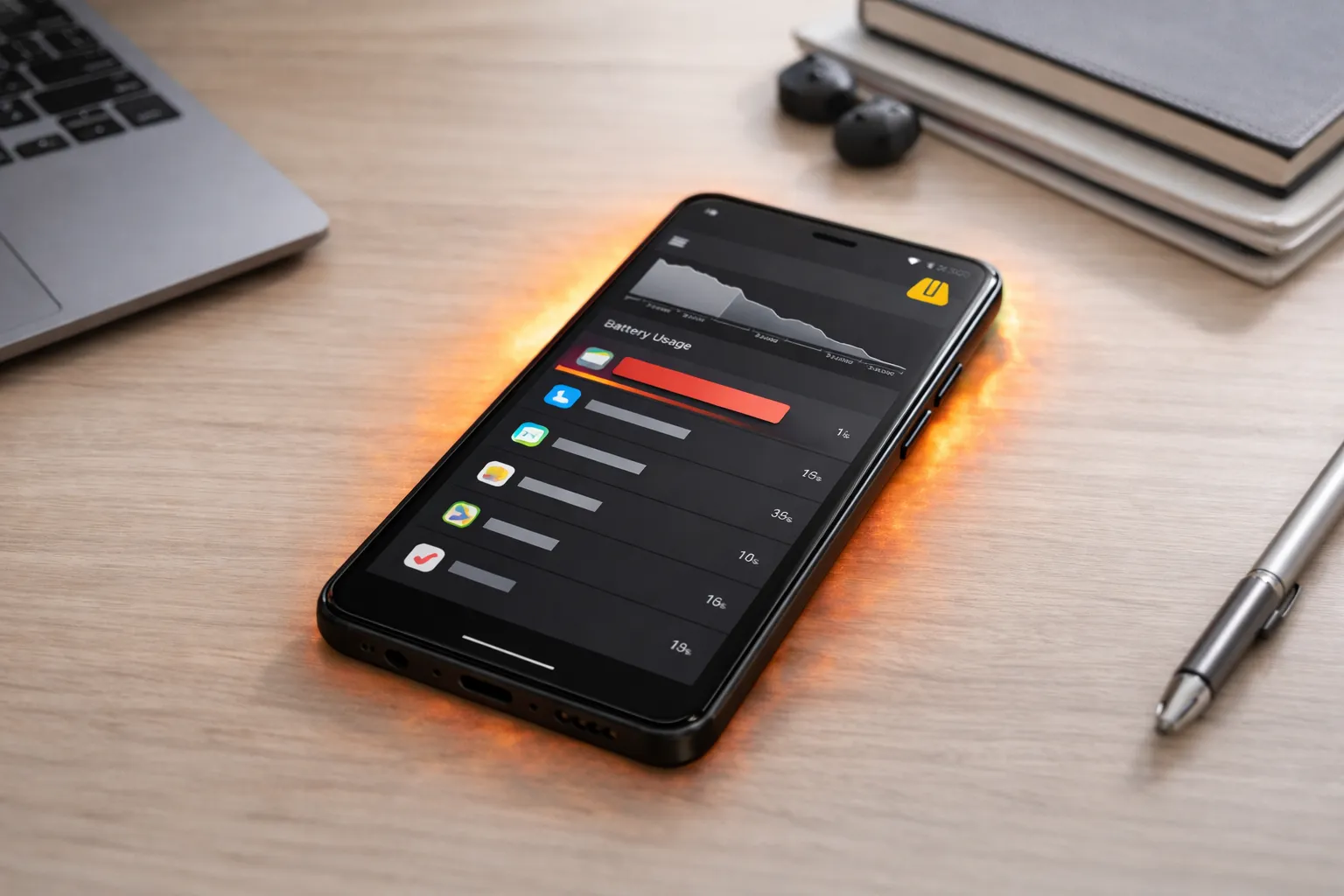
- How to Check Which System App Is Draining Battery
- Complete Guide to Fix Android System Battery Drain
- Hidden System Triggers That Drain Battery
- Hidden Apps That Increase System Battery Drain
- How to Prevent System Battery Drain in the Future
- Common Mistakes You Should Avoid
- Frequently Asked Questions
- Final Verdict
Overview: Android System Battery Drain Explained
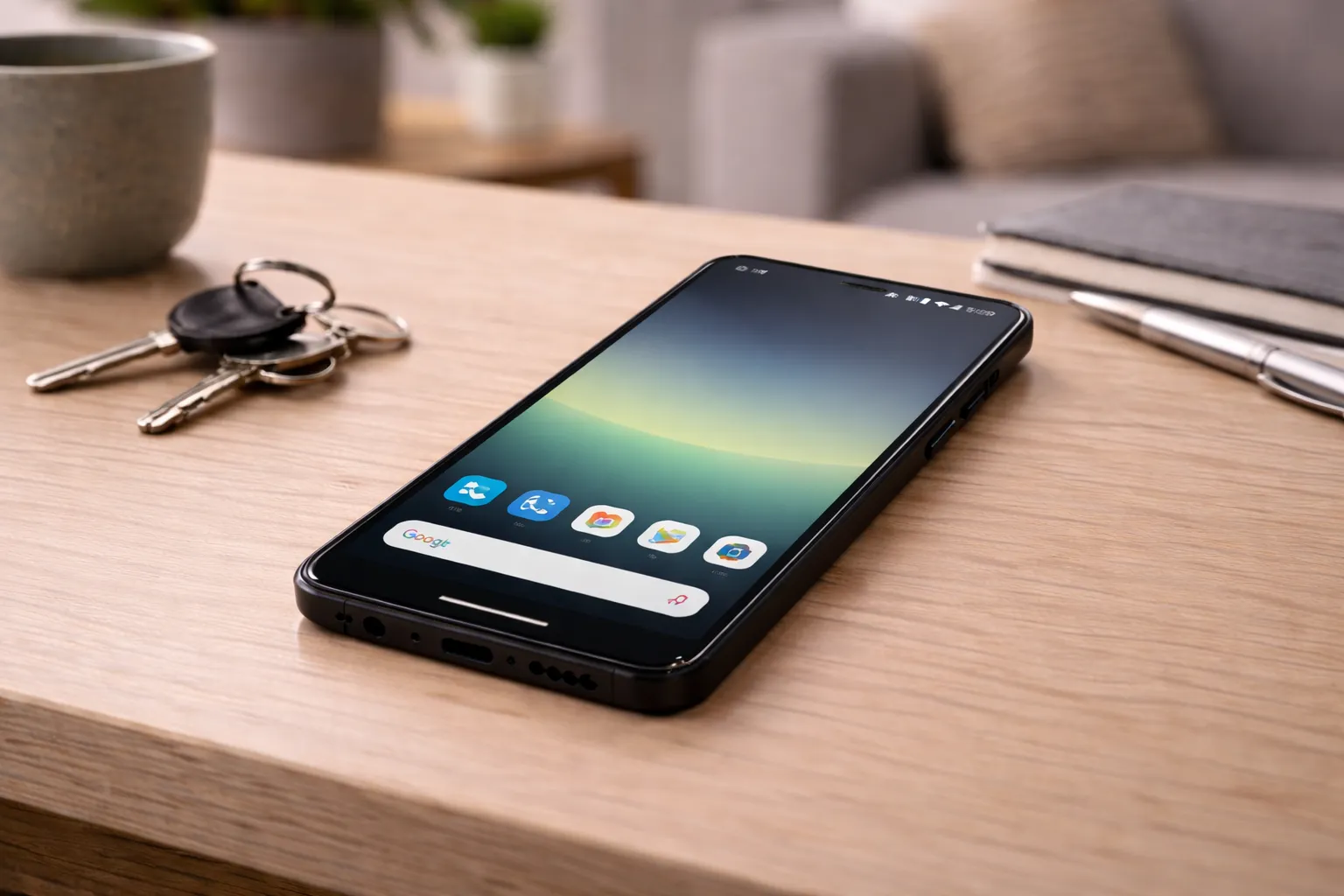
Unlike regular apps that run only when you open them, Android system apps operate continuously in the background to keep your phone stable, connected, and secure. These system processes handle essential tasks such as syncing accounts, managing permissions, maintaining network connections, tracking location services, and ensuring that core features work smoothly.
Problems start when one or more of these background processes stop behaving normally. This can happen after a software update, due to a stuck sync, or because certain services keep waking the phone repeatedly. When the system fails to enter proper sleep or idle mode, the battery begins draining even when the phone is not actively used.
In many cases, this abnormal activity also leads to excess heat and noticeable performance lag — issues commonly linked together and explained further in our guide on why phones overheat suddenly.
Since system apps cannot be uninstalled, users often feel stuck. However, Android includes built-in controls that allow you to safely limit unnecessary background activity and restore normal battery life without affecting system stability.
What Are Android System Apps?
Android system apps are built-in components that allow the operating system to function properly. Unlike regular apps that you install from the Play Store, these apps come preinstalled and cannot be removed because they support core phone operations.
Common examples include Android System, Google Play Services, System UI, Carrier Services, and Google Services Framework. Together, they manage essential tasks such as syncing accounts, delivering notifications, maintaining network connections, handling permissions, and keeping the user interface responsive.
Because these apps run continuously in the background, they are designed to use small amounts of power over time. However, when certain services — especially location access, background syncing, or diagnostics — remain active longer than necessary, battery consumption increases noticeably.
This is where privacy-related controls matter. Understanding which system services are active, and why, becomes easier using tools like the Android Privacy Dashboard, which helps you identify background behavior that may be contributing to excessive battery drain.
Why Android System Apps Drain Battery
Android system battery drain rarely has a single cause. In most cases, it happens when multiple background processes start working together in an inefficient way. This often begins after a system update, where new features or security patches introduce temporary bugs or change how background services behave.
One of the most common triggers is stuck background syncing. When Google accounts, backups, or system services fail to complete a sync properly, they keep retrying in the background, preventing the phone from entering deep sleep mode.
Corrupted cache files can also cause system apps to loop tasks unnecessarily, while always-on services such as location access, Wi-Fi scanning, and Bluetooth discovery quietly consume power throughout the day. In addition, Android collects diagnostic and usage data by default, which adds to background activity.
Excess background data usage further amplifies this drain. If your data consumption seems unusually high, this guide on reducing mobile data usage on Android explains how to limit it safely.
Why This Battery Drain Is a Serious Problem

Ignoring Android system battery drain does more harm than most users realize. When system processes remain active for long periods, the impact goes beyond just shorter screen time.
- Battery health degrades faster: Continuous background activity increases charge cycles, which slowly reduces the battery’s ability to hold power over time.
- Phone heats up during idle usage: When system apps prevent the device from entering deep sleep, internal components stay active, leading to noticeable heat even when the phone is not being used.
- Performance drops over time: Constant background load affects CPU and memory scheduling, making the phone feel slower and less responsive during daily use.
- Charging speed reduces due to thermal protection: Excess heat triggers safety limits that slow down charging to protect the battery, increasing overall charging time.
If your device already feels sluggish, this issue often overlaps with the causes explained in why phones feel slow even with high RAM.
How to Check Which System App Is Draining Battery
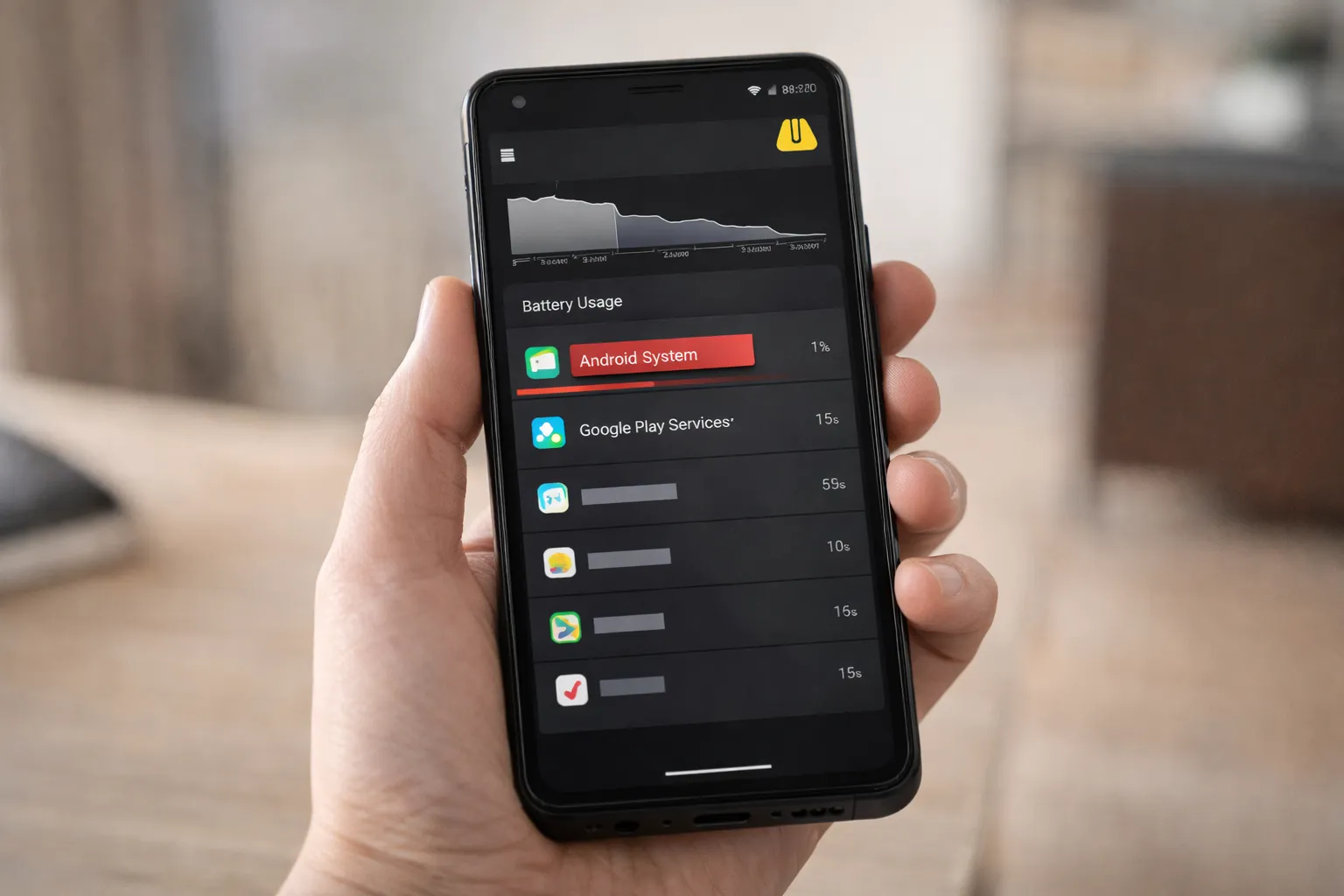
Before trying to fix battery drain, it’s important to confirm which system process is actually responsible. Android provides a built-in battery usage view that shows both app-level and system-level consumption.
- Open Settings on your Android phone
- Go to Battery
- Tap Battery usage or Usage details
- Look for entries such as Android System, Google Play Services, or System UI
If a system app consistently uses more than a noticeable portion of the battery — especially during standby time — it usually indicates background activity that needs optimization rather than normal usage.
To rule out physical battery wear as the cause, you can also follow this guide on checking battery health on Android, which helps separate software issues from hardware-related battery decline.
Complete Guide to Fix Android System Battery Drain
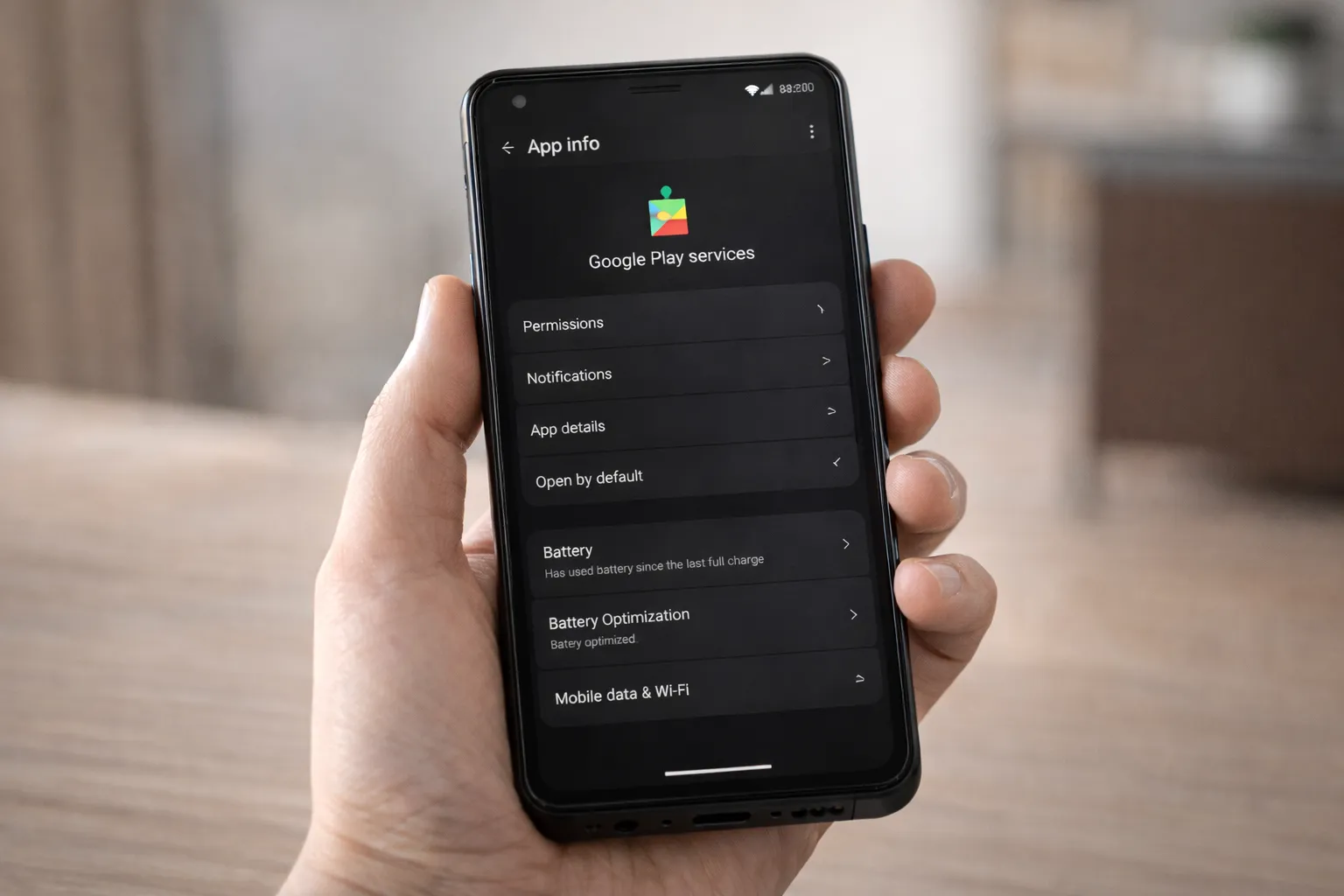
1. Restrict Background Activity Safely
Android allows you to limit background behavior without breaking essential features:
- Settings → Apps → See all apps
- Select Google Play Services
- Tap Battery
- Select Optimized or Restricted
This works best when combined with clearing unnecessary cached data, explained in our guide on clearing cache on Android.
2. Disable Unnecessary Account Sync
Unneeded syncs keep the system awake:
- Settings → Passwords & accounts
- Select your Google account
- Turn off unused sync options
3. Clear Cache of Google Play Services
This removes stuck background processes without affecting apps or login data.
4. Turn Off Diagnostics and Usage Reporting
Privacy-related background activity can be reduced by disabling usage data reporting. This pairs well with understanding Private DNS and Android privacy settings.
5. Keep System and Play Services Updated
Battery drain often results from bugs already fixed in newer updates.
Hidden System Triggers That Drain Battery
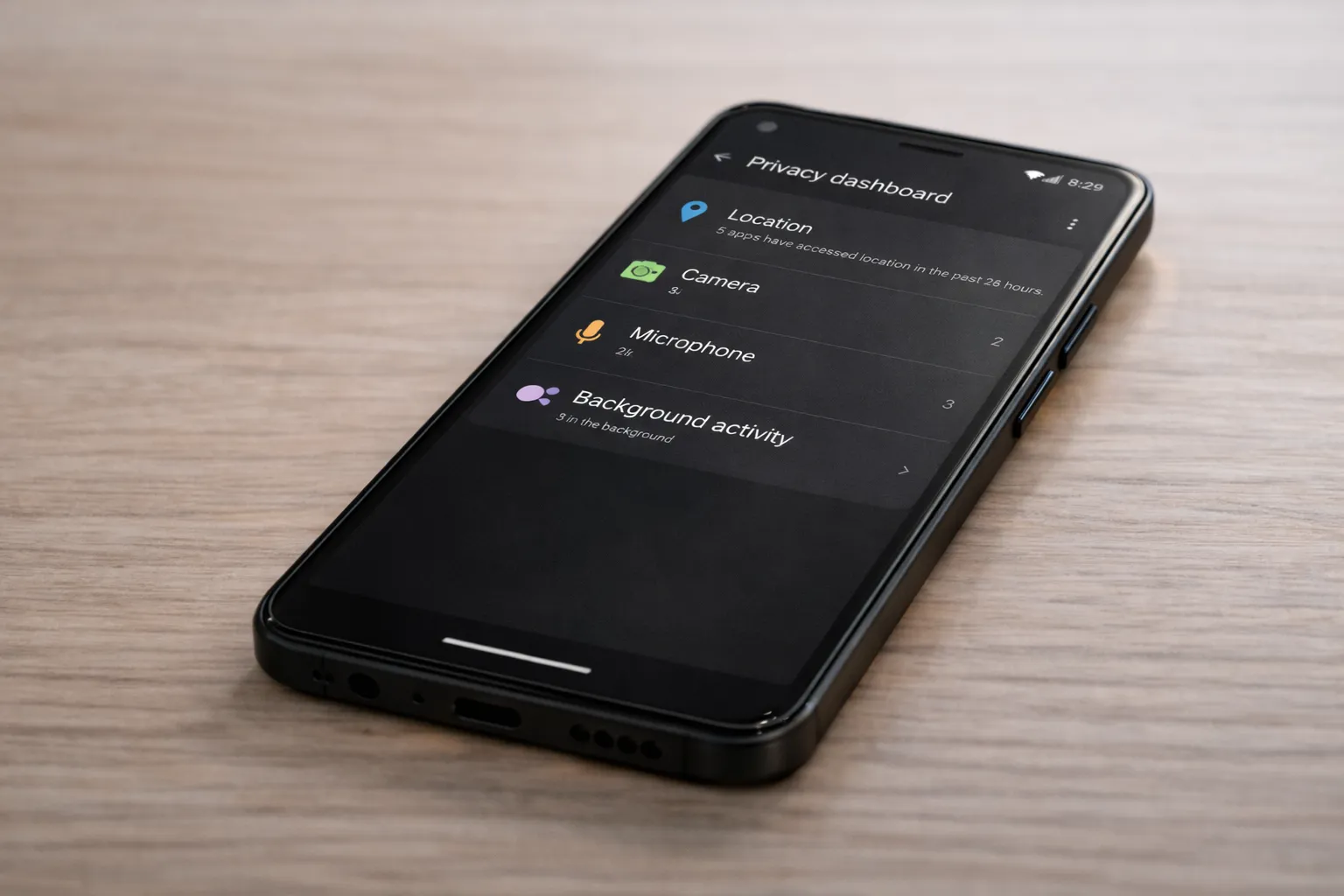
Not all battery drain causes are obvious in the battery usage screen. Some system features continue running quietly in the background and slowly drain power without drawing attention.
- Constant nearby device scanning: Android regularly scans for nearby Bluetooth and Wi-Fi devices to improve connectivity and location accuracy, even when you are not actively using these features.
- System bug reports running in background: After crashes or updates, Android may keep generating diagnostic reports and logs, which creates unnecessary background activity.
- Location access set to “Allow all the time”: When system services and apps have continuous location permission, the phone keeps sensors active, preventing deep sleep.
These triggers usually don’t break any core features, but they do keep the phone partially awake. Disabling or limiting them quietly improves standby battery life without affecting normal daily usage or notifications.
Hidden Apps That Increase System Battery Drain
In many cases, Android system apps are not the original cause of battery drain. Instead, certain third-party apps silently trigger system processes to stay active in the background, making it appear as if the system itself is the problem.
Apps that constantly access location, sync data aggressively, or refresh content in the background often force Android system services to remain awake. Over time, this increases standby drain and prevents the phone from entering deep sleep mode.
This behavior is commonly seen with apps that users rarely notice, which is why reviewing apps you should delete right now on Android can significantly reduce system-level battery drain.
Similarly, apps that consume excessive background data frequently trigger network and sync services. If your data usage feels unusually high, identifying apps using too much mobile data in the background can help lower both battery and data consumption.
By addressing these hidden app-level triggers, Android system processes return to normal behavior, resulting in noticeably better battery life without changing core system settings.
How to Prevent System Battery Drain in the Future
Once system battery drain is fixed, a few simple habits can help prevent it from coming back. These steps don’t require technical knowledge and work well across most Android phones.
- Install system updates only after initial bug reports: Waiting a few days allows manufacturers to push quick fixes for common post-update battery issues.
- Review battery usage once a week: A quick check helps you catch abnormal system activity early before it becomes a serious drain.
- Keep sync options minimal: Disable syncing for services you don’t actively use to reduce unnecessary background wake-ups.
- Avoid aggressive battery saver apps: These apps often interfere with system processes and cause more battery problems over time.
Following these habits keeps Android system apps under control in the long run, helping maintain stable battery life and overall performance.
Common Mistakes You Should Avoid
When dealing with system battery drain, many users try quick fixes that actually make the problem worse. Avoiding these common mistakes can save both battery life and system stability.
- Installing task killer or RAM booster apps: These apps force-close background processes, which causes Android to restart them repeatedly, leading to even higher battery drain.
- Force stopping system apps repeatedly: System apps are designed to restart automatically. Force stopping them can create background loops and trigger more power usage.
- Rooting your phone only for battery issues: Rooting introduces security risks and instability, and is unnecessary for fixing most system-related battery drain problems.
Final Verdict

Android system apps draining battery is frustrating, but in most cases it is completely fixable. By understanding how system processes behave in the background and applying safe, built-in optimizations, you can significantly improve battery life without rooting your phone or relying on risky third-party apps.
More importantly, these changes also help reduce overheating, improve overall performance, and protect long-term battery health. When combined with regular checks and sensible usage habits, system battery drain becomes much easier to control.
This guide, along with related resources such as our detailed breakdown of apps that drain battery in the background and apps you should delete right now on Android, forms a complete and practical Android optimization solution for 2026.