How to Reduce Mobile Data Usage on Android Without Apps (2025 Guide)
Mobile data costs still matter in 2025: plans are larger but app behavior (background syncs, auto-downloads, and AI-powered content updates) consumes more bytes than before. This guide shows how to reduce mobile data usage on Android using only built-in settings — no third-party apps required. You'll get a short test protocol to measure impact, a downloadable CSV format you can copy, and a 30‑day plan for steady savings.
Useful cross‑reads: Android Speed HUB, Clear Cache, and Fix App Crashes.
Table of Contents
- Why Saving Mobile Data Still Matters
- Quick Wins (apply in 2 minutes)
- System Settings That Save Data
- Per-App Controls & Practical Rules
- Browsers & Streaming: Best Practices
- Measuring Impact — KPIs & CSV Template
- Real‑World Example: A 30% Reduction in 7 Days
- Everyday Workflows to Keep Data Low
- Troubleshooting & Edge Cases
- 30‑Day Data Savings Plan
- Related Guides (Android Speed HUB)
- Final Checklist
Why Saving Mobile Data Still Matters
Even with 'unlimited' plans and cheaper data in many regions, unnecessary mobile data usage can cause throttling, excess bills (roaming or overage), and faster battery drain from constant radio activity. Apps are more aggressive about preloading and syncing content; photos, videos, and AI model updates can use significant data silently. Reducing data usage helps control costs and improves device performance and battery life.
Quick Wins (apply in 2 minutes)
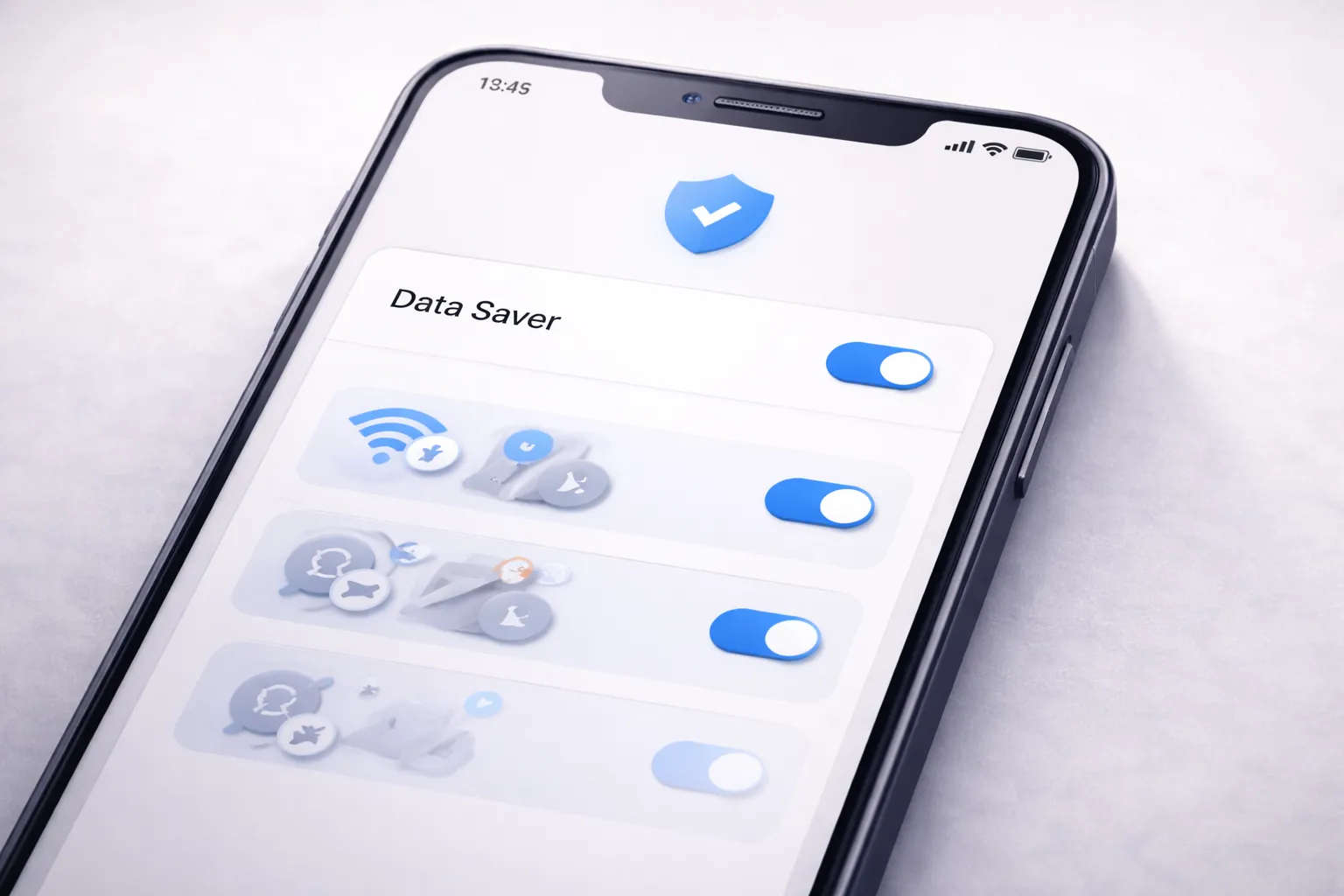
- Turn on Data Saver: Settings → Network & internet → Data Saver → Toggle ON.
- Set Play Store updates to Wi‑Fi only: Play Store → Profile → Settings → Network preferences → Auto-update apps → Over Wi‑Fi only.
- Disable auto‑play videos: In Instagram, Facebook, TikTok and YouTube, turn auto-play off.
- Disable mobile hotspot when not in use.
These four steps often cut daily data by 20–40% with no loss of functionality.
System Settings That Save Data
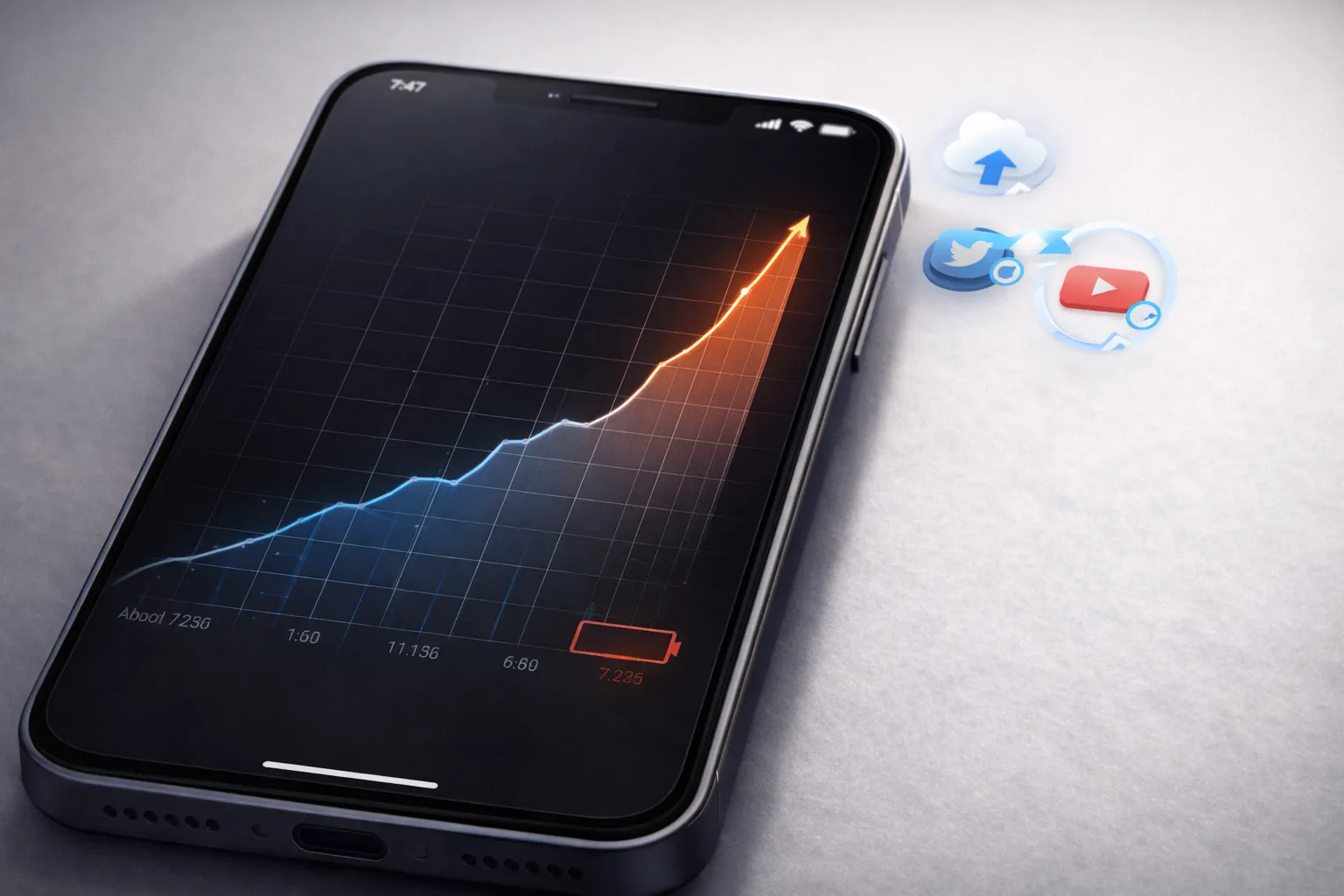
Data Saver & Background Restrictions
Data Saver is the most powerful system-level control. When on, non‑foreground apps are prevented from opening network connections in the background unless you specifically allow them. Use it as your default setting if you need to conserve data.
Metered Connections
Label your mobile connection as 'metered' so the OS and many apps reduce data‑heavy behavior automatically (e.g., large syncs, automatic backups, high-res image downloads).
Auto-Sync & Account Settings
Switch off auto-sync for accounts you don't need real-time updates for (email, photos). Manually sync when required from the account settings screen.
Update Windows & Play Store Settings
Restrict system/app updates to Wi‑Fi and avoid downloading large OS updates on mobile unless necessary.
Per-App Controls & Practical Rules
Not all apps are equal — social networks, cloud backups, and automatic content refresh are the biggest data consumers. Apply consistent rules:
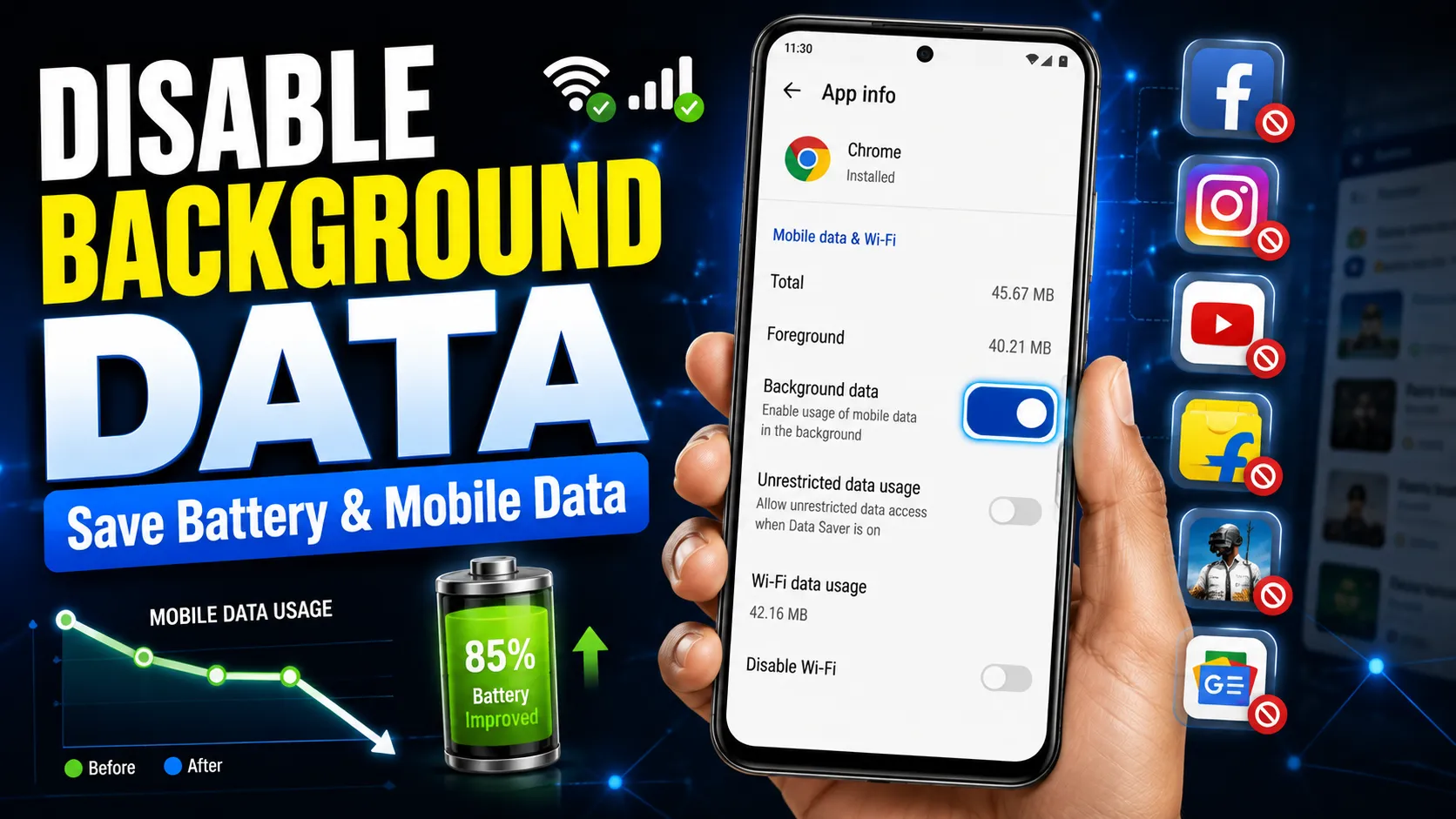
- Background data off by default: For non-essential apps, disable Background data in Settings → Apps → [app] → Mobile data & Wi‑Fi.
- Limit high-res media downloads: In apps with media (Instagram, Twitter/X, Reddit), choose 'Use less data' or 'Medium' download quality.
- Disable automatic media downloads for messaging apps: WhatsApp, Telegram, and similar apps allow disabling auto-download of images, videos, and voice notes on mobile data.
- Restrict cloud backups: Photos & Drive backups should be Wi‑Fi only — check Google Photos, OneDrive, and backup settings.
Browsers & Streaming: Best Practices
Use Lite Modes & Disable Preload
Chrome, Brave, and Opera have 'Lite' or 'Data Saver' modes that compress pages and block unnecessary preload. Disable 'preload pages' in browser settings to avoid background downloads.
Streaming Quality
Streaming video and audio eat the most data. Set default streaming quality to 'Low' or 'Data saver' on YouTube and other platforms when using mobile data. For music, choose 'low' or 'normal' bitrate in Spotify or YouTube Music.
Offline Content
Download podcasts, playlists, and maps over Wi‑Fi for offline playback instead of streaming on the go.

Measuring Impact — KPIs, Micro-tests & CSV Template
To prove which changes actually save data on your device, measure before and after using simple, repeatable micro-tests and a compact KPI sheet. Collect baseline numbers for 3–7 days, apply your changes, then measure again for 3–7 days.
Suggested KPIs
- Daily data used (MB) — primary metric for savings.
- Peak day usage (MB) — shows outlier events (updates, backups).
- Top 5 apps by data (MB/day) — helps focus restrictions.
- Background data (MB/day) — measured from Settings → Data usage.
- Percent change vs baseline — clear success metric.
- Observed user impact — notes like "no missed messages" or "voice notes delayed" to track usability tradeoffs.
Suggested CSV headers you can paste into a sheet:
date,device_model,data_plan_gb,data_used_mb,peak_day_mb,top_app_1_mb,top_app_2_mb,background_mb,changes_applied,percent_change,notes
Example rows:
2026-01-04,Pixel 6,10,1200,450,YouTube:300,Photos:200,350,"Baseline: auto-play on, Photos backup mobile",0,"Month start"
2026-01-11,Pixel 6,10,850,220,YouTube:120,Photos:50,120,"Data Saver on, Play Store Wi‑Fi only, disable auto-play",-29,"Clear improvement"
Quick Micro-tests (5–15 minutes)
- App reload spike test: Disable background data for 1 suspect app, use phone normally for 24 hours, and compare per‑app bytes to a baseline day.
- Streaming quality check: Stream 15 minutes of video at 'Low' vs 'High' and compare MB consumed (keeps streaming decisions data-driven).
- Backup spike check: Temporarily disable backups, then trigger a manual backup on Wi‑Fi to see how often mobile backups would have occurred.
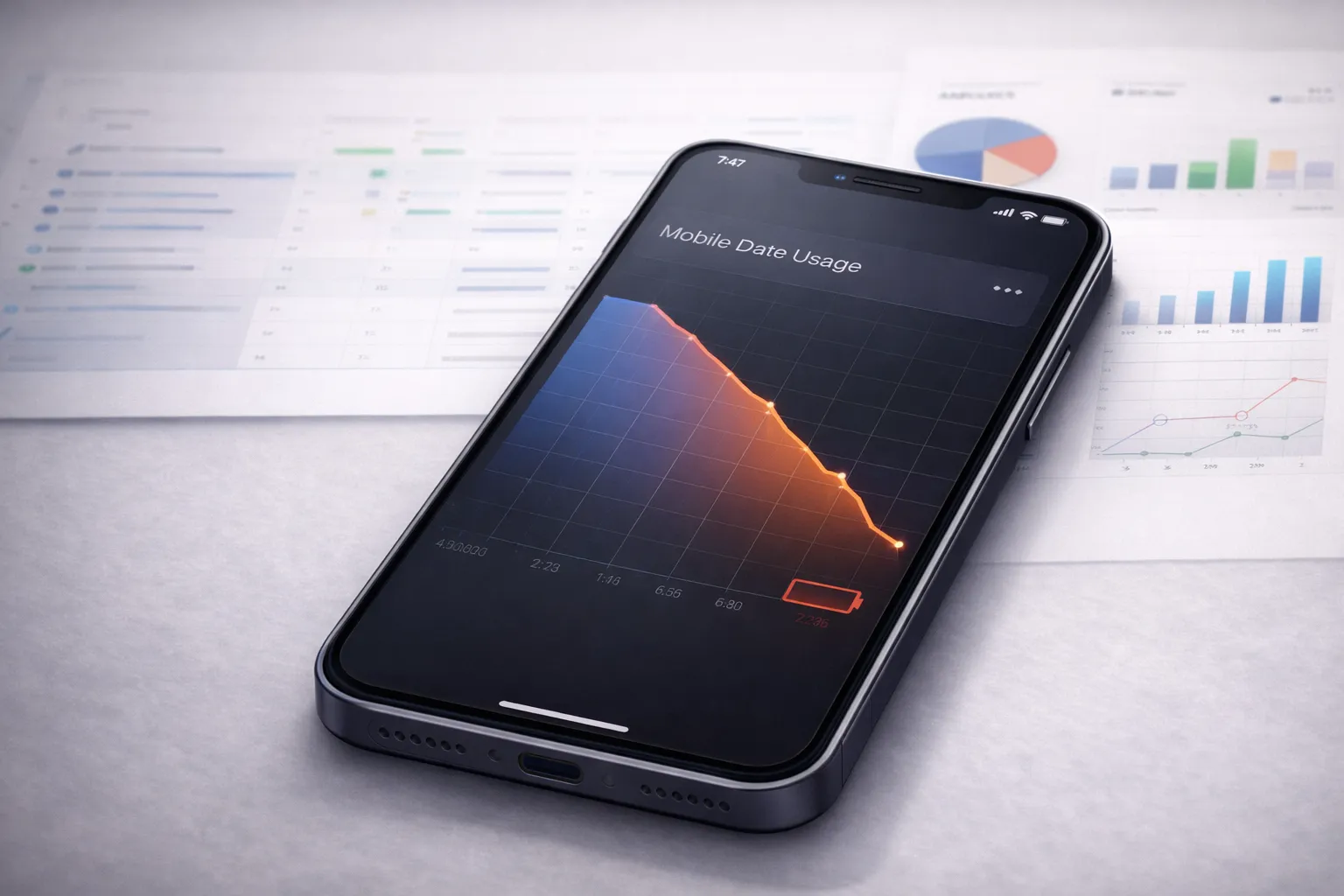
Use Settings → Network & internet → Data usage → App data usage to get per‑app breakdowns; many Android builds show daily and weekly totals for each app. This lets you pinpoint the top offenders quickly.
Real‑World Examples & Two Case Studies
Here are two short, reproducible case studies showing how the recommended steps perform in different scenarios.
Case A — Casual user (mid‑range phone, 10GB plan)
- Baseline weekly data: 3.6GB (auto-play on, Photos backup mobile, Play Store updates on mobile).
- Changes: Data Saver ON, Play Store Wi‑Fi only, disable auto‑play, set Photos backup to Wi‑Fi only.
- Result after 7 days: weekly data = 2.5GB (≈30% reduction). Top app drops: YouTube from 300MB/day to 120MB/day.
- Tradeoffs: Slightly higher manual syncs for photos, no loss of core functionality.
Case B — Power user (heavy streaming + cloud sync, 20GB plan)
- Baseline weekly data: 9.2GB (frequent video streaming, continuous cloud sync across two services).
- Changes: Data Saver ON, set cloud backups to Wi‑Fi only, reduced streaming quality to 'Medium' and downloaded 3 playlists for offline use.
- Result after 7 days: weekly data = 5.8GB (≈37% reduction). Peak-day usage reduced from 2.3GB to 0.9GB after removing large background uploads.
- Tradeoffs: One multi-device sync required manual trigger; the user preferred lower data with minimal workflow changes.
Both cases demonstrate measurable savings — your results will vary by apps in use and carrier behavior, but the methodology is repeatable and measurable with the CSV KPIs above.
Everyday Workflows to Keep Data Low
- Morning check: Open Settings → Data usage to glance at overnight consumption and spot unusual spikes.
- Weekly audit: Run the CSV KPI for a week and flag apps that spike usage — restrict background data for those apps.
- Before travel or roaming: Turn Data Saver ON, set roaming limits in your carrier settings, and enable Wi‑Fi Calling where available.
- Battery & network synergy: Lowering screen brightness and keeping network radios optimized reduces both battery and data use when radios reattempt connections in poor coverage areas.
Troubleshooting & Edge Cases
- App breaks after restriction: If an app needs background connectivity to function, allow it selectively via Data Saver exceptions or re-enable background data temporarily and test.
- Unexpected spikes: Check for OS or app updates that may have downloaded large files; use the Data usage screen to see per‑app bytes and timestamps.
- Poor network behavior: Low signal strength increases data usage when apps retry operations; consider switching to a metered Wi‑Fi connection or moving to stronger coverage areas for heavy tasks.
30‑Day Data Savings Plan
- Week 1: Baseline measure (CSV) and apply Quick Wins.
- Week 2: Restrict background data for the top 5 apps by usage; set Play Store Wi‑Fi only.
- Week 3: Audit streaming and social settings; switch to lower quality defaults on mobile data.
- Week 4: Re-run KPI week, compare results, and keep the settings that give the best balance of functionality and savings.
Related Guides (Android Speed HUB)
- How to Speed Up Your Android Phone in 2025
- Clear Cache to Boost Speed & Free Storage
- Fix App Crashes on Android
- Why Is My Phone Overheating? Causes & Fixes
- What Is RAM Expansion & Should You Turn It Off?
Final Checklist
- Enable Data Saver and set Play Store updates to Wi‑Fi only.
- Disable auto‑play and auto‑download media on social and messaging apps.
- Set system sync and backups to Wi‑Fi only.
- Use the CSV KPI template to measure before/after impact and iterate.