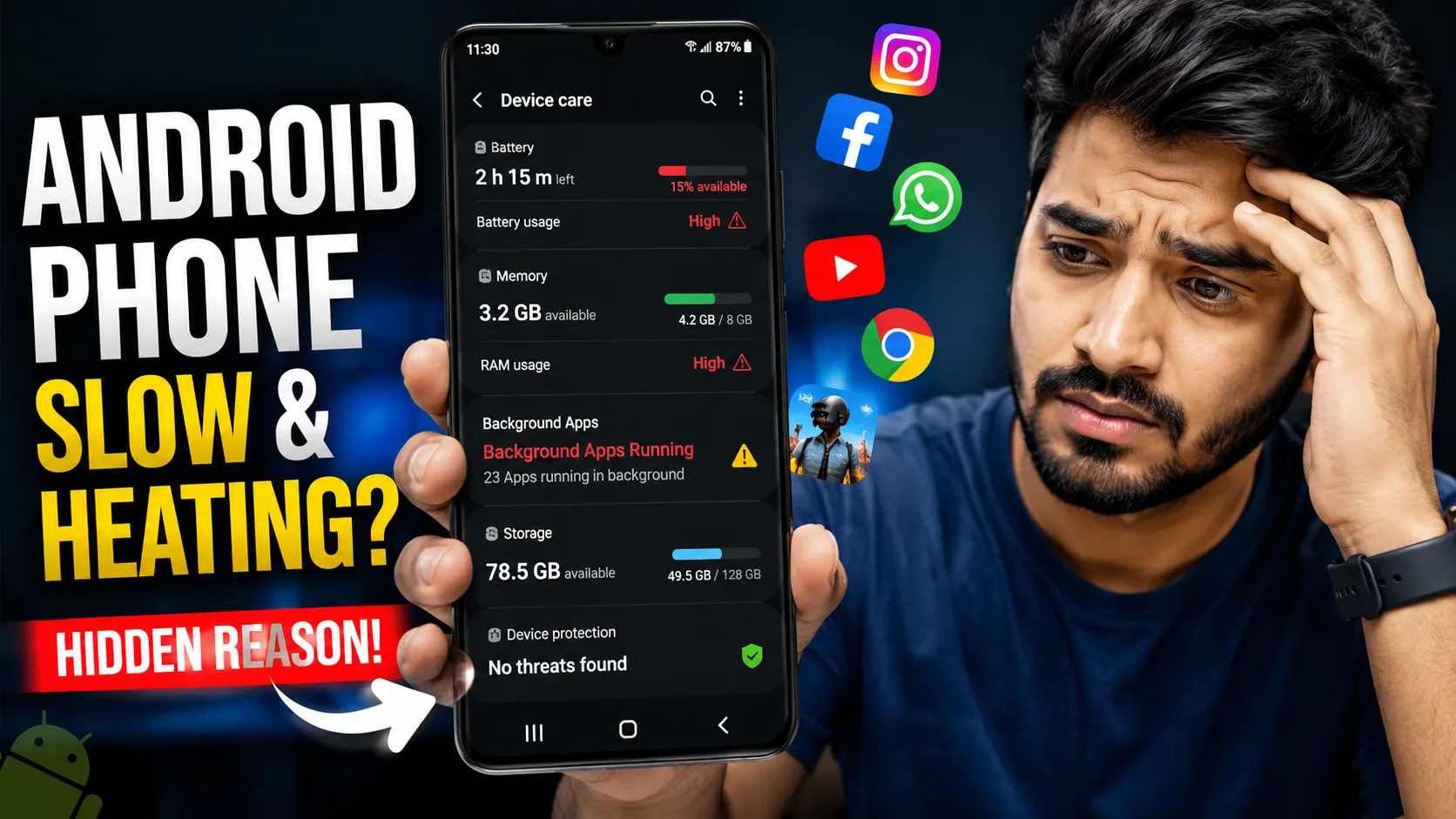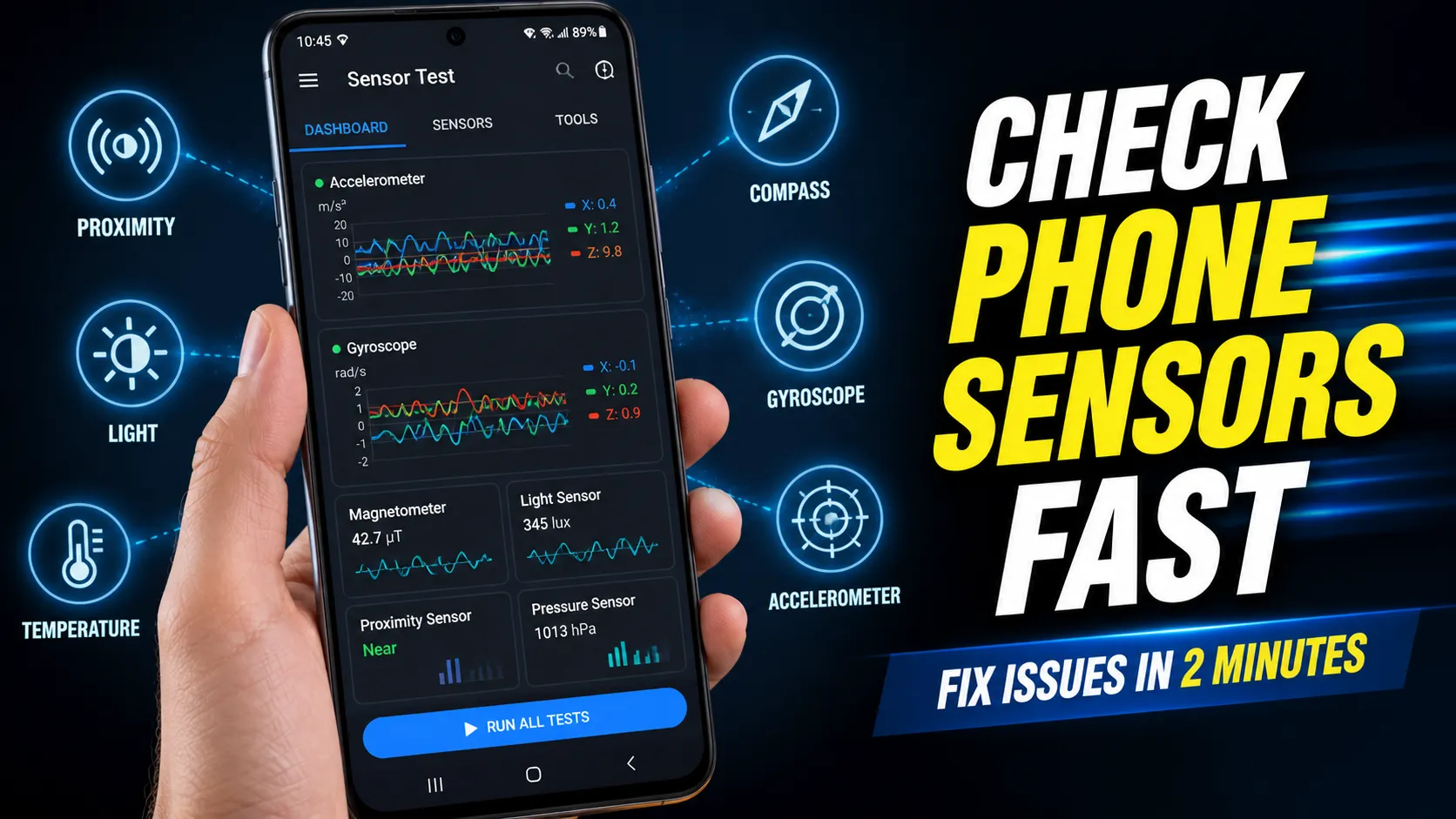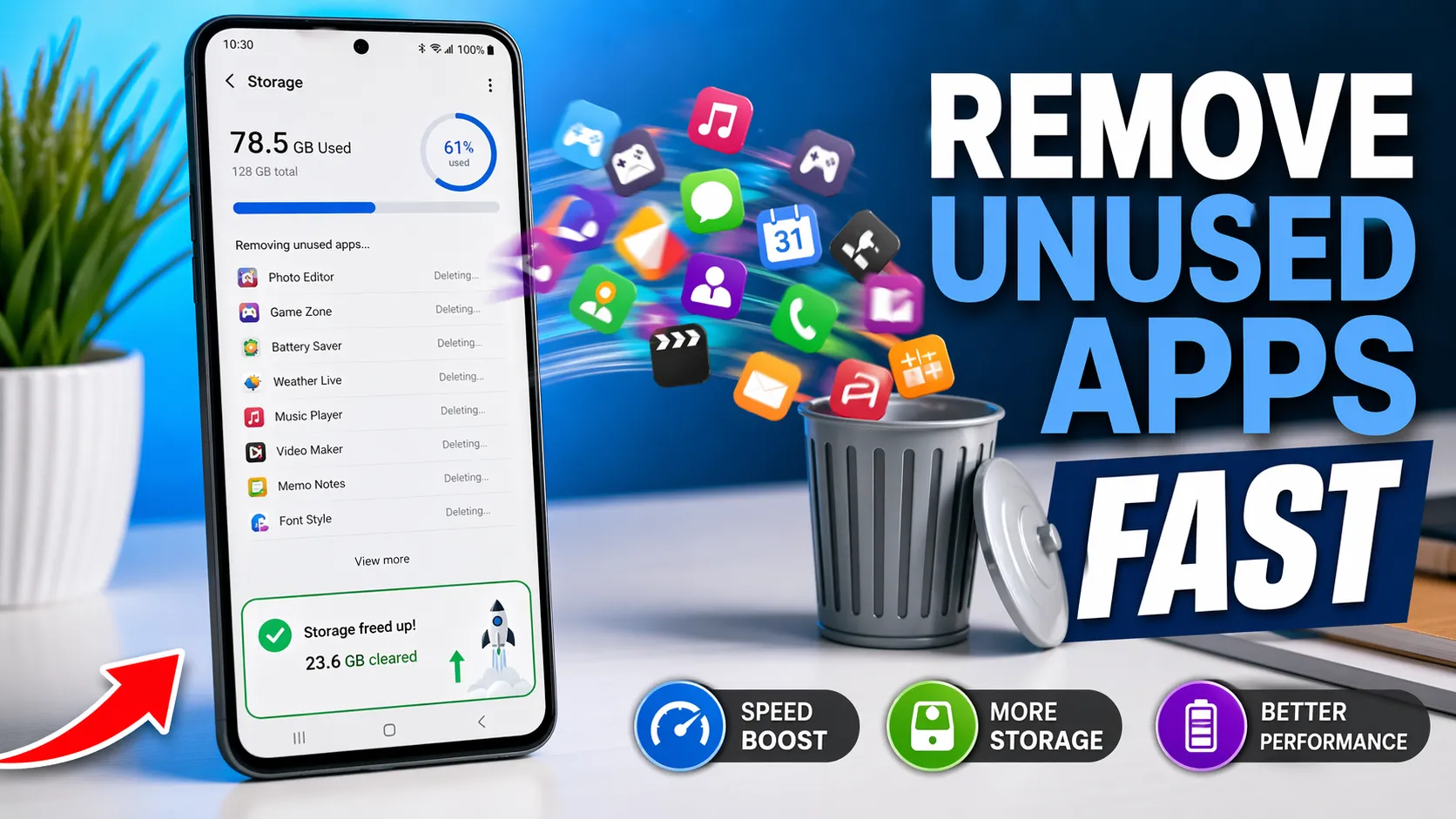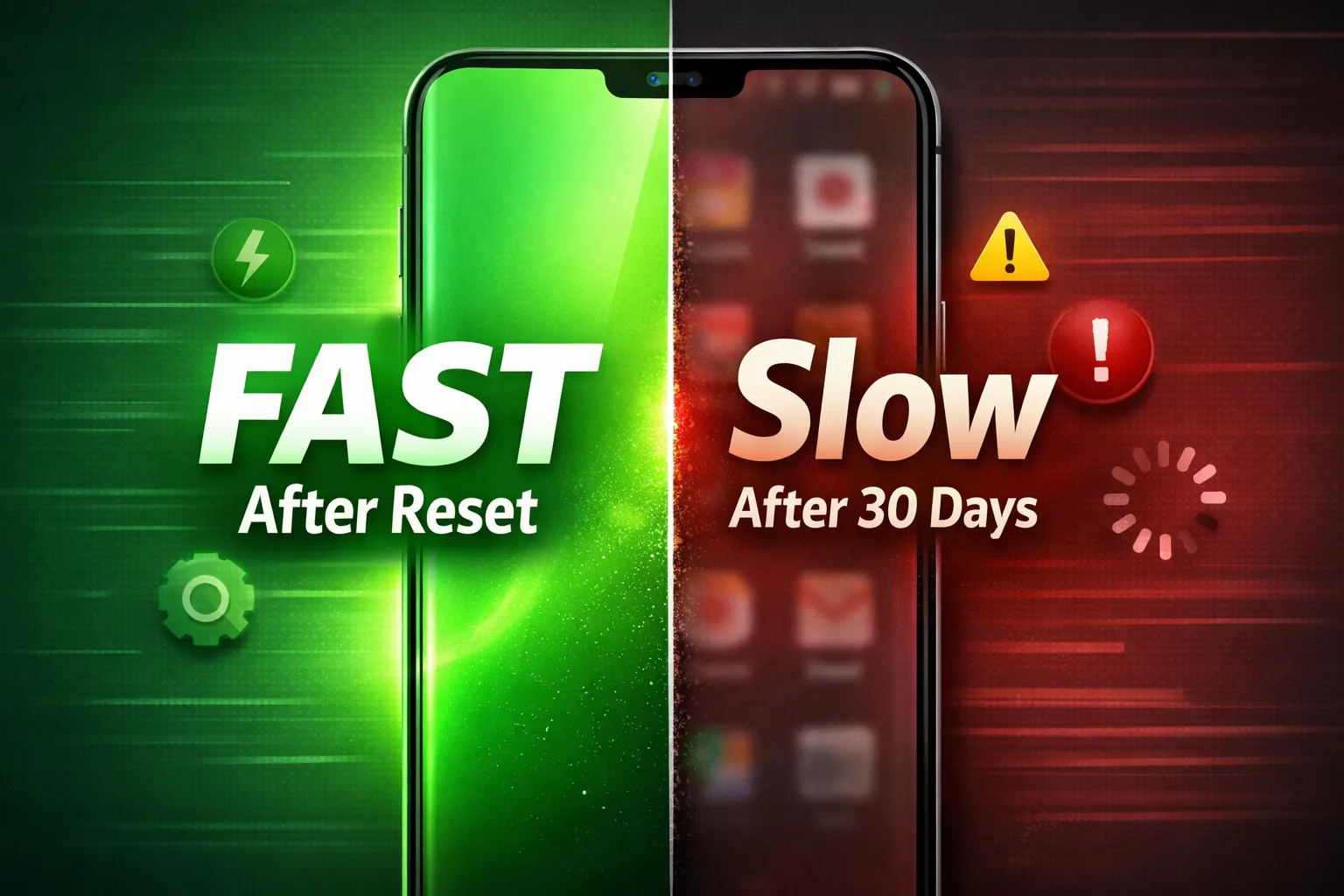
Android phones are powerful, but over time many users start facing common Android phone problems like slow performance, fast battery drain, overheating, privacy risks, and storage issues. Even phones with high RAM and modern processors can feel laggy if background apps, system services, and incorrect settings are not managed properly.
This complete 2026 guide explains why Android phone problems happen, how they affect your device’s speed, battery life, and data usage, and what you can do to fix them safely. Many issues are caused by apps running in the background, excessive cache, poor permission control, and system-level optimizations that users often ignore.
You’ll learn practical, step-by-step solutions that work on most devices—without rooting or installing risky third-party apps. We’ll also cover how to identify apps that drain battery in the background and how to improve privacy using Android’s built-in tools, including insights from our Android Privacy Dashboard guide.
Table of Contents
- Overview of Common Android Phone Problems
- Why Android Phone Problems Happen
- Why Your Android Phone Becomes Slow Over Time
- RAM, Background Processes & Performance Myths
- Android Phone Overheating: Causes & Prevention
- Android Battery Draining Fast – Causes & Fixes
- Android System Apps Battery Drain Explained
- Fast Charging, Heat & Battery Health Issues
- Apps Using Too Much Mobile Data in Background
- Wi-Fi, Mobile Network & Connectivity Problems
- Android Privacy & Security Problems
- Dangerous App Permissions You Should Fix
- How to Check If Your Android Phone Is Hacked
- Storage Full, Cache & Hidden App Issues
- Bloatware, Pre-Installed & Unused Apps
- Android Updates, Bugs & Compatibility Issues
- AI Apps Impact on Performance, Battery & Privacy
- Complete Android Phone Fix Checklist (2026)
- Monthly Android Maintenance Routine
- Final Verdict on Android Phone Problems
Overview of Common Android Phone Problems

In 2026, Android phones are more powerful than ever, yet many users still face common Android phone problems. This happens because modern smartphones now rely heavily on AI-powered apps, aggressive background processes, constant internet connectivity, and advanced system-level features. As a result, issues like slow performance, fast battery drain, overheating, high mobile data usage, privacy risks, and storage problems can appear—even on new or high-end devices.
What makes these problems frustrating is that they usually develop slowly. Your Android phone may feel perfectly fine at first, but over time you might notice lag while opening apps, reduced battery life, or unexpected spikes in data usage. This often occurs because apps keep running in the background, system services stay active longer than required, and cached files quietly accumulate without user awareness.
Most Common Android Phone Issues in 2026
- Slow performance caused by background apps, heavy animations, and poor app optimization
- Battery draining fast due to social media, AI apps, and system services running continuously
- Overheating triggered by high CPU usage, fast charging, or prolonged background activity
- Excessive mobile data usage from apps syncing and refreshing content silently
- Privacy risks from apps accessing location, camera, microphone, and contacts unnecessarily
- Storage issues caused by cache files, junk data, and unused apps
Privacy has become a major concern in 2026 as many apps request sensitive permissions that can lead to tracking or data leaks if not reviewed regularly. Android offers built-in tools to monitor and control this behavior, which we explain in detail in our Android Privacy Dashboard guide.
Battery drain is another widespread issue. Even when your phone is idle, certain apps continue running silently in the background, consuming power and reducing overall battery life. To identify and control such apps, you can refer to our detailed guide on apps that drain battery in the background on Android.
The good news is that most Android phone problems are software-related and completely fixable. With the right settings, regular maintenance, and smarter app management, you can restore performance, extend battery life, reduce data usage, and protect your privacy—without rooting your device or installing risky third-party apps. This guide brings all these solutions together in one place.
Why Android Phone Problems Happen
Android phone problems usually don’t appear overnight. Instead, they develop gradually as your device handles more apps, frequent updates, background processes, and system features over time. Even modern Android phones with powerful processors and 8GB or 12GB RAM can start showing issues if system resources are not managed properly.
The Android ecosystem is designed to multitask, but this flexibility can also become a weakness. Many apps are allowed to run continuously in the background, syncing data and staying active even when you’re not using them. Over time, this creates performance, battery, and data-related problems.
Key Reasons Why Android Phones Start Having Problems
- Too many apps running in the background: Social media apps, AI tools, cloud backups, and messaging apps constantly refresh content, send notifications, and track activity, putting pressure on CPU, RAM, battery, and mobile data.
- Poorly optimized or outdated applications: Some apps are not well-optimized, while others fail to adapt properly after Android system updates. This mismatch often causes lag, overheating, and unexpected battery drain.
- Excessive cache and junk files: Apps store temporary files to load faster, but when cache builds up unchecked, it can consume large amounts of storage and slow down overall performance.
- Unused and hidden apps: Apps you no longer use—or apps running silently in the background—can still consume system resources without you realizing it.
- Incorrect permissions and privacy settings: Apps with unrestricted access to location, microphone, camera, or background activity can drain battery and data while increasing privacy risks.
Many users wonder why their phone feels slow even with high RAM. This is a common misconception, and we break it down in detail in our guide on why Android phones slow down despite having 8GB or 12GB RAM.
Privacy mismanagement is another silent contributor. Android provides built-in tools to monitor app behavior and permission usage, which we explain step by step in our Android Privacy Dashboard explained guide.
In short, Android phone problems happen because small issues compound over time. Ignoring background activity, cache buildup, app optimization, and permissions can make even a high-end phone feel slow, inefficient, and unreliable. The good news is that most of these problems are software-related and completely fixable with the right settings, habits, and regular maintenance.
Why Your Android Phone Becomes Slow
A slow Android phone is one of the most frustrating problems users face, especially when it happens on a device that was fast when new. In most cases, Android phones become slow because system resources like CPU, RAM, and storage are constantly occupied by apps, animations, and background services running silently.
Android is designed to multitask, but over time this can work against performance. As you install more apps, they start syncing data, sending notifications, refreshing content, and running background processes. When multiple apps do this together, your phone struggles to allocate resources efficiently, leading to lag, delayed app launches, and stuttering animations.
Common Reasons Why Android Phones Slow Down
- Background apps and services: Social media, AI apps, cloud backups, and messaging apps stay active even when not in use, consuming RAM and CPU.
- Heavy animations and visual effects: Smooth transitions look good, but they also put extra load on the system, especially on mid-range devices.
- Cache and temporary files: Apps store cache to load faster, but excessive cache buildup can slow down storage access and overall performance.
- Outdated or poorly optimized apps: Some apps don’t adapt well to newer Android versions, causing lag and performance drops.
- Limited free storage: When internal storage is almost full, Android cannot manage files efficiently, which directly affects speed.
Many users are surprised when their phone feels laggy despite having high RAM. If you’re experiencing this, read our detailed guide on why your phone feels slow even with 8GB or 12GB RAM to understand the real reasons behind it.
Quick Fixes to Speed Up Your Android Phone
- Disable or uninstall unused apps
- Clear app cache regularly to free up storage
- Reduce system animations from Developer Options
- Restart your phone at least once a week
By controlling background activity, keeping storage clean, and optimizing system settings, you can significantly improve your Android phone’s speed without rooting or installing risky third-party apps. In most cases, these simple changes are enough to restore smooth performance and make your phone feel fast again.
RAM, Background Processes & Performance Myths
RAM management is one of the most misunderstood aspects of Android performance. Many users believe that having more RAM automatically means better speed, but in reality, Android RAM works very differently from what most people expect. This misunderstanding often leads to common performance myths and unnecessary “RAM cleaner” habits that can actually make things worse.
Android is designed to use RAM efficiently, not keep it empty. When apps stay in memory, Android can reopen them faster without reloading everything from scratch. Problems start only when too many heavy apps and background processes compete for resources at the same time.
Common Android RAM & Performance Myths
- Myth: More RAM always means a faster phone
Reality: Even phones with 8GB or 12GB RAM can feel slow if apps are poorly optimized or background processes are excessive. - Myth: Clearing RAM frequently improves performance
Reality: Force-closing apps repeatedly can increase CPU load and battery usage, making performance worse over time. - Myth: RAM booster apps make phones faster
Reality: Most RAM cleaner apps simply kill background processes temporarily and restart them again, causing more strain on the system.
One of the biggest performance killers is background processes. Social media apps, AI tools, cloud sync services, and messaging apps continuously refresh data, track activity, and send notifications. When many such apps run together, they put constant pressure on RAM and CPU, leading to lag and stuttering.
This is why many users ask why their phone feels slow despite high RAM. If you’re facing this issue, read our detailed breakdown on why your phone feels slow even with 8GB or 12GB RAM.
Best Practices for Better RAM Management
- Avoid using third-party RAM cleaner or booster apps
- Limit background activity for rarely used apps
- Restart your phone occasionally to refresh system processes
- Keep apps and system software updated for better optimization
Understanding how Android handles RAM helps you avoid performance myths and focus on real fixes. With proper background management and realistic expectations, your Android phone can stay smooth and responsive without unnecessary tweaks or risky apps.
Android Phone Overheating: Causes & Prevention
Android phone overheating is a common problem in 2026, especially as smartphones handle heavier tasks like AI processing, high-refresh-rate displays, fast charging, and constant background activity. While a slight increase in temperature is normal, frequent or excessive overheating can slow down performance, drain battery faster, and even reduce long-term device health.
Overheating usually happens when your phone’s processor works harder than usual. This can be triggered by apps, system services, or environmental factors such as high ambient temperatures and poor ventilation.
Common Causes of Android Phone Overheating
- Heavy background apps: Social media, AI apps, navigation, and cloud sync services running continuously can push the CPU to its limits.
- Gaming and intensive tasks: High-end games, video editing, and 4K recording generate sustained CPU and GPU load, increasing heat.
- Fast charging and poor chargers: Using fast chargers or low-quality cables can raise battery temperature quickly.
- System bugs or unoptimized apps: Poorly optimized or outdated apps may overuse system resources in the background.
- High screen brightness and refresh rate: Keeping brightness at maximum or forcing 120Hz refresh rate can add extra thermal stress.
In many cases, overheating is closely linked to battery drain and performance issues. Apps that constantly stay active can heat up your phone even when it’s idle. You can identify such apps using our guide on apps that drain battery in the background on Android.
How to Prevent Android Phone Overheating
- Close unused apps running in the background
- Avoid using your phone heavily while charging
- Use original or certified chargers and cables
- Lower screen brightness and avoid forcing high refresh rates
- Keep apps and system software updated
If your phone frequently overheats along with performance slowdowns, it may be a sign of deeper system issues. Understanding why your device struggles even with high hardware can help, which we explain in our article on why Android phones feel slow even with high RAM.
By managing background activity, charging habits, and system settings, you can keep your Android phone cool, maintain stable performance, and protect battery health over the long term.
Android Battery Draining Fast – Causes & Fixes
Fast battery drain is one of the most common Android problems users face in 2026. Even when a phone is not actively in use, battery percentage can drop quickly due to background apps, system services, constant syncing, and location access. Modern Android features are powerful, but when left unchecked, they can significantly reduce battery life.
Main Reasons for Fast Battery Drain on Android
- Background apps running continuously: Social media, messaging, AI, and utility apps often stay active to sync data and send notifications.
- System services consuming power: Android system processes like syncing, updates, and connectivity services can use battery even when the screen is off.
- Location, Bluetooth, and Wi-Fi scanning: Constant scanning for networks and location updates puts extra load on the battery.
- High screen brightness and refresh rate: Displays are one of the biggest battery consumers on any smartphone.
Some apps silently drain battery even when you’re not using them. To identify these apps and take action, check our detailed guide on apps that drain battery in the background on Android.
In certain cases, Android system apps themselves may be responsible for abnormal battery usage. If you notice high battery drain from system services, follow this step-by-step solution in our guide on stop Android system apps battery drain without root.
Effective Fixes to Improve Android Battery Life
- Restrict background battery usage for rarely used apps
- Turn off unnecessary location and connectivity features
- Lower screen brightness and avoid forcing high refresh rates
- Keep apps and system software updated
Apps Using Too Much Mobile Data in Background
Many Android apps continue using mobile data even when you’re not actively using them. Social media apps, AI tools, cloud backup services, and video apps regularly sync content, upload data, and refresh feeds in the background, leading to higher data consumption and faster battery drain.
Why Background Data Usage Is a Problem
- Increases monthly mobile data consumption
- Reduces battery life due to constant network activity
- Slows down internet speed for actively used apps
To identify which apps are using excessive mobile data and learn how to control them, refer to our complete guide on apps using too much mobile data in the background on Android.
Limiting background data for non-essential apps can significantly improve battery life, reduce data bills, and give you better control over your Android phone’s overall performance.
Wi-Fi, Mobile Network & Connectivity Problems
Network and connectivity issues are another common frustration for Android users in 2026. Problems like slow Wi-Fi, frequent disconnections, weak mobile signal, or unstable internet can affect browsing, streaming, calls, and app performance. In many cases, these issues are not caused by the network provider but by device settings, background activity, or software behavior.
Android phones constantly switch between Wi-Fi, mobile data, Bluetooth, and location services to maintain connectivity. When multiple services run together or network settings are misconfigured, the phone may struggle to maintain a stable connection.
Common Wi-Fi and Mobile Network Problems on Android
- Wi-Fi disconnects frequently: Often caused by aggressive battery optimization, network switching, or saved network conflicts.
- Slow internet speed: Background apps consuming data can reduce available bandwidth for active use.
- Mobile data not working properly: Incorrect APN settings, network mode issues, or restricted background data can affect connectivity.
- Call drops and weak signal: Can occur due to network congestion, outdated carrier settings, or poor signal reception.
One overlooked cause of network problems is excessive background data usage. Apps that constantly sync in the background can interfere with network stability and slow down internet speeds. To identify such apps, check our guide on apps using too much mobile data in the background on Android.
How to Fix Connectivity Issues on Android
- Restart Wi-Fi and mobile data to refresh network connections
- Forget and reconnect to problematic Wi-Fi networks
- Disable Wi-Fi and Bluetooth scanning when not needed
- Check and update carrier or network settings
- Restrict background data for non-essential apps
Connectivity problems can also contribute to battery drain, as your phone uses more power trying to maintain a stable network. Improving network behavior can help extend battery life as well. If battery drain is a concern, you may find our guide on apps that drain battery in the background on Android useful.
By understanding how Android manages Wi-Fi and mobile networks and by controlling background activity, most connectivity problems can be resolved without third-party apps or risky settings. Proper network management ensures faster speeds, more reliable connections, and a smoother Android experience overall.
Android Privacy & Security Problems
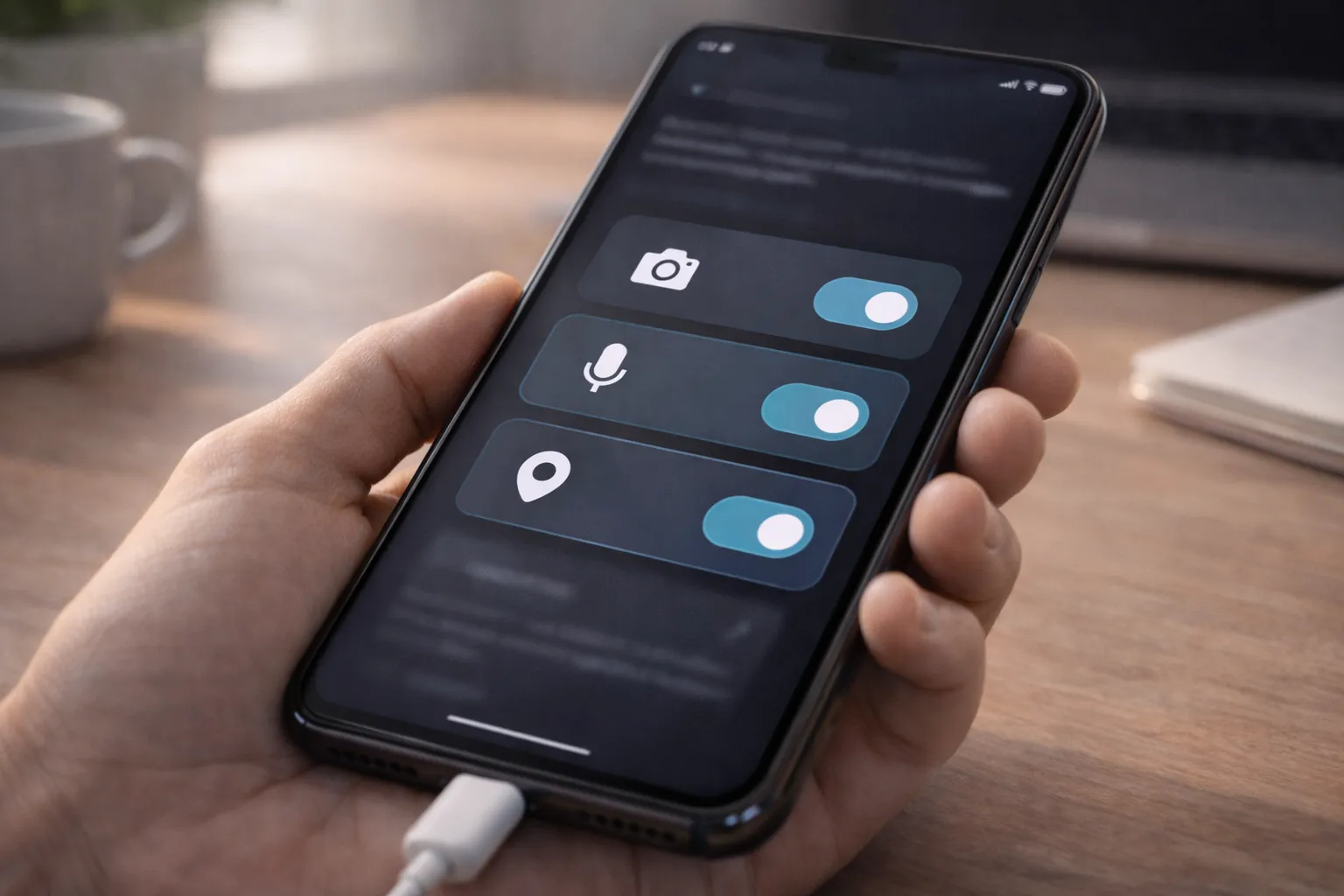
Android privacy and security problems have increased significantly in 2026 due to AI-powered apps, aggressive ad tracking, and apps requesting more permissions than ever before. Many users unknowingly grant access to sensitive features such as microphone, camera, location, contacts, and background activity, which can lead to tracking, data misuse, or security risks.
Unlike performance issues, privacy problems are often invisible. Your phone may appear to work fine, but apps could be collecting data silently in the background. This data is commonly used for targeted ads, analytics, or continuous app behavior tracking, which not only affects privacy but can also impact battery life and mobile data usage.
Common Android Privacy & Security Issues
- Excessive app permissions: Apps requesting access to camera, microphone, or location without a clear need.
- Background tracking: Some apps track activity even when not actively used.
- Ad personalization and data sharing: Advertising services can collect usage data across apps.
- Untrusted or risky apps: Apps installed from unknown sources may pose security threats.
Android provides built-in tools to help users monitor and control privacy-related activity. One of the most important tools is the Privacy Dashboard, which shows which apps accessed sensitive permissions and when. You can learn how to use it properly in our detailed guide on Android Privacy Dashboard explained.
Security concerns go beyond permissions. If your phone shows unusual behavior such as overheating, unexplained battery drain, unexpected pop-ups, or apps you don’t remember installing, it could be a sign of spying or unauthorized access. In such cases, you should follow our step-by-step safety guide on how to check if your phone is hacked or spied on.
How to Improve Android Privacy & Security
- Review app permissions regularly and revoke unnecessary access
- Allow sensitive permissions only while the app is in use
- Remove apps you no longer trust or use
- Keep Android system and apps updated
By taking control of permissions and understanding how apps access your data, you can significantly reduce privacy risks. Most Android privacy and security problems are preventable with awareness and regular checks—no advanced tools or risky third-party apps required.
Dangerous App Permissions You Should Fix
App permissions are one of the biggest privacy and security risks on Android. Many apps request access to sensitive features that are not essential for their core functionality. When these permissions are granted without review, apps can track activity, collect data, and run background processes that affect privacy, battery life, and performance.
High-Risk Android Permissions to Watch
- Location (Always Allow): Continuous location access enables constant tracking and increases battery drain.
- Microphone & Camera: Apps with background access can listen or record without clear user awareness.
- Contacts, Call Logs & SMS: These permissions expose personal communication data and should be tightly restricted.
- Background activity & auto-start: Allows apps to stay active even when not in use, impacting privacy and battery.
Android provides a clear overview of how apps use permissions through the Privacy Dashboard. Reviewing this regularly helps you identify apps that access sensitive features unnecessarily. Follow our step-by-step guide on Android Privacy Dashboard explained to take control.
How to Check If Your Android Phone Is Hacked
Many users worry about hacking or spying, especially when their phone behaves unusually. While not every issue means your device is compromised, certain warning signs should not be ignored.
Common Signs Your Android Phone May Be Compromised
- Sudden battery drain or overheating without heavy usage
- Unknown apps appearing or permissions changing automatically
- Unexpected pop-ups, ads, or redirects
- Increased data usage even when idle
If you notice these symptoms, start by checking app permissions, uninstalling suspicious apps, and updating your device. Android’s built-in security tools can help identify risky behavior without third-party apps.
For a complete and safe checklist—including system checks and privacy settings—follow our detailed guide on how to check if your phone is hacked or spied on.
By fixing dangerous permissions and staying alert to warning signs, you can significantly reduce security risks and keep your Android phone safe without rooting or installing risky tools.
Storage, Cache & Hidden App Issues
Storage-related problems are one of the most overlooked causes of slow performance on Android phones. Cache files, temporary data, and hidden apps can silently consume large amounts of storage, making your phone feel sluggish even if it has good hardware. When internal storage starts filling up, Android struggles to manage apps and system processes efficiently.
Cache files are created by apps to load content faster, but over time they can pile up and take gigabytes of space. Social media, browsers, streaming apps, and shopping apps are some of the biggest contributors. While cache is useful, excessive cache buildup can slow down app launches, increase storage pressure, and even cause apps to crash.
Common Storage & Cache-Related Problems
- Low free storage affecting overall system performance
- Apps taking unusually large space due to accumulated cache
- Hidden or system apps running in the background
- Old files and unused apps consuming internal storage
Clearing cache regularly is one of the safest and most effective ways to free up space without deleting important data. If you’re unsure how to do it properly, follow our step-by-step guide on how to clear cache on any Android phone.
Another hidden issue is apps that don’t appear on the home screen or app drawer. These hidden apps may run silently in the background, consuming storage, battery, and data. Some are system-related, while others are installed unintentionally. You can safely identify them using our guide on how to find hidden apps on Android.
How to Manage Storage More Effectively
- Keep at least 20–25% of internal storage free
- Clear app cache every few weeks
- Uninstall apps you no longer use
- Review storage usage from system settings
By controlling cache buildup and identifying hidden apps, you can free up storage, improve performance, and prevent long-term slowdowns. Most storage-related Android issues are easy to fix with regular checks—no risky apps or complex steps required.
Bloatware, Pre-Installed & Unused Apps
Bloatware and pre-installed apps are common on many Android phones, especially those sold with custom skins. These apps often cannot be fully removed and may continue running in the background, consuming storage, battery, and system resources even if you never use them.
- Pre-installed apps: Manufacturer or carrier apps that come with the device
- Unused apps: Apps installed earlier but no longer needed
- Hidden system apps: Apps that don’t appear on the home screen but still run in the background
Disabling unused and non-essential apps can reduce background activity and improve overall performance. If you want to identify apps silently affecting your phone, our guide on how to find hidden apps on Android can help.
Android Updates, Bugs & Compatibility Issues
Android updates bring new features and security patches, but they can sometimes introduce bugs or compatibility issues. After an update, users may notice battery drain, app crashes, network problems, or performance slowdowns.
- Apps not optimized for the latest Android version
- System bugs affecting battery, network, or performance
- Settings reset or changed after updates
Keeping apps updated along with the system helps minimize these issues. Regular updates also improve security and stability, making them essential despite occasional bugs.
AI Apps Impact on Performance, Battery & Privacy
AI-powered apps are becoming more common on Android in 2026. While they offer smart features, they also rely heavily on background processing, data syncing, and cloud communication, which can impact performance and battery life.
- Continuous background activity increases CPU and RAM usage
- Frequent data syncing affects mobile data and battery
- Extensive permissions raise privacy concerns
If you notice faster battery drain or increased data usage, it’s worth checking which apps are responsible. Our guide on apps that drain battery in the background on Android explains how to identify and control such apps.
Managing bloatware, keeping software updated, and using AI apps selectively can help maintain a balanced Android experience without sacrificing performance, battery life, or privacy.
Complete Android Phone Fix Checklist (2026)
If your Android phone feels slow, drains battery quickly, or behaves unpredictably, this checklist covers the most effective fixes. These steps focus on built-in Android settings and proven best practices—no rooting or risky third-party apps required.
- Review battery usage: Restrict background activity for apps you rarely use
- Check mobile data usage: Limit background data for non-essential apps
- Clear app cache: Free up storage to improve overall performance
- Disable unused apps: Especially pre-installed or rarely used apps
- Review app permissions: Remove unnecessary access to location, camera, and microphone
- Update system and apps: Fix bugs and improve stability
- Restart your phone: Refresh system processes and clear temporary issues
If battery drain is your main concern, identifying background apps is crucial. You can follow our guide on apps that drain battery in the background on Android for targeted fixes.
Monthly Android Maintenance Routine
Regular maintenance keeps your Android phone fast, secure, and reliable over the long term. Spending just a few minutes each month can prevent most common problems.
- Check battery and data usage stats
- Clear cache for frequently used apps
- Uninstall apps you no longer need
- Review permissions using Android’s Privacy Dashboard
- Install pending system and app updates
For privacy-focused users, reviewing app access regularly is essential. Our Android Privacy Dashboard explained guide walks you through this process step by step.
Final Verdict on Android Phone Problems
Most Android phone problems in 2026 are not hardware failures—they are the result of background apps, poor settings, and neglected maintenance. The good news is that these issues are completely fixable.
By following a simple checklist, maintaining your device monthly, and staying aware of app behavior, you can restore speed, extend battery life, reduce data usage, and protect your privacy. Android is flexible and powerful, and with the right habits, your phone can stay smooth and reliable for years.