How to Find Hidden Apps in Android (2025 Step-by-Step Guide)
Want to find hidden apps on your Android phone? Apps can be hidden for benign reasons (clean homescreen, work profiles) or malicious reasons (spyware, parental-control abuse). This guide shows how to find hidden apps using built-in Android features, safe ADB commands, permissions & admin checks, and vendor-specific tips — all without installing extra apps. Follow the tests in this guide to find, confirm, and safely remove hidden apps while keeping your personal data intact.
Cross‑link: If a hidden app causes battery or performance issues, see our Overheating Guide; if it affects multitasking or app stability, see RAM Expansion; and for general speed improvements see the Android Speed HUB.
Table of Contents
- Why Apps Are Hidden
- Quick Checks (2–5 minutes)
- Deep Inspection (Settings & Permissions)
- Safe ADB Read-Only Checks
- Battery, Data & Logs
- Vendor-Specific Tips (Samsung, Xiaomi, Realme, Pixel)
- Remove & Recover: Uninstall, Disable, Factory Reset
- 7‑Day Monitoring Plan
- Real Example: Finding a Hidden Vault App
- Privacy & Legal Notes
- Final Checks & Preventive Steps
1. Why Apps Are Hidden
Hidden apps fall into three broad categories:
- Benign: launcher customizations, parental profiles, or workplace profiles that intentionally hide icons.
- Privacy: vault apps that conceal photos or messages (user choice).
- Malicious: spyware, adware, or monitoring tools that hide to avoid detection.
Understanding the intent helps decide the response: review, disable, or remove.
2. Quick Checks (2–5 minutes)
Start with these fast, non-invasive checks to surface most hidden apps.
- App Drawer → Menu → Hidden apps (common on Samsung, OnePlus, Realme).
- Settings → Apps → See all apps and sort by Last used or Recently installed.
- Play Store → Manage apps & device → Installed — some apps won’t show in launcher but are installed.
- Home screen folders: check empty‑titled or tiny folders and edge positions.
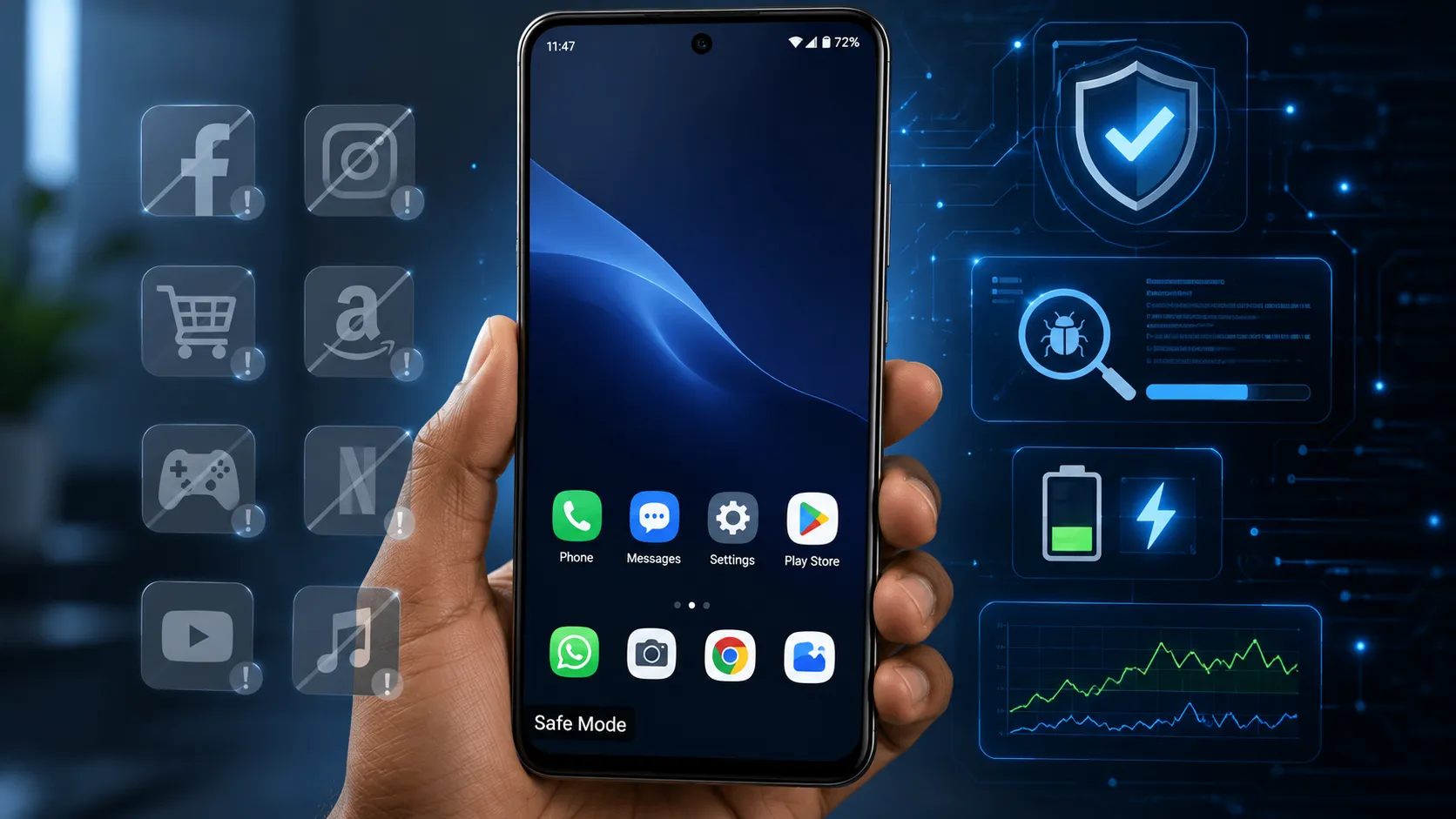
- Safe Mode: reboot to Safe Mode; third‑party hidden apps will disappear from the UI.
If a quick check finds something suspicious, proceed to the deeper inspections below before taking any destructive steps.
3. Deep Inspection — Settings & Permissions
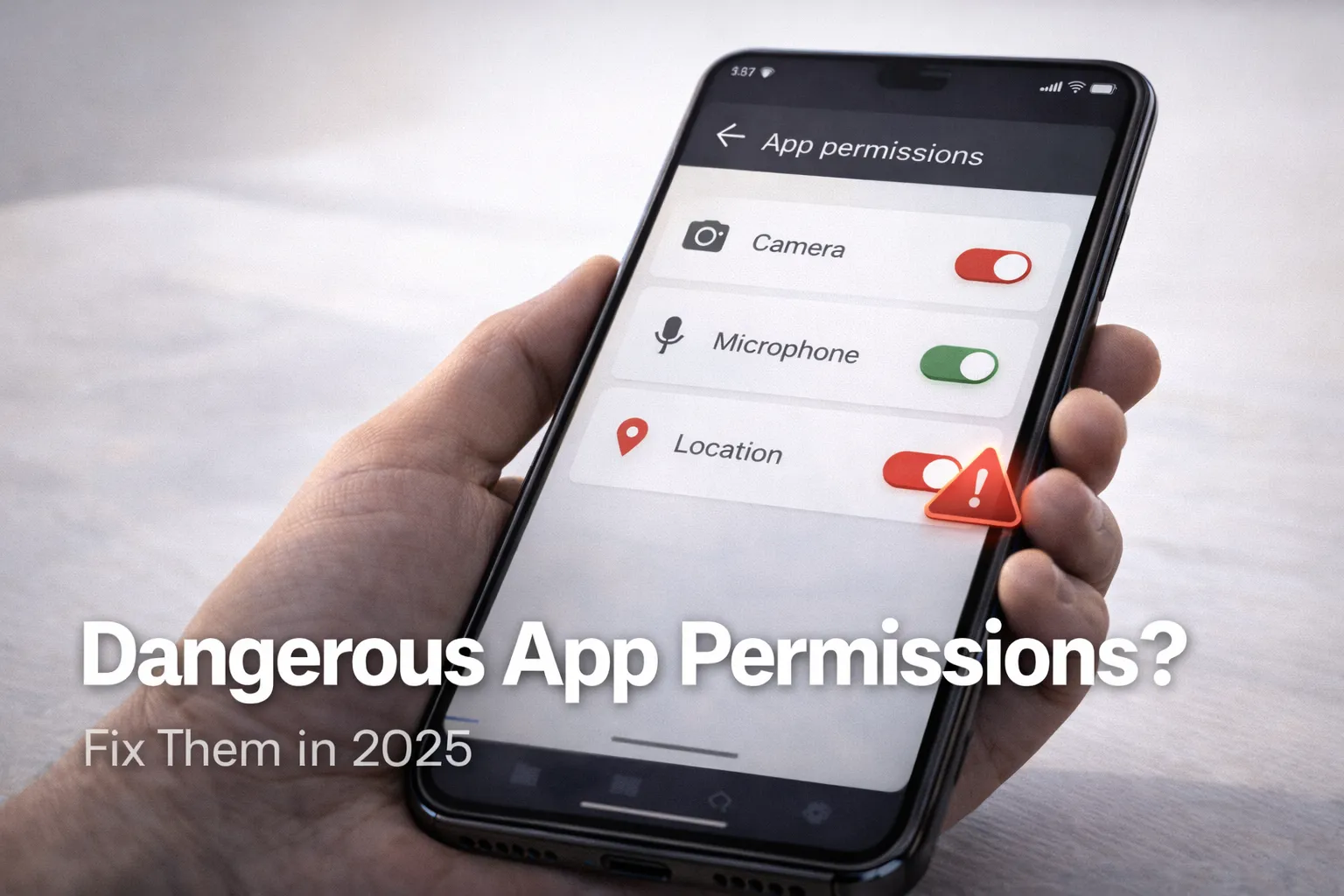
Hidden apps often rely on elevated permissions or system-level features. Audit the following settings:
Device Admin & Device Owners
- Settings → Security → Device admin apps (or Device & security → Device admin)
- Look for apps you don't recognize and revoke admin rights before uninstalling.
Accessibility Services
Apps can hide themselves if granted Accessibility privileges.
- Settings → Accessibility → Installed services — disable suspicious entries.
Notification Access & Draw Over Other Apps
- Settings → Apps → Special access → Notification access
- Settings → Apps → Special access → Display over other apps (Draw over other apps)
- Revoke access for unknown or untrusted apps.
Install Unknown Apps
- Settings → Apps → Special access → Install unknown apps — ensure only trusted sources (Play Store) have permission.
These checks often reveal hidden installations that otherwise won't show in the home screen.
4. Safe ADB Read‑Only Checks (PC + USB Debugging)
If you're comfortable using a PC, ADB lets you list packages and inspect apps without changing device state. These commands are read‑only and safe to run:
adb devices
adb shell pm list packages -3            # list third-party packages
adb shell pm list packages | grep com.example
adb shell dumpsys package packagename    # get details for a specific package
adb shell pm path packagename            # shows APK storage path
Example: list third‑party apps and spot odd package names:
adb shell pm list packages -3
package:com.google.android.youtube
package:com.whatsapp
package:com.vault.hidden123   # suspicious package name
If you see packages with unfamiliar names (random strings, 'vault', or 'hidden'), use adb shell dumpsys package packagename to gather metadata: install time, installer package, and permissions.
Tip: check the installer field — if it is not the Play Store, it may indicate an APK sideload.
5. Battery, Network & Log Clues
Hidden apps often show up in system traces even if their icons are hidden.
- Battery usage: Settings → Battery → Battery usage — look for unexpected drains.
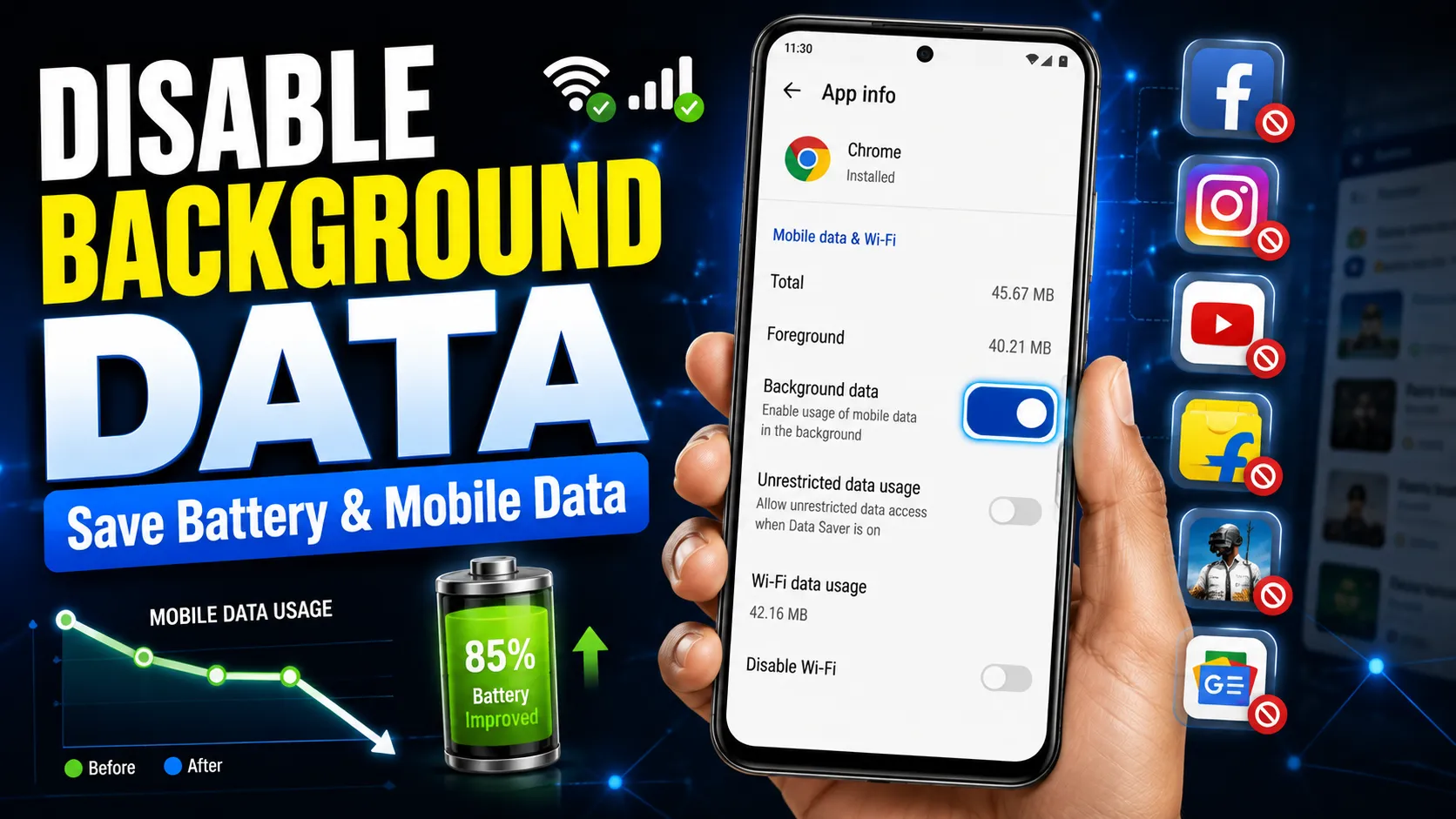
- Data usage: Settings → Network & internet → Data usage — spot apps using mobile data in the background.
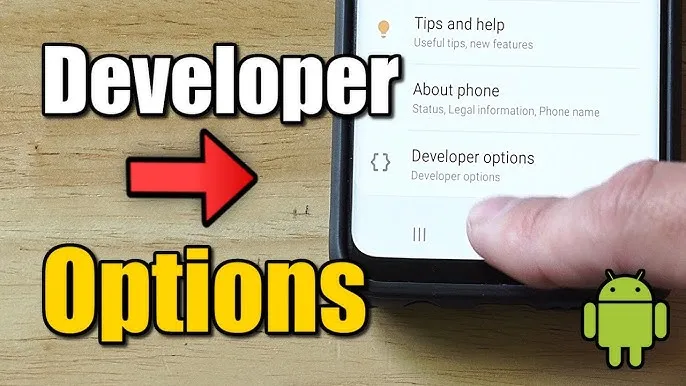
- App processes: Settings → Developer options → Running services (if enabled) — look for unusual entries.
For advanced users, collect filtered logs while reproducing suspicious behavior:
adb logcat -d | grep -i "PackageManager\|am_start\|ActivityManager"
Provide filtered logs to a security professional rather than posting sensitive logs publicly.
6. Vendor-Specific Tips
OEM skins change menu names — quick vendor notes:
- Samsung (One UI): App Drawer → Settings → Hide apps; Device Care → Security → Device admin entries.
- Xiaomi/Redmi/POCO (MIUI): Security app → App lock / Hidden apps; Settings → Dual Apps and Second Space.
- Realme/OPPO: App Management → App cloner / Hide apps; check Clone/Private safe features.
- Google Pixel / AOSP: Less overlayed; use Settings → Apps → See all apps and Developer options for running services.
When in doubt, search the OEM support site for "hide apps" to learn where the launcher hides icons on that device.
7. Remove & Recover: Uninstall, Disable, Factory Reset
Once you identify a hidden app, follow a measured removal path:
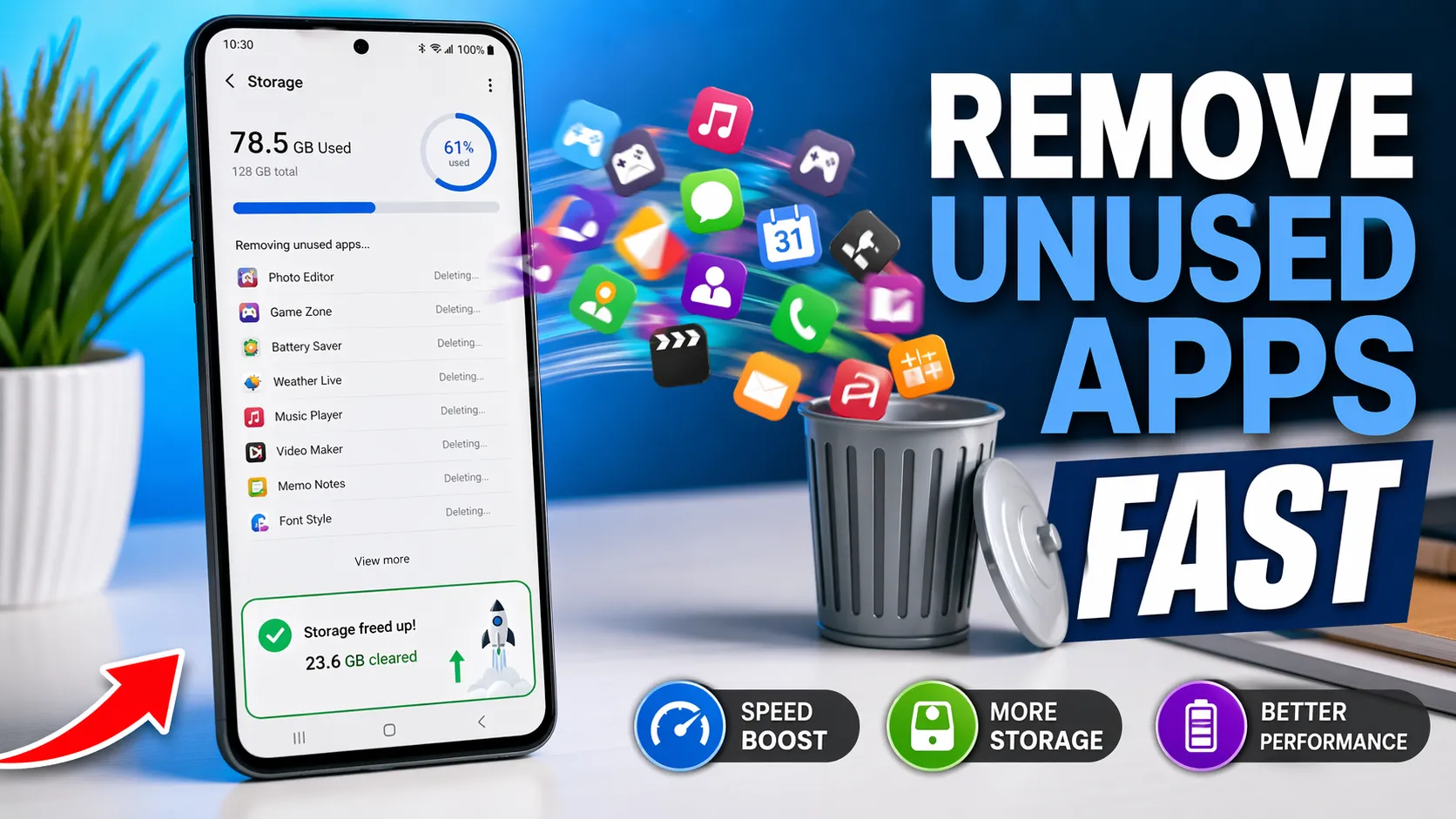
- Revoke privileged access: Disable admin, Accessibility, notification access, and 'Display over other apps'.
- Attempt normal uninstall: Settings → Apps → Select → Uninstall. If uninstall fails, disable first, then uninstall.
- Use ADB uninstall (advanced):
adb uninstall packagename— only if you understand ADB and have backups. - Backup important data: Before any factory reset, backup contacts, photos, and important files to encrypted storage or your PC.
- Factory reset: If the app resists removal or you see persistent behavior, perform a factory reset (Settings → System → Reset) after backing up.
After removal, change relevant passwords, revoke app permissions for third‑party installers, and re-check Device admin and Accessibility services.
8. 7‑Day Monitoring Plan
Set a short monitoring routine after taking action to confirm the issue is resolved:
- Day 1: Run quick checks (App Drawer, Settings → Apps, Device admin).
- Day 2–4: Monitor Battery and Data usage for unexpected spikes.
- Day 5–7: Re-run ADB package list (if used) and confirm no new suspicious packages appear.
Document suspicious package names and timestamps in a local note for follow-up with vendor or security professionals if required.
9. Real Example — Finding a Hidden Vault App
Case: a user reported missing notifications and high background data. Quick checks found nothing; battery use showed a recurring background drain. ADB package listing revealed com.vault.hiddenxyz. Using adb shell dumpsys package com.vault.hiddenxyz showed installer: com.android.packageinstaller and recent install time. The user revoked Accessibility and Device admin, then uninstalled the package and verified battery/data normalized within 24 hours.
This example shows the ideal sequence: detect → audit permissions → revoke → uninstall → monitor.
10. Privacy & Legal Notes
Hidden apps may be used by family members, employers, or bad actors. If you suspect illegal monitoring, document findings (screenshots, logs), preserve evidence, and consider contacting local authorities or a legal advisor. Do not attempt to access or delete devices you do not own — follow lawful channels.
11. Final Checks & Preventive Steps
- Uninstall apps from unknown sources and restrict 'Install unknown apps'.
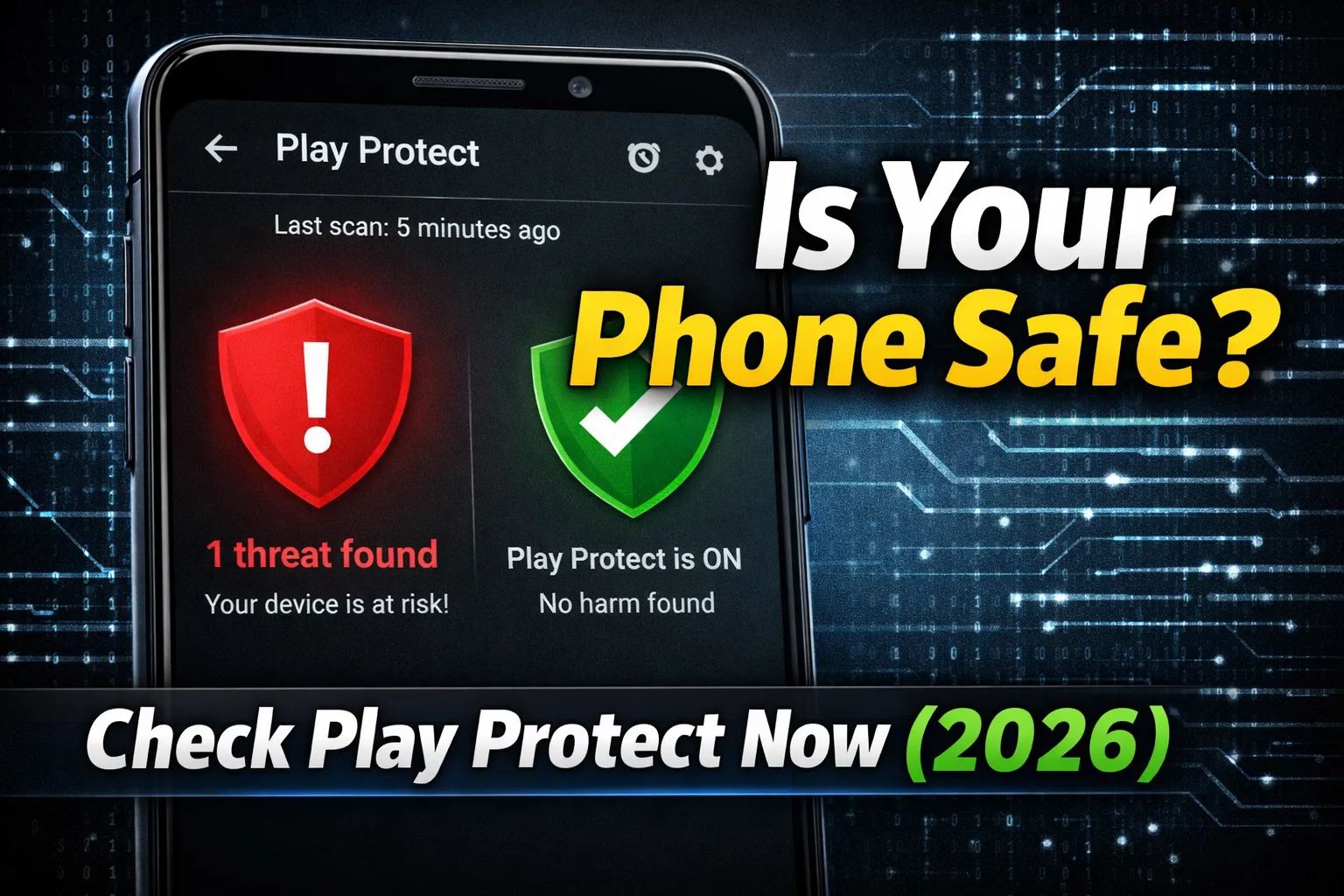
- Keep Play Protect enabled and scan regularly (Play Store → Play Protect).
- Use a secure lock screen and enable device encryption where supported.
- Regularly review special app access (Accessibility, Device Admin, Draw over apps).
- Consider a reset and clean reinstall if the device shows persistent, unexplained behavior.