How to Check Google Play Protect Status & Fix Security Issues on Android (2026 Guide)
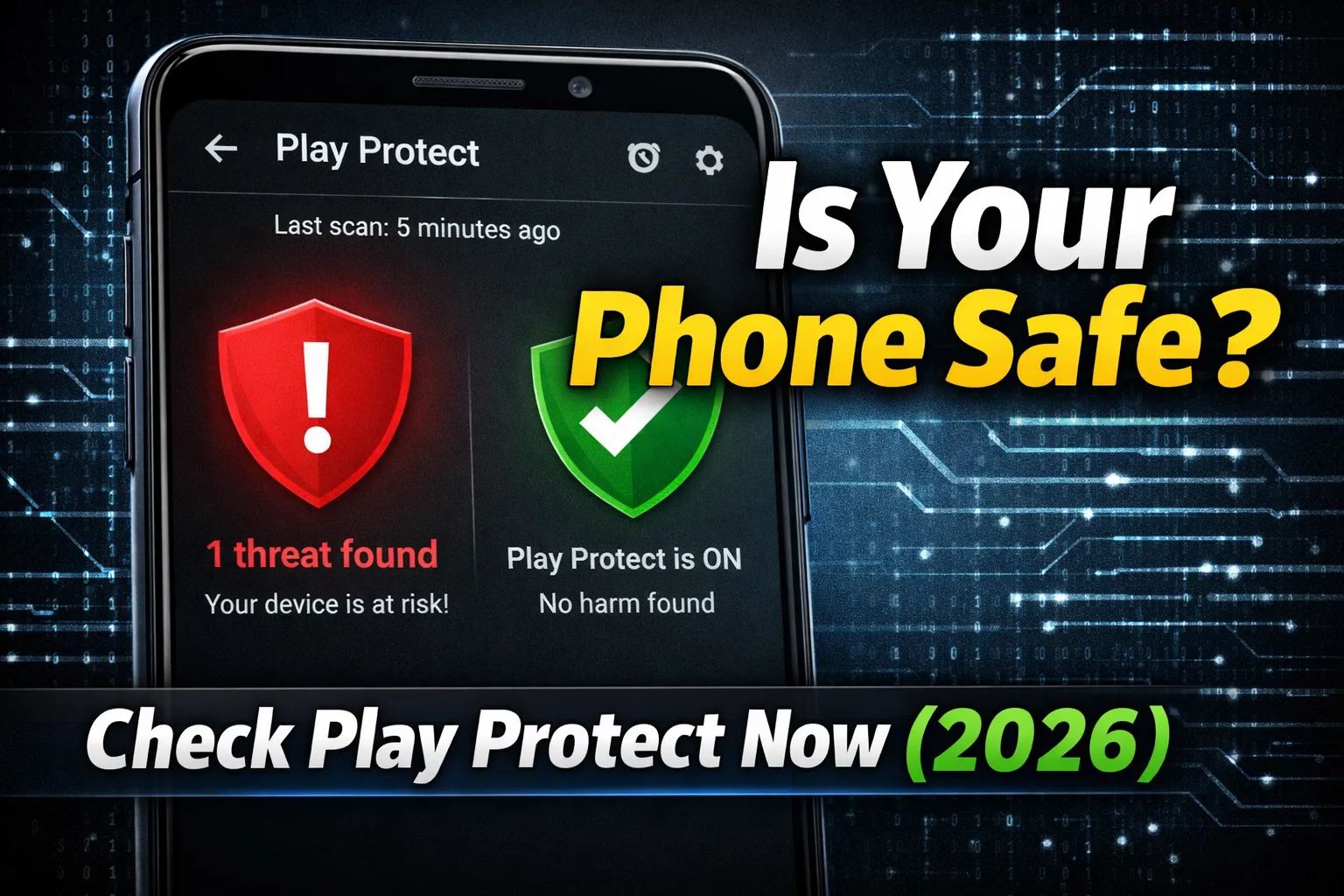
Want to check Google Play Protect status on your Android phone? If your Play Protect scan is not running, showing errors, or not detecting harmful apps, you may have security issues on your device. Google Play Protect is Android’s built-in malware protection system that scans apps daily to prevent spyware, fake apps, and hidden threats. In this 2026 step-by-step guide, you’ll learn how to check Play Protect status, run a manual security scan, fix Play Protect not working issues, and fully secure your Android device.
Table of Contents
- What is Google Play Protect?
- Why Play Protect is Important in 2026
- How to Check Google Play Protect Status
- How to Run a Manual Security Scan
- What Does “No Harmful Apps Found” Mean?
- Common Play Protect Problems
- Why Play Protect Stops Working
- How to Fix Play Protect Not Working
- How to Clear Google Play Services Cache
- Should You Turn Off Play Protect?
- Extra Android Security Tips
- Final Security Checklist
1. What is Google Play Protect?
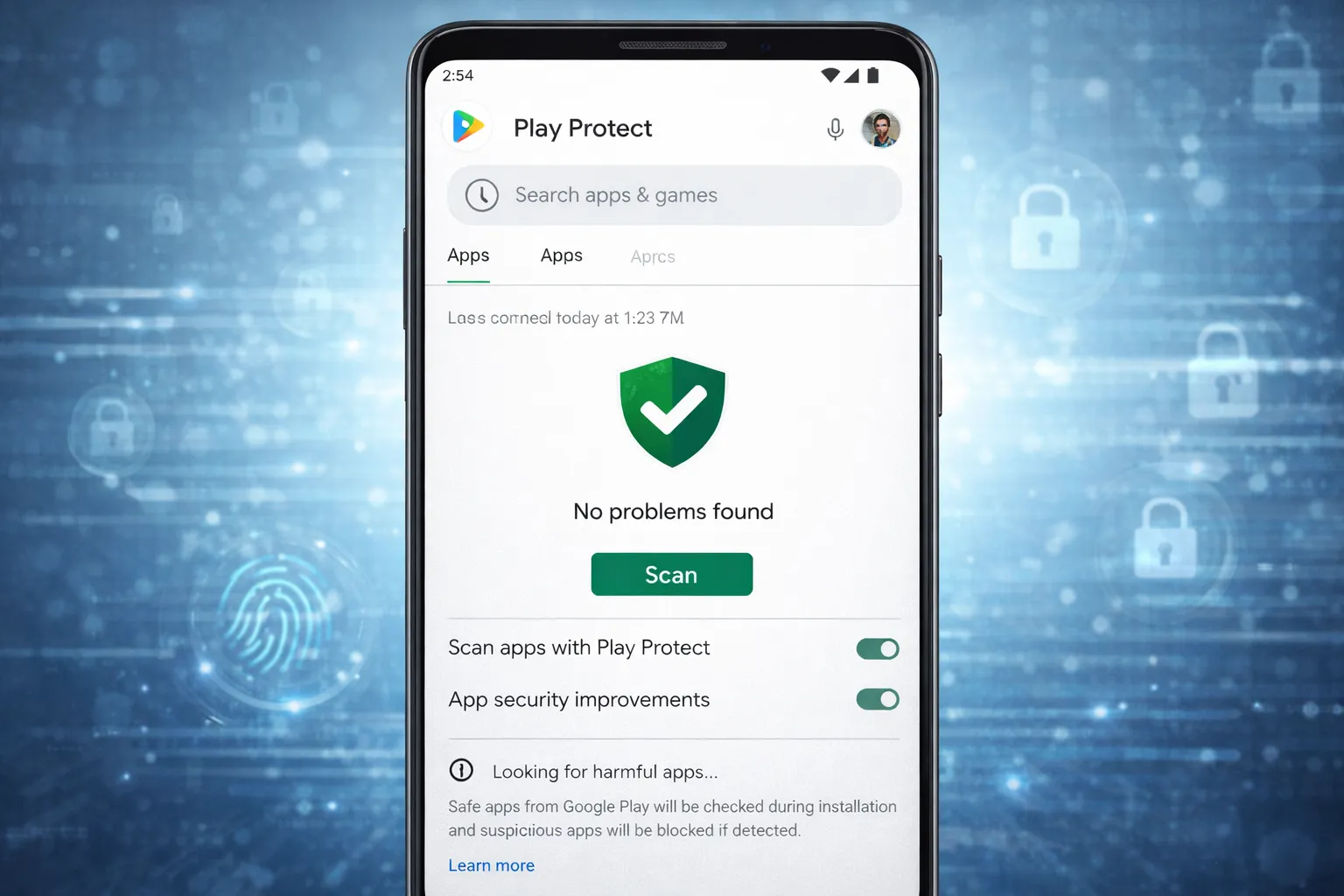
Google Play Protect is Android’s built-in mobile security system designed to protect your device from malware, spyware, fake apps, and harmful software. It is integrated directly into the Google Play Store and works automatically in the background to keep your phone safe.
If you want to check Google Play Protect status on Android, you’ll find it inside the Play Store settings. The system scans all installed apps regularly — including apps downloaded from the Play Store and third-party APK files.
Play Protect uses Google’s machine learning and security intelligence to detect suspicious behavior before it harms your device. According to the CISA Cybersecurity Guidelines, regular app scanning is one of the most effective ways to reduce malware risks on mobile devices.
How Google Play Protect Works
- Automatically scans apps daily for harmful activity
- Warns you about unsafe or fake applications
- Removes known malware from your device
- Checks apps before you download them from the Play Store
- Scans third-party apps installed from unknown sources
Why It Matters for Android Users
With increasing Android security threats in 2026, cybercriminals often hide malware inside cloned apps or modified APK files. Play Protect acts as your first security layer by continuously monitoring installed applications.
However, while Play Protect improves device safety, it is not a replacement for safe browsing habits. Users should still avoid suspicious downloads and regularly review app permissions.
In the next section, you’ll learn why Google Play Protect is especially important in 2026 and how it helps prevent modern Android security issues.
2. Why Play Protect is Important in 2026
In 2026, Android security threats are more advanced than ever. Fake apps, spyware tools, banking trojans, and hidden tracking software are increasingly targeting mobile users. That’s why Google Play Protect has become a critical security feature for every Android device.
Many harmful apps now look completely normal. They may appear as utility apps, photo editors, or even games — but in the background, they can steal data, monitor activity, or display intrusive ads. Checking your Google Play Protect status regularly helps ensure that your device is protected against these threats.
Major Android Security Risks in 2026
- Malware hidden inside cloned or fake apps
- Spyware tracking user activity without permission
- Banking trojans stealing financial information
- Apps abusing dangerous permissions
- Third-party APK files containing hidden threats
Google Play Protect works silently in the background, scanning installed apps daily and warning users about suspicious behavior. If it detects a harmful app, it may disable or remove it automatically. This reduces the risk of data theft and device compromise.
Why You Should Not Ignore Play Protect
Ignoring Play Protect alerts or disabling the feature can increase your exposure to Android security issues. Even if you install apps only from the Play Store, threats can still appear. Regular scans, updated system software, and safe app practices work together to keep your phone secure.
In short, Google Play Protect acts as your first line of defense in 2026 — helping prevent malware infections before they cause serious damage to your Android device.
3. How to Check Google Play Protect Status
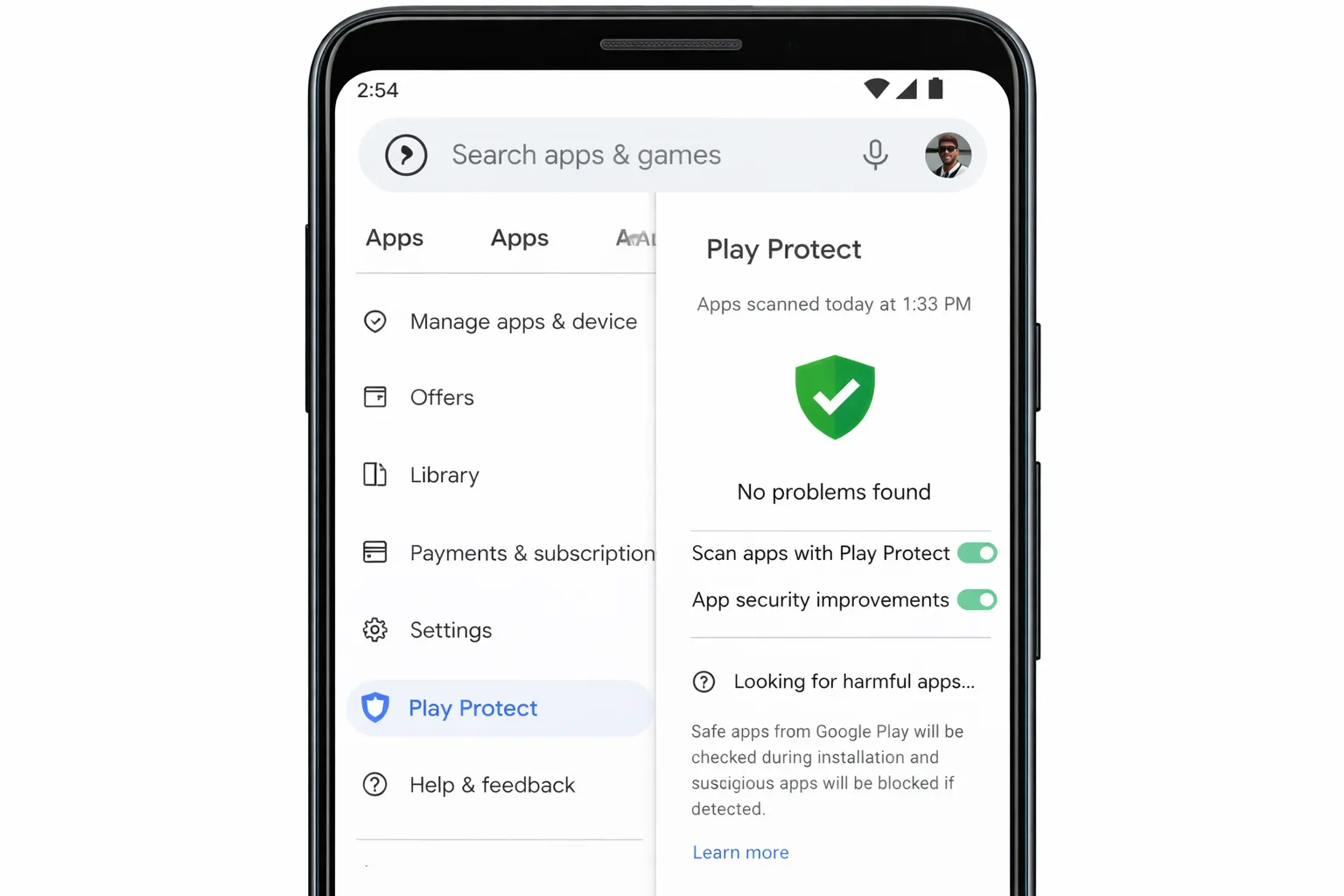
If you want to check Google Play Protect status on your Android phone, the process is simple and takes less than a minute. Regularly reviewing your Play Protect scan results helps ensure that no harmful apps, malware, or suspicious software are installed on your device.
Step-by-Step: Check Play Protect Status on Android
- Open the Google Play Store on your phone.
- Tap your Profile icon in the top-right corner.
- Select Play Protect from the menu.
- You’ll see your latest security scan result and last scan time.
If it shows “No harmful apps found”, your device is currently protected. You will also see the date and time of the last automatic scan.
What Information You’ll See on This Screen
- Last scan time and date
- Number of apps scanned
- Warnings about unsafe apps (if detected)
- Option to run a manual security scan
Google Play Protect automatically scans your apps in the background, but checking the status manually gives you peace of mind — especially if you recently installed new apps or APK files.
When Should You Check Play Protect?
You should check your Play Protect status if:
- Your phone behaves unusually (slow performance, pop-up ads)
- You installed apps from outside the Play Store
- You received a security alert notification
- Your device feels compromised
Monitoring your Google Play Protect status regularly is one of the easiest ways to maintain Android security and prevent potential threats before they cause damage.
4. How to Run a Manual Security Scan
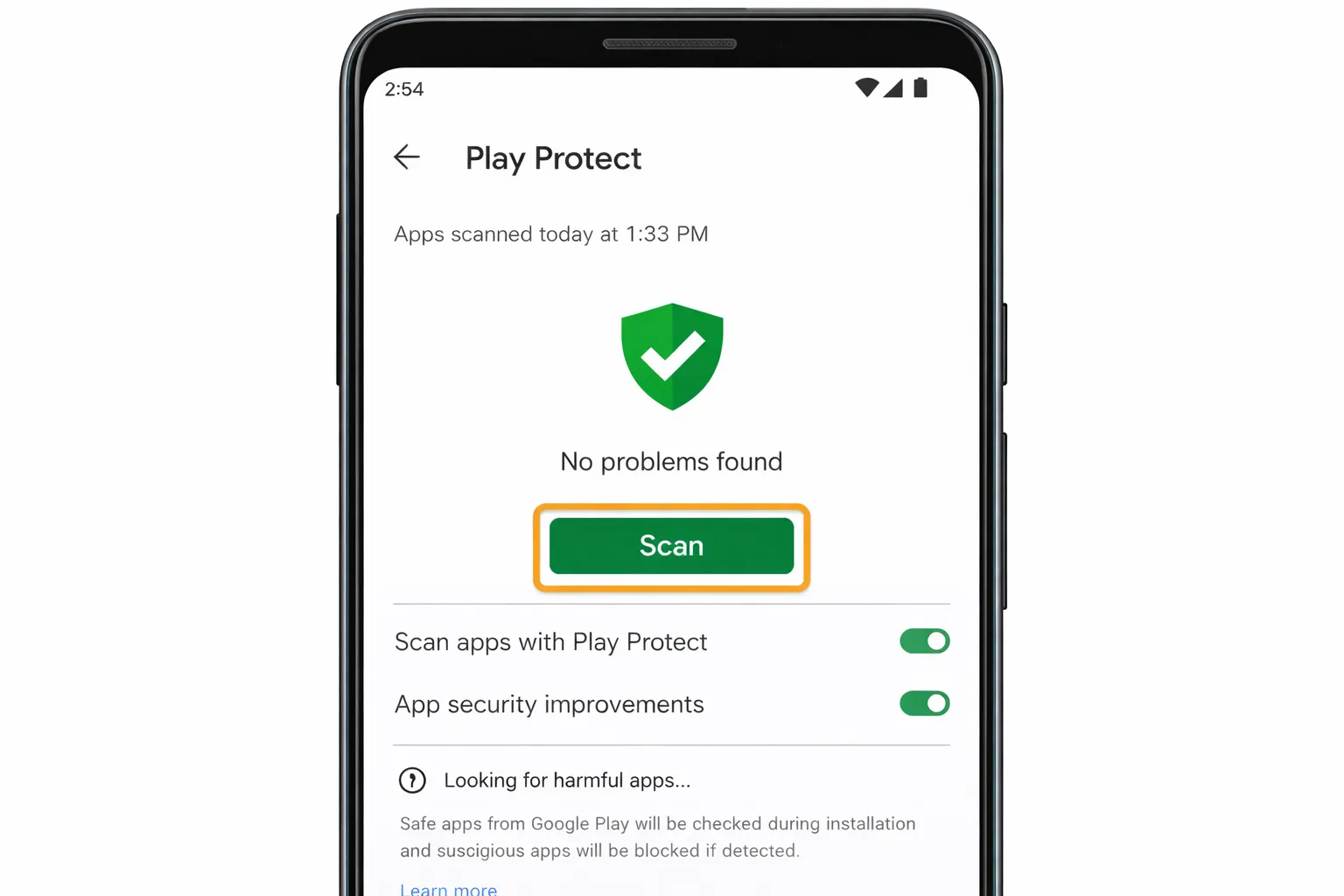
Although Google Play Protect automatically scans your apps in the background, you can also run a manual security scan anytime. If you recently installed a new app, downloaded an APK file, or noticed unusual behavior on your phone, manually scanning your device is a smart step.
Running a Google Play Protect manual scan ensures that all installed apps are checked for malware, spyware, and harmful activity in real time.
Step-by-Step: Run Play Protect Manual Scan
- Open the Google Play Store.
- Tap your Profile icon in the top-right corner.
- Select Play Protect.
- Tap the Scan button.
- Wait while Play Protect checks all installed apps.
The scan usually takes a few seconds to complete. If any harmful app is detected, you’ll see a warning along with an option to uninstall or disable it.
When Should You Run a Manual Scan?
- After installing apps from unknown sources
- If your phone shows unexpected ads or pop-ups
- When your device suddenly becomes slow
- If you receive suspicious security alerts
What Happens After the Scan?
If no threats are found, you’ll see a message confirming that your device is safe. If a risky app is detected, Play Protect may recommend removing it immediately. In some cases, it can automatically disable harmful applications to protect your Android device.
Regular manual scans add an extra layer of Android security and help you stay protected against evolving mobile threats in 2026.
5. What Does “No Harmful Apps Found” Mean?
When you check your Google Play Protect status and see the message “No harmful apps found”, it means that Play Protect did not detect any known malware or suspicious behavior on your Android device during the latest scan.
This is a positive result. It confirms that your installed apps currently match Google’s security standards and no flagged threats were identified. However, it does not mean your device is permanently risk-free. New threats can appear if unsafe apps are installed later.
What Play Protect Actually Checks
- Apps downloaded from the Google Play Store
- Third-party APK files installed manually
- App behavior patterns and suspicious permissions
- Known malware signatures in Google’s security database
Google Play Protect uses real-time scanning and machine learning to compare apps against known harmful patterns. If an app shows risky behavior, you will receive a warning notification.
Important Things to Remember
- It only detects known threats in its database.
- New or advanced malware may not be flagged immediately.
- Safe apps can still misuse excessive permissions.
This is why you should regularly review app permissions and avoid downloading apps from unknown or suspicious websites. Even if Play Protect shows “No harmful apps found,” practicing safe app installation habits is essential.
When Should You Be Concerned?
If your phone shows unusual ads, drains battery quickly, overheats, or behaves strangely despite showing no harmful apps, it may indicate deeper issues. In such cases, consider reviewing app permissions or running another manual scan.
In short, “No harmful apps found” means your device is currently secure — but ongoing awareness and smart usage habits are still necessary for complete Android security in 2026.
6. Common Play Protect Problems
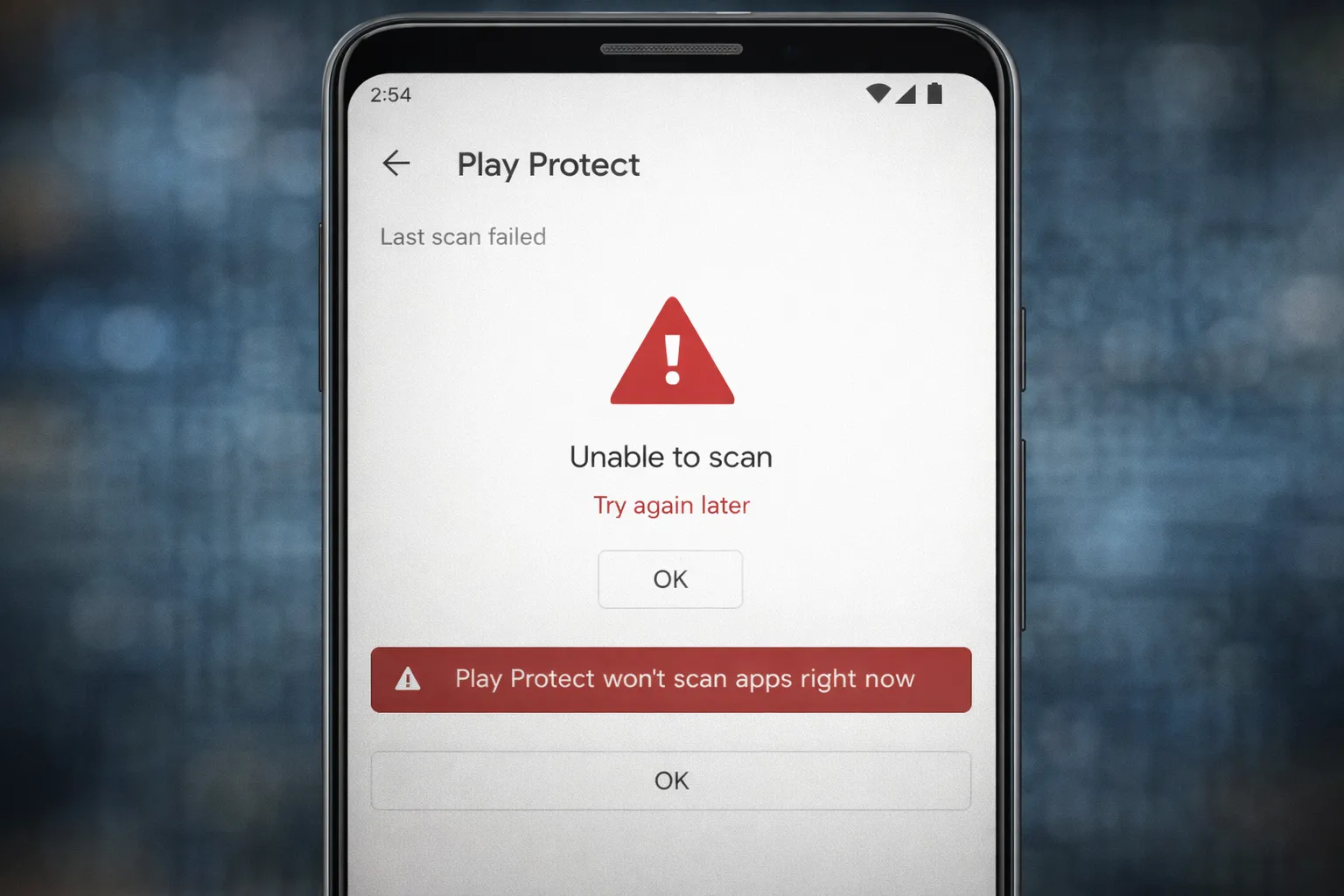
While Google Play Protect is designed to run automatically in the background, some users may experience issues where it does not function properly. If you are unable to check your Google Play Protect status or the scan is not running, it may indicate a system-related problem.
Understanding common Play Protect problems can help you quickly identify and fix Android security issues before they become serious.
Most Reported Google Play Protect Issues
- Scan not running: Manual scan button does not respond or stays stuck.
- Play Protect disabled automatically: The feature turns off without user action.
- Error loading Play Protect: Security section fails to open inside Play Store.
- Device not certified warning: Message shows that your device is not Play Protect certified.
Why These Problems Happen
These issues usually occur due to outdated Google Play Services, corrupted cache data, network problems, or system modifications. In some cases, disabling background data or battery optimization for Play Store can also interrupt Play Protect scanning.
When Should You Be Concerned?
If Play Protect stops scanning apps or shows repeated errors, your Android device may become vulnerable to malware and harmful applications. Regular security scans are important to maintain device protection.
If you notice unusual phone behavior like unexpected ads, overheating, battery drain, or unknown apps appearing, you should also read our guide on How to Check if Your Phone is Hacked to rule out deeper security threats.
Identifying these common Play Protect problems early helps you take corrective action and keep your Android phone secure in 2026.
7. Why Play Protect Stops Working
If Google Play Protect is not working on your Android device, it can leave your phone vulnerable to security threats. Many users notice that the Play Protect scan does not run, shows an error, or stops updating automatically. Understanding why this happens is the first step toward fixing the issue.
In most cases, Play Protect problems are caused by system-level settings or outdated background services rather than serious malware.
Common Reasons Why Play Protect Stops Working
- Outdated Google Play Services: Play Protect depends on Google Play Services to function properly. If it is not updated, scanning may fail.
- Corrupted cache files: Temporary system data can sometimes become corrupted and interfere with Play Protect loading correctly.
- Background data disabled: If background data usage is restricted for Google Play Store or Play Services, security scans may not run.
- Modified system settings: Rooted devices, custom ROMs, or altered system files can prevent Play Protect from working normally.
Other Possible Triggers
- Incorrect date and time settings
- Battery optimization blocking background processes
- Poor internet connection
- Device not Play Protect certified
Because Google Play Protect works in the background, even small system changes can interrupt its scanning process. If you cannot check your Play Protect status or manual scans fail repeatedly, it’s important to fix the root cause quickly.
In the next section, we’ll go step-by-step through practical solutions to fix Google Play Protect not working and restore full Android security protection.
8. How to Fix Play Protect Not Working
If Google Play Protect is not working, not scanning apps, or showing an error, don’t worry. In most cases, the issue can be fixed with a few simple troubleshooting steps. Restoring Play Protect ensures your Android device remains protected from malware and harmful apps.
Step-by-Step: Fix Google Play Protect Not Working
- Restart your phone: A simple reboot can refresh background services and resolve temporary glitches.
- Update Google Play Store: Open Play Store → Profile → Settings → About → Update Play Store (if available).
- Update Google Play Services: Go to Settings → Apps → Google Play Services → Check for updates.
- Enable background data: Make sure background data is allowed for Play Store and Play Services.
- Check automatic date & time: Incorrect time settings can prevent security verification.
After completing these steps, open Play Store and check your Google Play Protect status again. In most cases, the manual scan option should start working normally.
9. How to Clear Google Play Services Cache
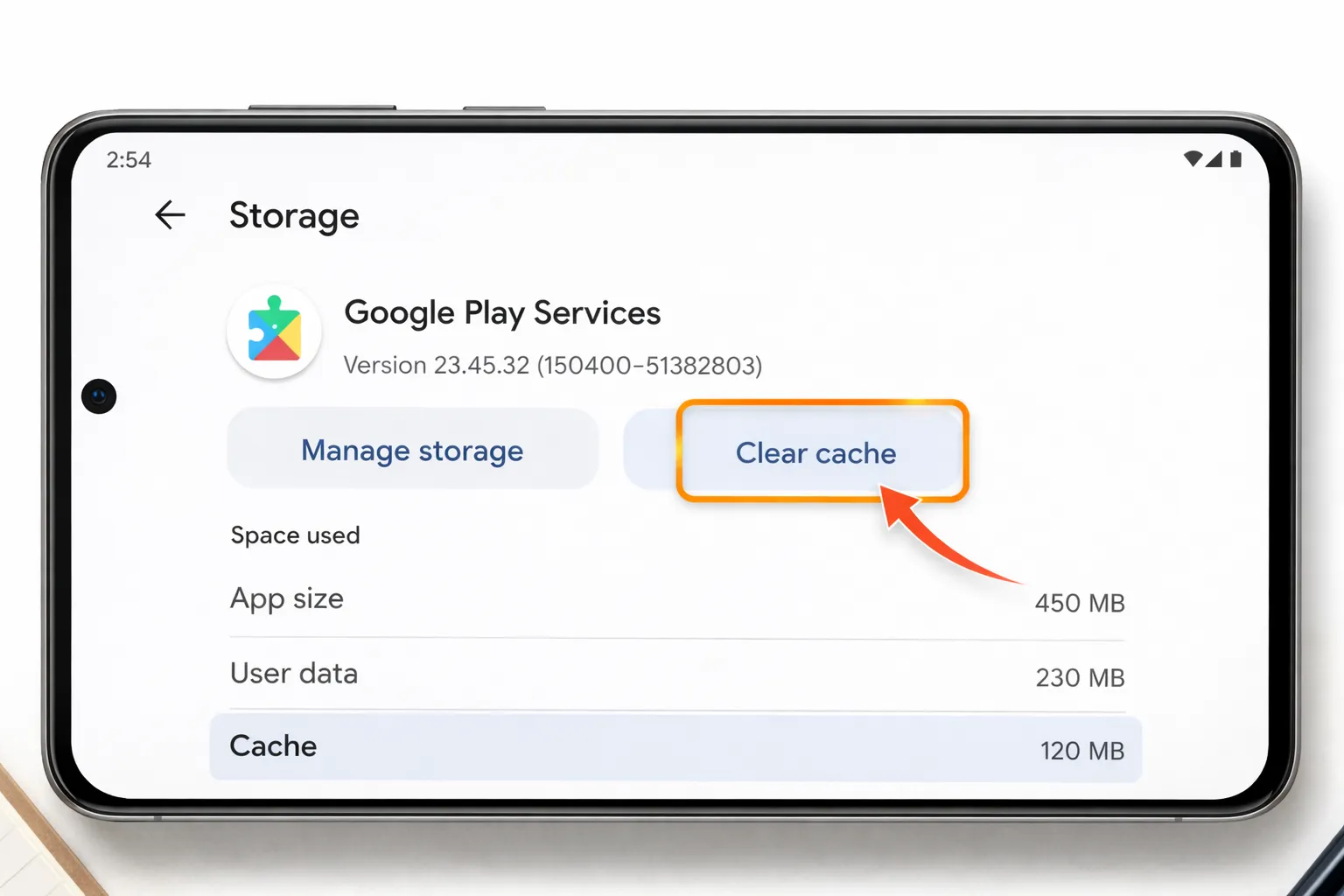
If Play Protect still fails to load or scan apps, clearing the Google Play Services cache can fix corrupted temporary files that may be causing the issue.
Steps to Clear Cache Safely
- Open Settings on your Android device.
- Tap Apps (or Apps & Notifications).
- Select Google Play Services.
- Tap Storage or Storage & Cache.
- Press Clear Cache (do not tap Clear Data unless necessary).
Clearing cache does not delete your personal data. It simply removes temporary system files that may interfere with Google Play Protect scanning.
Once done, restart your device and run a manual security scan again. This usually resolves most Play Protect not working issues and restores full Android security protection.
10. Should You Turn Off Play Protect?
In most situations, you should not turn off Google Play Protect. Disabling Play Protect removes an important security layer that helps protect your Android device from malware, spyware, and harmful applications. If you are wondering whether it is safe to disable Google Play Protect, the short answer is no — especially for everyday users.
Google Play Protect continuously scans installed apps and checks new downloads for suspicious behavior. Turning it off increases the risk of installing unsafe apps without any warning.
Why Keeping Play Protect Enabled Is Important
- Scans apps automatically in the background
- Warns you before installing harmful apps
- Detects known malware threats
- Helps prevent data theft and spyware attacks
According to the FTC Mobile Security Recommendations, built-in mobile security features should remain enabled to reduce the risk of cyber threats.
When Do People Turn It Off?
Some users disable Play Protect when installing third-party APK files or modified apps. However, this removes Google’s built-in app verification process and may expose your phone to hidden threats.
Is There Any Safe Reason to Disable It?
Advanced users testing apps in controlled environments may temporarily disable Play Protect. For regular Android users, there is no strong reason to turn it off.
In short, keeping Google Play Protect enabled is one of the easiest and most effective ways to maintain Android security in 2026.
11. Extra Android Security Tips
While Google Play Protect helps protect your device from harmful apps, complete Android security requires more than just one feature. Cyber threats in 2026 are more advanced, and users should take additional precautions to keep their data safe.
Below are some essential Android security tips that work alongside Play Protect to strengthen your device protection.
1. Review Dangerous App Permissions Regularly
Some apps request unnecessary access to your camera, microphone, contacts, or location. Regularly reviewing and removing risky permissions reduces privacy risks. You can follow our detailed guide on how to check and fix dangerous app permissions on Android for step-by-step instructions.
2. Use Android Privacy Dashboard
The Android Privacy Dashboard shows which apps recently accessed sensitive features like location or microphone. Monitoring this activity helps detect hidden tracking behavior. Learn how it works in our Android Privacy Dashboard complete guide.
3. Secure Your Google Account
Your Google account controls app downloads, backups, and device synchronization. Enabling two-factor authentication and reviewing security settings adds an extra protection layer. Follow this Google account security checklist to stay protected.
4. Delete Suspicious or Unused Apps
Unused apps can still run in the background and consume data or access permissions. Removing unnecessary apps reduces security and privacy risks. See our updated list of apps you should delete right now on Android.
Combining Google Play Protect with these practical Android security habits ensures stronger protection against malware, spyware, and data theft in 2026.
12. Final Security Checklist
Before you finish securing your device, use this final Android security checklist to confirm everything is properly configured. Regular monitoring of your Google Play Protect status and system settings ensures long-term protection against malware, spyware, and harmful apps.
Android Security Checklist (Quick Review)
- Play Protect Enabled: Make sure Google Play Protect is turned on and scanning apps automatically.
- Manual Scan Completed: Run a manual security scan after installing new apps or APK files.
- No Suspicious Apps Installed: Remove unknown or unnecessary apps from your device.
- Google Account Secured: Enable two-factor authentication and review recent activity.
- System Updated: Install the latest Android security patches and Play Services updates.
If all the above points are checked, your Android device has strong protection against most common mobile security threats in 2026. However, security is not a one-time task. It requires regular monitoring and safe usage habits.
Pro Tip for Ongoing Protection
- Avoid downloading apps from unknown websites
- Keep background data enabled for security services
- Review app permissions monthly
- Pay attention to unusual device behavior
Conclusion
Google Play Protect acts as your Android phone’s first line of defense. By regularly checking your Play Protect status, running manual scans, updating system apps, and following safe installation practices, you significantly reduce the risk of malware and data theft.
In 2026, mobile security threats continue to evolve — but with the right settings and awareness, your Android device can remain secure, stable, and protected.