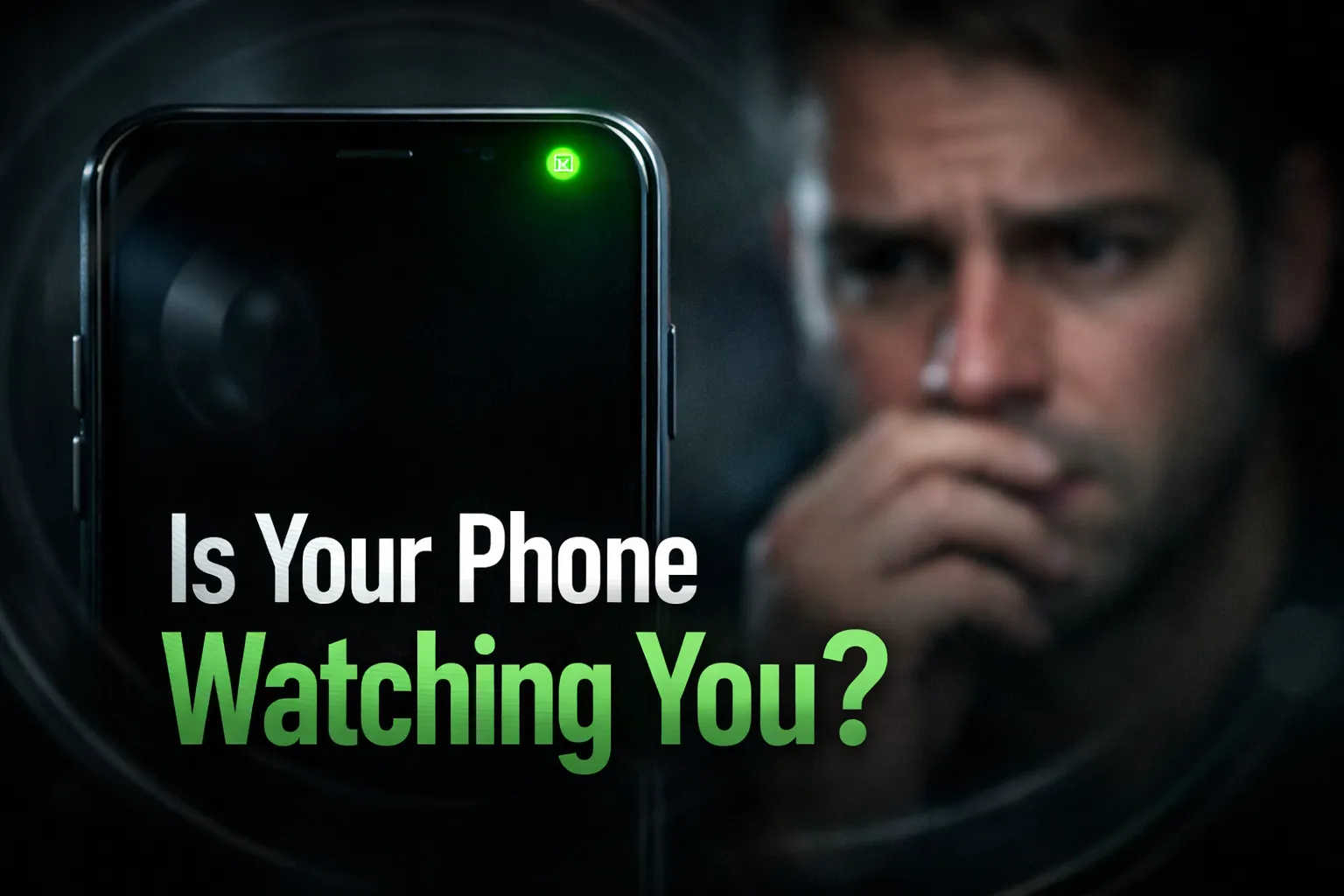
Worried that your phone might be secretly recording you? Many Android users are now searching how to check which apps are using camera and microphone in real-time. In 2026, privacy risks have increased due to hidden permissions, background tracking, and suspicious apps accessing your mic or camera without clear notice. If you’ve ever seen the green dot indicator or felt your phone behaving strangely, it’s important to investigate immediately. In this complete Android guide, you’ll learn how to check camera and microphone usage, identify apps using them, and stop unauthorized access to protect your privacy.
Table of Contents
- 1. Why You Should Care About Camera & Mic Access
- 2. Signs Your Camera or Mic Is Being Used
- 3. How Android Tracks Camera & Microphone Usage
- 4. Check Camera & Mic Usage Using Privacy Dashboard
- 5. Use Permission Manager to Identify Apps
- 6. Real-Time Indicators (Green Dot Explained)
- 7. How to Stop Apps from Using Camera & Mic
- 8. Disable Camera & Microphone Completely
- 9. Hidden Settings for Advanced Privacy
- 10. Apps That Commonly Spy on Users
- 11. What Happens If You Ignore This Issue
- 12. Final Safety Checklist (Quick Fix)
1. Why You Should Care About Camera & Mic Access

Your smartphone is always with you — which means your camera and microphone have access to your most private moments. Many Android apps request these permissions for valid reasons, but some apps misuse them in the background without your knowledge.
In 2026, privacy concerns have increased as users search for terms like “apps using camera android” and “apps using microphone secretly”. If left unchecked, this access can lead to serious privacy risks. If you're concerned about whether your device is listening, you can also read: Is Your Phone Listening? How to Stop Google Apps Tracking.
Why This Matters
- Apps can record audio without clear notification
- Camera access can capture surroundings silently
- Background tracking may collect sensitive data
- Personal conversations can be analyzed for ads or misuse
Common Risks You Should Know
- Privacy invasion: Unauthorized recording of your environment
- Data misuse: Apps collecting audio or video data
- Security threats: Spyware or malicious apps accessing sensors
- Battery drain: Continuous background usage of mic/camera
Real Example
Have you ever talked about something and suddenly seen ads related to it? While not always direct spying, it often happens due to microphone access, data tracking, and app permissions working together.
That’s why it’s important to regularly check which apps are using your camera and microphone and remove unnecessary access immediately.
Bottom Line
If you don’t monitor camera and mic permissions, your phone can become a silent data collector. Taking control of these settings is one of the most important steps to protect your privacy on Android.
2. Signs Your Camera or Mic Is Being Used
Many Android users don’t realize when an app is accessing their camera or microphone in the background. However, your phone often gives subtle signals that something isn’t right. Recognizing these signs early can help you stop potential privacy risks.
Common Signs to Watch
- Green dot appears randomly: On Android 12+, a green indicator shows when your camera or mic is active. If it appears without using any app, something may be running in the background.
- Battery drains quickly: Continuous use of camera or microphone can significantly reduce battery life, even when your phone is idle. You can also check if background apps are causing this issue here: Apps That Drain Battery in Background.
- Phone heats up without use: Unexpected heating may indicate background activity like recording or data processing.
- Unknown apps running: Suspicious or unfamiliar apps may access sensitive permissions without your awareness.
Additional Warning Signs
- Sudden spikes in mobile data usage
- Frequent permission pop-ups
- Apps behaving unusually or crashing
Why You Should Take This Seriously
If your phone shows these signs, it could mean an app is secretly using your microphone or camera. While not always harmful, it’s important to investigate immediately to avoid privacy breaches or data misuse.
In the next sections, you’ll learn how to check real-time camera and mic usage on Android and stop unauthorized access step by step.
3. How Android Tracks Camera & Microphone Usage
Modern Android versions, especially Android 12 and above, include built-in privacy features that help users monitor how apps access sensitive sensors like the camera and microphone. These features are designed to give you better control and transparency over your device activity.
How Android Tracks Sensor Usage
Android uses a combination of system-level tools to track when and how apps use your camera and microphone. These tools work in real time and provide visibility into background activity.
- Privacy Dashboard: Shows a timeline of which apps accessed the camera or microphone in the last 24 hours. You can learn more about how it works here: Android Privacy Dashboard Explained.
- Permission Manager: Lists all apps with camera and mic permissions and their access level (allowed, denied, or only while using the app).
- Privacy Indicators: Displays a small visual indicator on screen whenever the camera or microphone is active.
Why This Feature Is Important
Before Android 12, users had limited visibility into real-time sensor usage. Now, these tools make it easier to detect if an app is secretly using your microphone or camera without clear interaction.
What You Should Do
- Regularly check the Privacy Dashboard for unusual activity
- Review app permissions and remove unnecessary access
- Be cautious with newly installed or unknown apps
By understanding how Android tracks camera and microphone usage, you can quickly identify suspicious behavior and take action to protect your privacy.
4. Check Camera & Mic Usage Using Privacy Dashboard
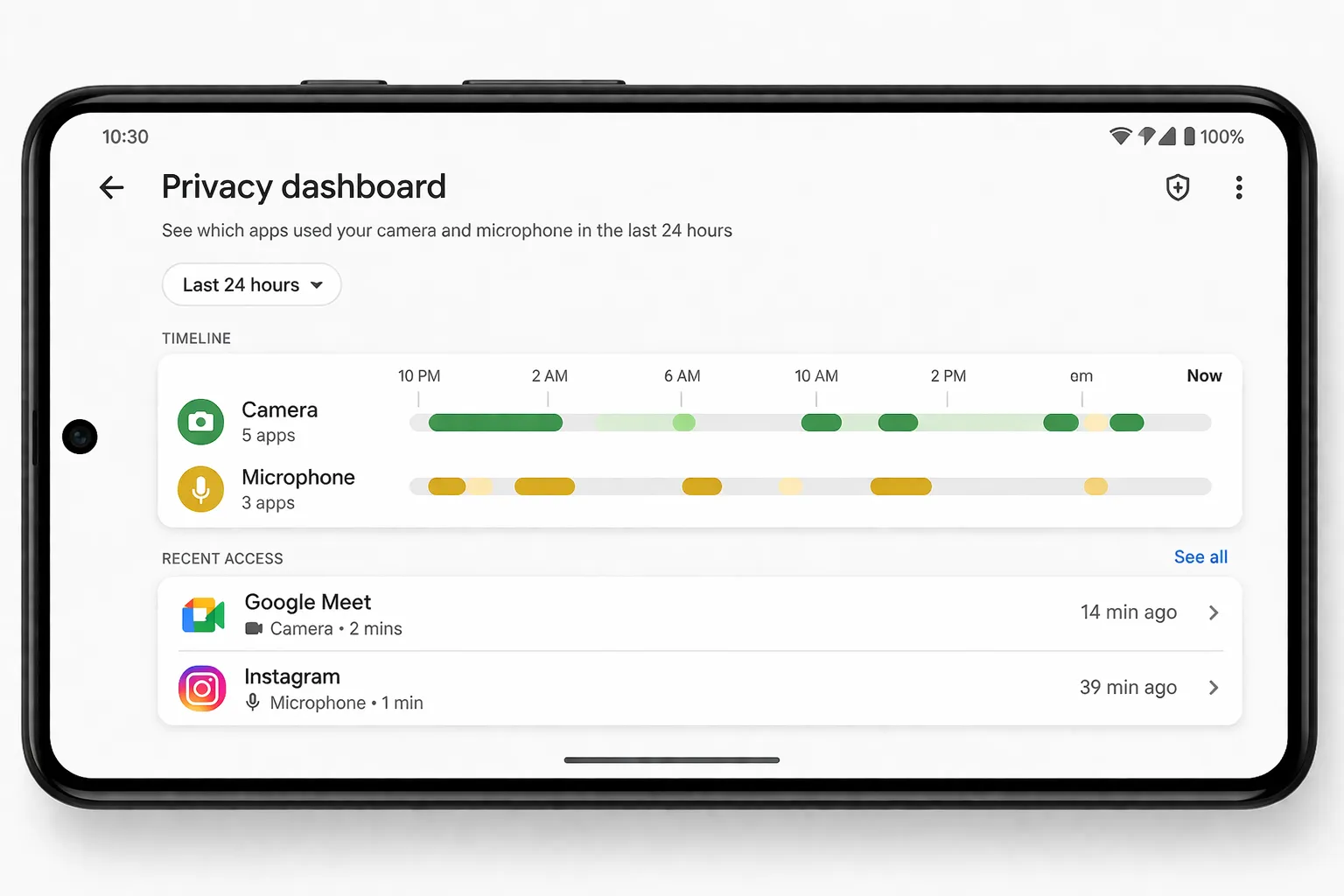
The Privacy Dashboard is one of the most powerful tools in Android that allows you to check which apps are using your camera and microphone. It provides a clear timeline of recent activity, helping you identify apps accessing sensitive permissions in real time.
You can also read a detailed breakdown here: Android Privacy Dashboard Guide
Steps to Check Camera and Microphone Usage
- Open Settings on your Android device
- Scroll and tap on Privacy
- Select Privacy Dashboard
- Tap on Camera or Microphone
- Review which apps accessed them in the last 24 hours
What You Will See
- A timeline showing when each app used the camera or mic
- Exact app names with access timestamps
- Frequency of usage throughout the day
Why This Is Important
If you notice an app accessing your camera or microphone when you were not actively using it, it could indicate background activity or potential misuse. This helps you quickly identify suspicious apps and take action.
Pro Tip
Check your Privacy Dashboard regularly, especially after installing new apps. This simple habit can help you detect hidden tracking and keep your Android device secure.
5. Use Permission Manager to Identify Apps
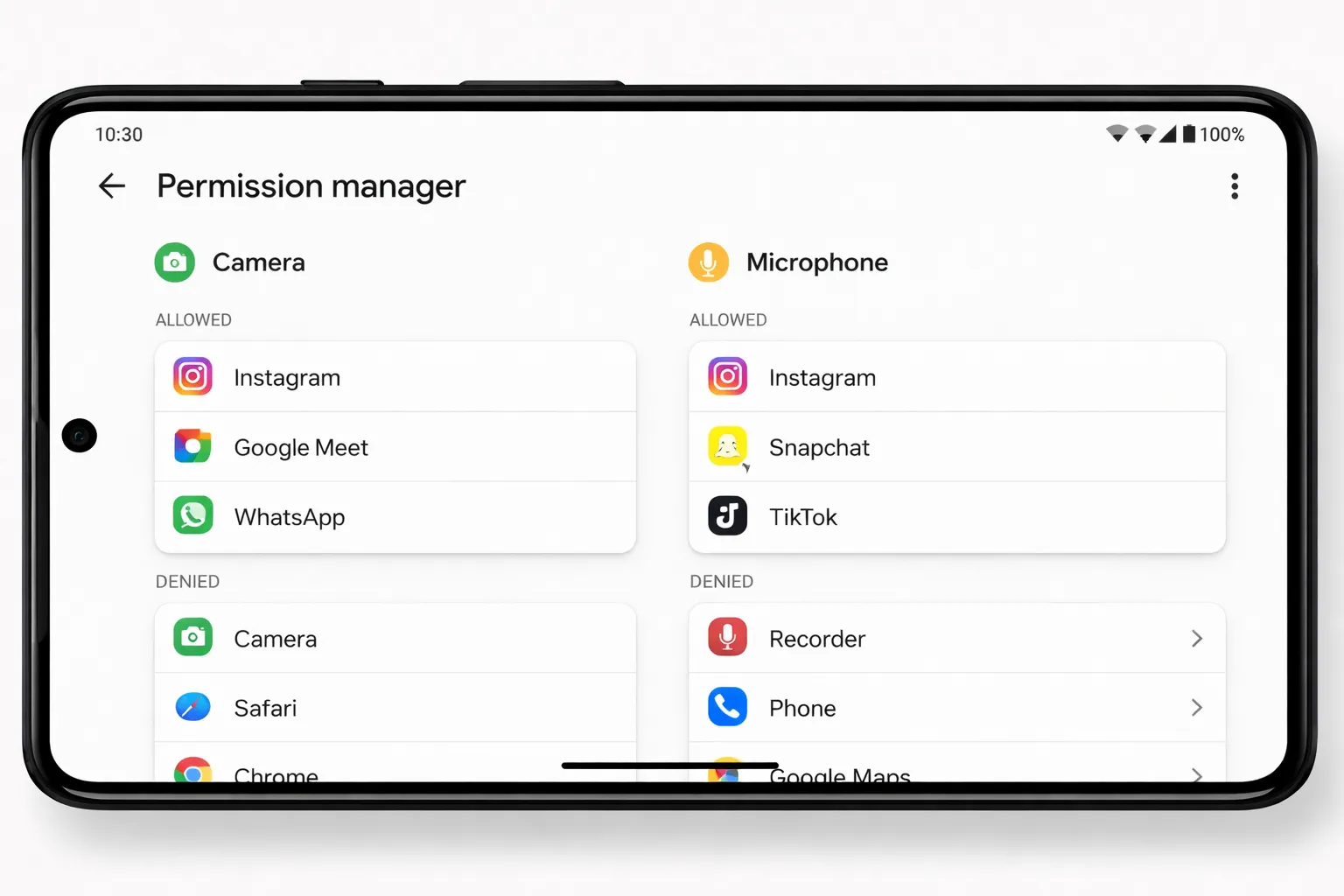
The Permission Manager on Android helps you see exactly which apps have access to sensitive features like the camera and microphone. It also shows whether apps can use these permissions all the time, only while in use, or not at all.
For a detailed walkthrough, you can follow this guide: Fix Dangerous App Permissions
How to Access Permission Manager
- Open Settings on your device
- Tap on Privacy
- Select Permission Manager
- Choose Camera or Microphone
What You Should Check
- Apps with “Allow all the time” access
- Apps you don’t recognize or rarely use
- Permissions granted to recently installed apps
Why This Matters
Some apps request camera and microphone access but continue to use them in the background. Reviewing permissions regularly helps you detect apps using microphone or camera without clear need and prevents potential privacy issues.
Best Practices
- Set permissions to “Only while using the app”
- Remove access from unnecessary apps
- Uninstall suspicious or unused apps
Using Permission Manager effectively ensures that only trusted apps can access your camera and microphone, keeping your Android device secure and your personal data protected.
6. Real-Time Indicators (Green Dot Explained)
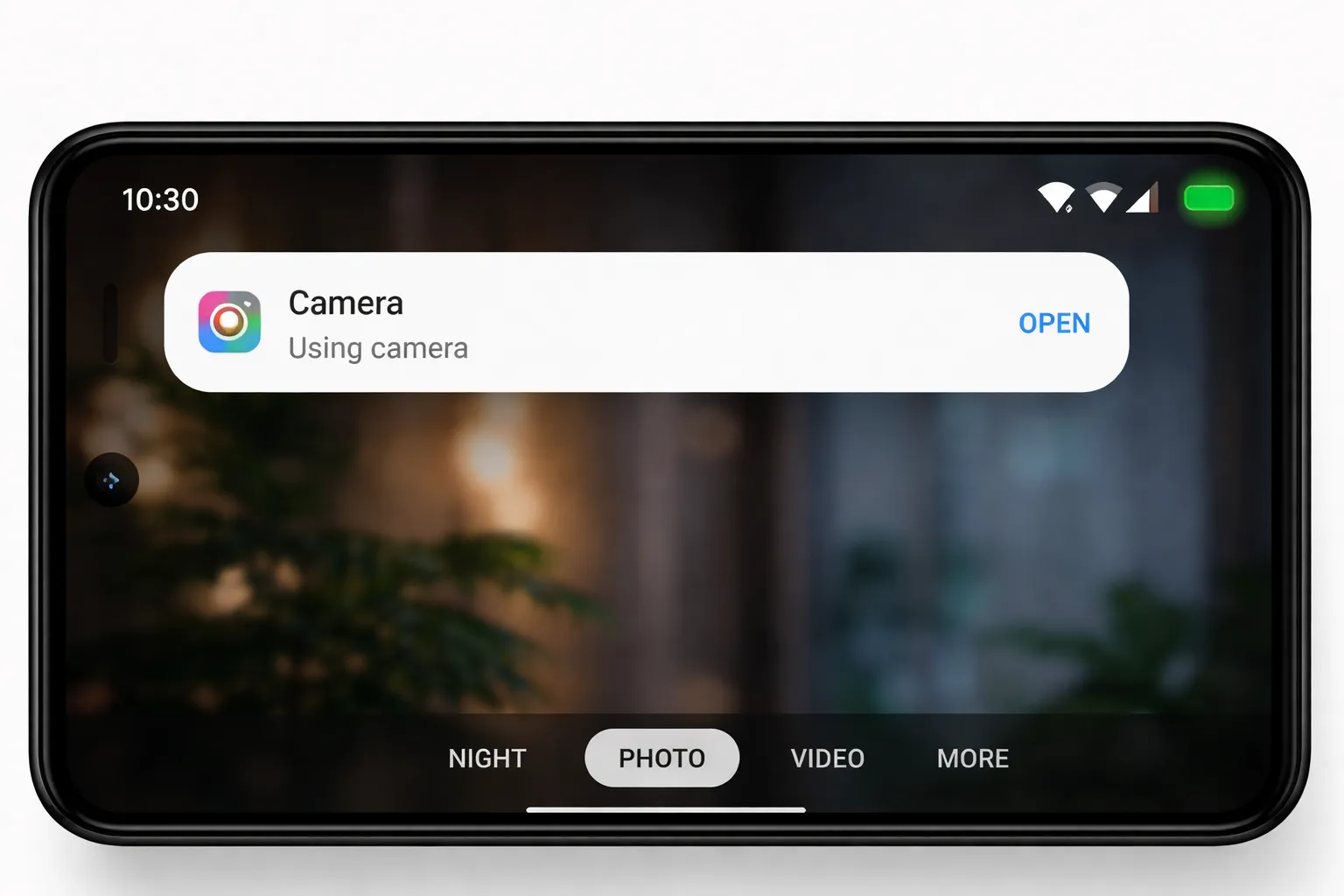
Android introduced real-time privacy indicators to help users instantly know when an app is accessing the camera or microphone. The most noticeable of these is the green dot indicator, usually visible in the top corner of your screen.
This feature is designed to improve transparency and alert you whenever a sensor is being used, even if the app is running in the background.
What the Green Dot Means
- Indicates active use of camera or microphone
- Appears when an app is recording video, taking photos, or using audio input
- Works in real time across all apps on your device
When You Should Be Concerned
- The green dot appears when no app is open
- You are not using camera or voice features
- It stays active for longer than expected
In such cases, it may indicate that an app is using your microphone or camera in the background, which requires immediate attention.
How to Identify the App Using It
- Pull down the notification panel to see active app usage
- Tap on the indicator (on supported devices) to view the app name
- Check Privacy Dashboard for detailed history
What You Should Do Next
- Review the app’s permissions
- Disable camera and microphone access if unnecessary
- Uninstall suspicious apps
The green dot is a simple but powerful feature that helps you monitor real-time sensor usage and protect your privacy on Android devices.
7. How to Stop Apps from Using Camera & Mic
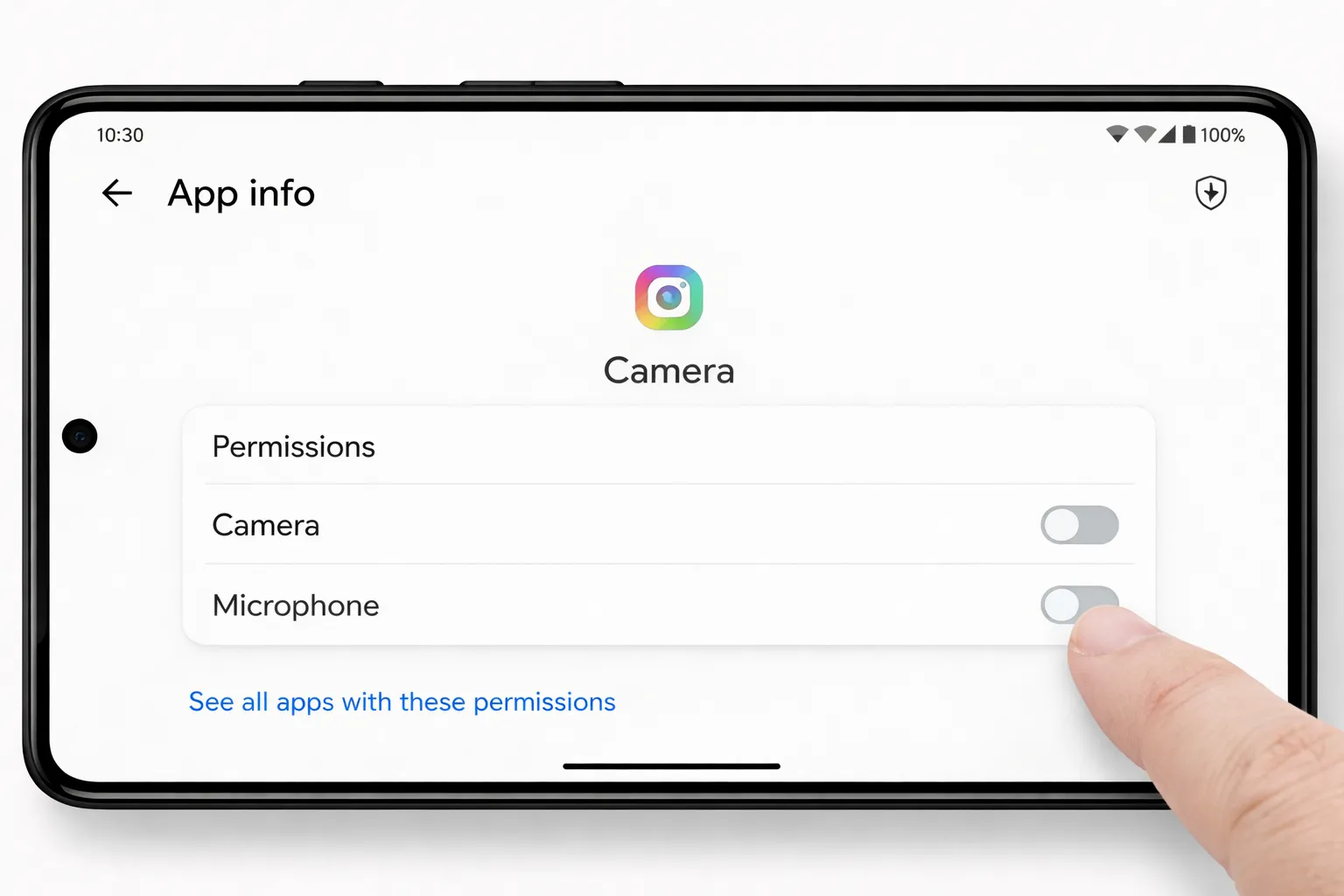
If you find that certain apps are using your camera or microphone without a clear reason, it’s important to take action immediately. Android allows you to control and restrict these permissions to protect your privacy.
Step-by-Step to Disable Camera & Microphone Access
- Open Settings on your Android device
- Go to Apps or App Management
- Select the suspicious or unnecessary app
- Tap on Permissions
- Disable Camera and Microphone access
Alternative Method (Using Permission Manager)
- Open Settings and go to Privacy
- Tap on Permission Manager
- Select Camera or Microphone
- Remove access from unwanted apps
Best Practices for Better Security
- Allow permissions only when the app is in use
- Deny access to apps that don’t require camera or mic
- Regularly review permissions after installing new apps
When to Uninstall an App
If an app continues to request unnecessary permissions or behaves suspiciously, it is safer to uninstall it completely. This reduces the risk of background tracking or data misuse.
By controlling camera and microphone access, you can prevent apps from secretly recording or tracking your activity and keep your Android device secure.
8. Disable Camera & Microphone Completely
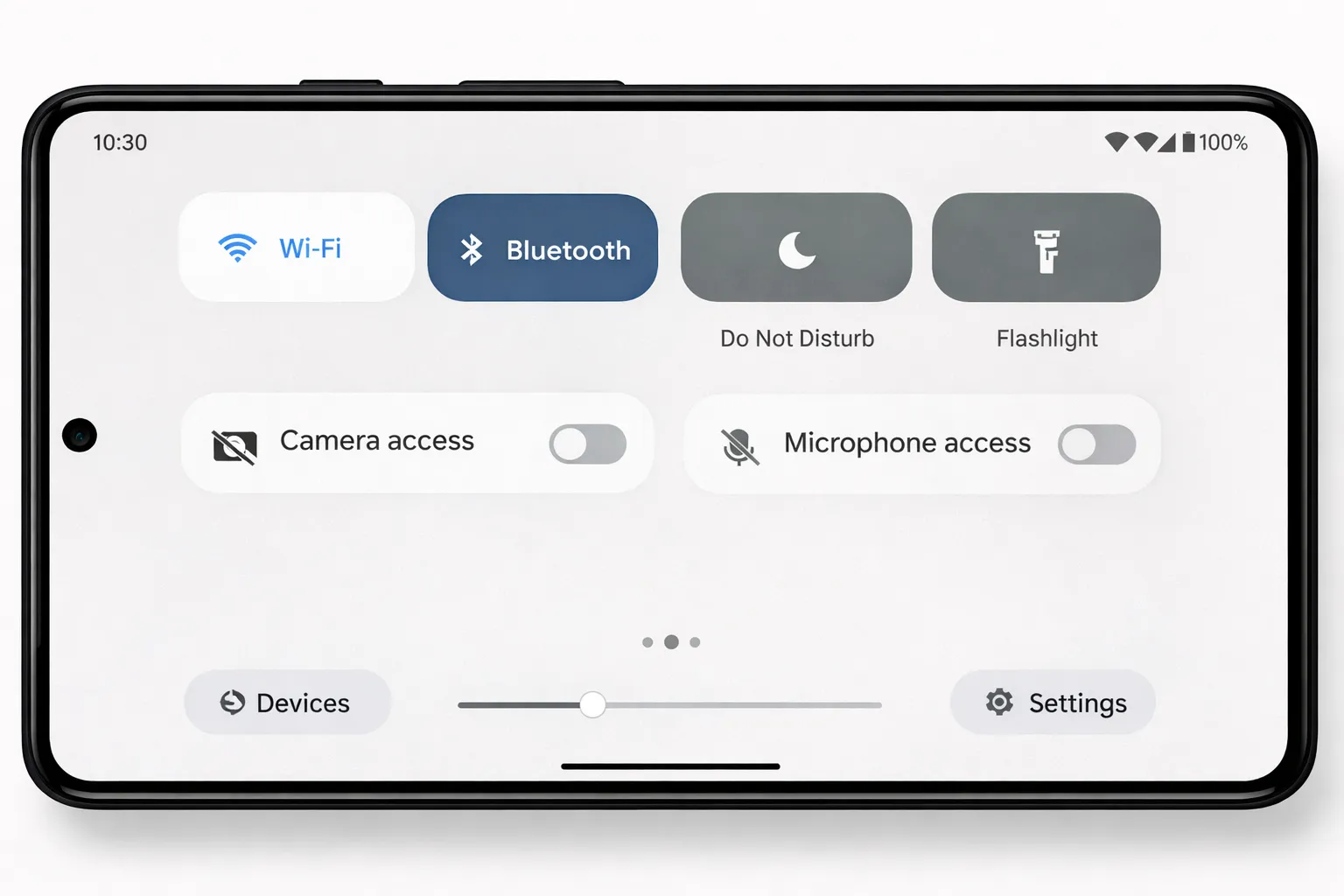
If you want maximum privacy on your Android device, you can disable camera and microphone access completely at the system level. This ensures that no app—whether trusted or suspicious—can use these sensors without your permission.
Android 13 and above introduced quick privacy controls that allow you to turn off camera and microphone access instantly from the Quick Settings panel.
How to Disable Camera and Microphone System-Wide
- Swipe down from the top of your screen to open Quick Settings
- Look for Camera Access and Microphone Access toggles
- Turn both toggles off
What Happens After Disabling
- All apps lose access to camera and microphone
- Apps requesting access will be blocked automatically
- You will see a notification if an app tries to use these sensors
When Should You Use This Feature
- When you suspect spying or unusual activity
- While using unknown or untrusted apps
- For extra privacy in sensitive environments
Important Things to Remember
- You may need to re-enable access for apps like camera, video calls, or voice recording
- This setting can be turned on or off anytime from Quick Settings
Disabling camera and microphone access at the system level is one of the most effective ways to prevent apps from secretly using your sensors and protect your privacy on Android.
9. Hidden Settings for Advanced Privacy
Beyond basic settings, Android offers several hidden privacy controls that can help you take full control over how apps use your camera and microphone. These advanced options are especially useful if you want stronger protection against background tracking or potential spyware.
1. Enable Developer Options
Developer Options unlock additional system-level controls that are not visible by default.
- Go to Settings > About Phone
- Tap Build Number multiple times to enable Developer Options
- Access it from Settings > System > Developer Options
2. Disable Sensors (Advanced Control)
This feature allows you to completely turn off hardware sensors, including camera and microphone, at a deeper system level.
- Enable Quick Settings Developer Tiles in Developer Options
- Add the Sensors Off toggle to Quick Settings
- Activate it to block all sensor activity instantly
3. Restrict Background Apps
Some apps continue to access resources even when not actively used. Limiting background activity reduces the risk of hidden tracking.
- Go to Settings > Apps
- Select the app and open Battery settings
- Choose Restricted or disable background usage
Why These Settings Matter
Using these hidden controls helps prevent apps from accessing your camera or microphone without your knowledge. It adds an extra layer of security beyond standard permissions.
For users concerned about privacy, these advanced settings are essential to ensure that your Android device remains secure and under your control.
10. Apps That Commonly Spy on Users
Not all apps that request camera and microphone access are trustworthy. Some apps misuse these permissions to collect data, track user behavior, or even record audio and video in the background. Identifying such apps is important to protect your privacy on Android.
You should review this detailed list: Apps You Should Delete Right Now
Types of Apps That May Misuse Permissions
- Free VPN apps: Many free VPN services collect user data and may access sensitive permissions unnecessarily.
- Modded APKs: Unofficial or cracked apps often bypass security checks and can include hidden tracking or spyware.
- Unknown utility apps: Flashlight, cleaner, or booster apps from unknown developers may request excessive permissions without clear purpose.
Warning Signs of Suspicious Apps
- Requesting camera or mic access without a valid feature
- Showing frequent ads or pop-ups
- High battery or data usage in the background
- Installed outside the official app store
What You Should Do
- Uninstall apps you don’t recognize or trust
- Download apps only from official sources like Google Play Store
- Check app reviews and developer details before installing
Being cautious about the apps you install is one of the most effective ways to prevent unauthorized access to your camera and microphone and keep your personal data secure.
11. What Happens If You Ignore This Issue
Ignoring unauthorized access to your camera and microphone can lead to serious consequences. Many users overlook early warning signs, assuming it’s normal behavior, but unchecked access can expose your personal data and compromise your security.
Major Risks You May Face
- Privacy breach: Apps may record your surroundings, conversations, or activities without your knowledge.
- Data theft: Sensitive information such as personal details or confidential discussions can be collected and misused.
- Financial fraud: Malicious apps may use gathered data for scams, unauthorized transactions, or targeted attacks.
- Identity misuse: Your personal identity can be exploited for fake accounts, fraud, or impersonation.
Long-Term Impact
- Continuous background tracking of your behavior
- Loss of control over personal and private data
- Increased exposure to cyber threats and scams
Why Users Often Ignore It
Many users are unaware of how Android permissions work or assume that all apps are safe. Others ignore signs like battery drain or unusual activity, which can delay detection of serious issues.
Take Action Early
Addressing these risks early can prevent major damage. Regularly checking app permissions and monitoring camera and microphone usage ensures your device remains secure.
Taking control of your privacy today can protect you from long-term security threats and keep your personal information safe.
12. Final Safety Checklist (Quick Fix)
Also make sure your security system is active: Check Google Play Protect Status
- Check Privacy Dashboard daily
- Remove unnecessary permissions
- Uninstall unknown apps
- Keep Play Protect enabled
Conclusion
Monitoring camera and microphone usage is essential in 2026. With built-in Android tools, you can easily detect and stop apps from spying on you. Stay alert and keep your device secure.
References
CISA Mobile Device Security Guide
FTC Privacy Protection Tips