How to Enable Android Anti-Theft Protection (2025 Step-by-Step Guide)
Phone theft and accidental loss remain top risks to your mobile privacy. This guide shows exactly how to enable and verify Android Anti‑Theft Protection in 2025 using built-in tools like Google Find My Device, Factory Reset Protection (FRP), SIM locking, device encryption, secure backups and vendor-specific services. We include step‑by‑step setup, short verification tests you can run in five minutes, a vendor walkthrough for Samsung/Pixel/Xiaomi/OnePlus, and a practical lost‑phone playbook that prioritizes safety and speed.
Related: pair this with our Hidden Apps and Android Speed HUB articles for broader device security and performance tips.
Table of contents
- Overview & Quick Checklist
- Enable & Verify Google Find My Device
- Location, Permissions & Battery Settings
- Lock Screen & Authentication
- SIM Lock and Carrier Actions
- Factory Reset Protection (FRP) — What to Know
- Device Encryption & Secure Backups
- Fast Verification Tests (5–10 minutes)
- Vendor Walkthroughs: Samsung, Pixel, Xiaomi, OnePlus
- Lost Phone Playbook (Immediate Actions)
- Real-World Recovery Example
- Hardening Tips & Practical Advice
- Conclusion
Overview & Quick Checklist
Goal: make your device trackable, lockable, and unusable by thieves while ensuring your data is backed up and recoverable. The high‑impact steps are:
- Enable Find My Device and verify it on a web test (google.com/android/find).
- Turn on precise Location and required permissions for Find My Device.
- Set a strong screen lock (PIN/password or biometric + fallback).
- Enable SIM PIN and note IMEI & carrier details.
- Confirm Factory Reset Protection (FRP) is active (Google account is registered).
- Enable device Encryption and secure backups tied to your account or password manager.
This guide gives step-by-step commands and short verification tests so you can confirm each control works in under 10 minutes.
Enable & Verify Google Find My Device
Find My Device is the central tool for locating, ringing, locking, or erasing a lost Android device. Follow these exact steps.
Steps to enable
- Settings → Security or Security & privacy.
- Tap Find My Device (or Find My Device & Remote Lock on some OEMs) and toggle ON.
- Open Google Settings → Location and confirm Use location and Google Location Accuracy are enabled.
- Sign in to your primary Google account (the one you will use to locate the phone).
Quick verification — Web test (5 minutes)
- From a PC, go to google.com/android/find and sign in with the same Google account.
- If the device appears on the map, test Play sound and Secure device (Lock and display a contact number).
- Do NOT select Erase device during the test unless you intend to wipe it — this removes future location capability for most FRP-protected devices.
Expected result: device shows location (accurate within 10–50 meters indoors/outdoors depending on signal), Play sound triggers audible tone within 5–10 seconds, Secure device sets a temporary lock message.
Location, Permissions & Battery Settings
Find My Device needs location and background permissions to function reliably. Follow these checks:
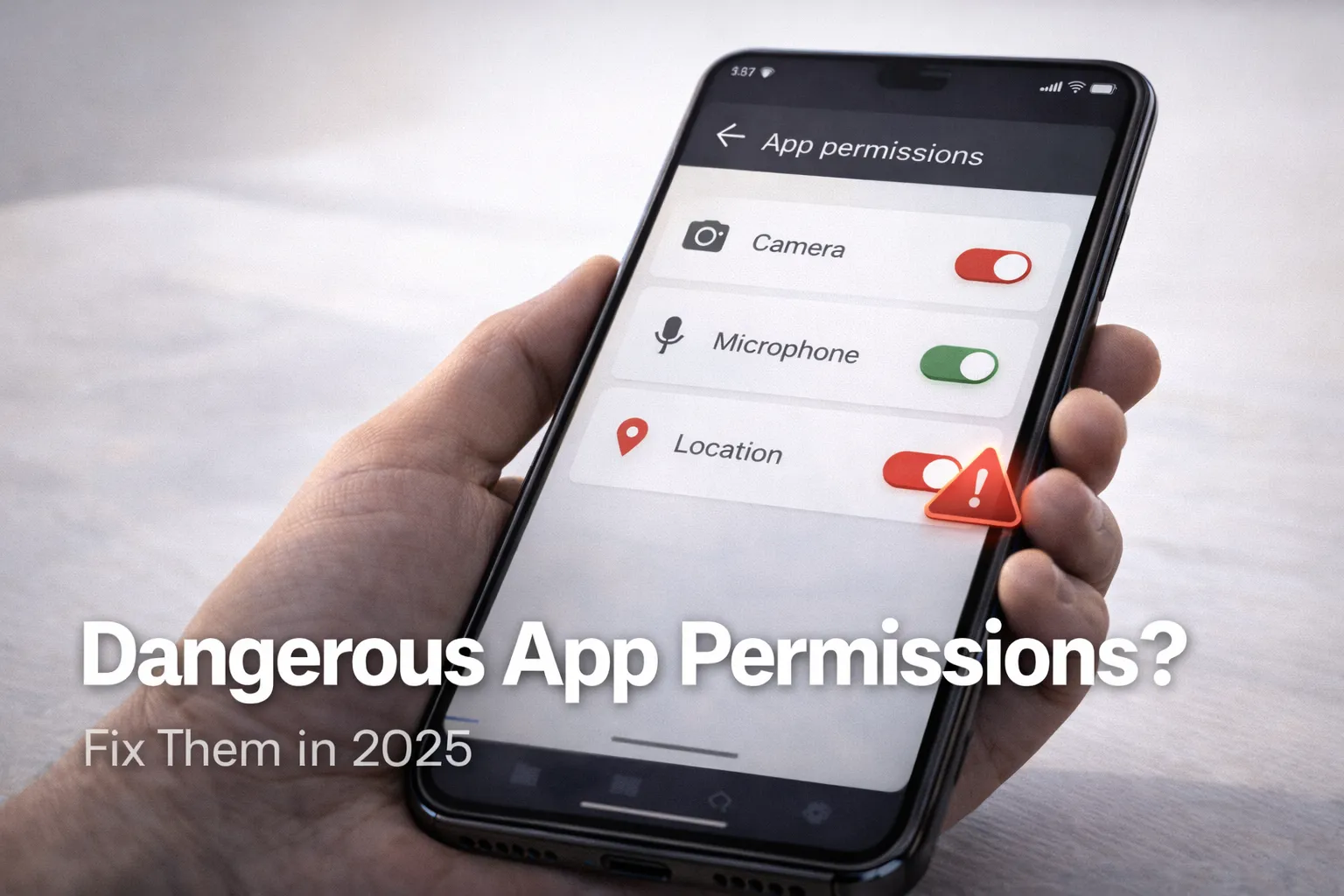
- Settings → Location → Confirm Location is ON and App permissions show Find My Device with Allow all the time if available.
- Battery settings → Apps → Find My Device → background activity allowed — set to unrestricted for best results.
- Network: enable Wi‑Fi and mobile data for better accuracy; GPS alone may be insufficient in dense urban areas.
Lock Screen & Authentication
Your lock screen must be strong—this is the most effective immediate deterrent. Recommended practice:
- Use a numeric PIN (6+ digits) or long alphanumeric password; pattern locks are less secure.
- Enable biometric unlock (fingerprint or face) in addition to a PIN, but always set a strong fallback PIN/password.
- Disable Smart Lock features (trusted places/devices) when concerned about theft; these can unlock your phone in ways a thief might exploit.
SIM Lock and Carrier Actions
Two anti-theft measures involve your carrier: SIM lock and immediate carrier notification.
Enable SIM PIN
- Settings → Security → SIM card lock → Set up SIM PIN.
- Write the SIM PIN down in a safe place (do not store it on the phone itself).
Carrier notification steps
- If the phone is lost/stolen, call your carrier and request SIM suspension and IMEI block (blacklist) to limit reuse on networks.
- Ask the carrier to note an alert on your account for suspicious activity (SIM swaps are common in account takeover fraud).
Factory Reset Protection (FRP) — What to Know
FRP prevents a thief from erasing and reusing a device without your Google account credentials. Important points:
- FRP is active automatically when you add a Google account to the phone and set a secure lock.
- On attempted factory reset outside the setup flow, the device should require your Google account and password.
- Do not remove your Google account before selling or giving away a phone—always factory reset via Settings → System → Reset → Erase all data (factory reset) to clear FRP properly.
Quick verification test (read‑only):
# Read-only check (ADB, no changes)
adb devices && adb shell dumpsys account | grep -i google
Expected: your Google account should be present in the account list. If no account is found but Find My Device is on, sign in to your Google account in Settings.
Device Encryption & Secure Backups
Encryption prevents data access if storage is removed. Modern Android devices are encrypted by default, but confirm it:
- Settings → Security → Encryption & credentials (or Settings → Privacy → Encryption).
- Confirm file-based encryption is active, and that lock screen credentials protect the encryption keys.
Backups: ensure your Google backups are enabled (Settings → Google → Backup). For added security, use an encrypted local/third-party backup tied to a strong password, and keep recovery keys separate from the device.
Fast Verification Tests (5–10 minutes)
Run these quick checks to confirm anti-theft controls are active:
- Open google.com/android/find and verify device appears on the map. Test Play sound and Secure device.
- Lock the phone via the web and verify the displayed message and contact number appears on the device lock screen.
- Check SIM PIN works by temporarily inserting the SIM in a secondary phone (or verify SIM lock status in Settings).
- Confirm encryption status and Google account presence in Settings → Accounts and Security.
Vendor Walkthroughs: Samsung, Pixel, Xiaomi, OnePlus
Different OEMs add helpful tools. Follow the vendor-specific quick steps below for the best coverage.
Samsung (One UI)
- Find My Mobile: Settings → Biometrics & security → Find My Mobile. Register Samsung account and enable remote unlock and Send last location.
- FRP: tied to Samsung account and Google account; ensure both are registered.
- Extra: use Samsung's Secure Folder for sensitive apps and data.
Pixel (AOSP & Google services)
- Use Google Find My Device; verify Device Protection in Settings → Security.
- Thermal and battery policies are aggressive; still, Find My Device and FRP behavior is standard across Pixel devices.
Xiaomi / Redmi / Poco
- Mi Cloud Find Device: enable in Settings → Mi Account → Mi Cloud → Find Device.
- Some MIUI builds require additional permissions for background location — explicitly allow Mi Cloud to work always.
OnePlus / OPPO / Realme
- OnePlus: Settings → Security & lock screen → Find My Device / OnePlus account link.
- OPPO/Realme: enable in HeyTap / Realme cloud account pages.
Lost Phone Playbook (Immediate Actions)
If your phone is lost or stolen, follow these prioritized steps quickly:
- From any browser, sign in to google.com/android/find and locate your device.
- Use Play sound to confirm close-by. If found, retrieve if safe.
- If not retrievable, use Secure device to lock the phone and display a contact number and short message.
- Call your carrier immediately to suspend the SIM and request an IMEI block if theft is suspected.
- Change critical passwords (Google account, banking apps) and enable temporary holds with your bank where possible.
- Report to local authorities with IMEI and time/location info (if you can provide it).
- As a last resort, use Erase device from Find My Device — remember this typically disables further location tracking on most Androids with FRP, so only wipe when recovery is impossible.
Real-World Recovery Example
Case: commuter's phone stolen on a train platform. Timeline and actions:
- Immediately after noticing the loss, the owner signed in to google.com/android/find and saw the device moving away from the platform toward a city center. They used Play sound remotely; no reply.
- They used Secure device to lock the device and displayed their email and a request to return the phone; this prevented the thief from accessing apps while keeping Find My Device active.
- They called their carrier to suspend the SIM and asked for IMEI blocking. The carrier flagged suspicious SIM swap attempts later that day, preventing account takeover attempts.
- Because FRP and encryption were enabled, a subsequent factory reset attempt failed to activate the device without the owner's Google credentials.
- Outcome: local police recovered the device two days later after tracing the IMEI; data remained secure thanks to encryption and FRP, and the owner restored apps from secure Google backup.
Lesson: speed matters — immediate remote lock and carrier contact were decisive in reducing risk and enabling recovery.
Hardening Tips & Practical Advice
- Record IMEI and serial number somewhere secure (password manager, printed note in a safe).
- Use a password manager for app and service credentials — it reduces the risk of reused passwords being exposed after theft.
- Consider setting recovery contacts and an emergency card in the lock screen with limited info (name + email) rather than phone numbers that can be exploited in social engineering.
- Test your settings regularly — run the 5–10 minute verification tests every few months or after major OS updates.
- Limit app permissions and uninstall unnecessary apps to reduce the attack surface (see our Hidden Apps guide for audits).
Conclusion
Android Anti‑Theft Protection in 2025 combines account-based remote controls, OS-level safeguards like FRP and encryption, and practical carrier cooperation. Enabling and verifying Find My Device, SIM PIN, strong lock screen security and backups gives you a reliable defense against theft and loss. Follow the verification tests and lost‑phone playbook above to be prepared — and pair these steps with the other guides in our Android Speed HUB for a fully secure and high-performing device.