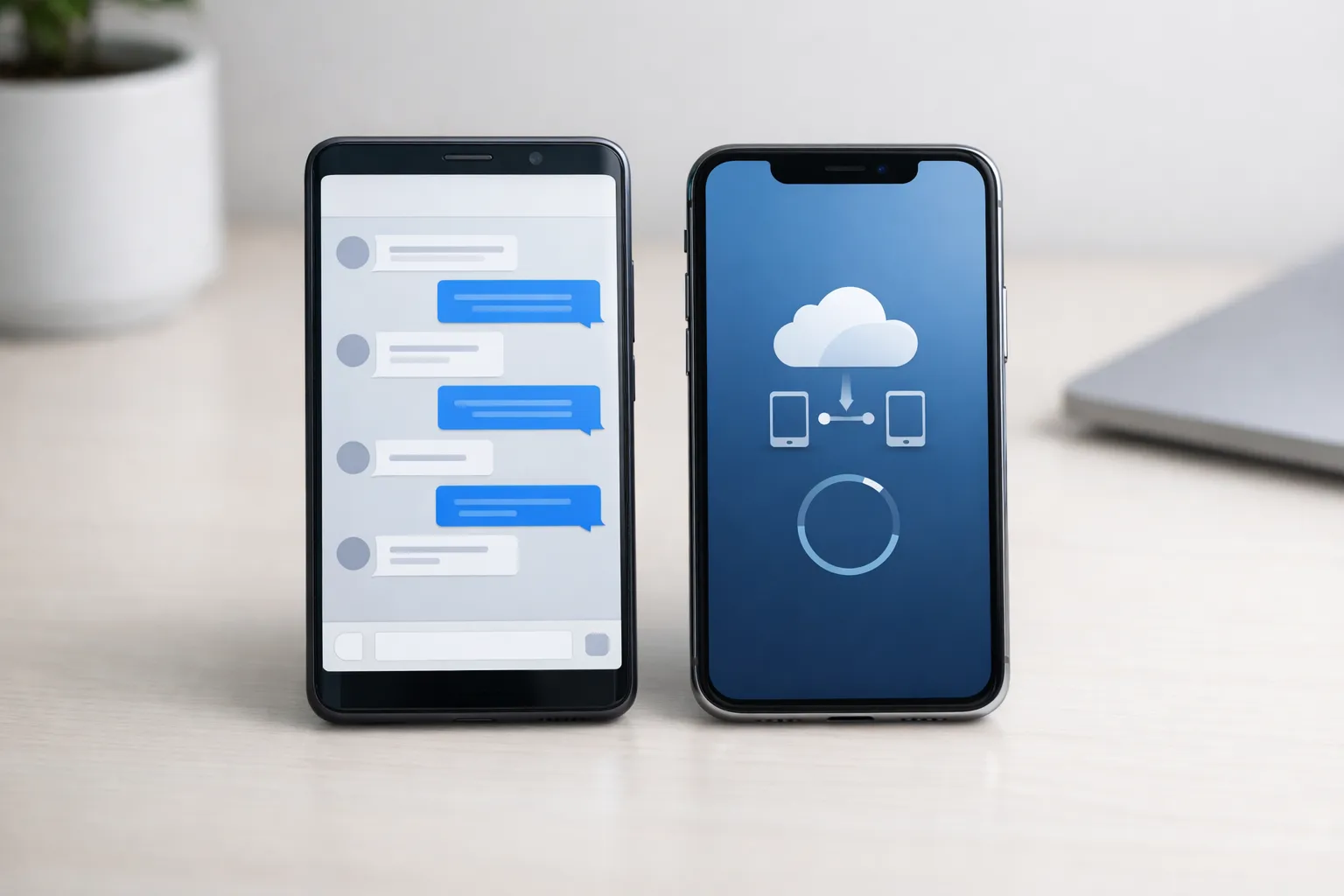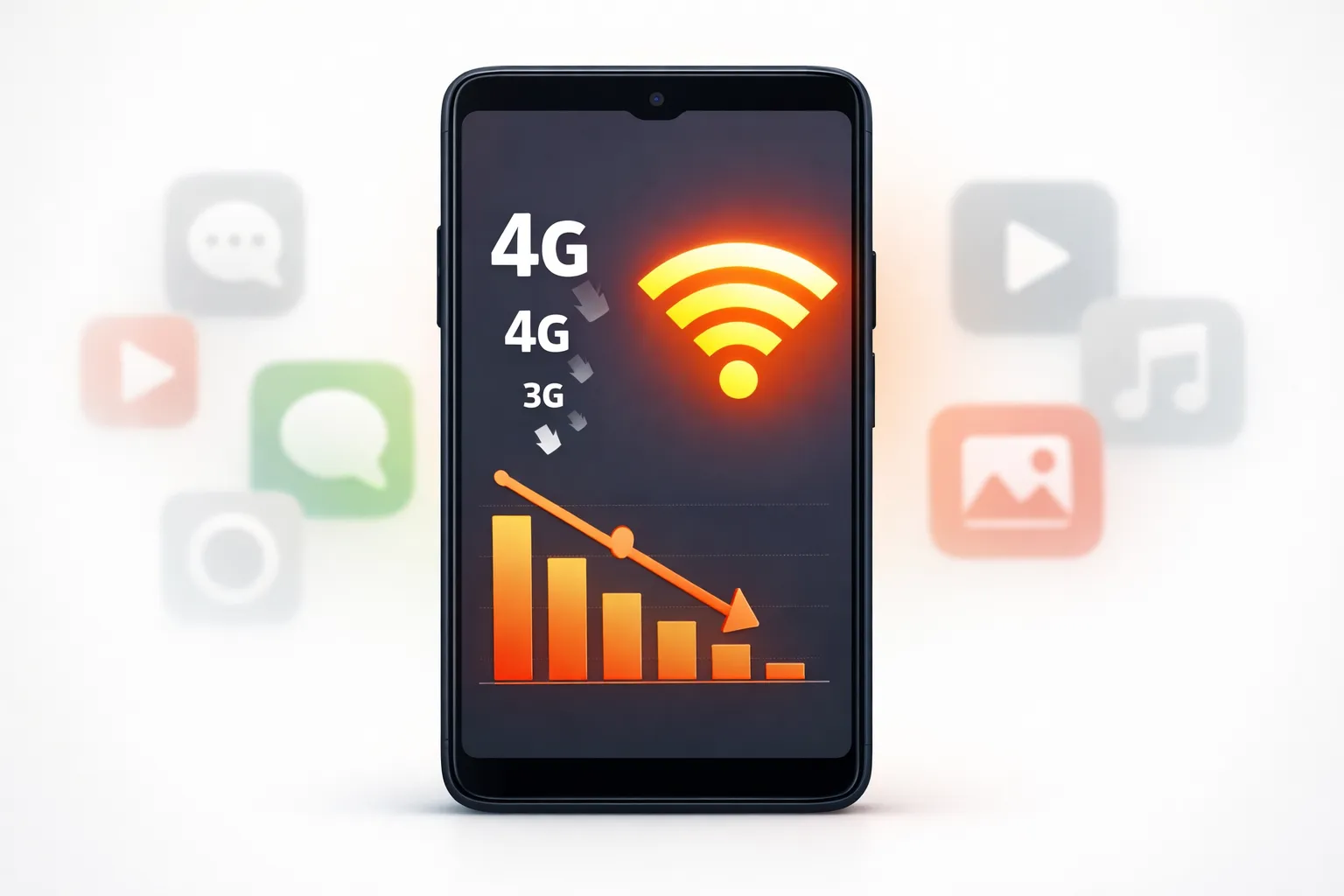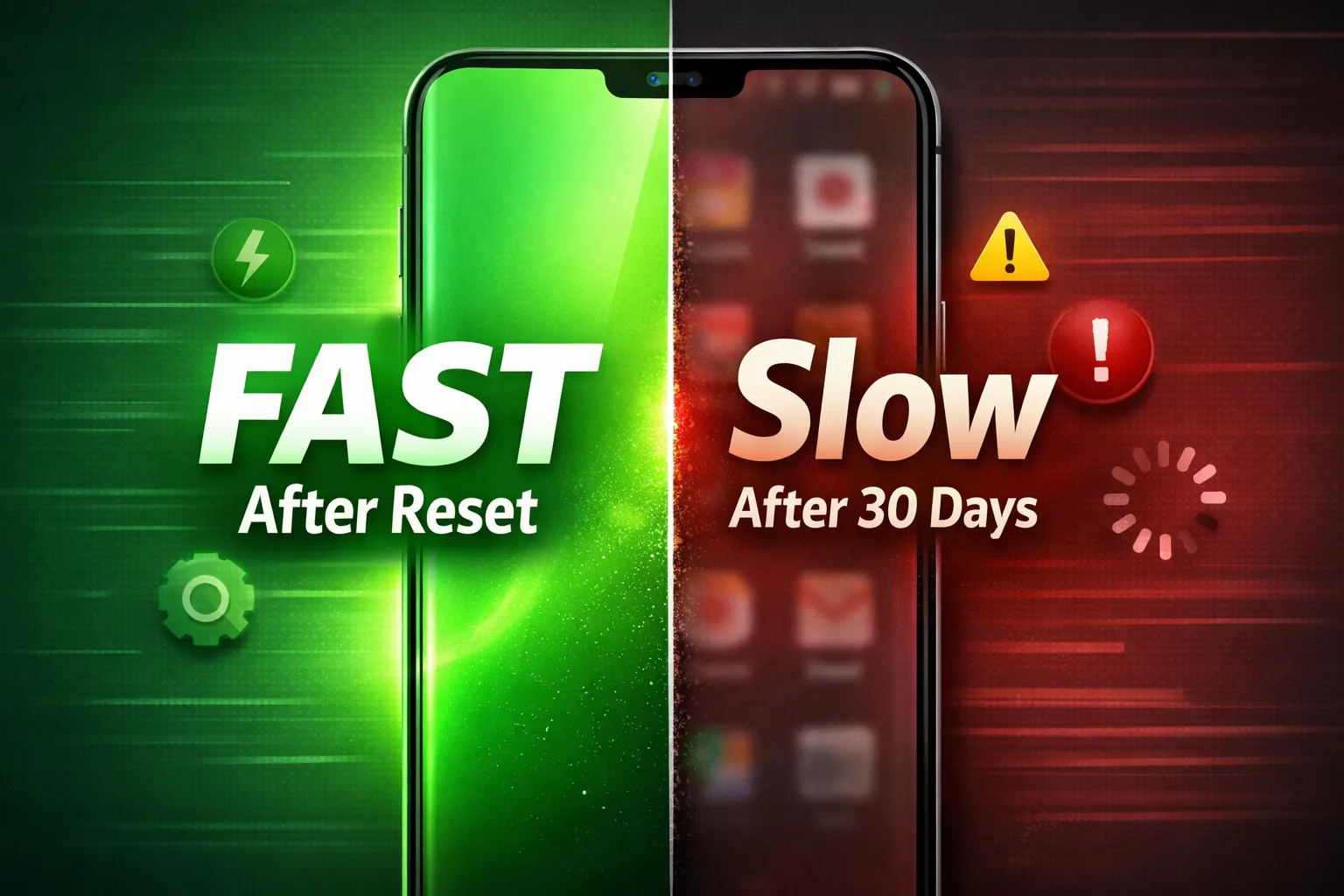
Why Your Android Phone Feels Fast After Reset But Slow Again After 30 Days (Real Reason + Permanent Fix 2026)
Have you noticed something strange?
Right after a factory reset, your Android phone feels super fast — smooth animations, no lag, fast app opening. But after 30–40 days, it becomes slow again.
This is not a coincidence. There is a technical reason behind it — and most users don’t know the real cause.
Table of Contents
- Quick Overview: Why This Happens
- What Exactly Happens During a Factory Reset?
- Why Android Feels Faster Immediately After Reset
- The 30-Day Slowdown Pattern Explained
- Background Apps & Hidden Processes
- Cache & System Junk Accumulation
- Play Store Auto Updates & AI Services
- RAM Expansion & Storage Saturation
- Battery Optimization & Throttling
- Malicious or Data-Hungry Apps
- Real Impact on Performance & Battery
- Permanent Fix: Step-by-Step Optimization Guide
- Final Verdict: Long-Term Android Performance Tips
Quick Overview: Why This Happens
When you perform a factory reset on your Android phone, the system returns to a clean state. All third-party apps, cached files, background services, and temporary system data are removed. This instantly reduces CPU load, frees up RAM, and clears storage clutter — which is why your phone feels fast and smooth right after the reset.
However, this speed boost is temporary.
As you start using your device normally again, several things begin happening in the background:
- Apps get reinstalled and updated automatically
- Background sync for Google services restarts
- Cache and temporary files begin accumulating
- Photos, videos, and downloads consume storage
- Permissions and background processes increase over time
Within 30 days, these small changes add up. Storage usage rises, RAM gets occupied by background apps, and system indexing runs continuously. Android also adapts to your usage patterns, which can increase background activity.
The result? Slower app opening, minor lag, faster battery drain, and reduced overall performance.
This slowdown is not usually caused by hardware failure. In most cases, it’s the natural buildup of apps, cache, background services, and automatic updates that gradually impacts performance.
Understanding this pattern is important because it shows that resetting your phone is not a permanent solution — proper optimization and maintenance are.
What Exactly Happens During a Factory Reset?
A factory reset restores your Android phone to its original system state — similar to how it was when you first unboxed it. It removes user data, installed apps, and system-level clutter that builds up over time.
Here’s exactly what a factory reset removes:
- All third-party apps downloaded from the Play Store
- App data, cache files, and login sessions
- Temporary system files and residual junk
- Custom settings and permissions
- Potentially corrupted background processes
However, it does not remove:
- The Android operating system itself
- System apps pre-installed by the manufacturer
- Software updates already installed
When you reset your device, Android clears internal storage partitions that store user data. This reduces background load, eliminates hidden app conflicts, and frees up RAM and storage space.
According to the Cybersecurity & Infrastructure Security Agency (CISA), performing a reset can also help remove certain malicious persistence files and background threats that survive normal app uninstallation.
In simple terms, a factory reset wipes the clutter — but it doesn’t upgrade your hardware or permanently improve performance. Once you start reinstalling apps and syncing accounts, system activity gradually increases again.
That’s why a factory reset feels powerful at first — but it’s not a long-term performance solution unless combined with smart usage and optimization.
Why Android Feels Faster Immediately After Reset
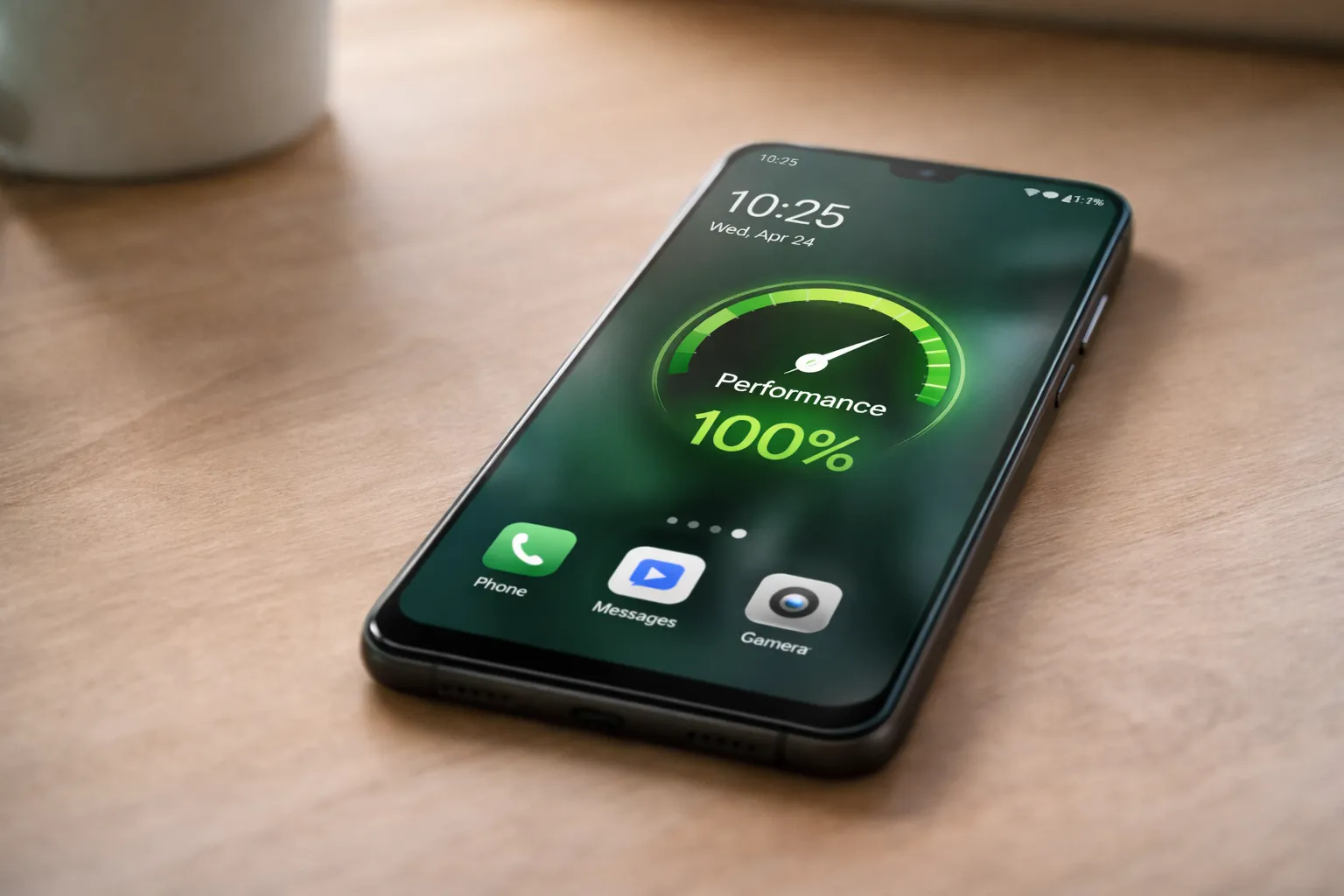
Right after a factory reset, your Android phone feels incredibly fast. Apps open instantly, scrolling feels smooth, and there’s almost no lag. This happens because the system is running in a clean and optimized state with minimal background load.
Immediately after reset:
- CPU load is minimal – No third-party apps are consuming processing power.
- RAM usage is low – Memory is mostly free, allowing smoother multitasking.
- Storage is nearly empty – Faster read/write speeds improve overall responsiveness.
- No background sync overload – Cloud backups, AI syncing, and auto-updates haven’t fully restarted yet.
Android is designed to perform best when system resources are available. With fewer apps installed and no accumulated cache, the operating system can allocate CPU and RAM more efficiently. Animations render smoothly, app launch times improve, and system navigation feels fluid.
Another important reason is reduced background services. Many apps normally run silently for notifications, location tracking, updates, and data syncing. After a reset, these processes are temporarily inactive until apps are reinstalled and permissions are granted again.
Storage space also plays a major role. When internal storage is mostly free, Android can manage temporary system files and virtual memory more efficiently, improving performance.
In simple terms, your phone feels faster after a reset because it’s operating without digital clutter. But as apps, data, and background activities return, system resources gradually become occupied again — leading to the slowdown most users notice after a few weeks.
The 30-Day Slowdown Pattern Explained
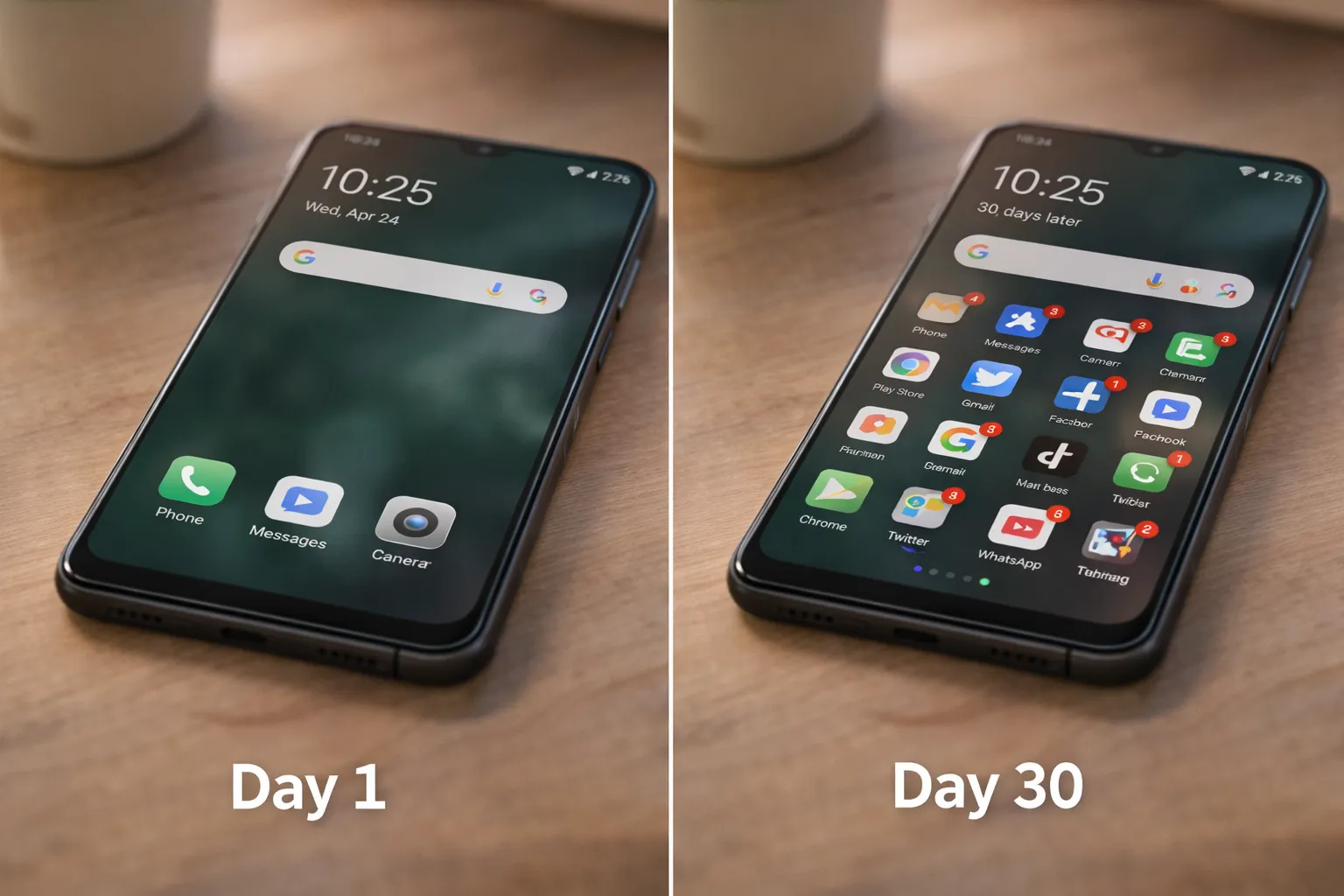
Many Android users notice the same pattern: the phone feels extremely fast after a factory reset, but within 30 days, performance slowly drops. This is not a coincidence — it’s a predictable system behavior based on how Android manages apps, storage, and background processes.
Here’s what typically happens during the first 30 days:
- Apps get reinstalled – You gradually install social media, banking, shopping, and utility apps again.
- Auto updates activate – Google Play automatically updates apps in the background, increasing storage usage.
- Background permissions increase – Apps request access to location, notifications, camera, and background data.
- Cache grows silently – Apps store temporary files daily to load faster later.
- System indexing runs continuously – Android indexes photos, files, and app data for search optimization.
Individually, these changes seem small. But collectively, they increase CPU activity, occupy RAM, and reduce available storage space. Once storage crosses 70–80%, read/write speeds slow down significantly, which directly affects performance.
In addition, AI-powered features like smart suggestions, adaptive battery, and cloud syncing start learning your usage patterns. While helpful, these processes also run in the background and consume resources.
Over time, this leads to:
- Slower app launch times
- Minor UI lag
- Increased battery drain
- Occasional overheating
The 30-day slowdown isn’t a hardware issue — it’s the gradual accumulation of digital load. Understanding this pattern helps you focus on long-term optimization instead of repeatedly resetting your phone.
Background Apps & Hidden Processes
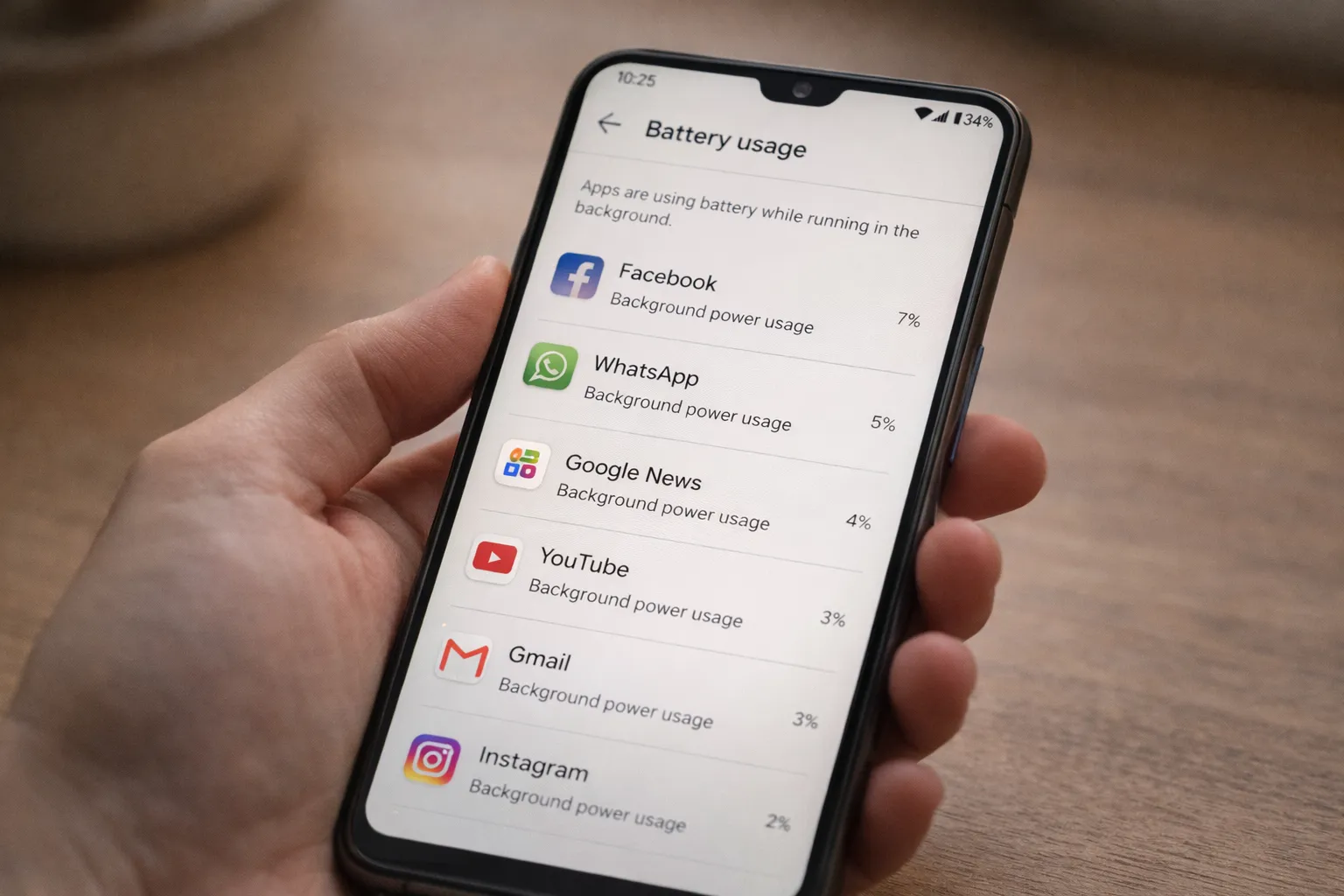
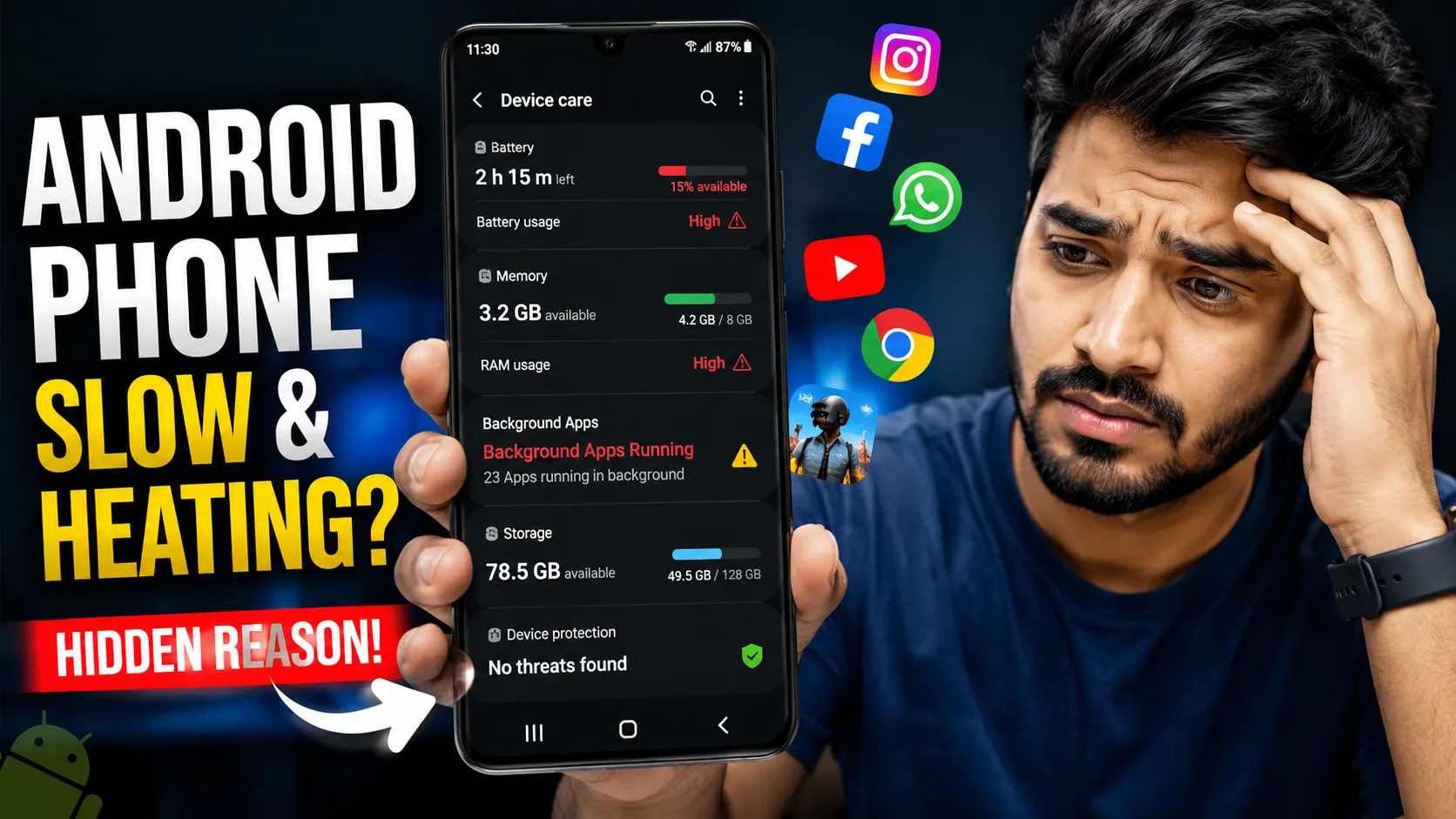
One of the biggest reasons your Android phone slows down over time is background apps and hidden system processes. Even when you don’t actively open an app, it may still run silently in the background.
Many apps continue working to:
- Send push notifications
- Sync data with cloud servers
- Track location in real time
- Check for updates
- Run ads and analytics services
Individually, these tasks seem harmless. But when multiple apps run background services simultaneously, they consume RAM, CPU power, and battery life. Over time, this increases system load and causes lag, overheating, and faster battery drain.
Some apps are more aggressive than others — especially social media, shopping, fitness tracking, and certain utility apps. These can restart automatically even after you close them.
You can check which apps are consuming background resources by going to:
Settings → Battery → Background Usage
Here, you’ll see which apps are actively using power even when not opened. If you notice unusually high background activity, consider restricting the app’s background access or uninstalling unnecessary apps.
It’s also important to review permissions. Apps with constant access to location, camera, or microphone may trigger hidden background processes.
For a detailed breakdown of high-consumption apps, read:
Apps That Drain Battery in Background
Controlling background apps is one of the most effective long-term solutions to prevent performance slowdown without performing another factory reset.
Cache & System Junk Accumulation
Another major reason your Android phone slows down after 30 days is cache and system junk accumulation. Every app on your device generates temporary files — known as cache — to load content faster the next time you open it.
While cache improves short-term performance, it builds up over time.
Here’s what typically accumulates:
- App cache data – Images, videos, and temporary files from social media and browsers
- System cache – Temporary Android system processes
- Residual files – Leftover data from uninstalled apps
- Update packages – Stored temporary installation files
Within 30 days, cache files can grow to several gigabytes — especially if you use apps like Instagram, YouTube, Chrome, or streaming platforms regularly. As storage fills up, Android’s read and write speeds reduce, which directly impacts app loading time and overall responsiveness.
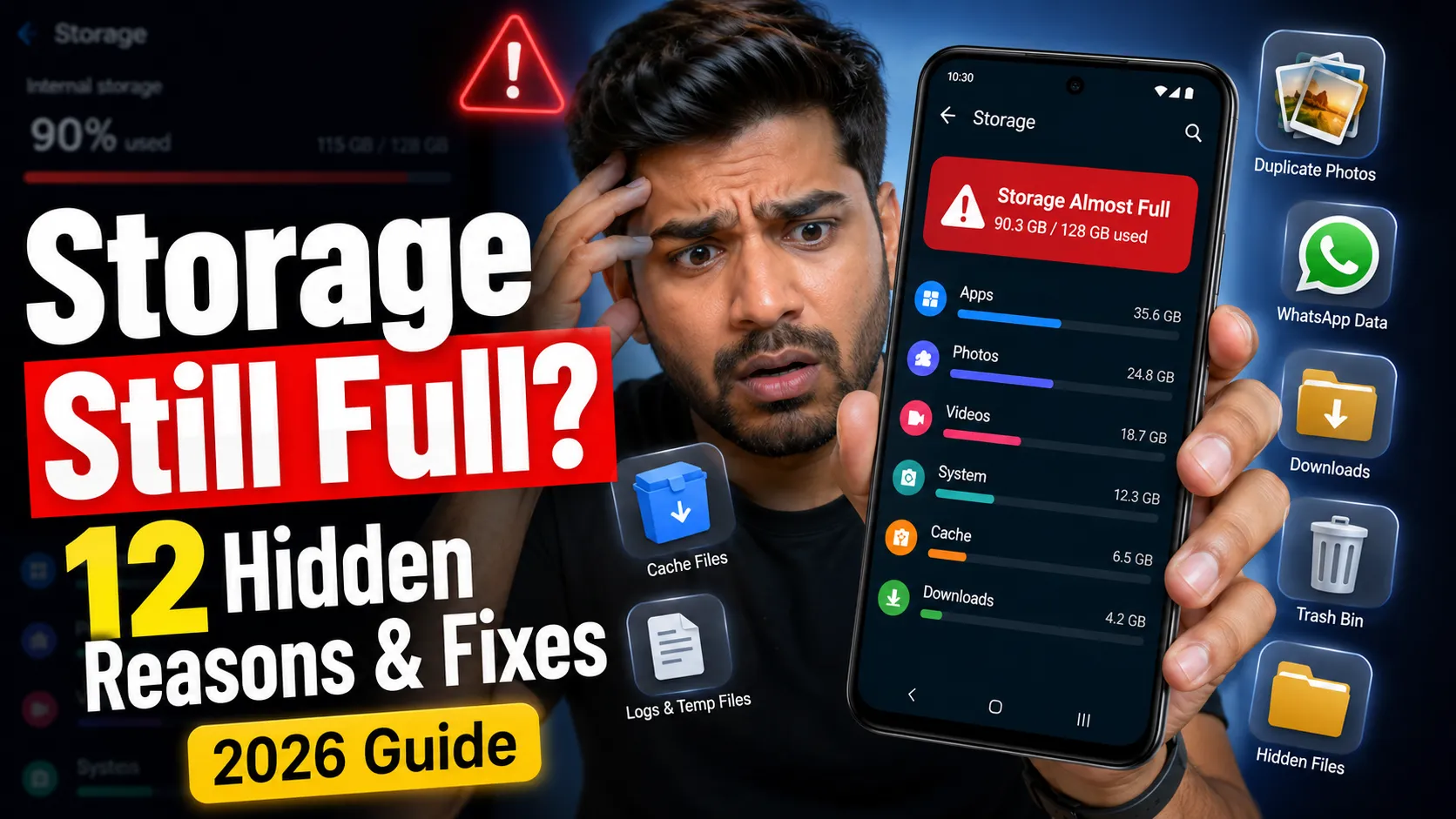
When internal storage crosses 70–80% usage, performance degradation becomes more noticeable. The system struggles to manage virtual memory efficiently, causing lag and occasional freezing.
Clearing cache does not delete your personal data like photos or messages. It only removes temporary files that apps can recreate when needed.
For a step-by-step safe method, follow this guide:
How to Clear Cache on Android (Complete Guide)
Regular cache cleaning — once every 3–4 weeks — helps maintain smooth performance without requiring a factory reset. It’s a simple habit that prevents long-term slowdown and keeps your Android device optimized.
Play Store Auto Updates & AI Services
Another hidden reason your Android phone slows down after a few weeks is Google Play auto updates and built-in AI services running in the background. These features are designed to improve security and user experience — but they also consume system resources.
By default, Google Play Store automatically updates apps whenever a new version is available. While updates bring security patches and new features, they also:
- Increase app size over time
- Add new background services
- Consume storage space
- Trigger post-update optimization processes
In addition to updates, Android runs several AI-powered services continuously, such as:
- Smart Suggestions for apps and replies
- Background account syncing (Gmail, Drive, Photos)
- Google Play Protect scanning for security threats
- Usage pattern learning for adaptive battery and performance
These services quietly use CPU power, RAM, internet data, and battery. Individually, the impact may seem small — but combined over 30 days, they contribute to gradual performance decline.
Play Protect, for example, regularly scans installed apps to detect harmful behavior. While this improves security, it also runs background checks that increase system activity.
If your phone feels slower, reviewing update settings and background sync options can help reduce unnecessary load.
You can verify your security scanning status here:
How to Check Google Play Protect Status
Balancing security and performance is key — instead of disabling everything, optimize update timing and background sync settings smartly.
RAM Expansion & Storage Saturation
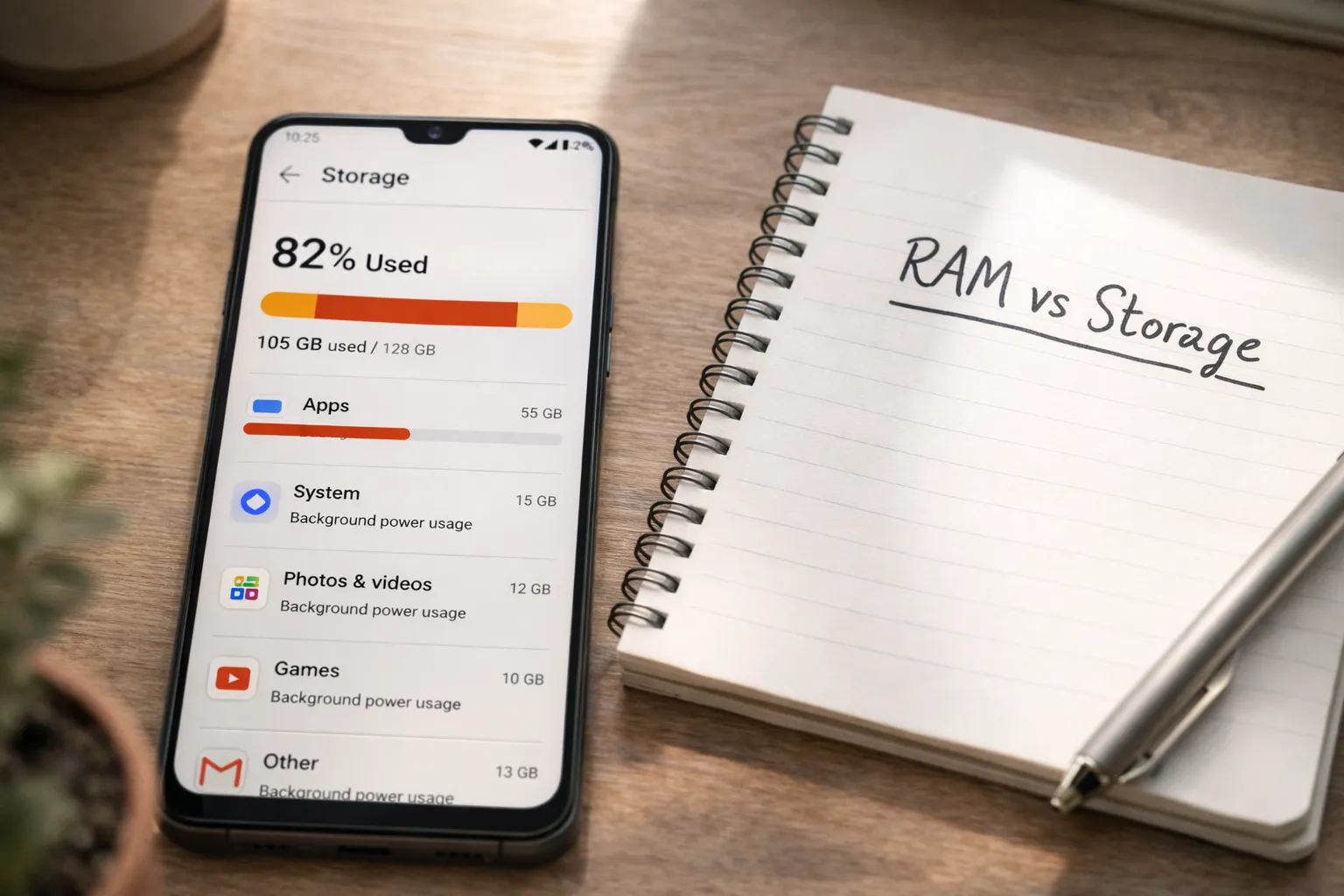
RAM expansion and storage saturation are two major reasons why your Android phone feels fast after a reset but slows down again within weeks. Many users overlook how storage usage directly affects system performance.
When your internal storage exceeds 70–75%, Android begins struggling with read and write operations. This impacts:
- App launch speed
- File access time
- System animations
- Multitasking performance
Android needs free storage space to manage temporary files, system cache, and virtual memory efficiently. When storage is nearly full, the system cannot allocate space properly, which leads to lag and slower responsiveness.
Another factor is RAM Expansion (Virtual RAM). Many modern Android phones use a portion of internal storage as additional virtual memory. While this can help with multitasking, it has limitations:
- Virtual RAM is slower than physical RAM
- It increases storage usage
- It may reduce storage lifespan over time
- Performance gains are minimal on low-storage devices
If your storage is already close to full capacity, enabling RAM expansion can actually worsen performance instead of improving it.
To maintain optimal speed:
- Keep storage usage below 70%
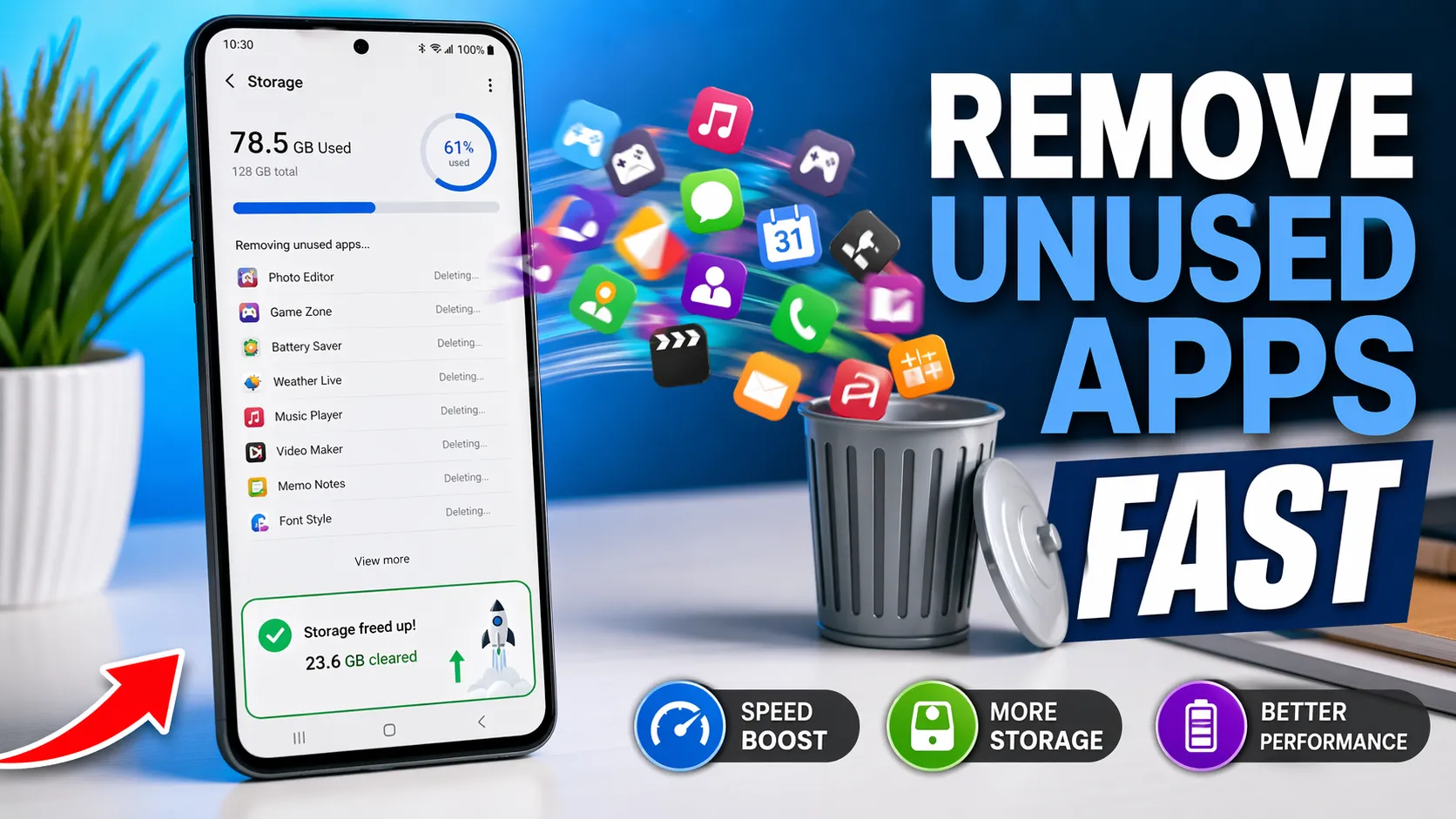
- Delete unused apps and large media files
- Clear downloads and duplicate photos
- Disable RAM expansion if storage is limited
Want to understand how RAM expansion really works and whether you should turn it off? Read this detailed guide:
Managing storage smartly is one of the most effective long-term solutions to prevent Android slowdown without performing another factory reset.
Battery Optimization & Throttling
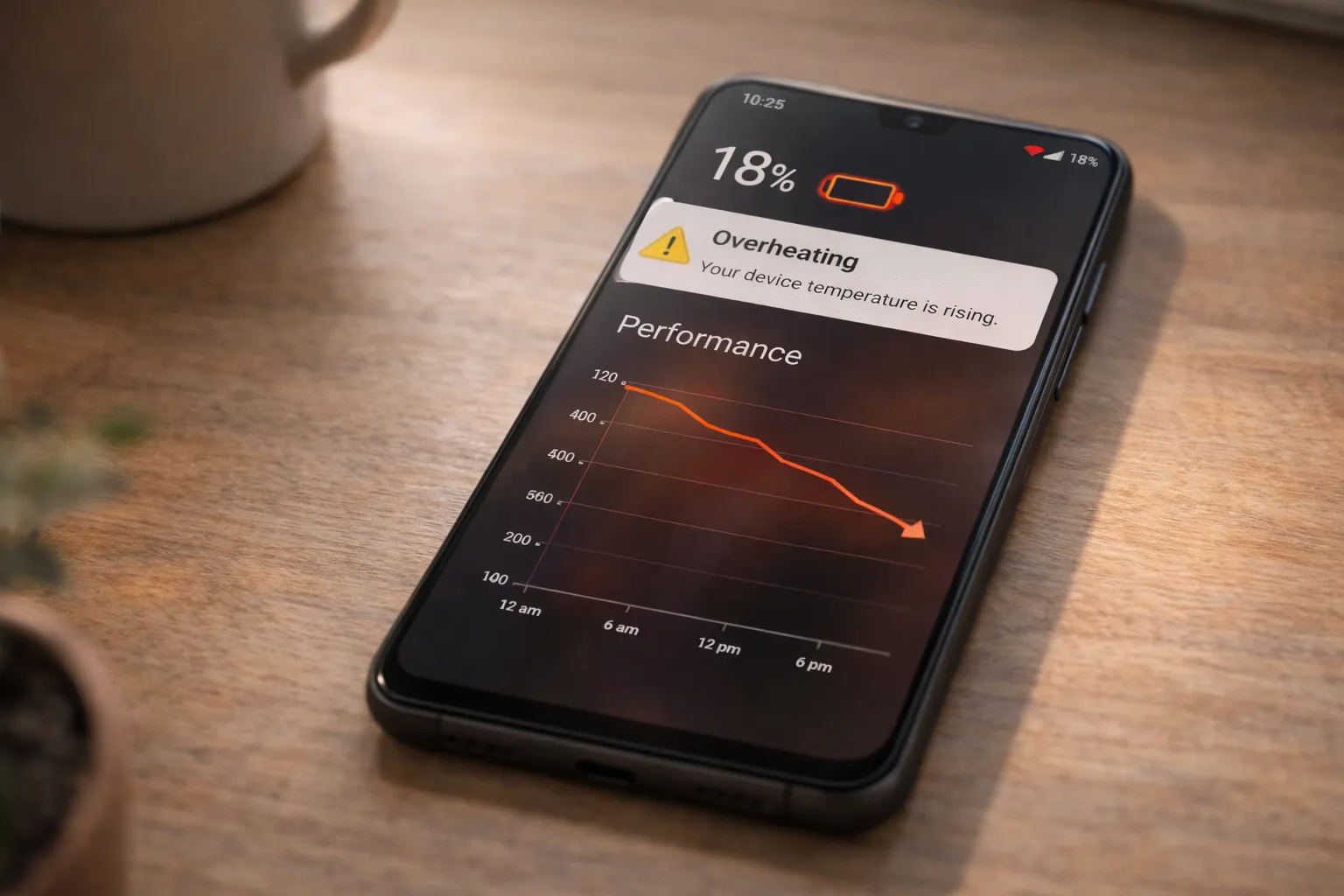
Battery health plays a bigger role in Android performance than most users realize. As your battery ages, its ability to deliver stable power decreases. To prevent sudden shutdowns or overheating, the system may automatically reduce processor speed — a process known as throttling.
When battery health drops, Android may:
- Lower CPU clock speed
- Limit peak performance during heavy tasks
- Reduce background processing power
- Trigger aggressive battery optimization
This protective mechanism helps extend battery life and maintain device safety, but it can also make your phone feel slower — especially during gaming, multitasking, or app switching.
In addition to hardware-level throttling, Android’s built-in battery optimization features may restrict background apps to conserve power. While helpful for saving battery, these restrictions sometimes delay notifications and slow app refresh rates.
According to research and device efficiency studies referenced by the National Institute of Standards and Technology (NIST), overall system performance can decline when hardware operates under power or thermal constraints.
Common signs of battery-related throttling include:
- Phone slowing down when battery is below 20%
- Performance drops during charging
- Overheating during normal usage
- Sudden lag after long-term device use
To maintain performance, it’s important to monitor battery health regularly and avoid excessive heat exposure.
You can check your battery condition using this detailed guide:
How to Check Battery Health on Android
A healthy battery ensures stable power delivery — and stable power means stable performance.
Malicious or Data-Hungry Apps
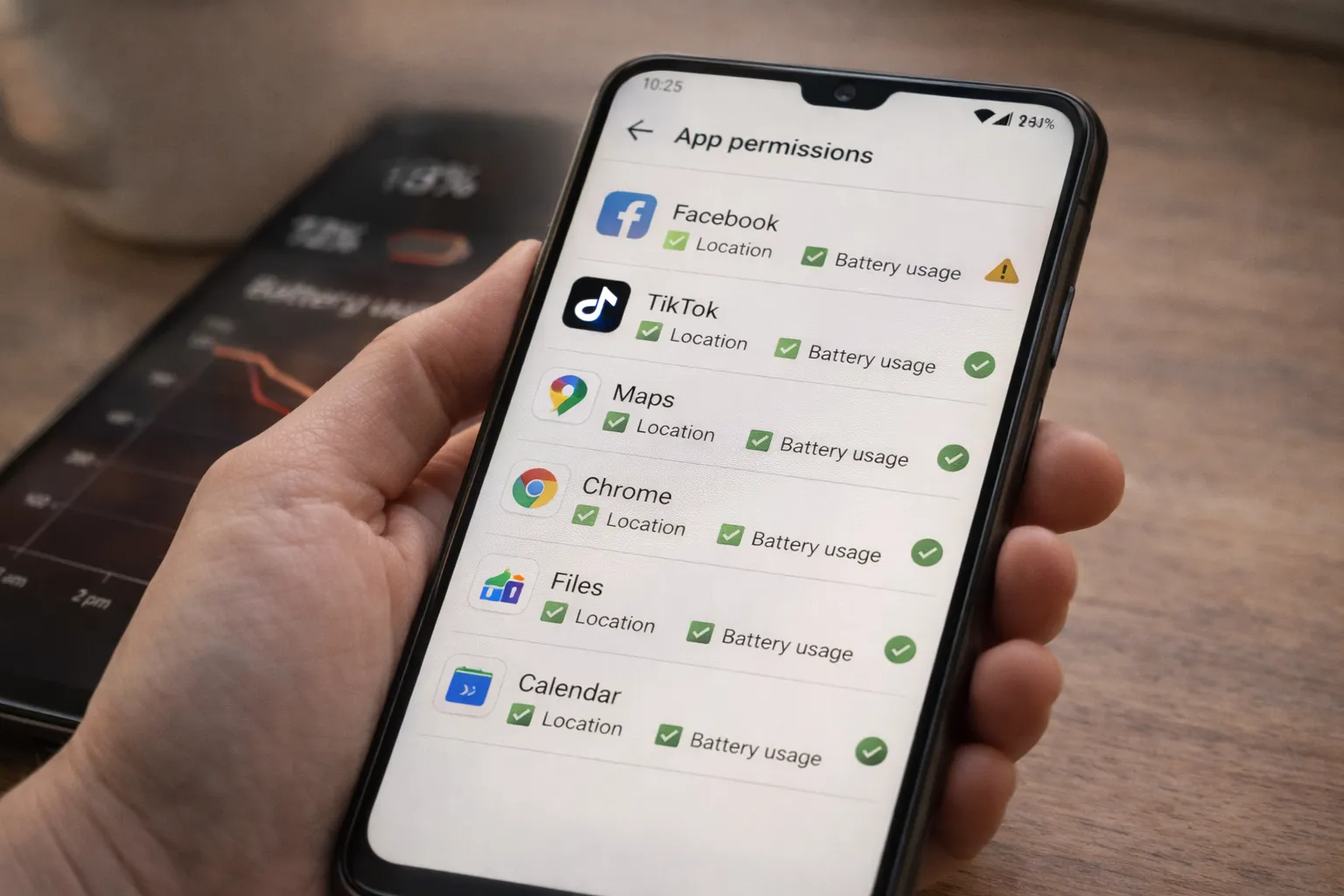
Not all apps slow your Android phone equally. Some apps consume excessive RAM, mobile data, and CPU power — even when you’re not actively using them. Over time, these hidden resource drains can significantly reduce performance.
There are two common types of problematic apps:
- Data-hungry apps – Apps that constantly sync, refresh feeds, or upload data in the background.
- Malicious or risky apps – Apps that secretly track activity, show aggressive ads, or run hidden processes.
Data-heavy apps often include social media platforms, video streaming apps, certain browsers, and free utility tools filled with ads. These apps may:
- Run background services continuously
- Access location frequently
- Use high RAM during idle state
- Trigger constant notifications and sync requests
Malicious apps are more dangerous. They can quietly consume system resources while collecting user data. Signs of such apps include unusual battery drain, unexpected pop-up ads, overheating, or high mobile data usage.
To protect your device performance and privacy:
- Uninstall apps you don’t regularly use
- Review app permissions carefully
- Restrict background data usage
- Monitor battery and data consumption weekly
If you notice unusual background data usage, read this detailed guide:
Identifying and removing high-consumption or suspicious apps is one of the most effective long-term solutions to prevent Android slowdown without performing another factory reset.
Real Impact on Performance & Battery
When background apps, cache buildup, storage saturation, and AI services accumulate over time, the impact on your Android phone becomes clearly noticeable. The slowdown is gradual, but the effects are real and measurable.
Here are the most common performance issues users experience:
- Slower app opening – Apps take longer to load because RAM is occupied and storage read speeds are reduced.
- Overheating – Increased background activity forces the CPU to work harder, generating excess heat.
- Battery drain – Continuous syncing, notifications, and hidden processes consume power throughout the day.
- Lag during gaming or multitasking – Limited available RAM affects graphics rendering and switching between apps.
- Delayed notifications – Aggressive battery optimization or overloaded background services can delay alerts.
These issues are often misinterpreted as hardware failure. In reality, they are usually caused by accumulated digital load and resource congestion.
When storage crosses safe limits (above 75%) and multiple apps compete for system resources, Android must constantly reallocate memory. This increases processing time and reduces overall efficiency.
Battery impact is especially significant. Higher CPU usage and background services lead to more frequent charging cycles, which can gradually affect long-term battery health.
The key takeaway is simple: performance decline is rarely sudden. It builds slowly as system resources become constrained.
Recognizing these early warning signs allows you to optimize your device before it reaches a frustrating level of lag or instability.
Permanent Fix: Step-by-Step Optimization Guide
Instead of performing a factory reset every month, you can maintain long-term Android performance with smart optimization habits. The goal is to control storage usage, background activity, and unnecessary system load.
Step 1: Keep Storage Below 70%
Try to maintain at least 25–30% free storage. Delete unused apps, large videos, duplicate photos, and unnecessary downloads. Lower storage usage improves read/write speed and overall responsiveness.
Step 2: Disable Auto-Start for Unnecessary Apps
Many apps automatically start in the background after boot. Disable auto-start permissions for apps that don’t need constant activity.
Step 3: Turn Off RAM Expansion (If Storage is Low)
If your device storage is already high, virtual RAM can slow things down further. Disable RAM expansion if you notice performance drops.
Step 4: Restrict Background Data
Limit background data access for social media, shopping, and utility apps. This reduces CPU usage and prevents hidden syncing processes.
Step 5: Clear Cache Monthly
Clearing app cache every 3–4 weeks removes temporary junk without deleting personal data.
Step 6: Remove Suspicious Apps
Uninstall apps you rarely use. Monitor battery and data usage to identify high-consumption apps.
Step 7: Update Android System
Install official system updates regularly. Security patches and performance improvements help maintain stability.
By following these steps consistently, you can prevent the 30-day slowdown cycle and keep your Android phone running smoothly without frequent resets.
If your phone is still slow, read this full troubleshooting guide:
Android Phone Problems & Fixes (Complete Guide 2026)
Final Verdict: Long-Term Android Performance Tips
Your Android phone does not slow down randomly. In most cases, performance drops because of accumulated system load, background services, storage pressure, and AI-driven processes running silently over time.
A factory reset temporarily removes this digital clutter — but the slowdown returns once apps, updates, and background activities build up again.
If you want consistent performance without resetting your phone every month, focus on long-term optimization habits.
Here are the most important Android performance tips to follow:
- Keep storage below 70% to maintain faster read/write speeds.
- Limit background apps and disable unnecessary auto-start permissions.
- Clear cache regularly to remove temporary junk files.
- Monitor battery health to prevent performance throttling.
- Review app permissions and remove suspicious or unused apps.
- Install official system updates for security and stability improvements.
Small maintenance steps done consistently are far more effective than repeated factory resets. Android is designed to perform well — but it needs proper resource management.
Think of your phone like a computer. Without periodic cleanup and optimization, performance naturally declines as workload increases.
Reset is temporary. Optimization is permanent.
By understanding how Android manages storage, RAM, battery, and background services, you can prevent the 30-day slowdown cycle and keep your device running smoothly for years.