Apps That Secretly Drain Battery in Background on Android (2026 Complete Guide)
If your Android phone battery drains fast even when you’re not actively using it, background apps are usually the hidden reason. Many users rely on battery saver tools without understanding which apps drain battery in the background and why it happens in the first place. This guide breaks down the real causes, helps you identify battery-draining apps, and shows how to fix the problem properly. If battery drain happens along with heating or lag, it’s often connected to deeper Android performance issues. After diagnosis, you can also explore our best Android battery saver apps guide for safe optimization options.
Table of Contents
- 1.Overview: Background Battery Drain Explained
- 2.Why Apps Drain Battery in the Background
- 3.Why Background Battery Drain Is a Serious Problem
- 4.Common Types of Apps That Drain Battery
- 5.How to Check Battery Draining Apps on Android
- 6.Complete Guide to Stop Background Battery Drain
- 7. When You Should Uninstall an App
- 8. Common Battery Drain Mistakes to Avoid
- 9. Final Verdict
Overview: Background Battery Drain Explained
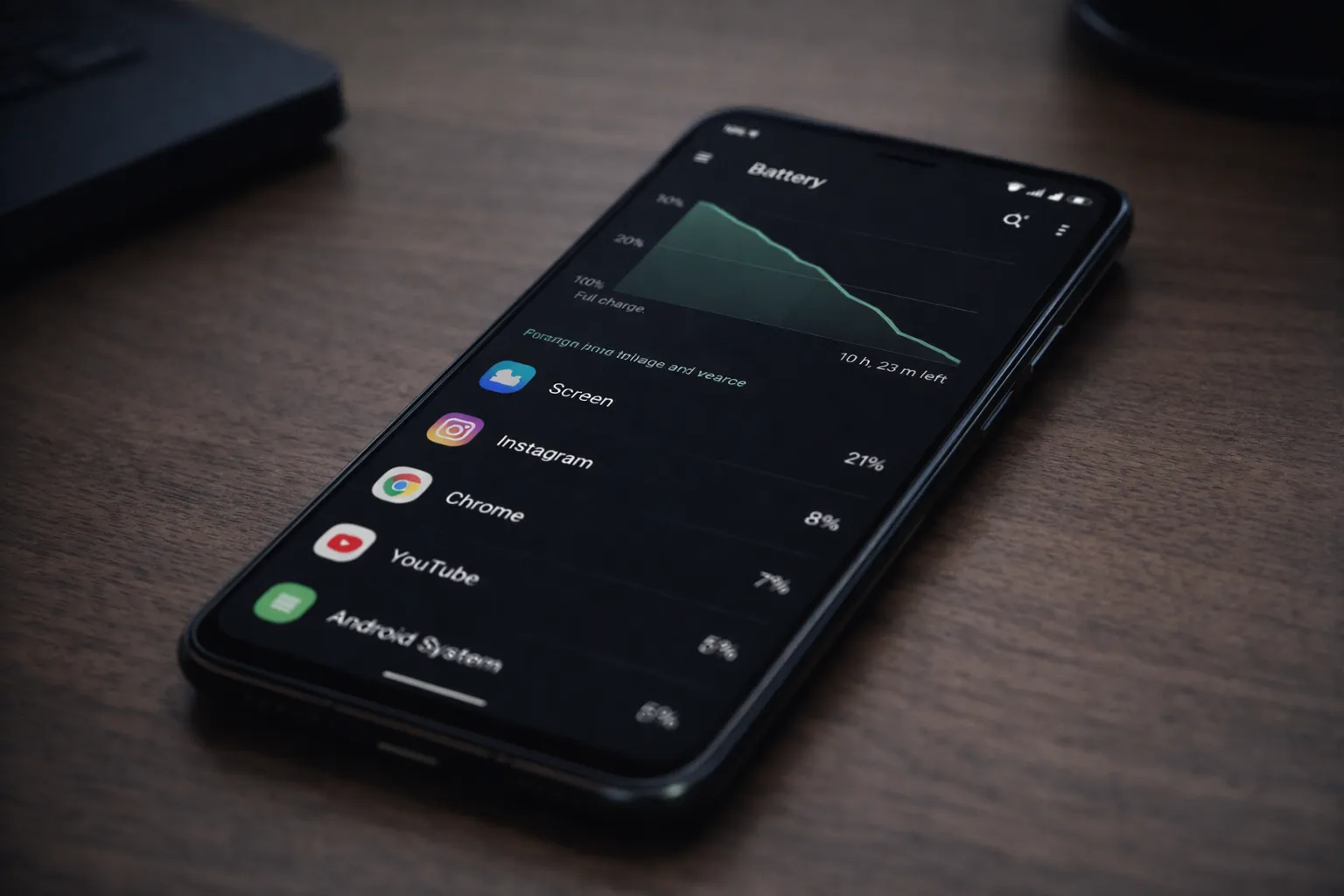
If your Android phone loses battery even when you’re not actively using it, background apps are usually responsible. This problem often appears alongside slow performance and overheating caused by excessive background activity.
In simple terms, some apps continue running tasks in the background even when your screen is off. These tasks include syncing data, checking location, refreshing content, or maintaining internet connections. Individually they seem harmless, but together they quietly drain your battery throughout the day — and especially overnight.
Understanding background battery drain helps you focus on the real cause of the problem. Instead of installing multiple battery saver apps, identifying and controlling these background activities usually delivers better and more reliable results.
Why Apps Drain Battery in the Background
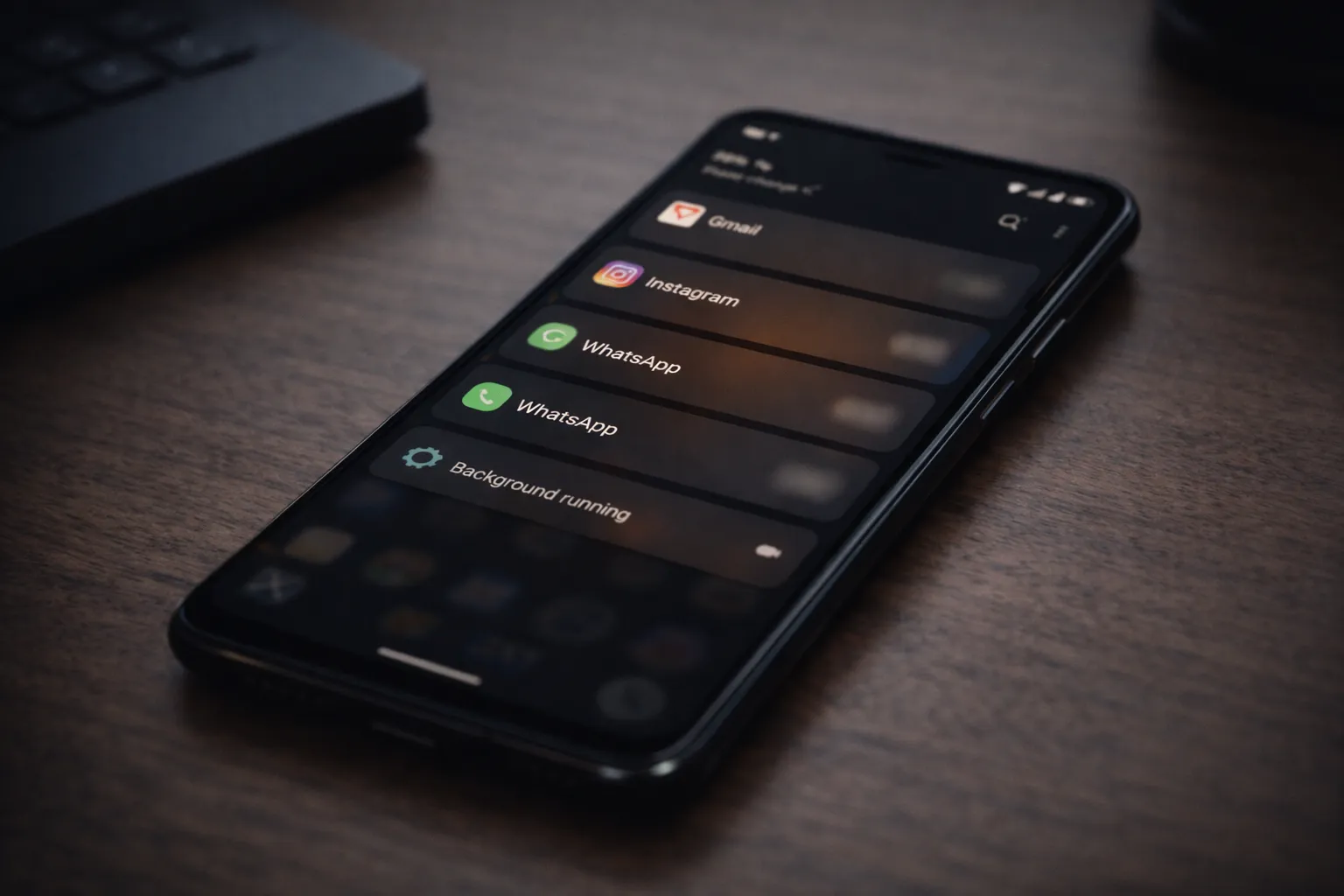
Android allows apps to run background tasks for notifications, syncing, and real-time updates. This is useful for timely alerts and live data, but some apps continue these activities far more often than necessary.
When an app stays active in the background, it can repeatedly wake your phone from idle state. Each wake-up consumes a small amount of power, and over time these add up — especially when multiple apps behave the same way.
- Constant background syncing even when the app isn’t used
- Unrestricted location tracking running 24/7
- Frequent push notifications triggering screen and CPU activity
- Cloud backups repeating without user interaction
- Apps ignoring Android’s built-in battery optimization rules
This is why many users notice significant battery drain overnight, even though the screen remains turned off and the phone appears idle.
Why Background Battery Drain Is a Serious Problem
Background battery drain affects more than just how often you charge your phone. When apps keep running in the background, your device never fully enters an idle or sleep state. Over time, this puts constant stress on the battery and internal components.
This long-term background activity can lead to:
- Reduced battery health and shorter overall lifespan
- Idle-time overheating, even when the phone isn’t in use
- Laggy performance caused by continuous background processes
- More charging cycles per day, which speeds up battery wear
If battery health is already weak, follow this guide on checking Android battery health before applying fixes, as a degraded battery can make background drain problems feel much worse.
Common Types of Apps That Drain Battery
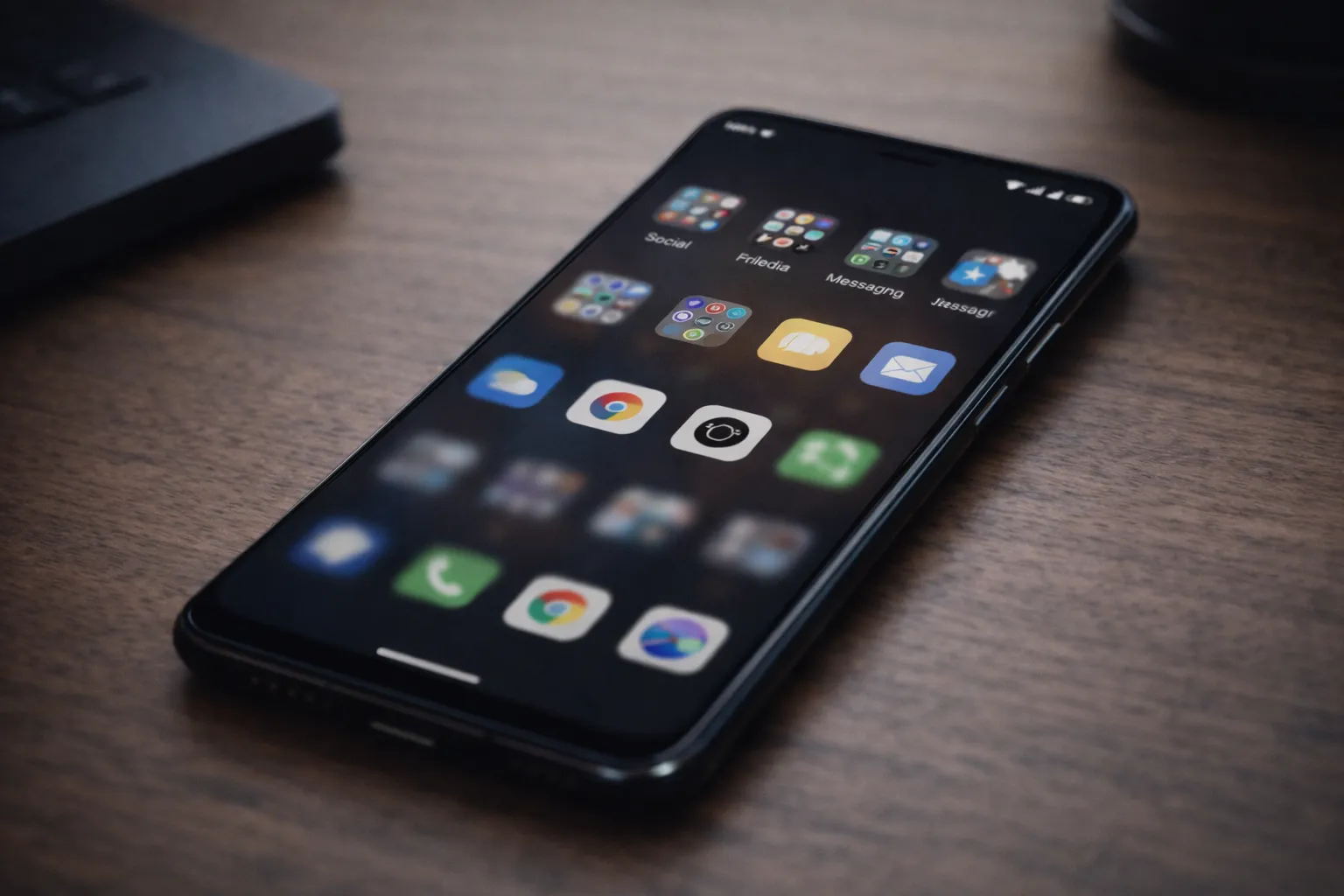
Instead of blaming specific brands, it’s more helpful to understand the types of apps that commonly drain battery. These apps usually stay active in the background to provide real-time updates, tracking, or instant notifications.
- Social media apps – background refresh and frequent notifications
- Fitness and health apps – continuous GPS, motion, and sensor usage
- Weather apps – frequent location checks and live updates
- VPN and security apps – always-on background connections
- Messaging apps – media syncing and cloud backups
These apps aren’t necessarily bad or unsafe. The problem starts when multiple such apps run unrestricted at the same time, quietly draining battery throughout the day.
How to Check Battery Draining Apps on Android
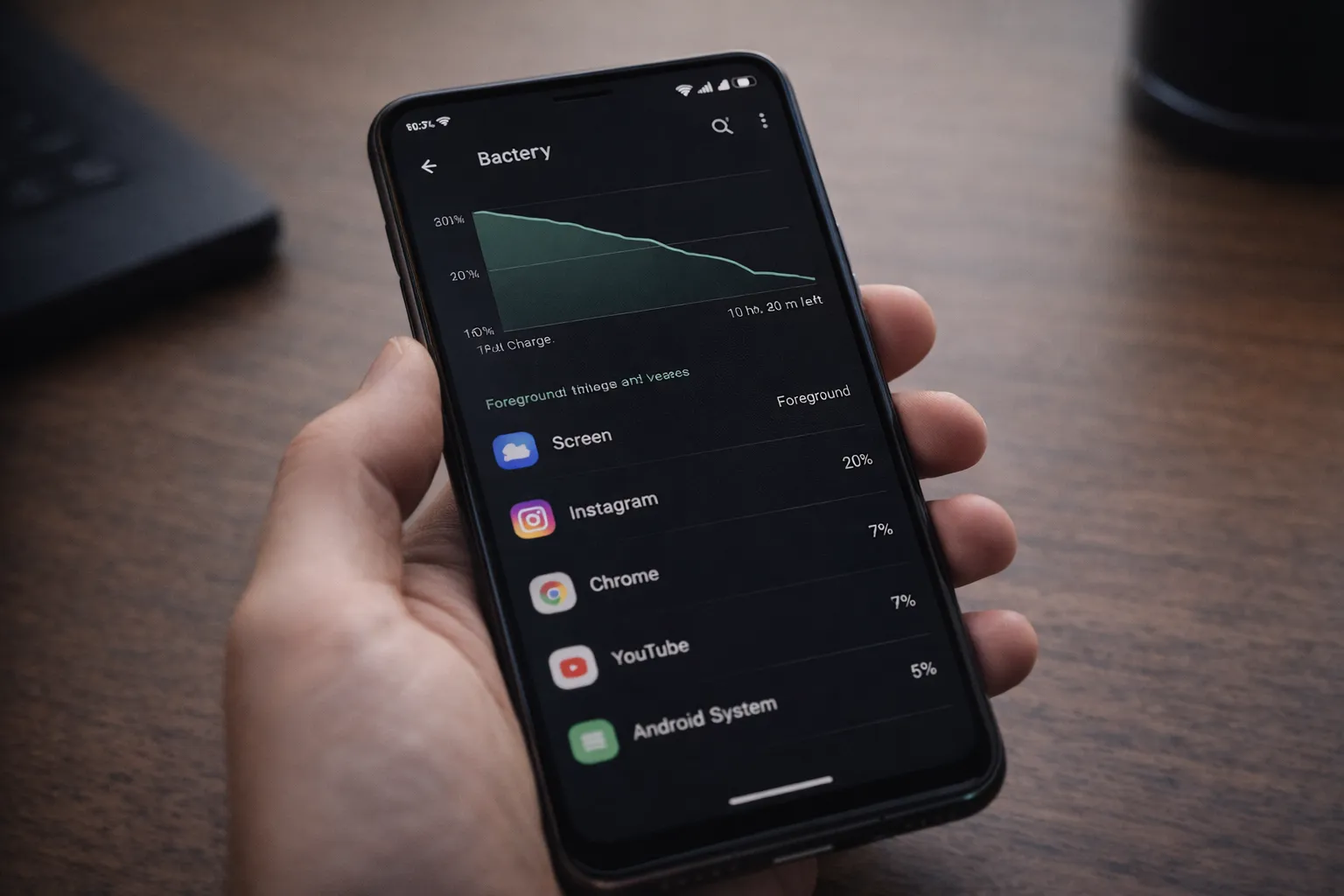
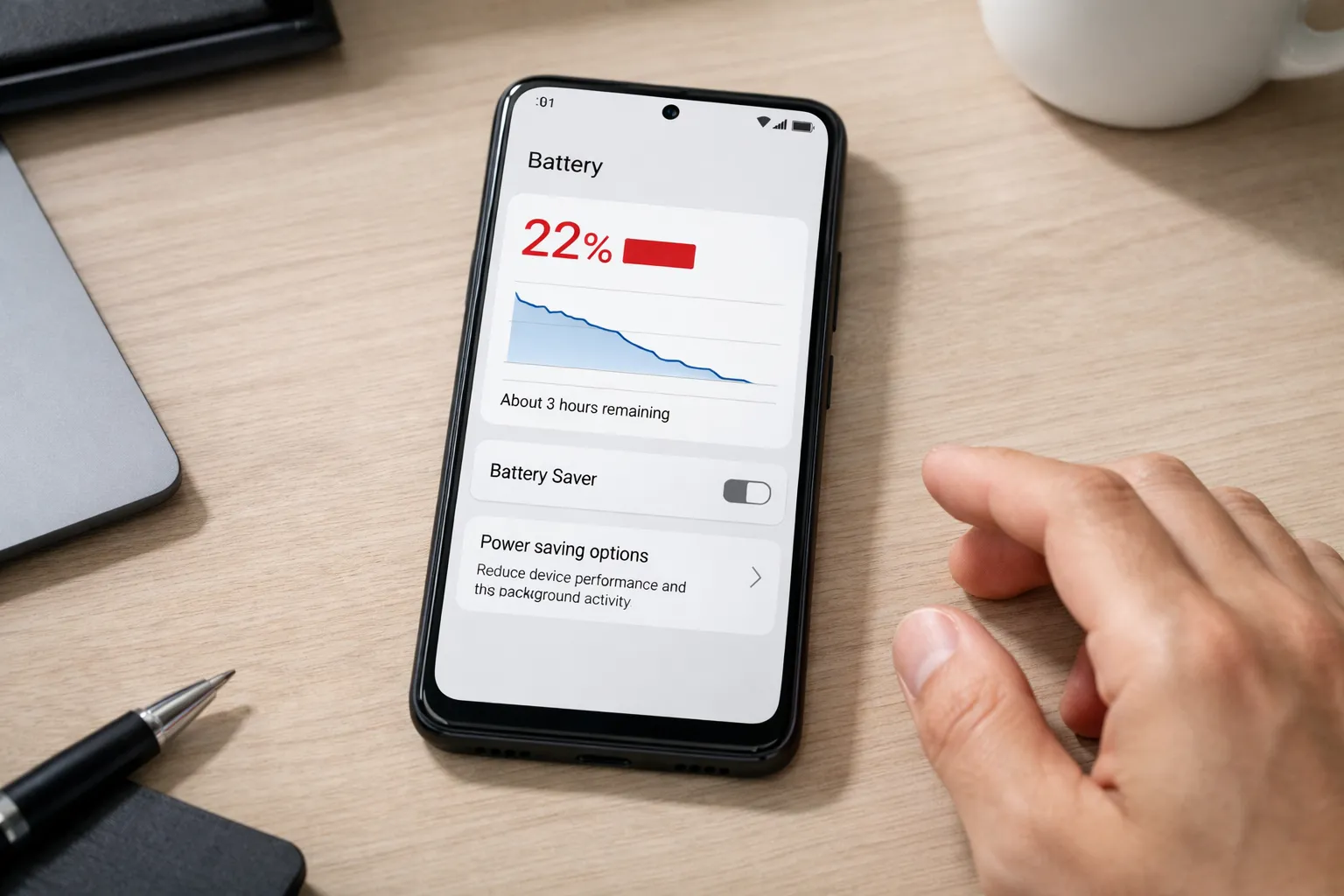
Before fixing battery drain, it’s important to identify which apps are actually responsible. Android provides a built-in battery usage breakdown that shows how much power each app consumes.
- Open Settings
- Go to Battery or Battery & Device Care
- Tap Battery Usage to view app-level consumption
- Check how much battery each app uses in the background versus active use
If an app shows high background usage even when you haven’t opened it recently, it’s likely contributing to battery drain. Such apps should be optimized, restricted, or reviewed further before uninstalling.
Complete Guide to Stop Background Battery Drain
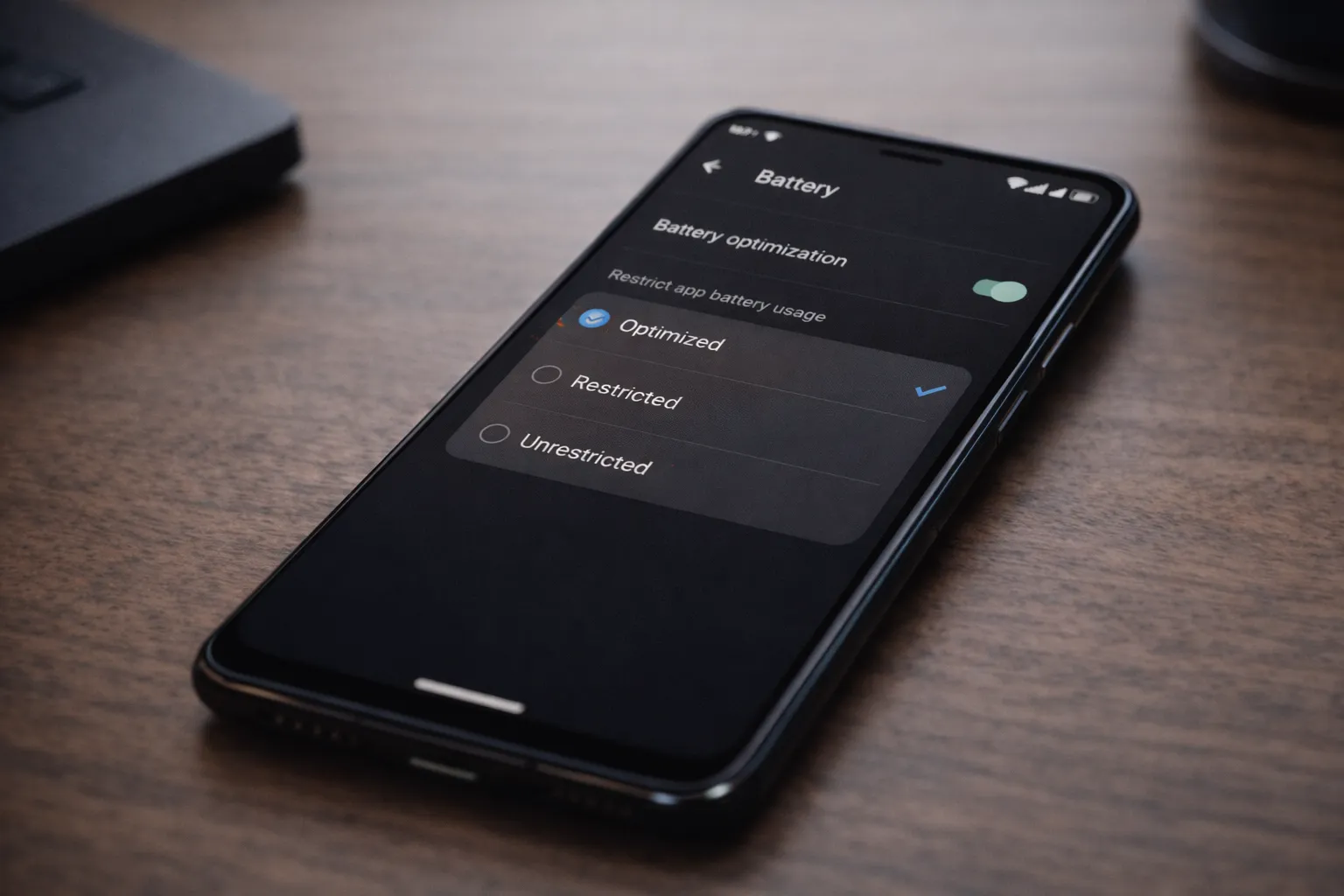
Restrict Background Activity
Open the app’s settings, go to Battery, and set it to Restricted or Optimized. This prevents the app from running freely in the background while still allowing essential functions like notifications.
Disable Unnecessary Notifications
Each notification wakes your phone briefly, using CPU and network resources. Turning off non-essential notifications can significantly reduce background activity without affecting important alerts.
Limit Location Access
Apps with constant location access can drain battery quickly. Set location permission to Allow only while using the app so tracking stops when the app is closed.
Enable Adaptive Battery
Adaptive Battery learns your usage patterns and automatically limits background activity for rarely used apps. For best results, combine it with system-level optimizations explained in our Android speed optimization guide.
Keep System Updated
Android updates often include fixes for battery drain, background process bugs, and performance issues. Keeping your system updated ensures your phone benefits from these improvements.
When You Should Uninstall an App
Not every battery-draining app needs to be removed. However, uninstalling becomes the better option when an app continues to cause problems even after optimization.
- Battery drain continues even after background restrictions
- The app is rarely or never used
- It causes noticeable heating while the phone is idle
- The app hasn’t received updates from the developer for a long time
Common Battery Drain Mistakes to Avoid
Many users unintentionally make battery drain worse by trying quick fixes that don’t actually solve the problem. Avoiding these common mistakes can help improve battery life without installing extra apps.
- Installing multiple battery saver apps, which often conflict with each other
- Force closing apps repeatedly instead of properly restricting background activity
- Keeping GPS, Bluetooth, and hotspot enabled when they’re not in use
- Ignoring Android system updates that include important battery and performance fixes
Final Verdict
In most cases, fast battery drain is caused by background apps rather than a faulty battery. Once you identify which apps stay active when your phone is idle and control their background behavior, battery life usually improves noticeably.
For users facing repeated issues, understanding which apps remain active in the background can make a real difference in day-to-day usage.
Instead of aggressively uninstalling apps or relying on multiple battery savers, focus on smart optimization. Small changes in background settings often deliver the most consistent and long-lasting results.
For further assistance, explore our best Android battery saver apps guide to find safe and effective tools that complement your manual optimizations.