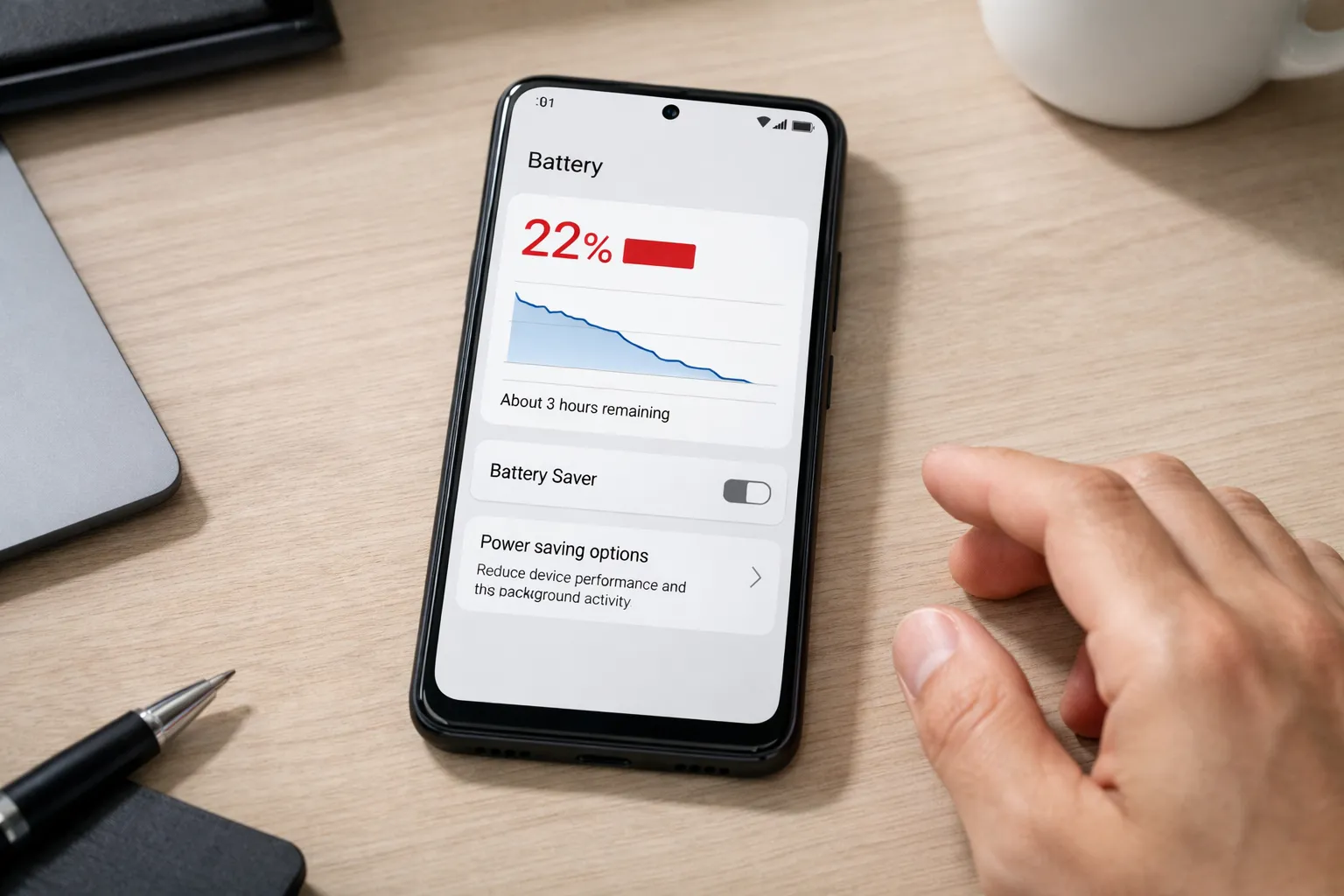
Best Android Battery Saver Apps in 2025 (Tested, Safe & No Fake Boosters)
Battery draining too fast on Android — even on a new phone? You’re not alone. In 2025, powerful processors, 5G connectivity, AI features, and background apps are silently killing battery life.
The truth is simple:
- Most “one-tap battery booster” apps don’t work
- A few genuine tools and correct settings actually do work
This complete guide explains why Android batteries drain fast and shows you the safest, proven ways to improve battery life in 2025.
Before using any battery saver app, it’s important to check whether your phone’s battery itself is healthy. A weak or degraded battery can cause fast drain even if all settings are correct. Check your Android battery health here →
Table of Contents
- Why Android Battery Drains Fast in 2025
- Common Signs of Battery Drain Problems
- Do Battery Saver Apps Really Work?
- Best Android Battery Saver Apps in 2025
- Battery Saver Apps You Should Avoid
- Best Built-in Android Settings to Save Battery
- Overheating and Battery Drain Connection
- Battery Health vs Battery Saving Apps
- Complete Step-by-Step Battery Saving Plan
- Final Verdict: What Actually Works in 2025
Why Android Battery Drains Fast in 2025

Even flagship Android phones struggle with battery life today. Here are the main reasons:
Background Apps and Services
Many apps keep running even when you are not actively using them. Social media syncing, cloud backups, location tracking, and AI-powered services constantly consume power.
How to Check & Fix Dangerous App Permissions on Android
Network and Connectivity Drain
5G networks, Bluetooth devices, and frequent switching between Wi-Fi and mobile data increase battery usage significantly.
Phone Overheating
Heat is one of the biggest enemies of battery life. If your phone becomes warm during normal usage, battery drain becomes unavoidable.
Why Is My Phone Overheating? Causes & Fixes
Poor Battery Optimization Settings
Most users never configure built-in battery optimization features. Android does not aggressively restrict apps by default.
Common Signs of Battery Drain Problems
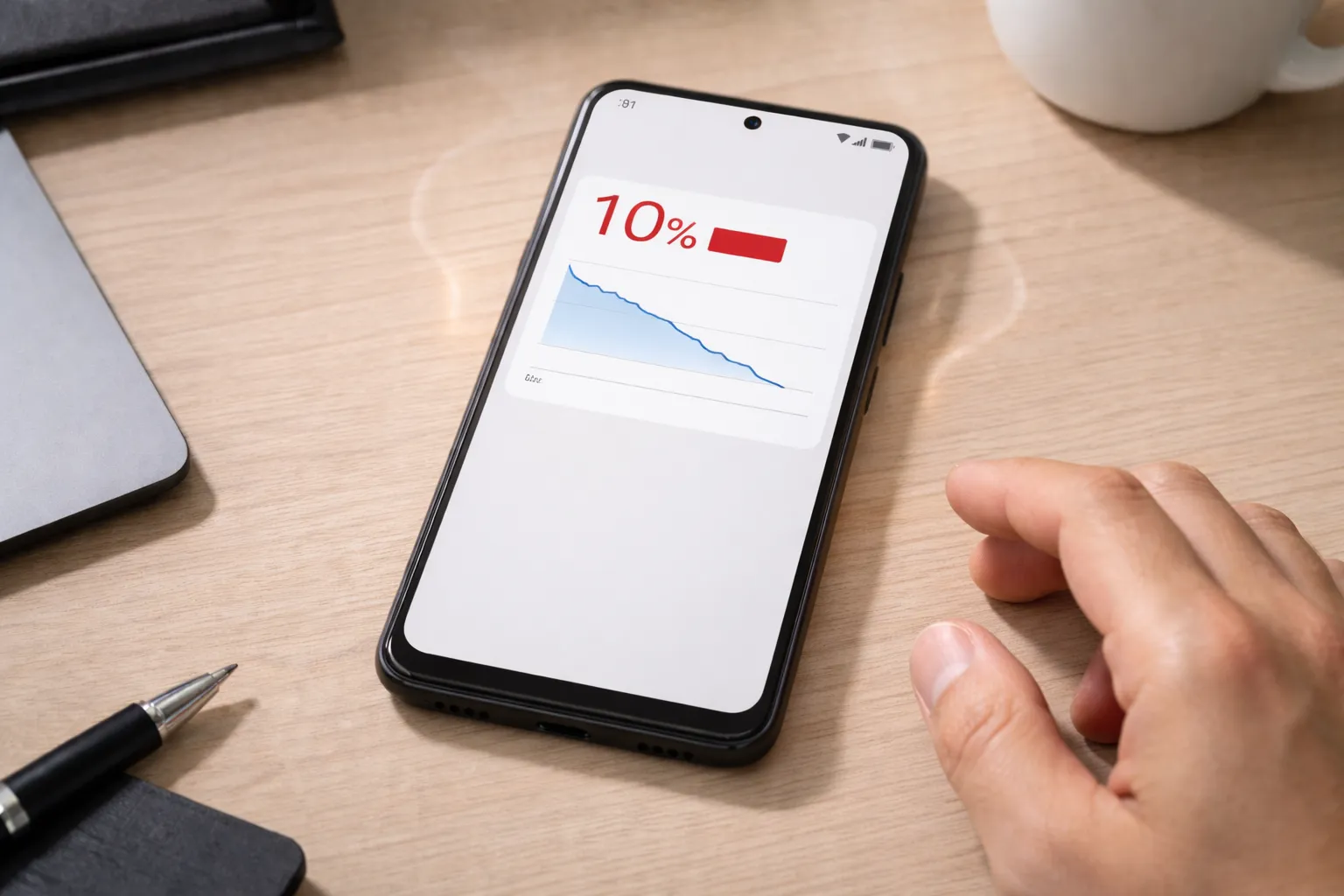
If your Android phone struggles to last through a normal day, these signs usually indicate a battery drain issue rather than normal usage.
- Battery drops 10–15% even when idle – This usually means background apps or system services are draining power silently.
- Phone heats up during light usage – Heating while browsing, chatting, or scrolling social media is a clear warning sign.
- Battery drains overnight – Losing a noticeable percentage while the phone is not in use often points to poor standby optimization.
- High screen-off battery usage – When most battery loss happens with the screen off, background activity is likely the cause.
- Phone does not last a full day – Even with moderate use, frequent charging means something isn’t right.
If you notice more than one of these issues, the first step should be checking whether your battery itself is still healthy.
Check battery health on your Android phone →
Do Battery Saver Apps Really Work?
Battery saver apps are often misunderstood. Some people expect them to magically fix battery issues, while others avoid them completely. The truth lies somewhere in between.
What Battery Saver Apps Cannot Do
- Increase battery capacity – Apps cannot physically make your battery larger or stronger.
- Repair degraded battery health – Once a battery ages, no app can restore it.
- Magically double battery life – Claims like “2× battery boost” are unrealistic and misleading.
What Good Battery Saver Apps Can Do
- Identify battery-hungry apps – They show which apps consume power in the background.
- Reduce background drain – By limiting unnecessary activity when apps are not in use.
- Improve standby time – Especially helpful for overnight or idle battery loss.
- Support healthy charging habits – Some apps help you avoid overcharging and excessive heat.
In short, battery saver apps work best as monitoring and optimization tools — not as miracle fixes.
Best Android Battery Saver Apps in 2025
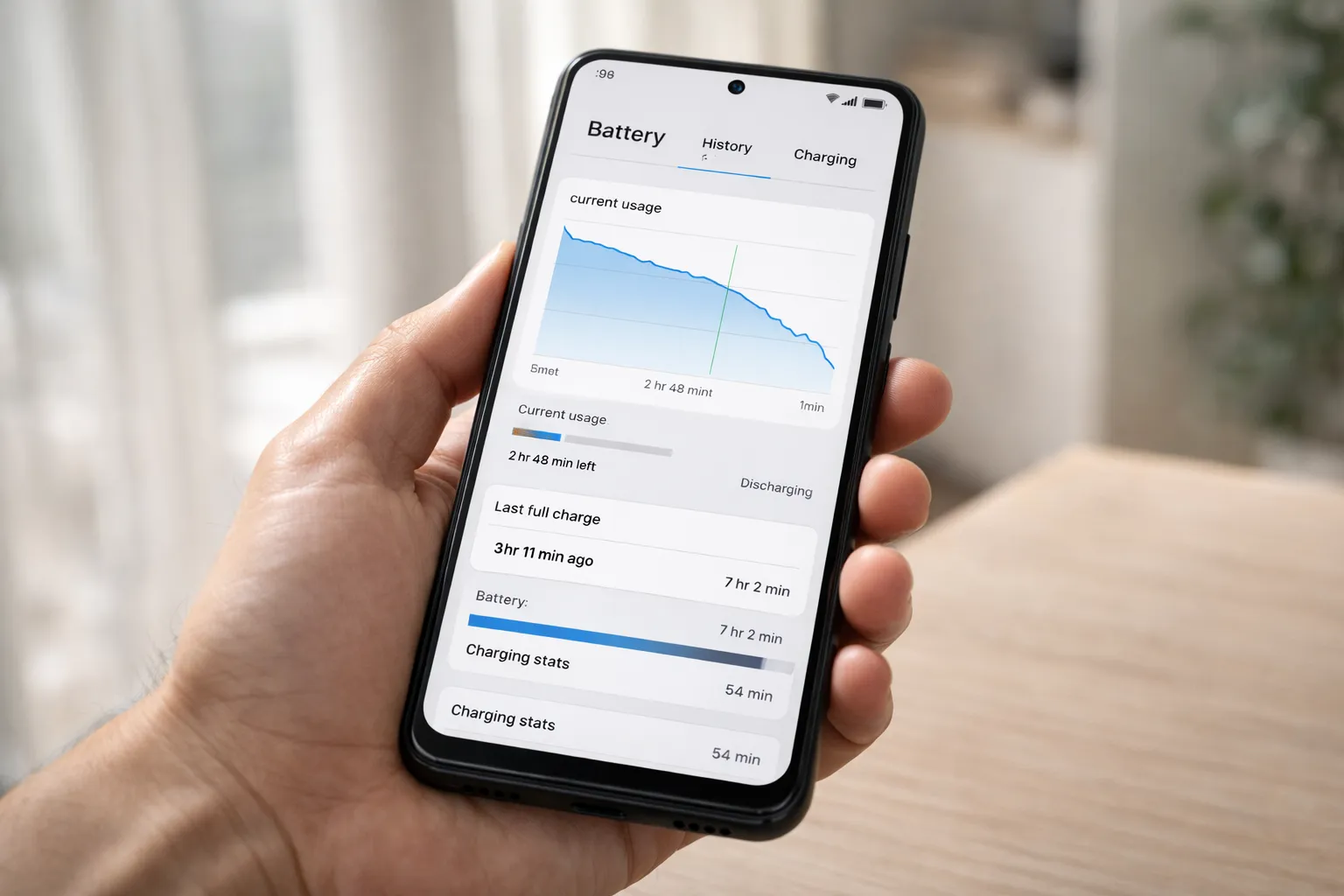
AccuBattery
AccuBattery focuses on real battery usage data instead of fake boosting.
- Real-time battery usage stats
- Battery health estimation
- Overcharge protection alerts
Greenify
Greenify puts unused apps into deep sleep to reduce idle battery drain.
- Stops background abuse
- Works without root
- Ideal for social and shopping apps
Battery Guru
Battery Guru provides detailed discharge analysis and charging guidance.
- Accurate battery stats
- No misleading claims
- User-friendly design
Naptime (Advanced Users)
Naptime enhances Android Doze mode for aggressive standby battery saving.
- Excellent overnight savings
- Requires ADB setup
- Not recommended for beginners
Battery Saver Apps You Should Avoid
Not all battery saver apps are helpful. In fact, some of them do more harm than good by constantly running in the background or showing misleading results.
- One-tap battery boosters – These usually force close apps temporarily, which causes Android to reopen them and drain more battery.
- RAM cleaner and booster apps – Android already manages RAM efficiently, and these apps often interfere with normal system behavior.
- Apps with fake charging animations – They look impressive but provide no real battery benefit and often run ads.
- Ad-heavy optimization apps – Constant ads and background tracking can increase power usage instead of reducing it.
If an app promises instant or dramatic battery improvement, it’s best to stay away from it.
Best Built-in Android Settings to Save Battery
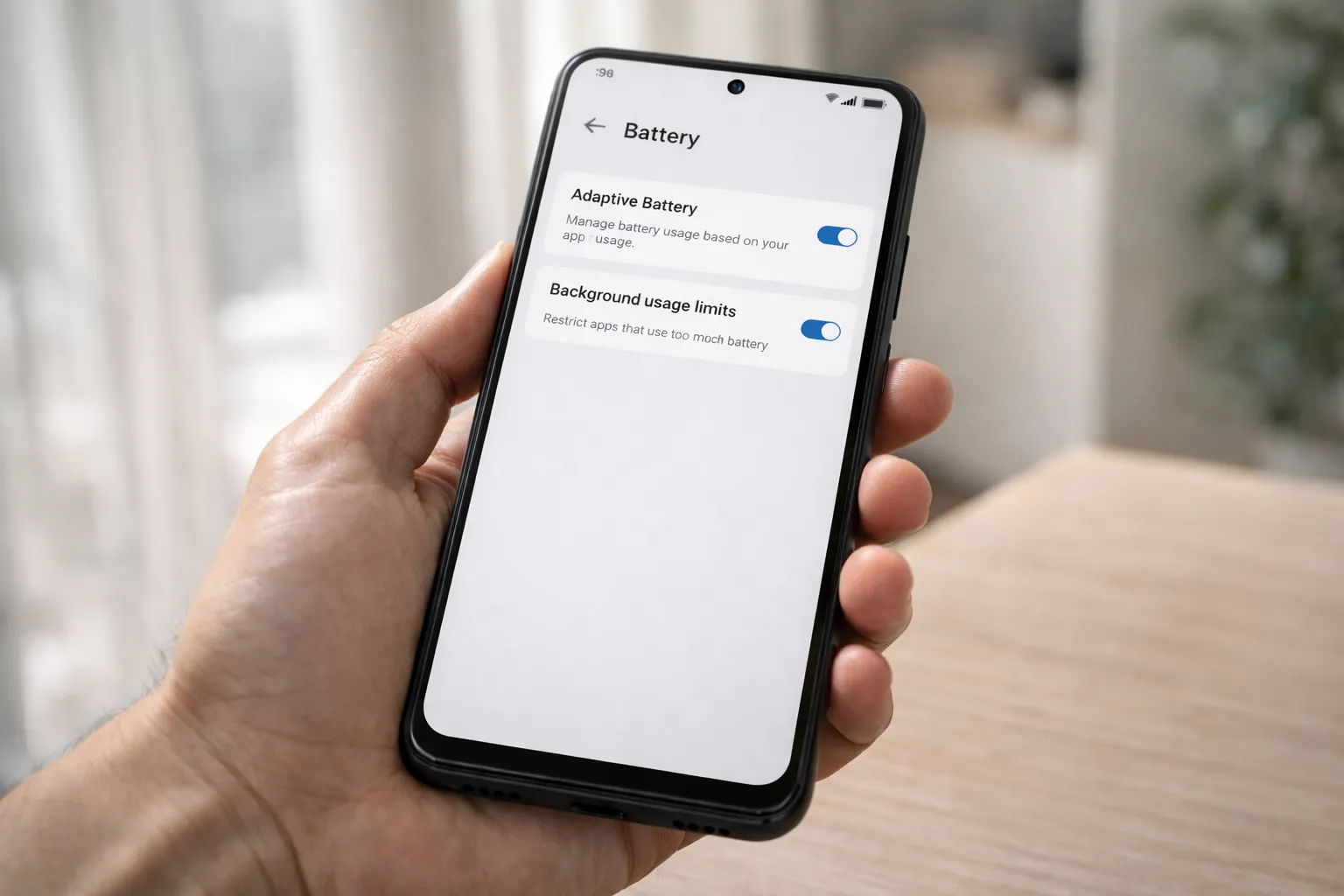
Before installing any battery saver app, it’s worth fixing a few built-in Android settings. These alone can make a noticeable difference to daily battery life.
Enable Adaptive Battery
Adaptive Battery learns which apps you use less often and automatically limits their background activity. Over time, this helps reduce unnecessary drain without affecting daily usage.
Restrict Background Usage
Some apps continue running even when you rarely open them. Manually restricting background usage for social media, shopping, and game apps can significantly improve standby time.
Clear Cache Regularly
Overloaded app cache can increase CPU usage and slow down the system, which indirectly affects battery life.
How to Clear Cache on Any Android Phone →
Use Dark Mode
On phones with AMOLED or OLED displays, dark mode can reduce power consumption by turning off individual pixels, especially during extended screen usage.
Overheating and Battery Drain Connection
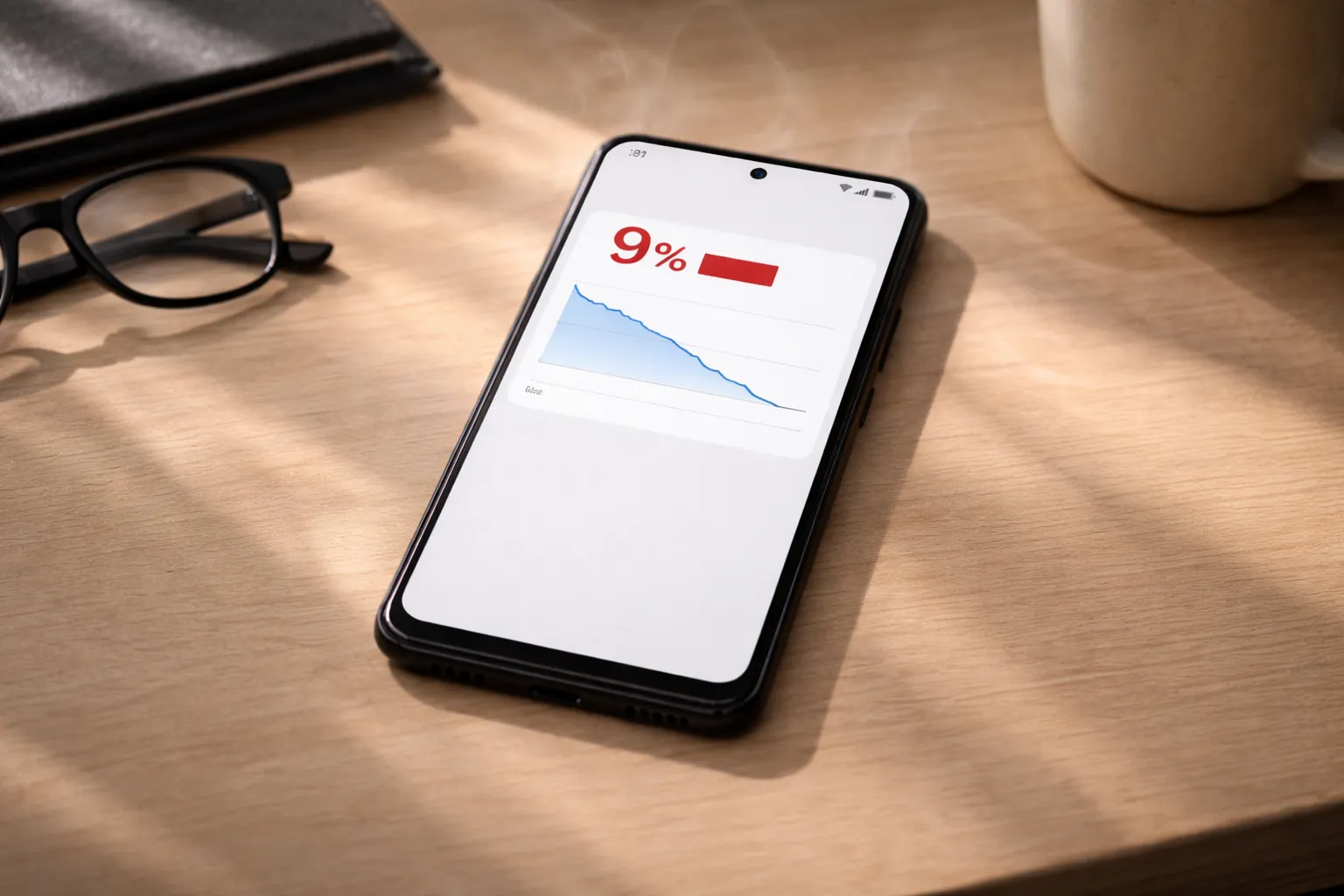
Heat is one of the fastest ways to drain an Android battery. When a phone overheats, the system reduces performance and uses extra power to keep internal components safe, which directly impacts battery life.
Overheating usually happens during gaming, long video calls, poor network conditions, or when multiple apps run in the background at the same time. Charging the phone while using it, especially in warm environments, can make the problem worse.
If your phone feels warm even during basic tasks like browsing or messaging, it’s a sign that something is constantly stressing the system. Over time, repeated heating not only causes faster battery drain but also permanently reduces battery health.
Fix phone overheating issues properly →
Battery Health vs Battery Saving Apps
When Battery Apps Help
- Battery health above 80%
- Idle or standby drain issues
- Background app abuse
When Battery Apps Will Not Help
- Battery health below 75%
- Sudden phone shutdowns
- Fast percentage drops
Complete Step-by-Step Battery Saving Plan (2025)
If you want reliable battery improvement, follow these steps in order. Skipping steps often leads to temporary or inconsistent results.
- Check battery health – Before changing settings or installing apps, make sure the battery itself is still in good condition.
- Identify battery-draining apps – Use Android’s battery usage screen to spot apps consuming power in the background.
- Install only one trusted battery app – Using multiple battery apps together can cause conflicts and increase drain.
- Fix unnecessary permissions – Disable background location, microphone, or auto-start access for apps that don’t need it.
- Optimize charging habits – Avoid frequent full charges, don’t use the phone heavily while charging, and try to keep battery levels between 20% and 80%.
This balanced approach delivers better results than aggressive battery boosters or random setting changes.
Final Verdict: What Actually Works in 2025
There is no single app or setting that can magically fix battery problems. Real improvements come from a combination of small but consistent changes.
- One trusted battery monitoring app – Use it to understand usage patterns, not to force-stop apps constantly.
- Correct Android battery settings – Features like Adaptive Battery and background restrictions make a bigger difference than most apps.
- Restricted background permissions – Limiting unnecessary access prevents silent battery drain.
- Heat control – Keeping the phone cool protects both short-term battery life and long-term battery health.
- Healthy charging habits – Avoiding overcharging and excessive heat helps maintain battery performance over time.
In short, smart optimization and realistic expectations always work better than aggressive battery boosting or quick-fix apps.