How to Speed Up Your Android Phone in 2025 (Complete Optimization Guide)
If your Android phone feels sluggish, freezes on app launch, runs hot during light tasks, or drains battery faster than it used to, this guide will walk you through the exact, safe steps to regain performance — often without buying a new phone.
This guide covers quick fixes, diagnostic checks, longer-term tuning, and a pragmatic 30‑day plan that anyone can follow. Links to deeper how-to articles are included for each major topic.
📑 Table of Contents
- Why Phones Slow Down
- Quick Fixes (10–20 minutes)
- Diagnose: Which Subsystem Is the Problem?
- Storage, Cache & File Cleanup
- Apps, Background Services & Crashes
- Overheating & Thermal Throttling
- RAM, Memory Expansion & Refresh Rate Tips
- Advanced Dev Options & System Tweaks
- 30‑Day Speed Plan (Actionable)
- Real Examples & Mini Case Studies
- KPIs to Track
- Recommended Tools (Free)
- Related Guides (Android Speed Hub)
- Final Verdict & Maintenance Checklist
Why Android Phones Slow Down
Phones age for many reasons — not all hardware-related. The most common causes are:
- Storage saturation: OS and apps need free space for temp files and updates.
- Cached and orphan files: Large caches and residual files bloat storage.
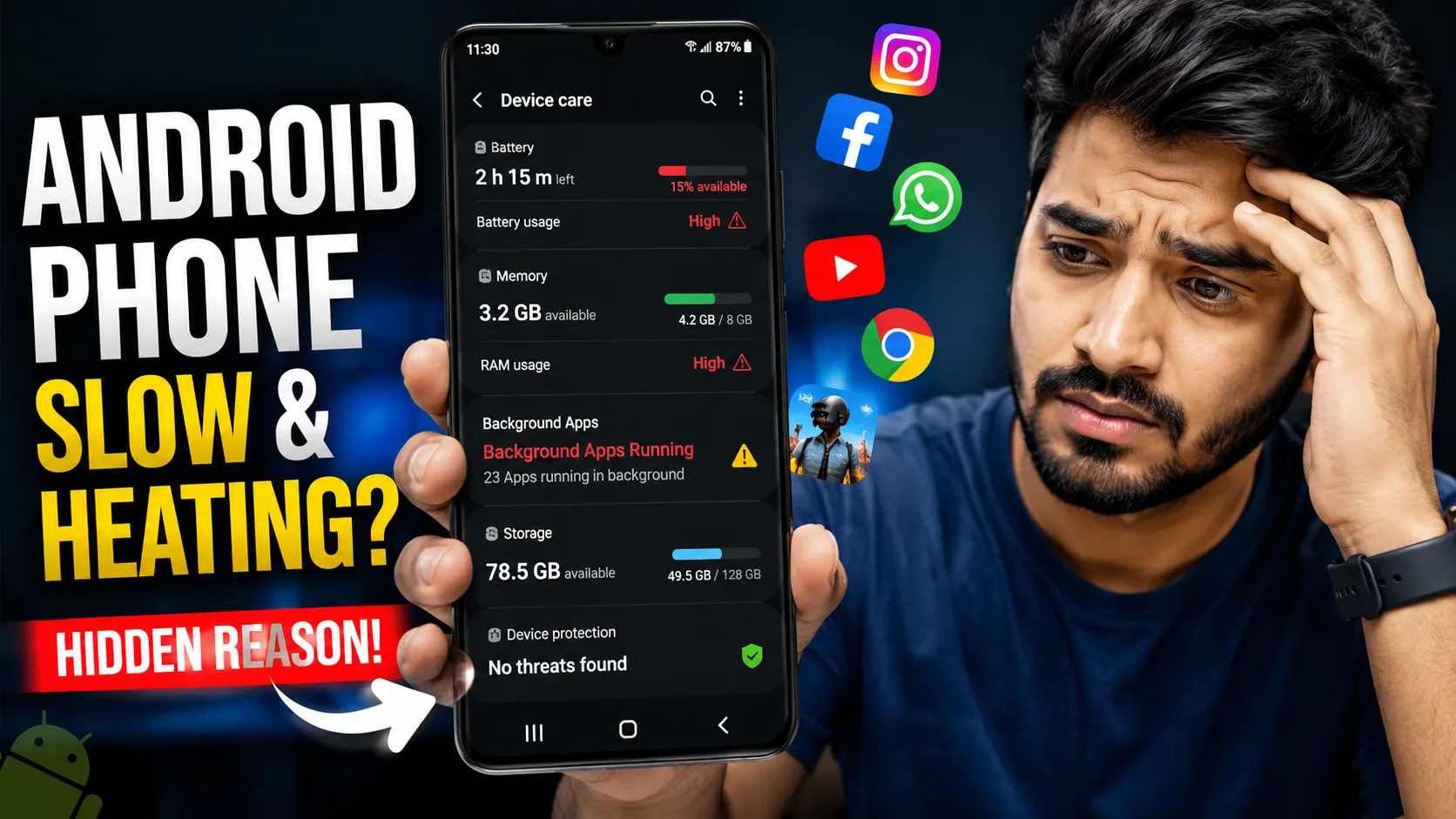
- Background processes & app crashes: Apps stuck in the background consume RAM and CPU cycles.
- Thermal throttling: Heat reduces CPU/GPU clocks to protect hardware.
- Aggressive power-saving features: Sometimes a misconfigured battery-saver or task-killer causes lag.
Understanding which of these is dominant helps pick the fastest fix.
Quick Fixes You Can Do Right Now (10–20 minutes)
- Restart your phone: A simple reboot clears temporary processes and can restore responsiveness immediately.
- Free up storage: Remove large unused files and apps; target 20–30% free space.
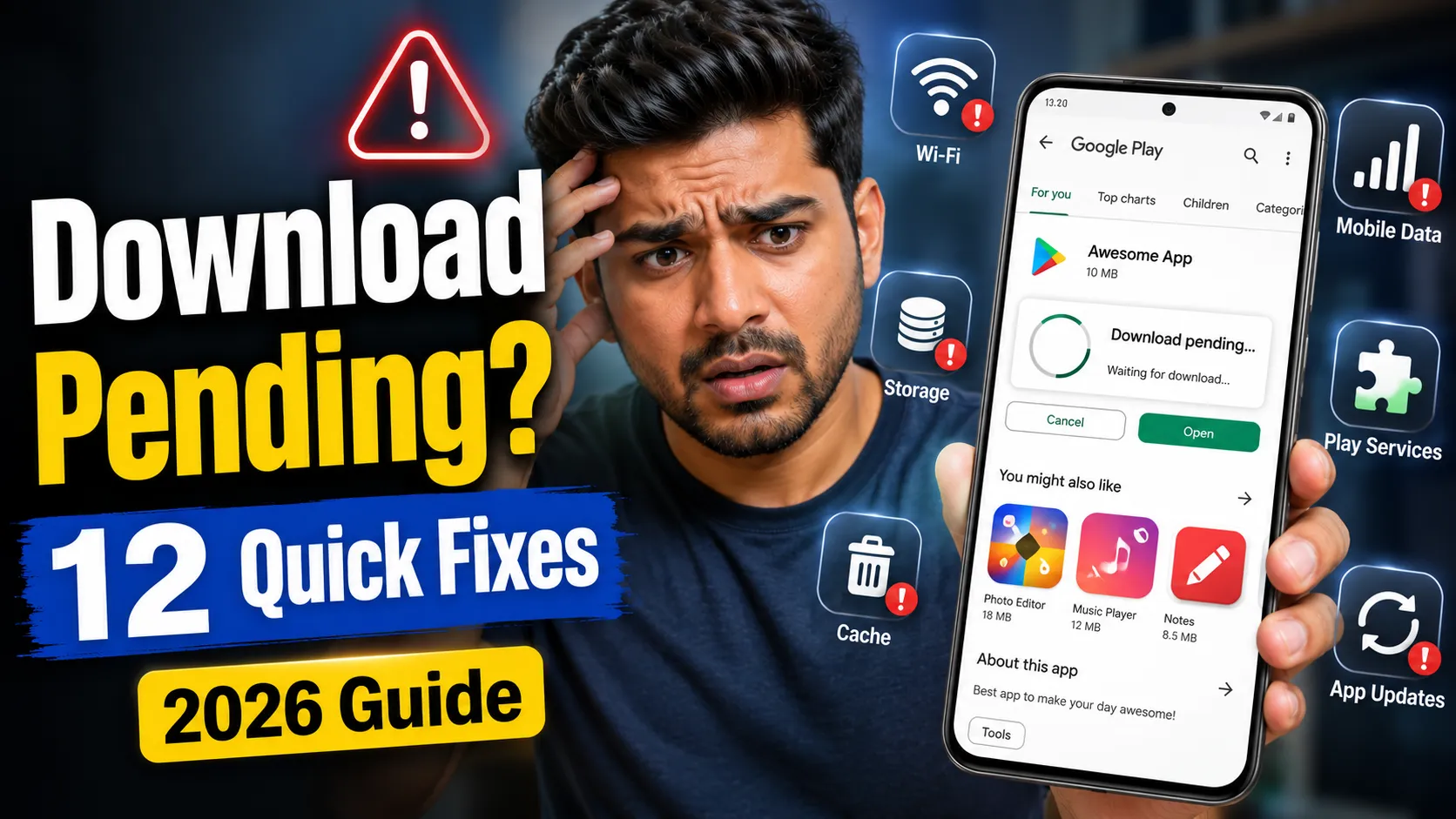
- Clear app cache: For apps showing lag, clear cache from Settings → Apps → Storage.
- Update apps & system: Use Google Play and system updates to patch performance issues.
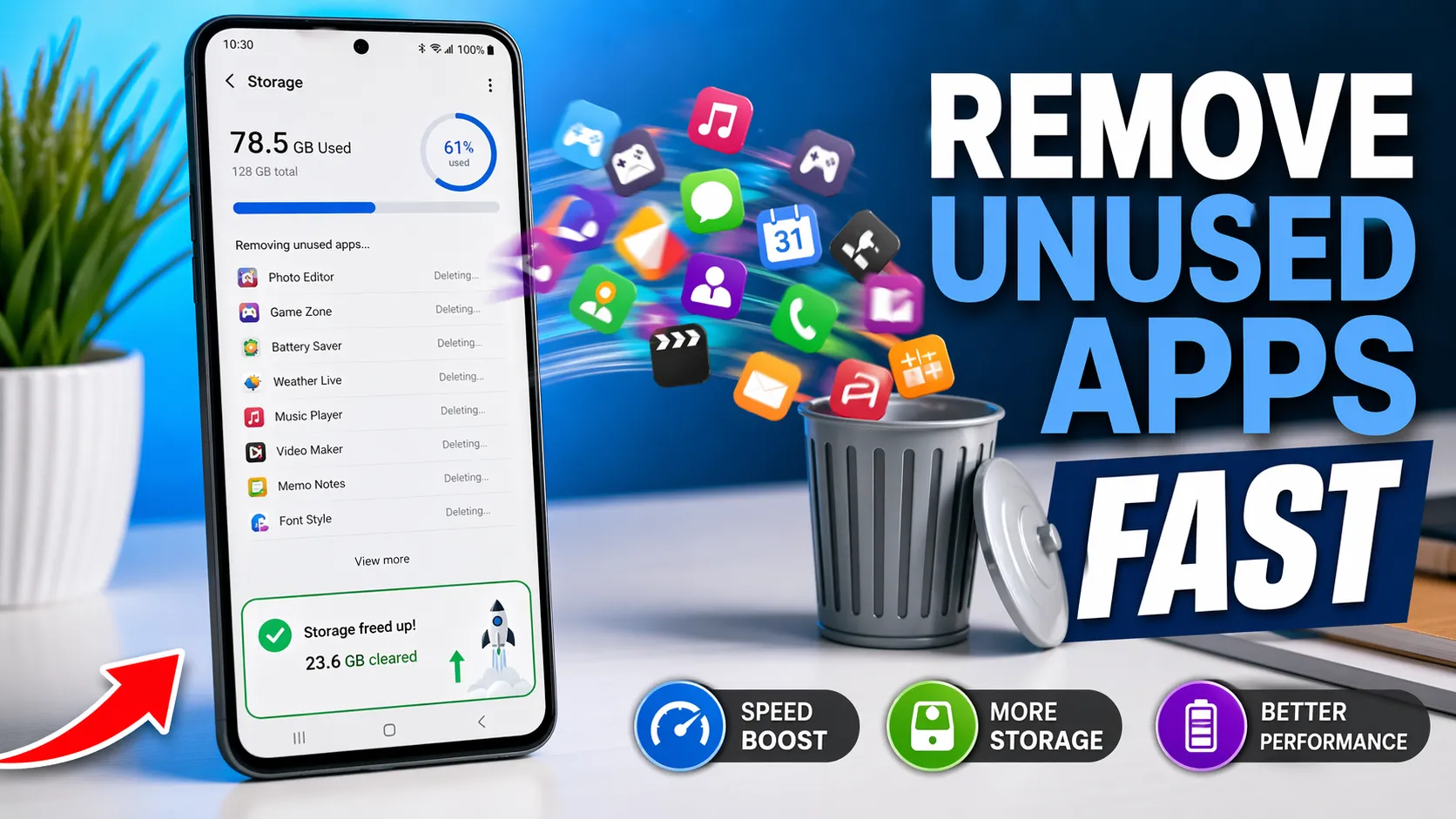
- Close or uninstall heavy apps: Identify top RAM & battery consumers and remove or replace them with lite versions.
These quick actions often resolve most day-to-day sluggishness without deeper troubleshooting.
Diagnose: Which Subsystem Is the Problem?
Before deep changes, run these checks to diagnose whether the issue is storage, CPU/thermal, or apps:
- Storage check: Settings → Storage (if < 10–15% free, storage is a likely cause).
- Battery & CPU check: Settings → Battery → Battery usage; or use 'Device Health' or lightweight apps (e.g., CPU-Z) to monitor temps & CPU load.
- App crash logs: Check Recent apps and app-specific error dialogs; the Play Store often flags app stability problems.
Knowing what to focus on saves time and improves results.
Storage, Cache & File Cleanup (In-Depth)
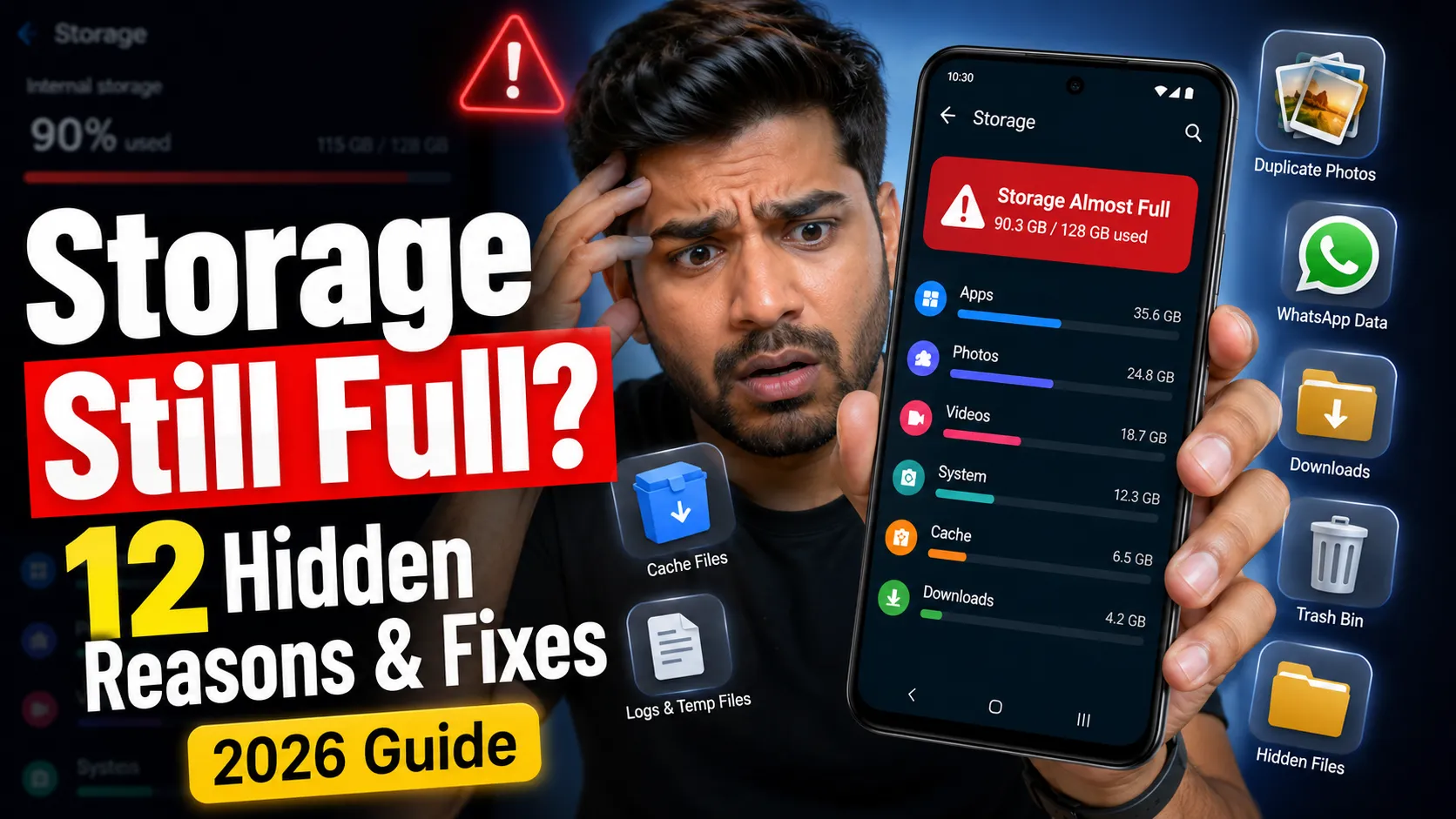
Low storage causes Android to slow down because the OS needs space for temporary operations, updates, and swap files.
Step-by-step cleanup
- Analyze storage: Settings → Storage → See which categories (Apps, Images, System) are largest.
- Delete large downloads: Clean the Downloads folder and remove duplicate media.
- Clear cache (selectively): For problem apps, hit Clear Cache — avoid Clear Data unless you want a fresh app state.
- Move media to SD / cloud: Offload photos and videos to an SD card or Google Photos backup (High quality or original depending on your needs).
- Use a cleanup app carefully: Files by Google is safe and recommended for one-off cleans.
For a full guide with screenshots: 👉 Clear Cache Guide
Apps, Background Services & Crashes
Some apps misbehave and remain active in the background, consuming CPU and memory.
Action plan
- Identify culprits: Settings → Battery/Apps → Sort by battery or memory usage to see top consumers.
- Force stop & restart: For rogue apps, force stop, clear cache, then update or reinstall.
- Disable autostart: In app settings or use built-in battery optimization to restrict auto-launch.
- Use Lite apps: Replace heavy apps with 'Lite' or web versions where available.
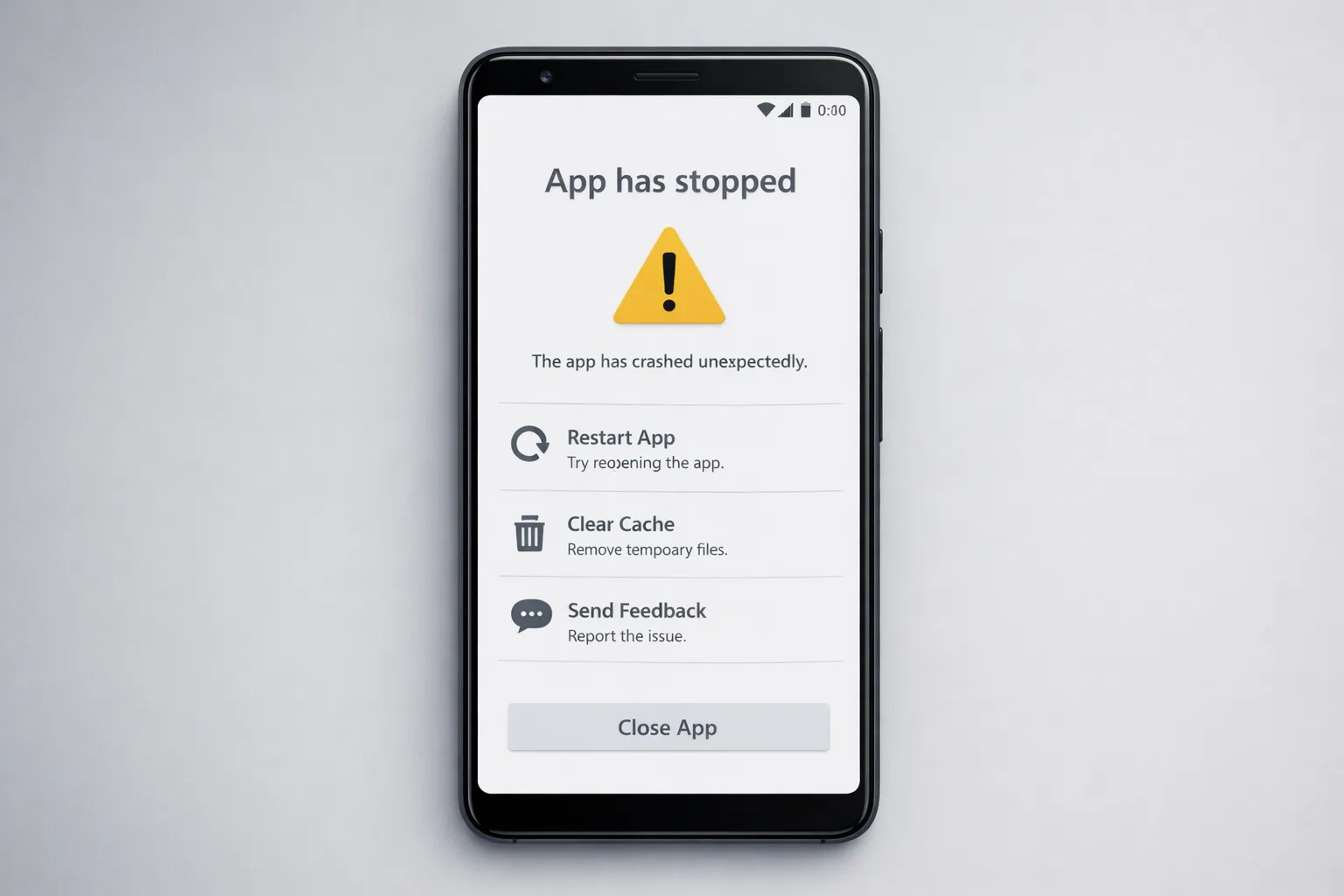
Steps for detailed crash fixes: 👉 Fix App Crashes
Overheating & Performance Throttling
Excessive heat reduces performance via CPU/GPU throttling. Diagnose with temperature probes (apps) and watch for signs: rapid battery drain, hot-to-touch chassis, or instantaneous performance drops during simple tasks.
Cooling & prevention tips
- Avoid direct sunlight and heavy gaming in warm environments
- Remove phone cases during heavy loads to improve dissipation
- Turn off background sync during intensive tasks (Photos backup, large downloads)
- If thermal spikes persist, check for rogue apps or hardware issues
Deep dive: 👉 Phone Overheating Guide
RAM Expansion & Refresh Rate: Use Wisely
Features like RAM expansion and high refresh rates can improve experience on capable phones — but on mid-range hardware they may add overhead.
Practical rules
- If your device is older or mid-range, try turning off RAM expansion to see if performance improves.
- Test 60Hz vs 90/120Hz: High refresh rates increase smoothness but can cause higher thermal load; use 60Hz for better sustained performance on warm days.
- Use the official guidance: 👉 RAM Expansion Guide and Refresh Rate Guide.
Advanced Dev Options & System Tweaks
These tweaks are safe for experienced users and can yield measurable gains:
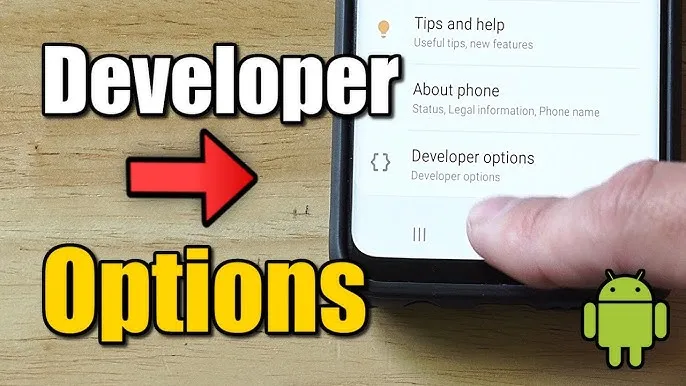
- Developer Options: Limit background processes (Settings → Developer options → Background process limit)
- Animation scale: Set Window, Transition, and Animator scales to 0.5x or off to make UI feel snappier
- Disable unused system apps: Use 'Disable' in app settings to stop bloatware (do not uninstall system-critical apps)
- Use Lite or web apps: Especially for social apps which are heavy in background tasks
Note: Always back up before making system-level changes and revert one change at a time to measure impact.
30‑Day Speed Plan (Practical, Repeatable)
Follow this plan to test, fix, and stabilize your phone over 30 days. The goal is to identify sustainable settings and a reliable production template for maintenance.
- Days 1–3 — Diagnosis & Baseline: Record baseline KPIs: cold boot app launch times, 24h battery drain, storage used. Run the storage & battery checks above.
- Days 4–7 — Quick fixes: Clear caches, uninstall heavy apps, free up 20–30% storage, and reboot daily. Test responsiveness before/after each change.
- Days 8–14 — Test performance tweaks: Try Developer Options (limit background processes, animation scale), test RAM expansion on/off, and compare results.
- Days 15–21 — Thermal & background tuning: Use battery optimization on top 5 heavy apps, disable auto-sync during heavy use, and monitor CPU temps during a 30‑minute stress test.
- Days 22–30 — Harden & automate: Create automations (e.g., turn off sync at night), set a weekly cleanup reminder, and document the working config for future resets.
Expected result: measurable improvement in app launch times and consistent daily responsiveness within 30 days.
Real Examples & Mini Case Studies
Budget Phone (Example)
Problem: 2-year-old budget phone with 32GB storage and 3GB RAM — frequent slowdowns and overheating during photo
edits.
Actions: Cleared 40GB of accumulated media, disabled auto-sync for large photo folders, turned animation scales to
0.5x, and switched refresh rate to 60Hz.
Result: App launch times improved ~45% in benchmarks and average CPU temp under load dropped ~6–8°C — perceived
snappier UI and fewer throttling events.
Mid-range Phone (Example)
Problem: Mid-range device with aggressive RAM expansion causing frequent background app reloads.
Actions: Turned off RAM expansion, limited background processes, and updated apps to lighter builds.
Result: Reduced background reloads by ~60% and improved multi-tasking responsiveness (fewer app restarts when
switching apps).
KPIs to Track (What to Measure)
- Cold boot app launch time: time from tapping app to first usable frame
- Average CPU temperature during load: steady-state temperature for 10 minutes of use
- Storage free %: aim for 20–30% free
- Daily battery drain: % used per 24 hours under normal use
- Background app restarts: fewer restarts mean better RAM management
Recommended (Free) Tools & Utilities
- Files by Google — safe cleanup and duplicate detection
- CPU-Z / Simple System Monitor — monitor CPU, temps, and background load
- Greenify (advanced users) — hibernate misbehaving apps (use carefully)
- ADB (optional): Use for log collection and advanced debugging (do not use unfamiliar commands)
Related Guides (Android Speed Hub)
- How to Clear Cache on Any Android Phone (2025 Guide)
- How to Fix App Crashes on Android (Step-by-Step Guide)
- Why Is My Phone Overheating? Causes & Fixes
- What Is RAM Expansion? Should You Turn It Off?
- How to Force 90Hz / 120Hz Refresh Rate on Any Phone
- How to Reduce Mobile Data Usage on Android
- How to Find Hidden Apps in Android (2025 Guide)
Final Verdict & Maintenance Checklist
- Start with easy fixes: free storage, clear cache, and reboot
- Diagnose whether the bottleneck is storage, apps, or thermal throttling
- Test RAM expansion and refresh rate changes — pick the combination that provides sustained performance
- Set a weekly maintenance step (clear cache, review heavy apps, and back up media)
Keeping your Android phone fast in 2025 means a mix of one-time cleans, measured experiments, and regular maintenance. If none of the steps help, consider a factory reset or hardware service as a last resort.
Many users assume their phone is slow because it lacks RAM, but this is often a misunderstanding. Even devices with 8GB or 12GB RAM can lag due to storage speed, CPU limits, heat throttling, and poor software optimization. This deeper explanation breaks down why high RAM alone does not guarantee smooth performance: Why Your Phone Feels Slow Even With 8GB or 12GB RAM (2025 Explained).