If your Google Play Store is stuck on the "Download Pending" message and refuses to download or update apps, you're not alone. This is one of the most common Android issues affecting Samsung Galaxy, Google Pixel, Xiaomi, OnePlus, Vivo, OPPO, Realme, Motorola, and other Android devices. The problem can occur due to low storage space, poor internet connectivity, corrupted Play Store cache, outdated Google Play Services, pending app updates, or account synchronization issues. In this complete guide, you'll learn why Google Play Store shows Download Pending, what causes the error, and 12 proven methods to fix it safely without losing your apps or personal data. Whether you're unable to install a new app or update an existing one, these step-by-step solutions will help restore normal Play Store functionality quickly and improve your overall Android experience.
Table of Contents
- Overview
- What Does "Download Pending" Mean?
- Why Does Google Play Store Show Download Pending?
- Common Causes of Download Pending
- Check Your Internet Connection
- Pause Other Downloads
- Clear Google Play Store Cache & Data
- Update Google Play Services
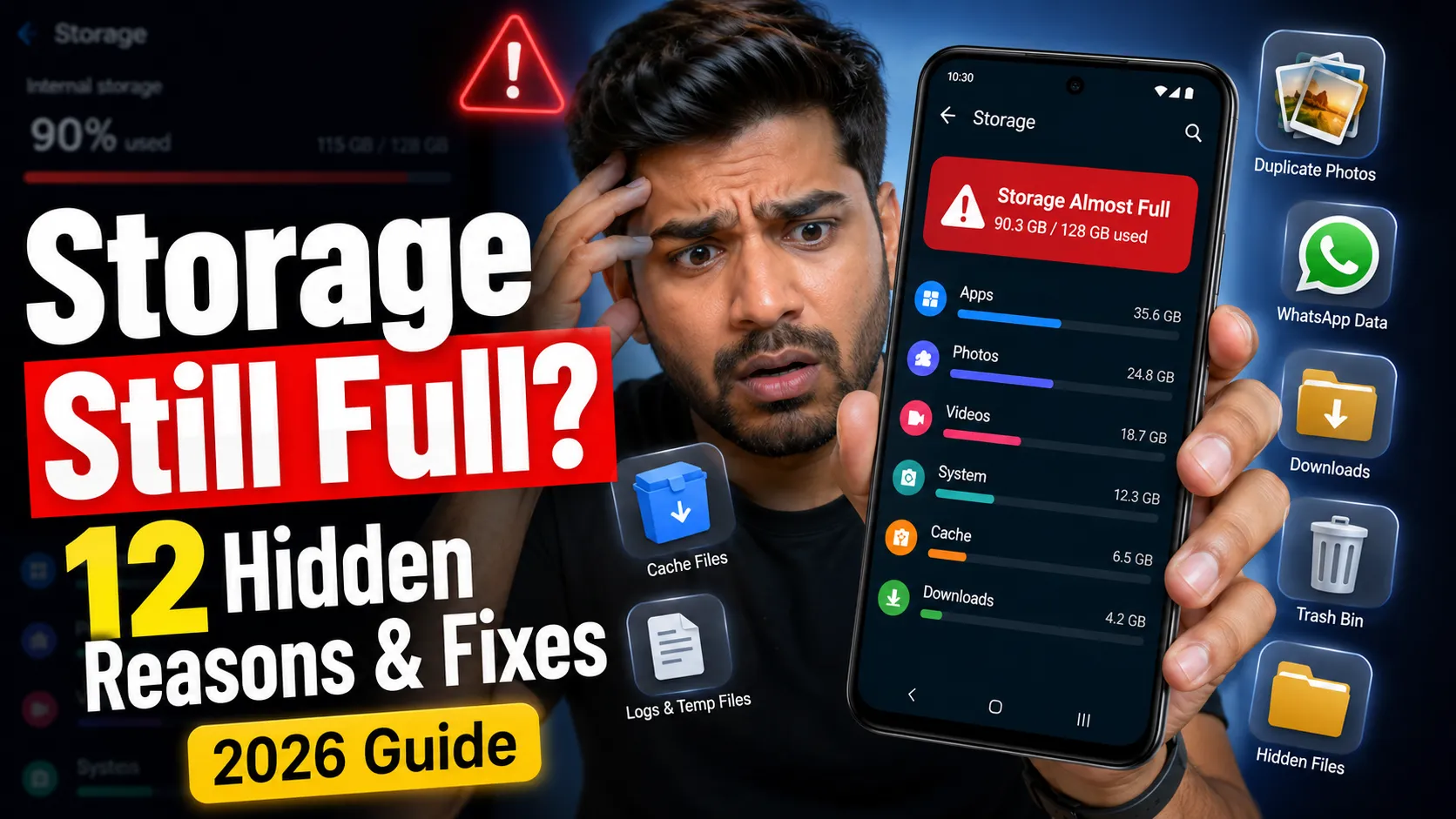
- Check Available Storage Space
- Other Proven Fixes
- Final Thoughts
Overview
If your Google Play Store is stuck showing the "Download Pending" message instead of downloading or updating apps, you're not alone. This is one of the most common Google Play Store issues faced by Android users. Whether you're trying to install a new app or update an existing one, the download queue may remain stuck for several minutes or even indefinitely, preventing the installation from completing.
This issue can occur on almost any Android smartphone, including Samsung Galaxy, Google Pixel, Xiaomi, OnePlus, OPPO, Vivo, Realme, Motorola, and other devices. In most cases, the problem is caused by temporary software glitches, multiple pending downloads, low storage space, corrupted Play Store cache, outdated Google Play Services, or network connectivity problems rather than a hardware fault.
What You'll Learn in This Guide
- What the Download Pending message actually means.
- Why Google Play Store gets stuck while downloading apps.
- The most common reasons behind this error.
- 12 proven methods to fix Google Play Store download pending issues.
- Best practices to prevent the problem from happening again.
Most download pending errors can be fixed in just a few minutes without installing third-party applications or performing a factory reset. Follow the methods below in order, starting with the simplest solutions, to restore normal Google Play Store functionality and download apps without interruption.
What Does "Download Pending" Mean?
The "Download Pending" message in the Google Play Store indicates that your app request has been placed in a waiting queue instead of downloading immediately. This doesn't necessarily mean the download has failed. Rather, Google Play Store is waiting for certain conditions to be met before it starts installing or updating the app.
In many cases, the Play Store pauses downloads because another app is already being updated, your internet connection is unstable, available storage is running low, or Google Play Services is experiencing a temporary issue. Until these conditions are resolved, the requested app remains in the Download Pending state and cannot be installed.
What Usually Triggers Download Pending?
- Multiple app downloads or updates are waiting in the queue.
- Your phone has insufficient free storage.
- The internet connection is slow or unstable.
- Google Play Store cache has become corrupted.
- Google Play Services isn't functioning correctly.
- Battery Saver or Data Saver temporarily restricts downloads.
Fortunately, this issue is usually temporary and can be fixed without reinstalling the Play Store or resetting your phone. Understanding what the message actually means helps you choose the correct troubleshooting method instead of trying random solutions that may not resolve the problem.
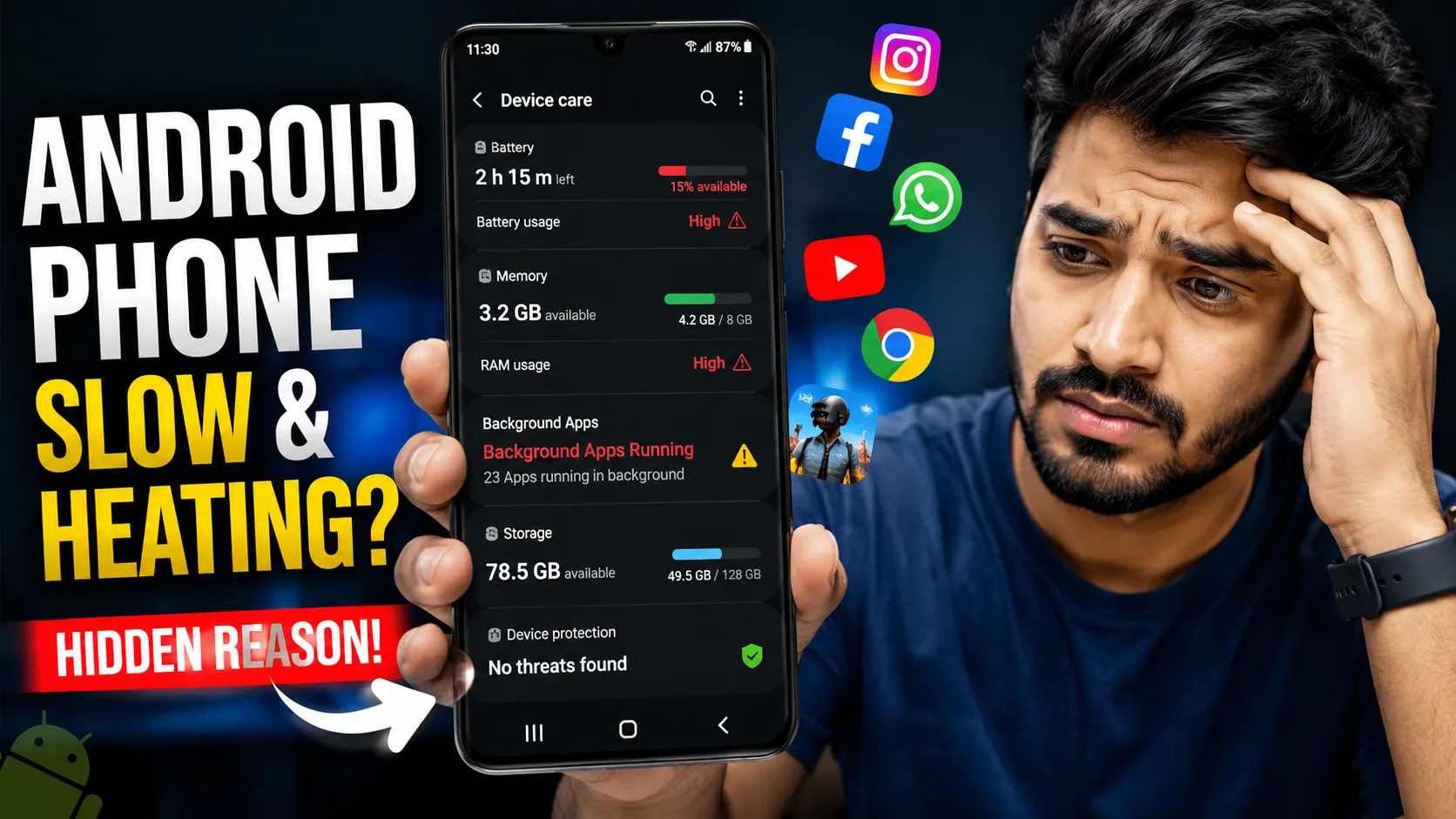
If your device is running low on available space, it's worth checking whether hidden storage usage is preventing downloads, since the Play Store requires sufficient free space to install applications. You should also review which apps continue running in the background, as excessive background activity can occasionally interfere with app updates and overall device performance.
Why Does Google Play Store Show Download Pending?
Google Play Store displays the "Download Pending" message when it cannot begin downloading or updating an app immediately. Instead of starting the installation, the Play Store temporarily places the request in a queue until the issue preventing the download is resolved. This is a protective mechanism designed to avoid interrupted installations, corrupted app files, or failed updates.
Several factors can trigger this behavior. The most common reasons include multiple apps waiting to update, insufficient storage space, unstable Wi-Fi or mobile data, corrupted Play Store cache, outdated Google Play Services, battery optimization settings, or temporary synchronization issues with your Google account. In most situations, the problem is software-related and can be resolved without uninstalling apps or performing a factory reset.
Common Reasons Behind the Download Pending Error
- Another app is currently downloading or updating.
- Your Android device doesn't have enough free storage.
- Google Play Store cache or data has become corrupted.
- Google Play Services requires an update.
- Your internet connection is slow or unstable.
- Google account synchronization is temporarily interrupted.
- Battery Saver or Data Saver is limiting background downloads.
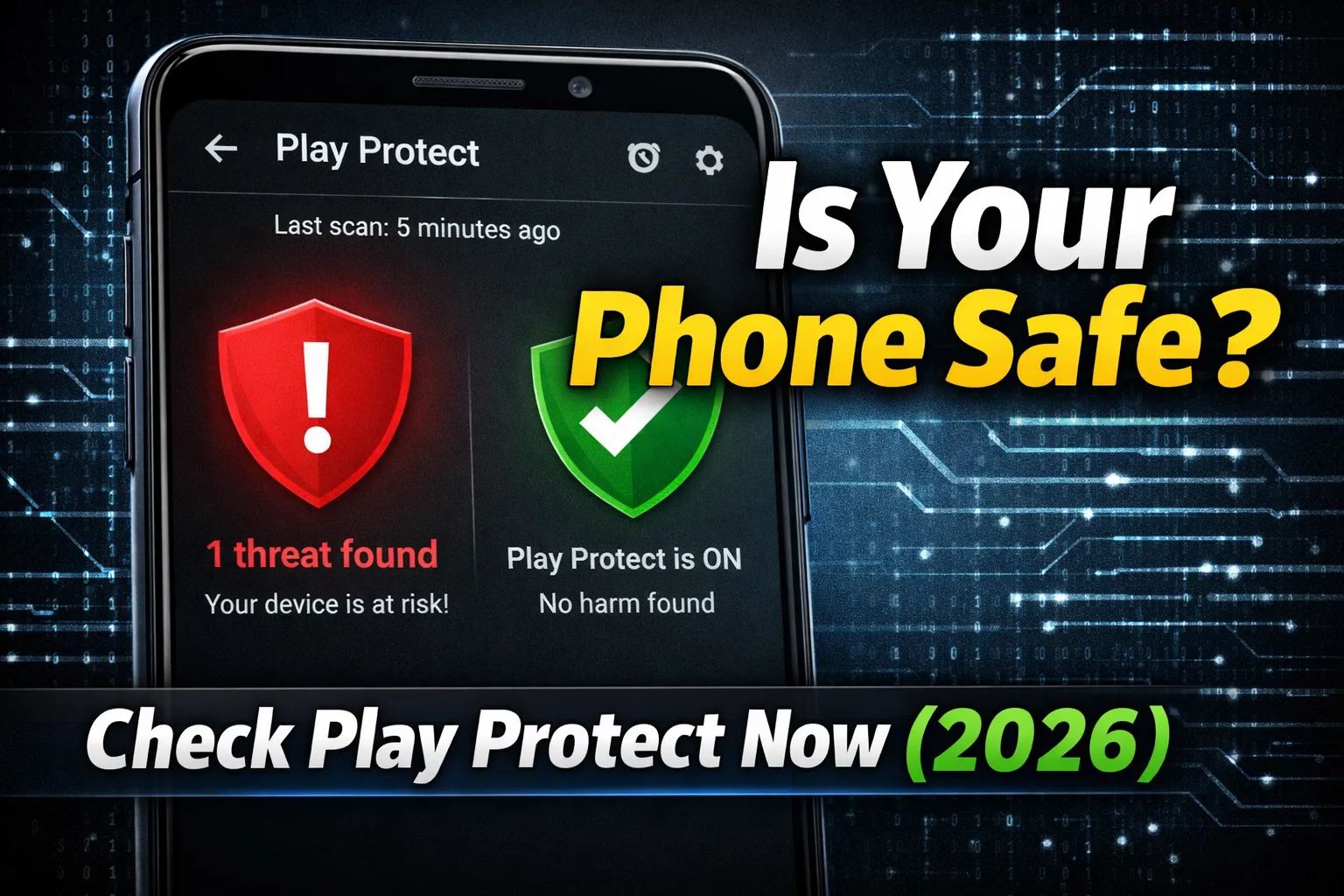
Before trying advanced troubleshooting steps, it's worth checking whether Google Play Protect is working correctly, as Play Protect may scan apps before installation and occasionally delay downloads. It's also a good idea to review your Google account security settings to ensure your account is properly synchronized and free from authentication issues that could affect Play Store services.
Common Causes of Download Pending
The Google Play Store Download Pending issue can occur for several reasons, but it is usually caused by a temporary software or network-related problem rather than a fault with your Android device. Identifying the underlying cause is important because the right solution depends on what's preventing the Play Store from starting the download.
In many cases, multiple factors work together. For example, a slow internet connection combined with low storage space or a corrupted Play Store cache can keep apps waiting in the download queue. Understanding these common causes helps you avoid unnecessary troubleshooting and quickly restore normal app downloads.
Most Common Causes of Download Pending
- Multiple Pending Downloads: The Play Store can download only a limited number of apps at a time, causing others to wait in the queue.
- Unstable Internet Connection: Weak Wi-Fi or poor mobile data coverage may interrupt communication with Google's servers.
- Insufficient Storage: Apps cannot be installed if your phone doesn't have enough free internal storage.
- Corrupted Play Store Cache: Damaged temporary files may prevent downloads from starting correctly.
- Outdated Google Play Services: Older Play Services versions can interfere with app downloads and updates.
- Battery Saver or Data Saver: These features may restrict background downloads to conserve battery life or mobile data.
- Google Account Sync Issues: Temporary account synchronization problems can affect Play Store functionality.
If you're downloading apps over mobile data, make sure your connection is stable and that the Play Store is allowed to use background data. You can also review our guide on managing mobile data efficiently on Android to ensure network restrictions aren't preventing downloads.
Check Your Internet Connection
A stable internet connection is essential for downloading and updating apps from the Google Play Store. If your Wi-Fi or mobile data connection is weak, unstable, or frequently disconnects, the Play Store may display the "Download Pending" message because it cannot establish a reliable connection with Google's servers. Before trying advanced troubleshooting methods, always verify that your network is working properly.
Even if websites open normally, temporary network issues such as high latency, packet loss, VPN interference, or poor signal strength can prevent app downloads from starting. Testing your connection only takes a few minutes and often resolves the problem without making changes to your phone's settings.
How to Check Your Internet Connection
- Open a website or play a YouTube video to confirm your internet is working.
- Switch between Wi-Fi and mobile data to determine whether the issue is network-specific.
- Turn Airplane Mode on for about 10 seconds, then turn it off to refresh all network connections.
- Restart your Wi-Fi router if you're connected to a wireless network.
- Temporarily disable any VPN or proxy service and try downloading the app again.
- Ensure Data Saver or network restrictions aren't preventing app downloads.
If the download starts after switching networks, the problem is likely related to your internet connection rather than the Google Play Store itself. Once a stable connection is restored, pending downloads usually begin automatically without requiring additional troubleshooting.
Pause Other Downloads
One of the most common reasons for the "Download Pending" message is that Google Play Store is already processing another app download or update. By default, the Play Store manages downloads in a queue to avoid installation conflicts. If multiple apps are waiting to update automatically, your new app may remain in the pending state until the earlier downloads are completed or cancelled.
This situation is especially common when automatic app updates are enabled or when several large apps begin updating at the same time. Reviewing the download queue and pausing unnecessary downloads often allows your desired app to start downloading immediately.
How to Pause or Cancel Other Downloads
- Open the Google Play Store.
- Tap your profile picture in the top-right corner.
- Select Manage apps & device.
- Open the list of pending downloads or updates.
- Pause or cancel apps that are not urgently needed.
- Return to the app you want to install and try downloading it again.
If the download queue appears empty but the problem continues, temporary Play Store files may be preventing downloads from starting correctly. In that case, the next troubleshooting step is clearing unnecessary cache on your Android phone, which can resolve corrupted temporary data affecting the Play Store.
Google also recommends checking for queued downloads, network issues, and Play Store settings if app installations remain stuck. You can review the official troubleshooting steps in the :contentReference[oaicite:0]{index=0}.
Clear Google Play Store Cache & Data
If Google Play Store remains stuck on "Download Pending", clearing its cache and data is one of the most effective solutions. Over time, the Play Store stores temporary files to improve loading speed and remember your preferences. However, if these files become outdated or corrupted, they can interfere with app downloads, updates, and communication with Google's servers.
Clearing the cache removes only temporary files, while clearing data resets the Play Store's local settings without uninstalling the app. Your installed applications, Google account, purchased apps, and personal files remain safe. After clearing the data, the Play Store simply refreshes its configuration the next time you open it.
Steps to Clear Google Play Store Cache & Data
- Open Settings on your Android phone.
- Tap Apps or Apps & Notifications.
- Select Google Play Store.
- Tap Storage & Cache.
- Tap Clear Cache first.
- If the problem continues, tap Clear Storage or Clear Data.
- Reopen Google Play Store and try downloading the app again.
If the issue still isn't resolved after clearing the Play Store cache, it's worth checking whether Google Play Protect is working correctly. Play Protect scans apps before installation, and unexpected issues with this service can sometimes delay or interrupt app downloads.
If the problem persists, Google recommends following the official troubleshooting steps available on the Google Play Help website, including checking Play Store settings, restarting your device, and verifying your network connection.
Update Google Play Services
Google Play Services is a core Android component that allows the Google Play Store to download, install, verify, and update applications securely. If Play Services is outdated, disabled, or not functioning correctly, the Play Store may remain stuck on the "Download Pending" message because it cannot communicate properly with Google's servers. Keeping Play Services updated ensures better compatibility, improved security, and smoother app installations.
In some cases, the issue isn't caused by Google Play Services itself but by insufficient storage or excessive background data left by unused applications. Before updating Play Services, make sure your phone has enough free storage and remove anything that may prevent essential system services from working efficiently.
How to Update Google Play Services
- Open Settings on your Android device.
- Go to Apps and locate Google Play Services.
- Ensure the app is enabled and has the required permissions.
- Open the Google Play Store and search for Google Play Services, or open its settings page if available.
- Install any available updates.
- Restart your phone and try downloading the app again.
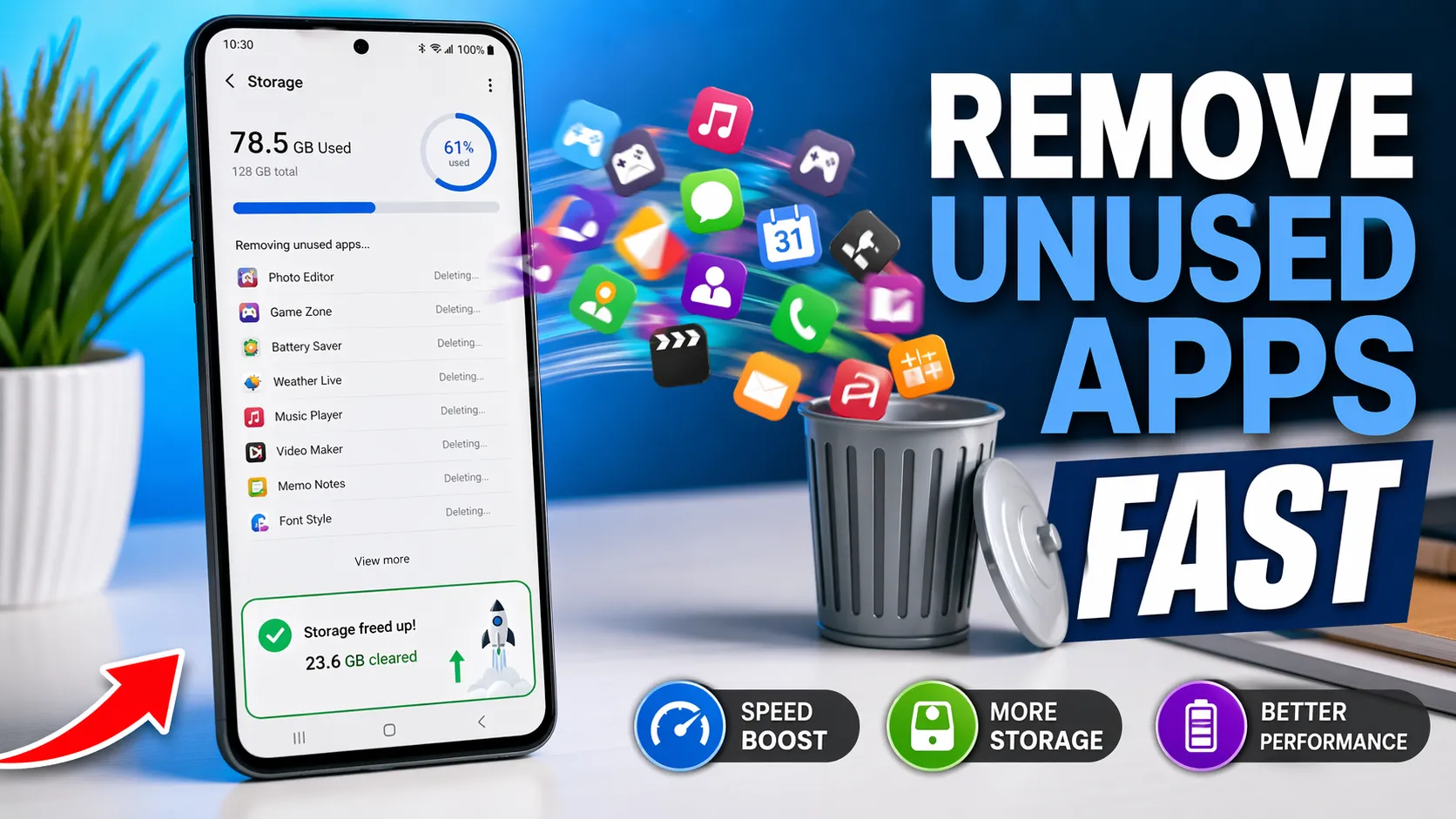
If the update fails because your phone has very little free space, review our guide on freeing up Android storage to recover additional space. You should also consider removing apps you no longer use, as uninstalling unnecessary applications can improve both storage availability and overall system performance.
If you're running low on storage while updating Google Play Services, Google's official Android Help guide explains safe ways to free up storage and manage files on your device: Android Help – Free up storage space.
Check Available Storage Space
Insufficient storage space is one of the most overlooked reasons why the Google Play Store displays the "Download Pending" message. Every app requires free space not only for installation but also for downloading, unpacking, and creating temporary files. If your phone's internal storage is nearly full, the Play Store may pause downloads until enough space becomes available.
Even if an app is relatively small, Android needs additional temporary storage during the installation process. When available storage drops too low, app downloads may remain pending, software updates can fail, and overall device performance may become noticeably slower. Keeping adequate free storage is essential for smooth app installations and reliable system performance.
How to Check Available Storage
- Open Settings on your Android phone.
- Tap Storage or Battery & Device Care > Storage on supported devices.
- Review how much free internal storage is available.
- If storage is almost full, identify large apps, videos, downloads, or duplicate files.
- Delete unnecessary files or move important media to cloud storage or a computer.
For the best experience, try to keep at least 10–20% of your phone's internal storage free. This allows Android to install applications, process updates, and manage temporary files without interruption.
If your phone has become noticeably slower while storage is nearly full, our guide on improving Android performance provides additional optimization tips. You can also explore our complete Android troubleshooting guide for solutions to other common issues related to storage, performance, and app behavior.
Other Proven Fixes
If the Google Play Store still displays the "Download Pending" message after trying the previous solutions, don't worry. Several additional troubleshooting methods can resolve less common issues related to your Android device, Google account, or network configuration. These fixes are safe to perform and often solve persistent download problems without requiring a factory reset.
Before making major changes, try the following methods one by one. After completing each step, return to the Google Play Store and check whether the app begins downloading normally. This approach helps identify the exact cause without making unnecessary changes to your device.
Additional Solutions to Try
- Restart Your Phone: A simple restart refreshes Android system services and can clear temporary software glitches.
- Restart Google Play Store: Force stop the Play Store from Settings > Apps, then open it again.
- Disable VPN or Proxy: VPN services may interfere with Google's servers and delay app downloads.
- Check Date & Time Settings: Enable Set time automatically to ensure proper synchronization with Google services.
- Remove and Add Your Google Account: Re-signing into your Google account can resolve synchronization issues affecting the Play Store.
- Reset Network Settings: If downloads fail on both Wi-Fi and mobile data, resetting network settings may restore proper connectivity.
- Update Android: Installing the latest software update may fix Play Store bugs and improve system stability.
If you've noticed that the Play Store or other apps behave unusually even after trying these methods, you may also benefit from clearing unnecessary cache on your Android phone. Removing outdated temporary files can improve system stability and resolve issues caused by corrupted cached data.
Final Thoughts
The Google Play Store Download Pending error is usually caused by temporary software issues rather than a serious problem with your Android device. In most cases, checking your internet connection, pausing other downloads, clearing the Play Store cache, updating Google Play Services, and ensuring you have enough free storage are enough to restore normal app downloads.
Instead of trying every solution at once, follow the troubleshooting methods in the order presented throughout this guide. Starting with the simplest fixes allows you to identify the actual cause while avoiding unnecessary changes to your phone. Regular device maintenance, including keeping Android updated and removing unused files, also reduces the chances of encountering similar issues in the future.
Key Takeaways
- Verify that your internet connection is stable before troubleshooting further.
- Pause other downloads or app updates running in the Play Store.
- Clear Google Play Store cache and data if downloads remain stuck.
- Keep Google Play Services and Android updated to the latest version.
- Maintain sufficient free storage for app installations and system updates.
- Restart your device after making significant troubleshooting changes.
Keeping your Android phone optimized not only helps the Google Play Store function properly but also improves overall system performance, app stability, and security. Making storage management and routine maintenance part of your regular device care can prevent many common Android problems before they occur.
For additional Android optimization tips, you may also find our guides on improving Android performance, managing low storage issues, and cleaning up unused applications helpful. Together, these guides can help keep your device fast, organized, and running reliably over the long term.