If your Android phone still shows "Storage Full" even after deleting photos, videos, apps, or downloads, you're not alone. This is one of the most common Android storage problems in 2026. Hidden cache files, temporary data, duplicate media, WhatsApp files, system storage, offline downloads, and app leftovers can continue occupying valuable space. In this complete guide, you'll learn why Android storage stays full after deleting files, how Android manages storage, what causes the issue, and the best proven methods to reclaim storage safely without losing important data or performing a factory reset.
Table of Contents
- Overview
- How Android Storage Works
- Why Is Android Storage Still Full After Deleting Files?
- 12 Common Reasons Your Storage Doesn't Free Up
- Problems Caused by Full Android Storage
- How to Check What's Taking Up Storage
- 12 Proven Ways to Fix Android Storage Full Issues
- How to Prevent Your Android Storage From Filling Again
- Common Mistakes to Avoid
- When Should You Factory Reset Your Phone?
- Final Thoughts
Overview
Seeing the "Storage Full" warning on your Android phone even after deleting photos, videos, or apps can be frustrating. Many users assume that removing a few large files should immediately free up space, but Android storage management is more complex than it appears. Hidden cache files, temporary app data, duplicate media, downloads, recycle bins, and system files can continue occupying storage long after you think you've cleaned your device.
Modern Android smartphones also generate background data to improve app performance and provide a smoother user experience. Over time, this data accumulates silently, reducing available storage and affecting overall device performance. As a result, you may notice slower app launches, failed software updates, camera errors, or messages indicating that your phone is running out of space.
In this guide, you'll learn why Android storage doesn't always decrease after deleting files, how Android organizes internal storage, and the safest ways to recover valuable space without losing important data. Whether you use Samsung Galaxy, Google Pixel, Xiaomi, OnePlus, Vivo, OPPO, Motorola, Realme, or another Android device, the methods explained here work for most modern smartphones running recent Android versions.
What You'll Learn
- Why Android storage remains full after deleting files
- How hidden files and app cache consume storage
- Common reasons your available storage keeps shrinking
- Safe methods to recover storage without factory resetting your phone
- Best practices to prevent storage problems in the future
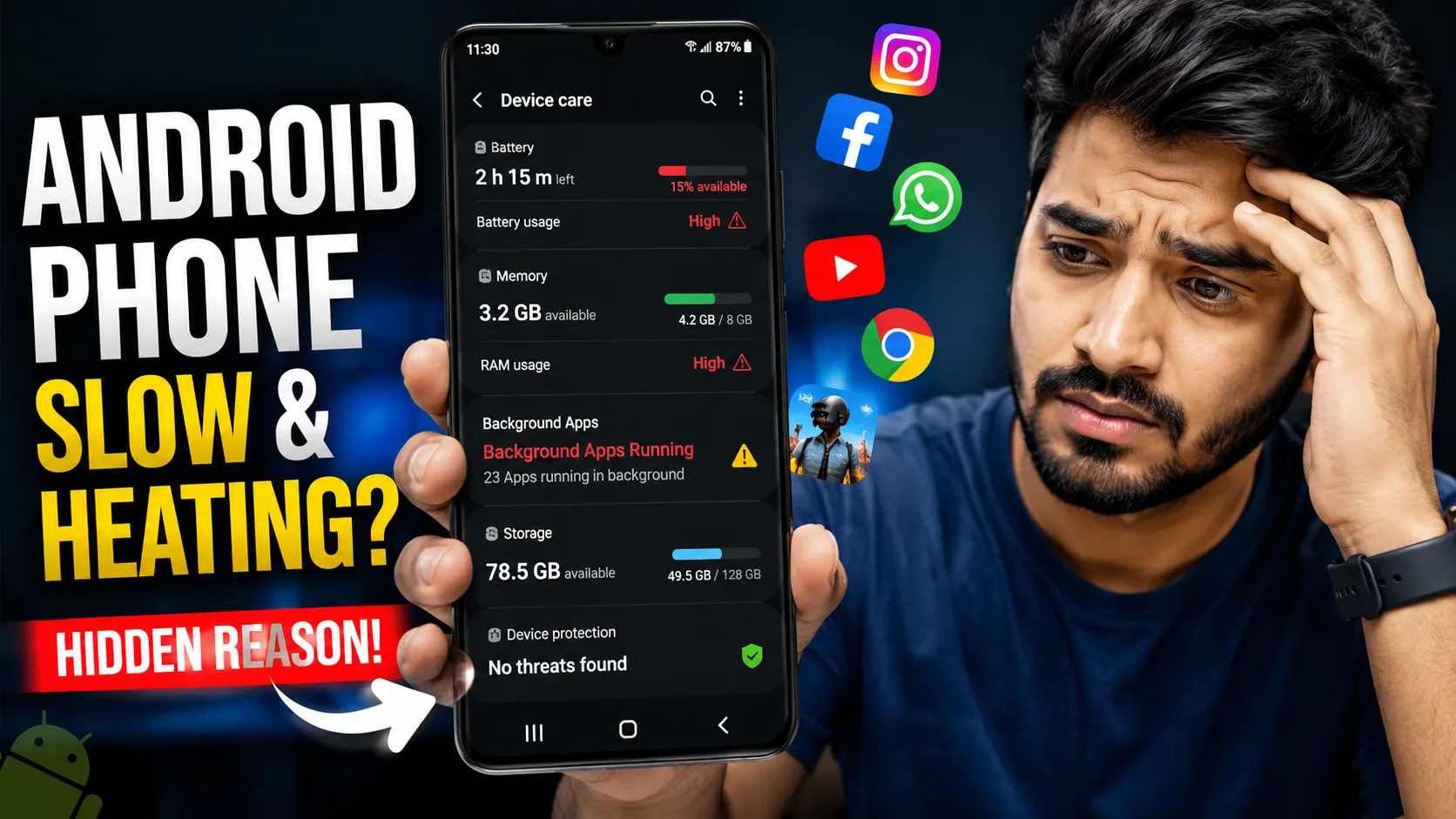
If your phone has also become slower while running low on storage, you may find our guide on improving Android performance helpful, as storage and overall system speed are closely connected.
How Android Storage Works
To understand why your Android phone still shows "Storage Full" after deleting files, it's important to know how Android manages internal storage. Every Android device divides its storage into different categories, and each category serves a specific purpose. Deleting photos or uninstalling apps only frees space from those particular categories, while hidden cache files, temporary data, and system files may continue occupying storage.
Android continuously creates temporary files to improve app loading speed and overall performance. Popular apps such as WhatsApp, Instagram, YouTube, Chrome, and Google Photos regularly store cached images, videos, and other data. Although these files help apps open faster, they can gradually consume several gigabytes of storage if they aren't cleaned periodically.
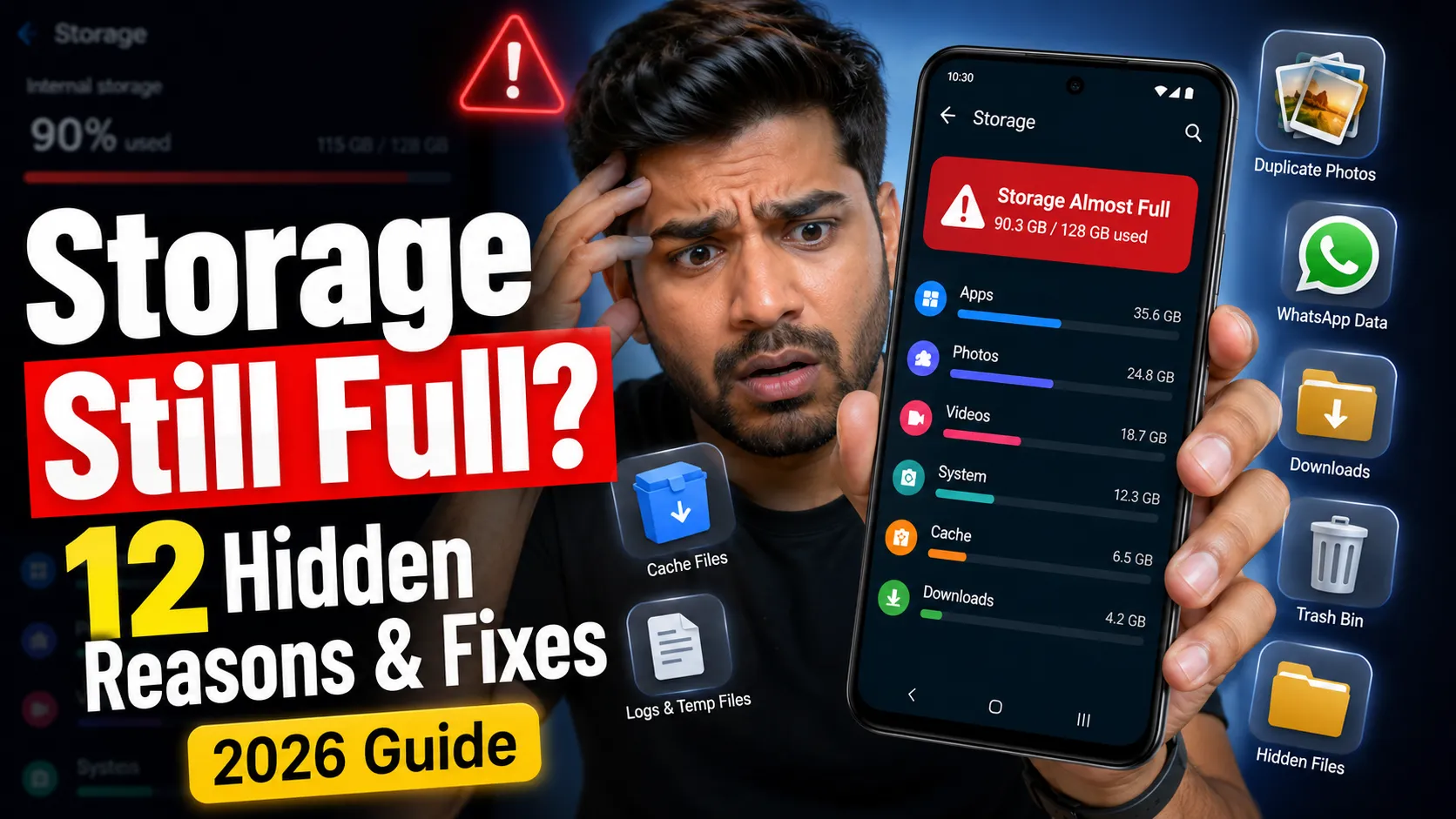
What Uses Your Android Storage?
- Apps: Installed applications and their associated data.
- Photos & Videos: Camera images, screenshots, screen recordings, and downloaded media.
- Audio & Documents: Music, PDFs, Office files, and other downloaded content.
- Cached Data: Temporary files created to improve app performance.
- Downloads: Files saved from browsers, messaging apps, and email attachments.
- System Storage: Android operating system files, updates, logs, and essential background data.
Unlike personal files, system storage and cache cannot always be reduced automatically. Some apps also leave behind residual files after updates or uninstallation, making it appear as though storage has not been released immediately.
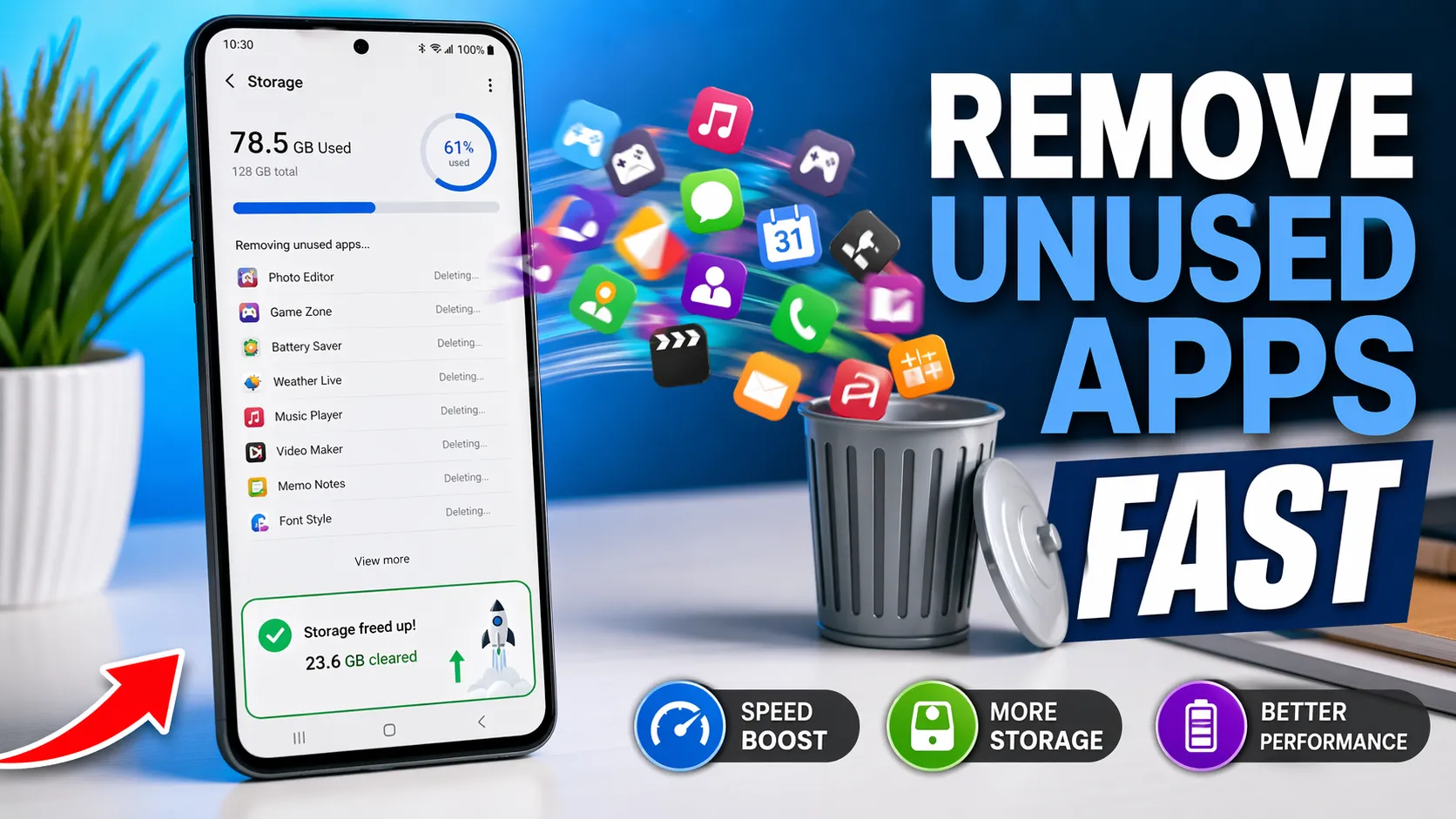
For this reason, regularly reviewing your storage usage is just as important as deleting unnecessary files. If you've already removed apps that you no longer use, our guide on quickly removing unused Android apps can help you recover additional storage and keep your device organized.
Why Is Android Storage Still Full After Deleting Files?
If your Android phone still says "Storage Full" after you've deleted photos, videos, or apps, don't worry—this is a common issue and doesn't necessarily mean something is wrong with your device. In most cases, Android hasn't actually recovered all of the storage because several types of hidden data continue occupying space in the background. Simply deleting visible files is often not enough to reclaim your phone's storage completely.
Many Android apps create cache files, temporary downloads, thumbnails, log files, and offline content to improve performance and reduce loading times. Even after deleting the original files, these leftover files may remain on your device. Additionally, deleted photos and videos often stay in the Recently Deleted or Trash folder for up to 30 days, meaning they still consume storage until they are permanently removed.
Why Storage Doesn't Free Up Immediately
- Cached app data continues occupying storage.
- Deleted photos and videos remain in the Trash folder.
- WhatsApp, Telegram, and other messaging apps store duplicate media files.
- Temporary installation files are not removed automatically.
- System storage gradually increases after Android updates.
- Offline downloads from streaming and navigation apps remain saved on your device.
Another common reason is that Android recalculates available storage in the background. Depending on your device and Android version, the storage indicator may not update immediately after large files are deleted. Restarting the phone or clearing unnecessary cache often refreshes the storage information and shows the newly available space.
If you've already removed unnecessary photos but your phone still feels slow, it's worth checking whether apps running in the background are continuously creating cache and temporary files. Likewise, clearing unnecessary temporary data by following our guide on cleaning Android cache safely can help recover additional storage without deleting your personal files.
12 Common Reasons Your Storage Doesn't Free Up
Android storage doesn't always become available immediately after deleting files because multiple hidden components continue using your phone's internal storage. While removing photos, videos, or apps certainly helps, it often addresses only a small part of the problem. Cached data, duplicate media, temporary files, and system-generated content can silently consume several gigabytes over time.
Understanding the actual cause is the first step toward recovering storage efficiently. Instead of deleting random files, identify what's occupying the most space and clean it safely. Below are the most common reasons your Android storage remains full even after deleting files.
The Most Common Causes
- Large App Cache – Apps like Chrome, Instagram, Facebook, YouTube, and Spotify store temporary files that continue growing over time.
- Trash or Recently Deleted Folder – Deleted photos and videos often remain in the recycle bin for up to 30 days before being permanently removed.
- WhatsApp and Telegram Media – Messaging apps automatically download photos, videos, voice notes, documents, and stickers that occupy significant storage.
- Duplicate Photos and Videos – Multiple copies of the same media files are common after backups, sharing, or editing.
- Hidden Downloaded Files – Browser downloads, APK files, PDFs, ZIP archives, and email attachments are frequently forgotten.
- Offline Content – Apps like YouTube, Netflix, Spotify, and Google Maps save offline videos, songs, and maps for later use.
- Unused Applications – Apps you rarely use still occupy storage through updates, app data, and cached files.
- System Storage Growth – Android system files, update packages, logs, and optimization files naturally increase over time.
- Thumbnail Files – Gallery apps create image previews that continue using storage even after original photos are deleted.
- Cloud Sync Cache – Google Photos, Google Drive, OneDrive, and Dropbox temporarily store synchronized files on your device.
- App Residual Files – Some applications leave folders and configuration files behind after being uninstalled.
- Corrupted or Outdated Temporary Files – Interrupted downloads, failed updates, and temporary system files may never be removed automatically.
If your phone contains many applications that you no longer use, consider following our guide on removing unused Android apps quickly. You should also check whether background apps are continuously generating cache files, as they can silently increase storage usage even when you're not actively using your device.
Problems Caused by Full Android Storage
Running out of storage doesn't just prevent you from saving new photos or downloading apps—it can affect almost every aspect of your Android phone. When your device has very little free space, Android has less room to create temporary files, install updates, and manage background processes. As a result, you may experience slower performance, frequent app crashes, and other unexpected issues that make your phone frustrating to use.
Many users focus only on deleting photos or videos, but low storage can impact system stability, app performance, security updates, and even battery life. The longer your phone operates with nearly full storage, the greater the chances of experiencing performance problems.
Common Problems You May Notice
- Slower Performance: Apps take longer to open, multitasking becomes sluggish, and overall responsiveness decreases.
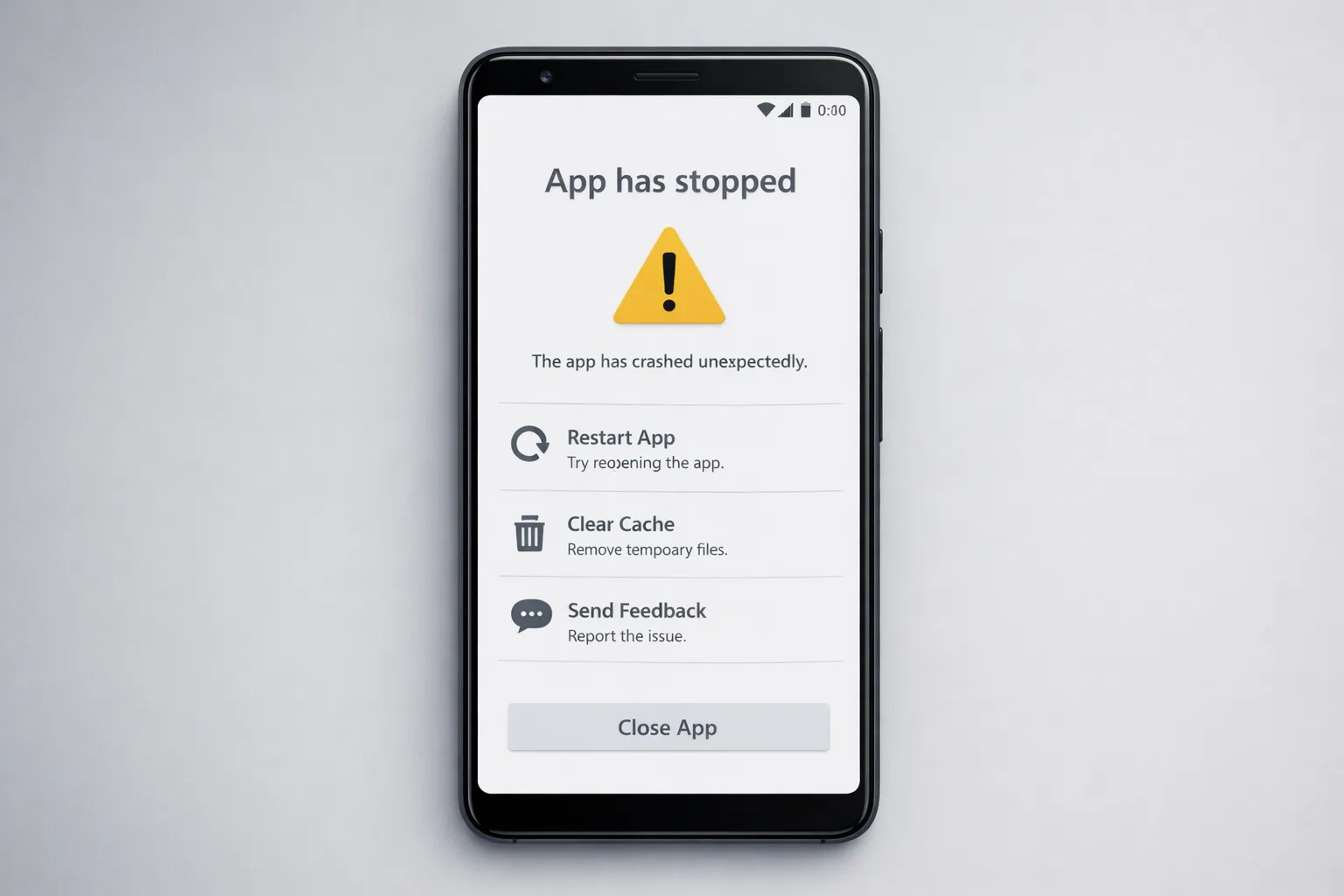
- App Crashes: Applications may freeze, close unexpectedly, or fail to launch because they cannot create temporary working files.
- Camera Errors: Your phone may display messages like "Storage Full" or fail to capture photos and videos.
- Software Update Failures: Android system updates often require several gigabytes of free space before installation.
- Download Issues: Files, apps, and media may stop downloading from the Play Store or browser.
- Battery Drain: Constant storage optimization and repeated background processing can increase power consumption.
- Reduced App Performance: Social media, messaging, and streaming apps may become noticeably slower as cache management becomes inefficient.
If you've started noticing frequent application crashes, our guide on fixing Android apps that keep crashing explains additional troubleshooting steps. Likewise, if your device feels noticeably slower than before, you can improve overall responsiveness by following our guide on making your Android phone run faster.
Why You Shouldn't Ignore Low Storage
Ignoring storage warnings can eventually lead to failed backups, incomplete software updates, reduced camera functionality, and an overall poor user experience. Performing regular storage maintenance not only helps recover valuable space but also keeps your Android device faster, more stable, and ready for future updates.
How to Check What's Taking Up Storage
Before deleting files randomly, it's important to identify exactly what is consuming your phone's storage. Android includes built-in storage management tools that categorize your storage usage into apps, photos, videos, documents, audio, downloads, cached data, and system files. Spending a few minutes reviewing these categories helps you recover significantly more storage while avoiding the accidental deletion of important files.
Although the menu may look slightly different depending on your phone brand, the overall process is almost the same on Samsung, Google Pixel, Xiaomi, OnePlus, Vivo, OPPO, Motorola, Realme, and other Android devices.
Steps to Check Storage Usage
- Open Settings.
- Tap Storage or Battery & Device Care > Storage (Samsung).
- Wait while Android analyzes your storage.
- Review categories such as Apps, Images, Videos, Audio, Documents, Downloads, and System.
- Tap any category to see which files or apps are using the most space.
Pay close attention to apps that occupy several gigabytes, large video files, and messaging applications like WhatsApp or Telegram, as these are often responsible for the majority of storage usage. Also check the Downloads folder, since forgotten APK files, ZIP archives, and PDFs can quietly consume valuable storage.
If you're unsure whether background processes are generating unnecessary files, it's worth checking which apps continue running in the background. You can also review our guide on managing app permissions to understand how installed apps access your device and storage.
12 Proven Ways to Fix Android Storage Full Issues
Once you've identified what's occupying your phone's storage, the next step is to remove unnecessary files safely. Fortunately, you don't need to install third-party cleaner apps or immediately perform a factory reset. Android already provides several built-in tools that can help recover storage while keeping your personal files safe.
The most effective approach is to combine multiple storage optimization methods instead of relying on a single solution. Even recovering a few hundred megabytes from several categories can free several gigabytes of storage overall.
The Most Effective Ways to Recover Storage
- Empty the Trash or Recently Deleted folder.
- Clear unnecessary app cache.
- Delete duplicate photos and videos.
- Remove downloaded APK and ZIP files.
- Clean WhatsApp and Telegram media.
- Delete offline videos, music, and maps.
- Uninstall apps you no longer use.
- Remove large files you no longer need.
- Clear browser downloads and temporary files.
- Restart your phone to refresh storage calculations.
- Install the latest Android system update.
- Consider a factory reset only if every other method fails.
Start with the safest methods such as clearing cache, deleting duplicate media, and removing unused apps. These changes usually recover the most storage without affecting your personal documents or photos. Avoid downloading unknown "phone cleaner" applications, as many offer little benefit and may display excessive advertisements or request unnecessary permissions.
Throughout the following sections, we'll explain each method in detail so you can safely recover storage and improve your phone's overall performance. If your device has become noticeably slower over time, you may also benefit from our guide on improving Android performance. Likewise, removing unnecessary applications by following our article on cleaning up unused apps can free additional storage and reduce background resource usage.
How to Prevent Your Android Storage From Filling Again
Recovering storage is only half the solution. To keep your Android phone running smoothly, it's equally important to develop good storage management habits. Apps continuously generate cache, messaging platforms automatically download media, and your camera keeps adding new photos and videos. Without regular maintenance, your available storage will gradually decrease again.
Fortunately, preventing storage problems doesn't require any special apps. Android already provides useful tools that help you monitor storage usage and remove unnecessary files before they become a problem.
Best Practices to Keep Storage Under Control
- Review your storage usage at least once a month.
- Clear unnecessary app cache instead of deleting important files.
- Remove apps you no longer use.
- Delete duplicate photos, screenshots, and large videos regularly.
- Move important photos and videos to cloud storage or a computer.
- Empty the Trash or Recently Deleted folder after deleting files.
- Disable automatic media downloads in messaging apps when possible.
- Keep at least 10–20% of your internal storage free for smooth performance.
Regular maintenance not only prevents storage warnings but also improves app performance, allows Android updates to install successfully, and helps your phone remain responsive over time. Small habits performed consistently are far more effective than waiting until your storage is completely full.
If your phone has become slower because of accumulated files, our guide on improving Android performance explains additional optimization tips. You should also consider removing apps you no longer use to recover storage and reduce unnecessary background activity.
Common Mistakes to Avoid
Many Android users try to solve storage problems by deleting random files or installing aggressive cleaning apps. While these approaches may free a small amount of space, they often fail to address the real cause of the problem. Understanding what not to do is just as important as knowing the correct solution.
Avoiding common mistakes can save time, protect your personal data, and prevent accidental deletion of important files. Before making major changes to your phone, always verify what is actually consuming your storage.
Mistakes That Can Make the Problem Worse
- Deleting important photos or documents without checking storage usage first.
- Ignoring large app cache and focusing only on personal files.
- Installing unknown "phone cleaner" applications from untrusted developers.
- Deleting system files manually using file manager apps.
- Forgetting to empty the Trash or Recently Deleted folder.
- Keeping multiple copies of the same photos and videos.
- Never reviewing downloaded APK files, ZIP archives, or offline media.
- Performing a factory reset before trying safer storage recovery methods.
One of the biggest mistakes is granting unnecessary permissions to unknown applications. Some apps continuously generate cache, download hidden files, or consume storage in the background without the user's knowledge. Reviewing installed apps regularly helps prevent these issues.
To improve your phone's security while managing installed apps, read our guide on reviewing Android app permissions. If you're unsure whether certain apps should remain installed, our article on identifying unnecessary Android apps can help you make informed decisions.
When Should You Factory Reset Your Phone?
A factory reset should be considered only after you've tried every other storage recovery method. While resetting your Android phone can remove unnecessary files, corrupted app data, and system clutter, it also permanently erases your installed apps, settings, messages, photos, videos, and other personal data stored on the device. For most users, a factory reset is unnecessary because storage problems can usually be resolved by clearing cache, deleting duplicate files, removing unused apps, and cleaning messaging app media.
If your phone still reports low storage after following all the methods in this guide, or if you continue experiencing severe performance issues, random app crashes, failed software updates, or storage calculation errors, a factory reset may be the most effective solution. Before proceeding, always create a complete backup of your important data using Google Backup, cloud storage, or a computer.
Factory Reset May Be Helpful If:
- Your storage remains full after trying every recommended solution.
- System storage has become unusually large without a clear reason.
- Apps continue crashing even after clearing cache and data.
- Your phone frequently freezes or becomes unresponsive.
- You plan to sell or give away your Android device.
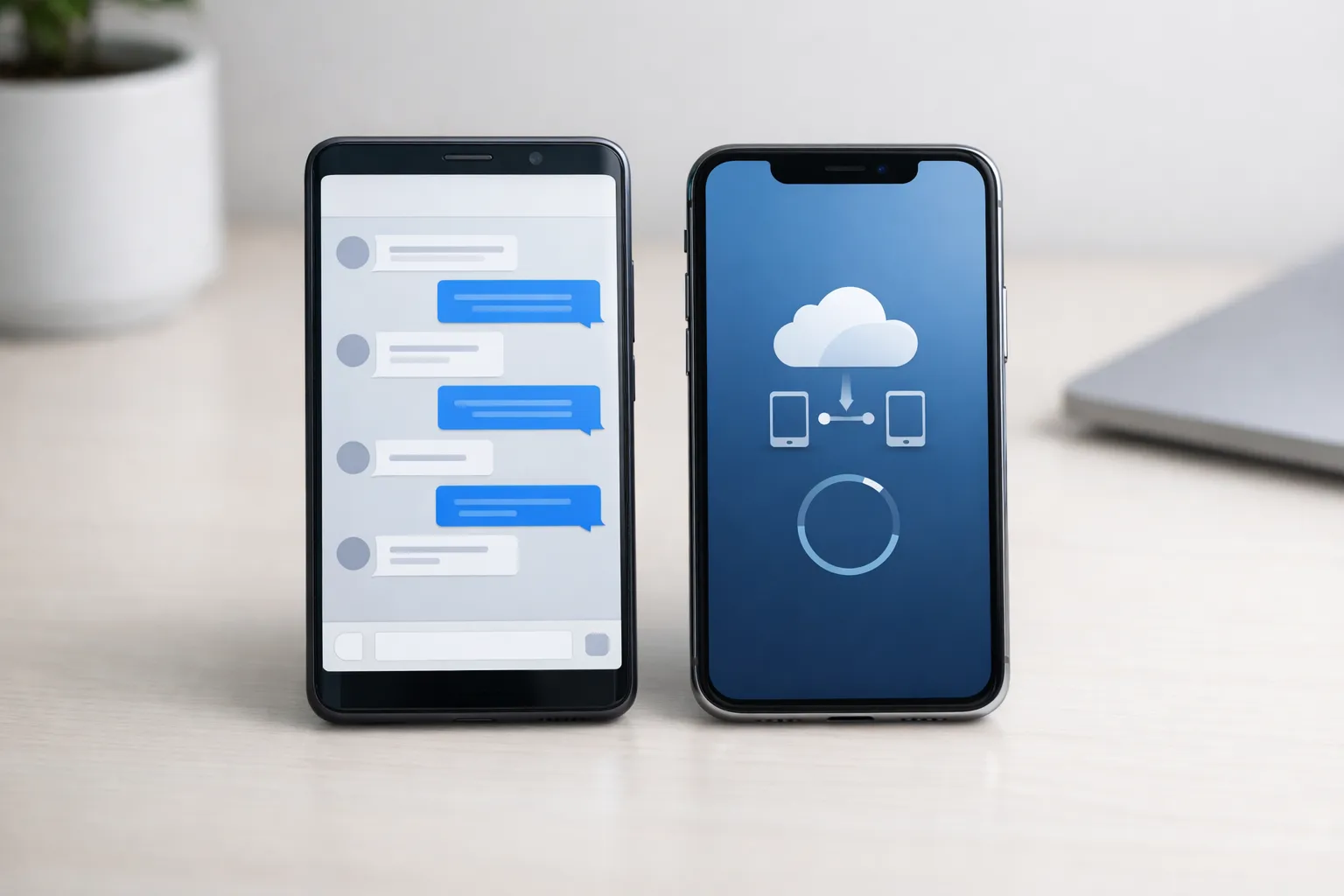
If you use WhatsApp, don't forget to create a recent backup before resetting your device. You can also follow our guide on moving your WhatsApp chats to another phone if you're switching devices. Likewise, if you're concerned about losing important memories, our guide on recovering photos from Google Photos explains how cloud backups can help restore deleted images.
Final Thoughts
Android storage problems are rarely caused by a lack of space alone. In most cases, hidden cache files, duplicate media, temporary downloads, messaging app data, and unused applications gradually consume valuable storage without being noticed. Understanding how Android manages storage makes it much easier to identify the real cause and recover space safely.
Rather than deleting important photos or performing a factory reset immediately, start with simple maintenance tasks such as clearing unnecessary cache, removing duplicate files, cleaning your Downloads folder, and uninstalling apps you no longer need. These methods are usually enough to recover several gigabytes of storage while keeping your personal data intact.
Making storage management a regular habit will help your Android phone remain faster, install updates without issues, and continue performing reliably over time. Even spending a few minutes each month reviewing storage usage can prevent future warnings and improve your overall experience.
To continue optimizing your device, you may also find our guides on improving Android performance, managing background apps, and clearing unnecessary cache safely useful for maintaining long-term performance.