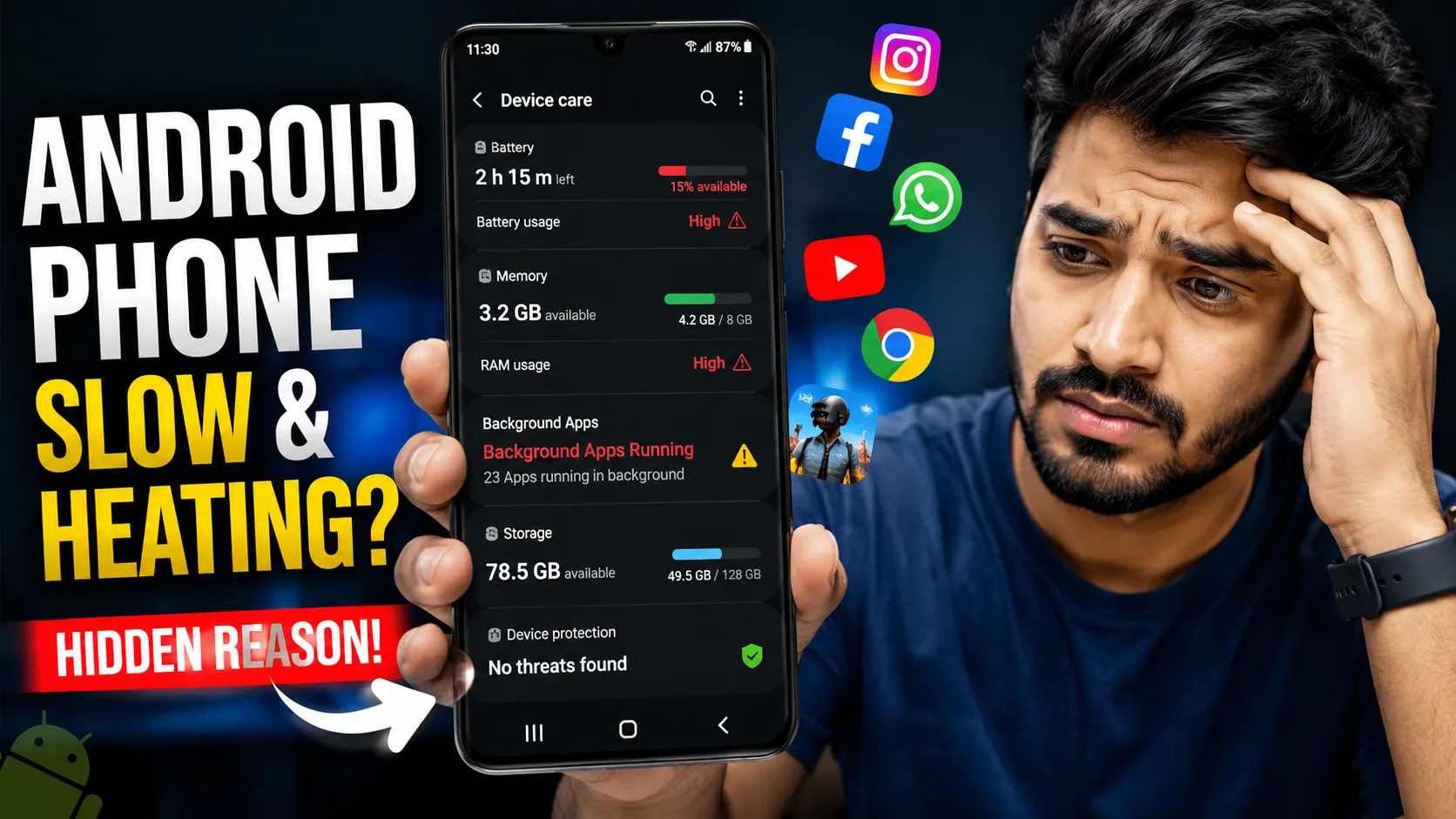
If your Android phone suddenly feels slow, drains battery quickly, overheats, or consumes excessive mobile data, apps running in the background could be the hidden reason. Many Android users don't realize that even after closing an app, it may continue running background processes for syncing notifications, tracking location, updating content, or collecting usage data.
In this complete 2026 guide, you'll learn how to check which apps are running in the background on Android, why background apps keep running, how they impact battery life and performance, and the safest ways to stop unnecessary background activity without affecting essential functions. Whether you use Samsung, Xiaomi, OnePlus, Realme, Vivo, Oppo, Pixel, or any other Android phone, these methods will help you identify and manage background apps effectively.
Table of Contents
- What Are Background Apps?
- Why Do Apps Keep Running in the Background?
- Problems Caused by Background Apps
- Signs That Background Apps Are Affecting Your Phone
- How to Check Which Apps Are Running in the Background
- Check Battery Usage by Apps
- Identify Apps Using Excessive Mobile Data
- How to Restrict Background Activity
- Apps You Should Never Force Stop
- Privacy Risks of Background Apps
- Best Practices to Keep Android Fast
1. What Are Background Apps?
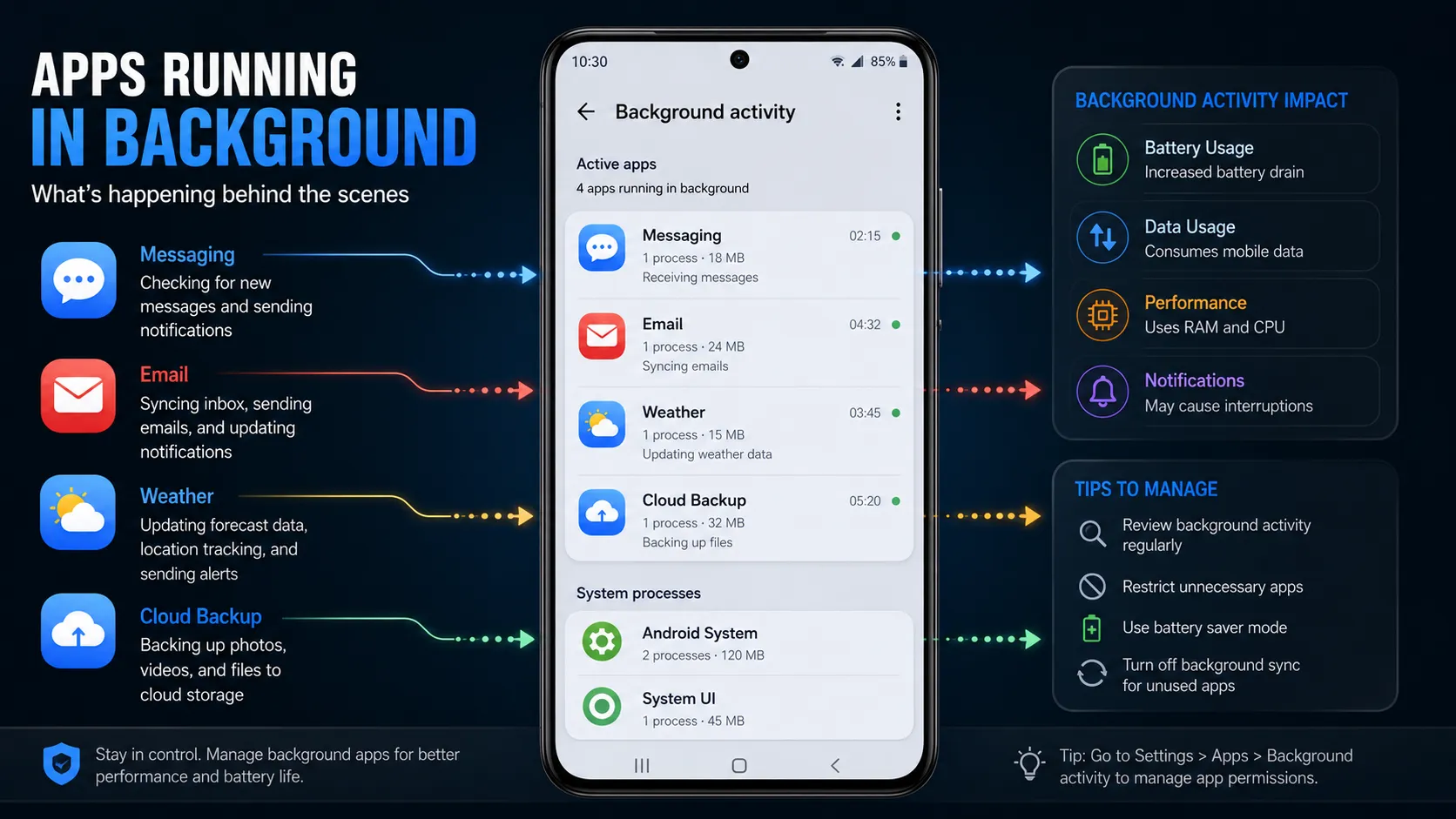
Background apps are applications that continue running certain processes even after you stop actively using them. In Android, closing an app from the recent apps screen does not always completely shut it down. Instead, many apps continue performing tasks in the background to provide a smoother and more convenient user experience.
For example, messaging apps need background access to deliver notifications instantly, email apps sync new messages automatically, and cloud storage apps upload files without requiring you to keep them open. This behavior is a normal part of how Android manages multitasking and ensures important services remain available when needed.
Common background activities include:
- Syncing emails and account data
- Receiving push notifications
- Backing up photos and videos automatically
- Updating social media feeds
- Refreshing widgets and weather information
- Tracking location for navigation and fitness apps
- Downloading updates and scheduled content
However, not all background activity is beneficial. Some poorly optimized apps continue running unnecessarily, consuming excessive battery power, RAM, storage resources, and mobile data even when you rarely use them. Over time, this can contribute to common Android problems such as reduced battery life, overheating, sluggish performance, and unexpected data usage.
It's important to understand that background apps are not inherently bad. Essential services such as messaging, security, alarm, and system applications rely on limited background activity to function correctly. The goal is not to stop every app from running, but to identify apps that misuse background resources and manage them appropriately.
Understanding how background apps work is the first step toward improving your Android phone's performance, extending battery life, and maintaining better control over your device's privacy and resource usage.
2. Why Do Apps Keep Running in the Background?
If you've ever wondered why apps continue running even after you've closed them, the answer lies in how Android is designed to work. Android uses intelligent background management to balance performance, convenience, and battery efficiency. Instead of completely shutting down every application, the operating system allows certain apps to remain active so they can provide important functions without requiring you to reopen them repeatedly.
In many cases, background activity is both normal and necessary. It helps deliver a seamless user experience and ensures that essential services continue working properly.
Common reasons why apps run in the background include:
- Delivering notifications instantly: Messaging and email apps stay partially active so you receive alerts in real time.
- Syncing account data: Apps regularly sync contacts, emails, calendars, and cloud information across your devices.
- Tracking location: Navigation, weather, fitness, and ride-sharing apps may access location services even when minimized.
- Uploading backups automatically: Services such as photo backup apps continue transferring files to the cloud in the background.
- Refreshing widgets and feeds: Home screen widgets update weather forecasts, news headlines, stock prices, and other live information.
- Running scheduled tasks: Many apps perform maintenance activities such as downloading updates, clearing temporary files, or generating reports.
However, problems arise when apps continue using resources unnecessarily. Some poorly optimized applications repeatedly wake up the processor, request internet access too frequently, or run excessive background services even when they provide little benefit to the user.
This unnecessary activity can contribute to battery drain, overheating, increased mobile data consumption, and slower device performance. Understanding why apps run in the background helps you distinguish between essential Android functions and apps that may require restriction or optimization to keep your phone running efficiently.
3. Problems Caused by Background Apps
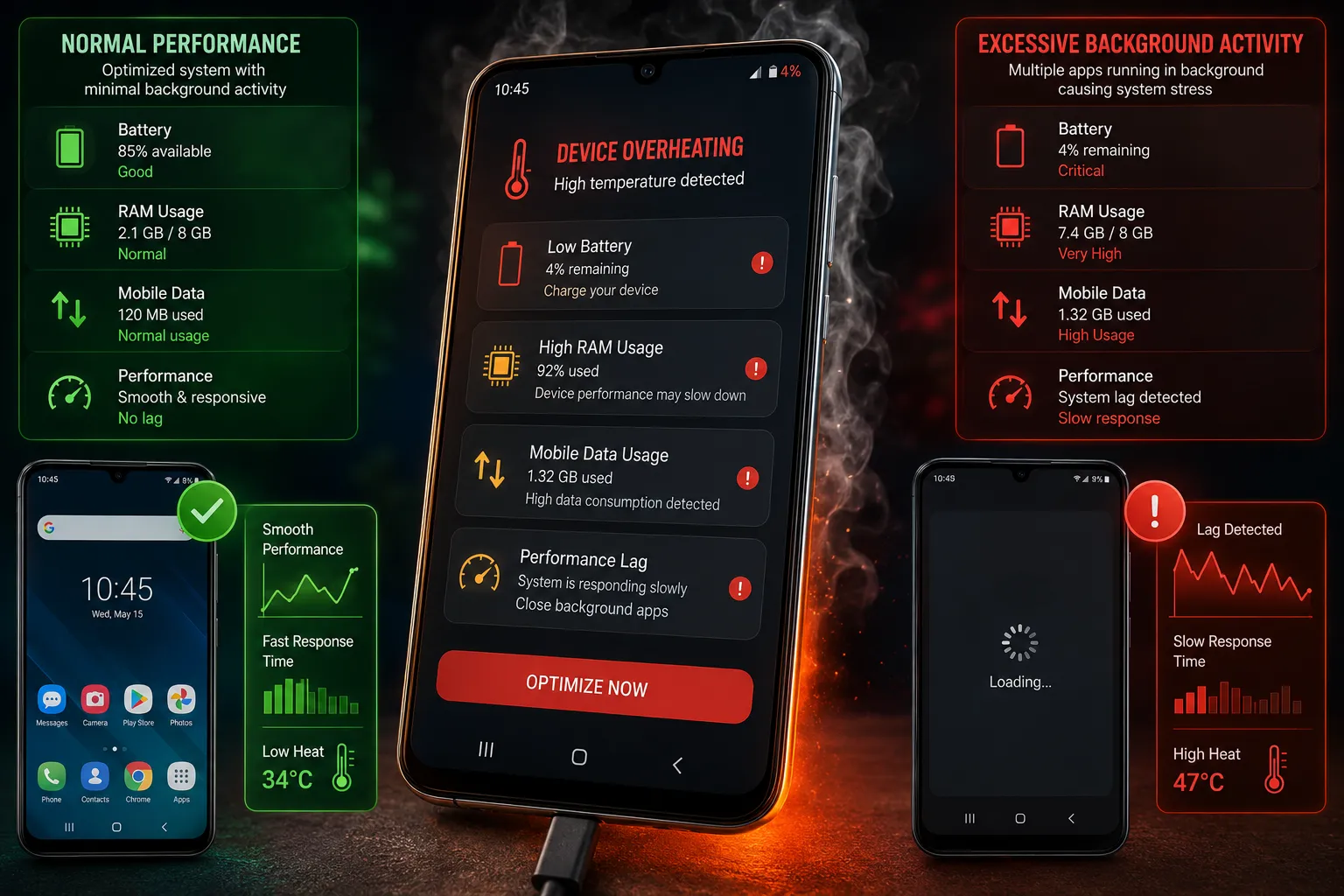
Background apps are designed to improve convenience, but when too many applications continue running unnecessarily, they can have a noticeable impact on your Android phone's overall performance. Excessive background activity often goes unnoticed until users start experiencing common issues such as battery drain, overheating, or a sluggish device.
Many users assume that an aging phone is the reason behind these problems. In reality, poorly optimized apps and uncontrolled background processes are frequently responsible for reduced efficiency and resource consumption.
Common problems caused by excessive background apps include:
- Rapid battery drain: Apps that constantly refresh content, sync data, or access location services can significantly reduce battery life, even when your phone is idle.
- Phone overheating: Continuous background processes force the processor to work harder, generating additional heat during normal usage and standby periods.
- Slow performance and lag: Multiple apps competing for RAM and processing power can cause delayed responses, slower app launches, and occasional freezing.
- Increased mobile data usage: Background syncing, media uploads, and automatic updates may consume substantial amounts of mobile data without your knowledge.
- Reduced standby time: Instead of conserving power when not in use, your phone may lose battery quickly throughout the day.
- Frequent app crashes: Limited system resources can affect app stability, leading to unexpected closures and a frustrating user experience.
It's important to note that not every background app is problematic. Essential services such as messaging apps, alarms, and security features require some level of background access to function correctly. The real issue arises when unnecessary applications consume resources without providing meaningful value.
If you've noticed that your battery drains unusually fast, identifying the specific apps responsible can help you take targeted action instead of restricting every application.
Related guide: Apps That Drain Battery in the Background on Android
By recognizing these warning signs early, you can improve battery life, reduce overheating, and maintain a smoother Android experience without compromising essential features.
4. Signs That Background Apps Are Affecting Your Phone
Background apps often consume system resources silently, making it difficult to identify the real cause of performance issues. Many Android users blame outdated hardware or aging batteries, when in fact excessive background activity may be responsible for the problems they're experiencing. Recognizing these warning signs early can help you take corrective action before your phone's performance deteriorates further.
If you've noticed a sudden decline in battery life or responsiveness, pay attention to the following symptoms.
Common signs that background apps are affecting your Android phone include:
- Your phone feels warm even when idle: If your device becomes noticeably warm while sitting unused, background processes may be constantly using the processor and network services.
- The battery percentage drops rapidly: Unusual battery drain, especially during standby, is often linked to apps continuously syncing data, refreshing content, or tracking your location.
- Apps reopen slowly despite sufficient RAM: Background activity can consume memory and processing power, resulting in delayed app launches and reduced responsiveness.
- Mobile data usage increases unexpectedly: Apps that upload backups, autoplay content, or refresh feeds in the background may consume more data than expected.
- The device becomes laggy after a few hours: If your phone starts the day running smoothly but gradually slows down, excessive background tasks could be accumulating over time.
Other signs may include random app crashes, delayed notifications, shorter standby time, and occasional freezing during multitasking.
Experiencing one of these symptoms doesn't automatically mean background apps are the culprit. However, if multiple signs occur together, it's a strong indication that certain apps may be using more resources than necessary.
The good news is that these issues are often fixable without resetting your device or installing third-party optimization tools. Identifying problematic apps and managing their background activity can significantly improve battery life, performance, and overall user experience.
If you're facing several Android issues simultaneously, refer to our complete troubleshooting resource:
Android Phone Problems and Fixes (2026)
5. How to Check Which Apps Are Running in the Background
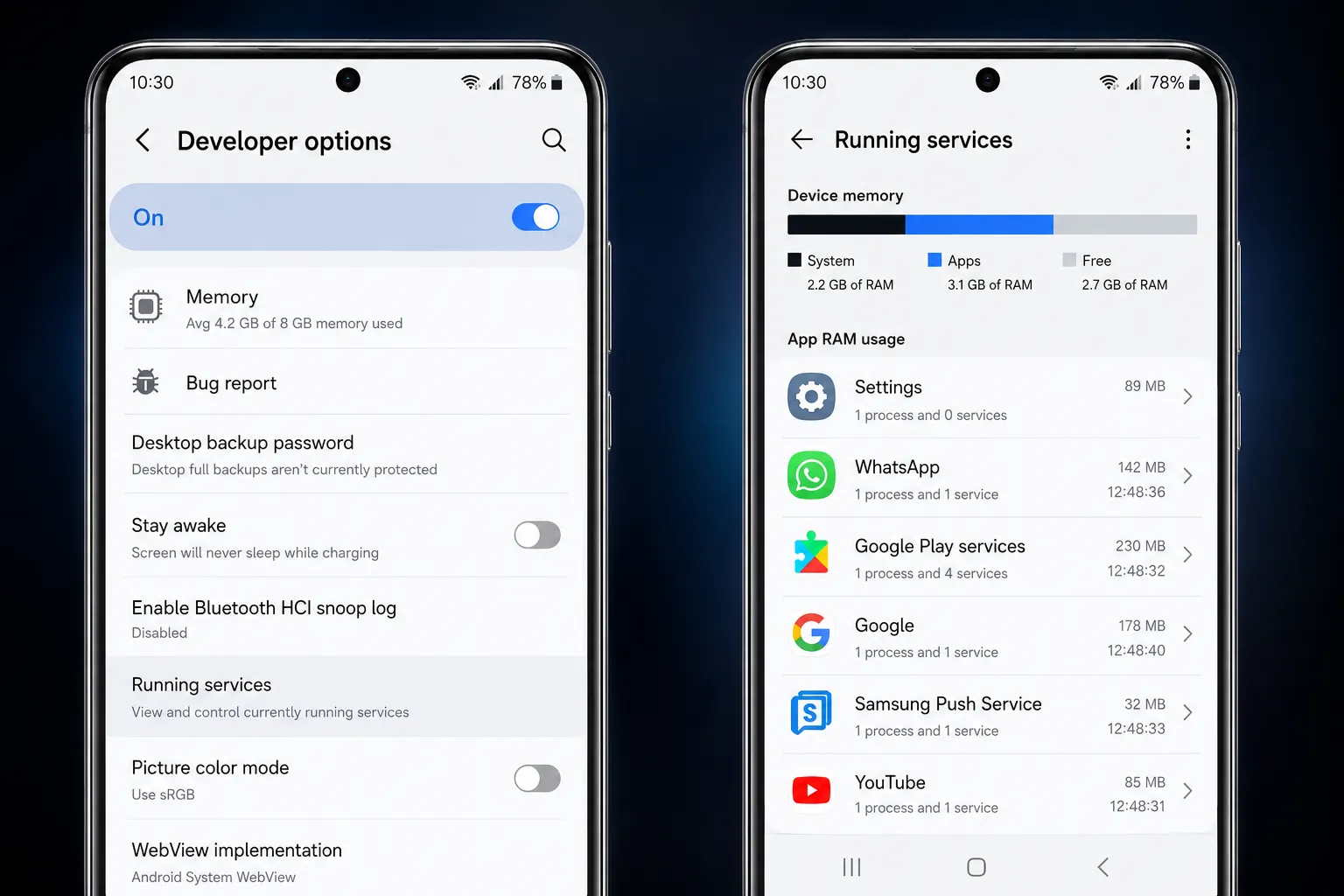
If you suspect that background apps are slowing down your Android phone, the first step is identifying which apps are actively consuming resources. Fortunately, Android provides built-in tools to monitor app activity without installing third-party applications.
Method 1: Using Developer Options
- Open Settings.
- Go to About Phone.
- Tap Build Number seven times to enable Developer Options.
- Return to Settings > System > Developer Options.
- Tap Running Services.
- You'll see apps currently using RAM and background services.
Method 2: Using Recent Apps
Swipe up from the bottom (or use the recent apps button) to view recently used apps. Although this doesn't show all background processes, it provides a quick overview of apps that may still be active.
Method 3: Through Battery Settings
- Open Settings.
- Select Battery.
- Tap Battery Usage.
- Review apps consuming unusually high battery percentages.
Tip: Focus on apps you rarely use but that consume significant resources.
6. Check Battery Usage by Apps
Battery statistics can reveal which apps continue operating in the background for extended periods. Monitoring battery usage helps identify problematic applications before they severely impact performance.
- Go to Settings > Battery.
- Tap Battery Usage.
- Review battery consumption over the last 24 hours.
- Tap individual apps to see detailed activity.
- Look for apps showing high background usage compared to screen usage.
For example, if a social media app uses 15% battery while you only opened it briefly, it may be running unnecessary background processes.
Want to understand your battery's overall condition? Read:
How to Check Battery Health on Any Android Phone
7. Identify Apps Using Excessive Mobile Data
Background apps don't just affect battery life—they can silently consume your mobile data allowance. Video apps, cloud backup services, and social media platforms are common culprits.
- Open Settings.
- Navigate to Network & Internet.
- Select Data Usage.
- Tap Mobile Data Usage.
- Review which apps consume the most data.
Pay special attention to apps using significant data despite limited usage.
Related reading:
Apps Using Too Much Mobile Data in the Background
8. How to Restrict Background Activity
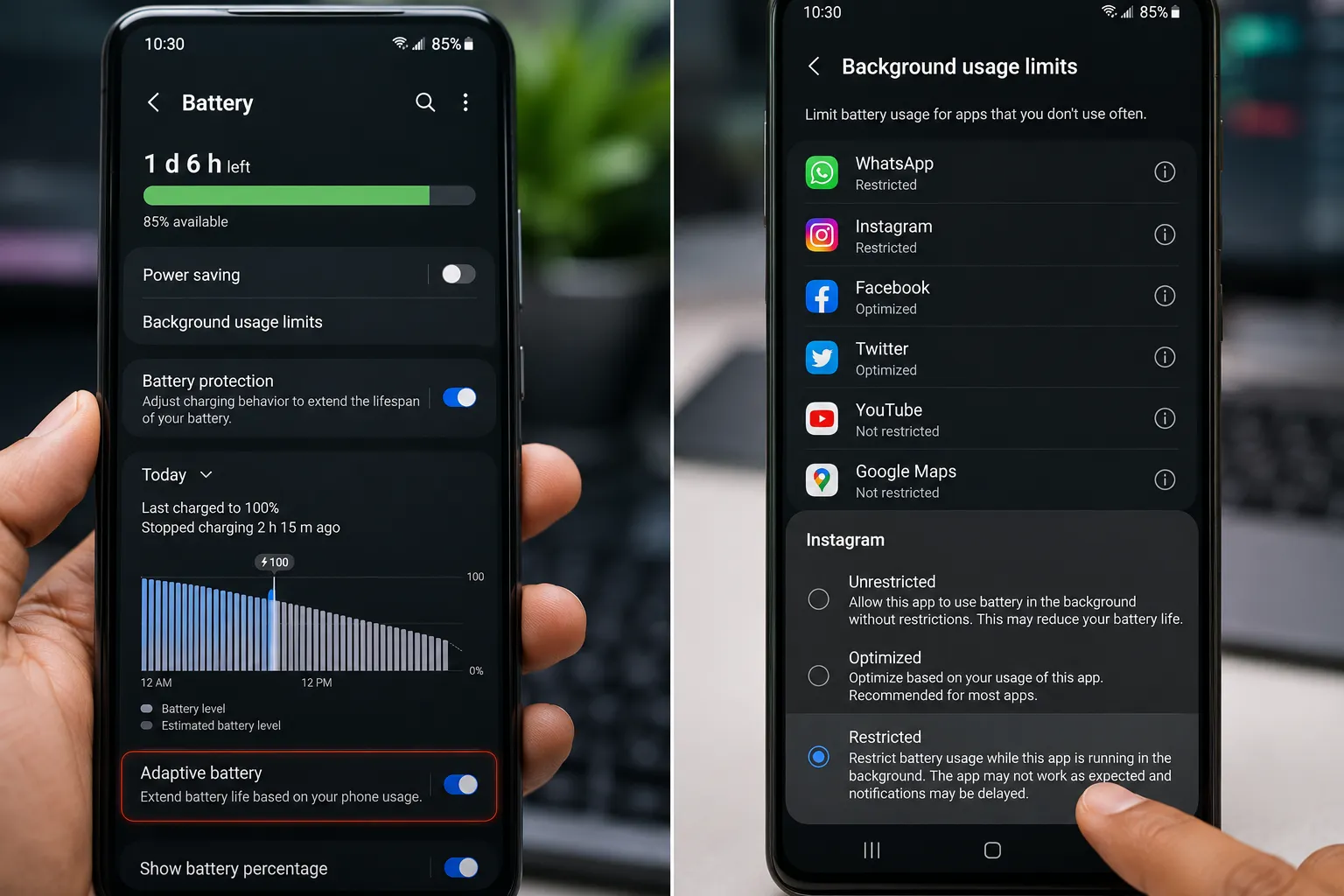
Once you've identified problematic apps, restricting their background activity can significantly improve battery life and performance.
Method 1: Restrict Individual Apps
- Open Settings.
- Go to Apps.
- Select the app you want to manage.
- Tap Battery.
- Choose Restricted or Optimized.
Method 2: Enable Adaptive Battery
- Open Settings > Battery.
- Tap Adaptive Battery.
- Turn it on.
Adaptive Battery uses machine learning to prioritize frequently used apps while limiting unnecessary background activity.
For advanced battery-saving methods, check:
How to Stop Android System Apps Battery Drain Without Root
According to Android's official developer documentation, restricting unnecessary background work helps improve battery efficiency and overall device performance. Android recommends optimized background execution policies to balance app functionality with resource usage.
9. Apps You Should Never Force Stop
Force stopping every app may seem like a good idea, but doing so can disrupt important functions and create new problems.
Avoid force stopping:
- Google Play Services
- Phone and Contacts apps
- Messaging applications you rely on
- System UI components
- Alarm and clock apps
- Accessibility services
- Security applications
Force stopping these apps may result in missed notifications, syncing issues, app crashes, or reduced device stability.
Only restrict apps that clearly demonstrate excessive background behavior.
10. Privacy Risks of Background Apps
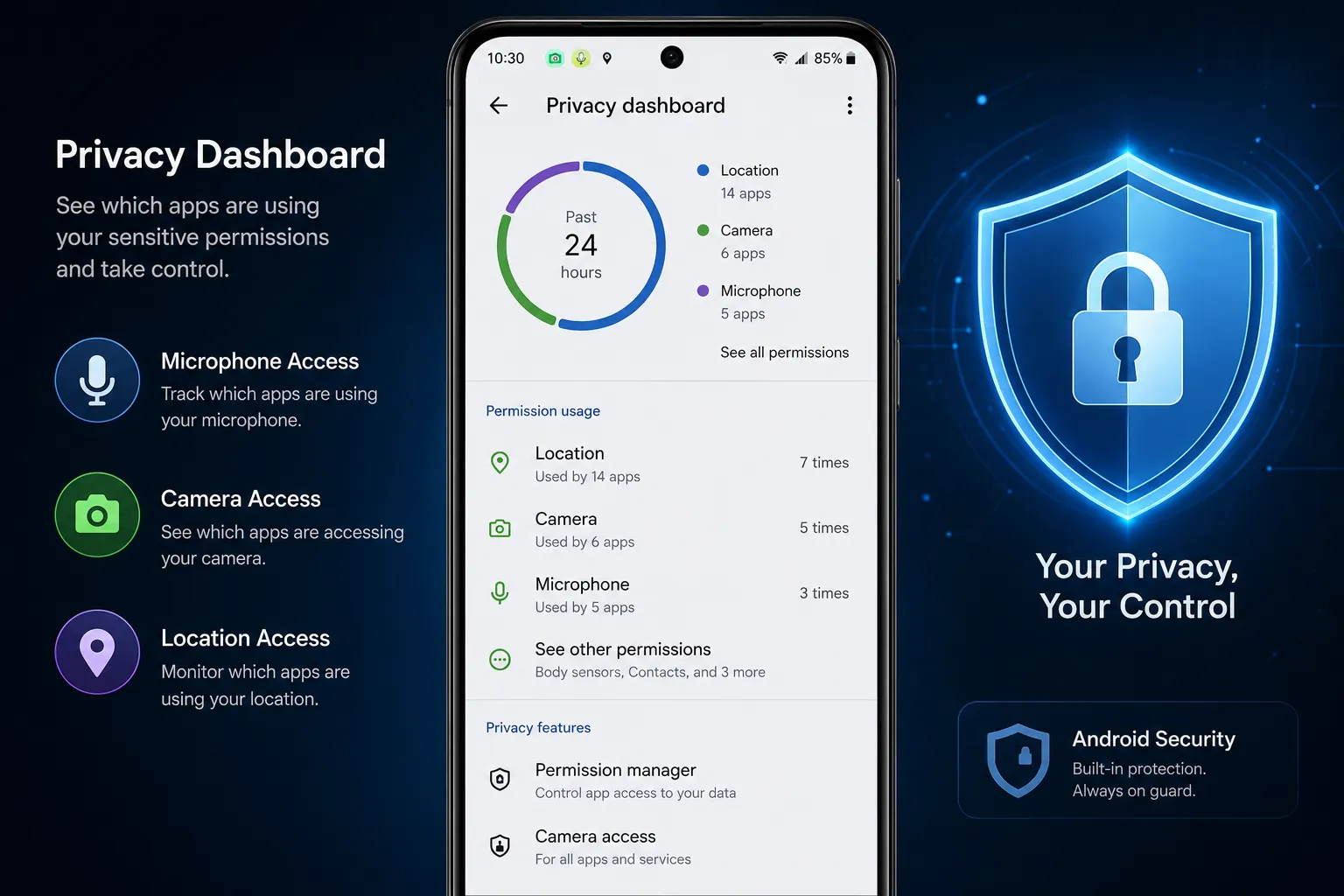
Some applications continue accessing sensitive permissions even when you're not actively using them. This can raise legitimate privacy concerns.
Background apps may access:
- Your camera
- Your microphone
- Location information
- Usage statistics
- Clipboard data
- Nearby devices
Android's Privacy Dashboard helps you identify recent permission usage.
Learn how to monitor suspicious activity:
How to Check Which Apps Are Using Your Camera and Microphone
Regularly reviewing app permissions reduces privacy risks and improves overall security.
The National Institute of Standards and Technology (NIST) recommends evaluating mobile applications carefully and reviewing the permissions they request, as excessive permissions and hidden behaviors can introduce privacy and security risks.
NIST Special Publication 800-163: Vetting the Security of Mobile Applications (PDF)
11. Best Practices to Keep Android Fast
Managing background apps is just one part of maintaining a healthy Android experience. Follow these best practices for long-term performance improvements:
- Uninstall apps you no longer use.
- Update apps regularly from the Play Store.
- Restart your phone once every few days.
- Enable Adaptive Battery.
- Review permissions periodically.
- Clear unnecessary downloads and media files.
- Avoid installing unknown optimization apps.
- Monitor battery and data usage monthly.
If your phone is cluttered with unused applications, removing them can free up storage and reduce background activity.
Related guide:
How to Remove Unused Apps Fast on Android
Final Thoughts: Background apps are an essential part of Android, but excessive background activity can negatively affect battery life, performance, mobile data usage, and privacy. By regularly monitoring app behavior and restricting unnecessary activity, you can keep your Android phone running smoothly and efficiently throughout 2026 and beyond.