Android Safe Mode is a built-in troubleshooting feature that helps identify and fix software-related problems by temporarily disabling all third-party apps. If your Android phone is running slowly, apps keep crashing, the device randomly restarts, or unusual behavior appears after installing a new application, booting into Safe Mode can quickly determine whether a third-party app is causing the issue. In this complete 2026 guide, you'll learn what Android Safe Mode is, why your phone enters Safe Mode, how to boot into Safe Mode, how to turn off Safe Mode safely, and how to use it to diagnose common Android problems. If Safe Mode helps your phone work normally, the issue is usually caused by an installed app rather than Android itself. For more advanced troubleshooting after exiting Safe Mode, follow our complete Android phone problems and fixes guide.
Table of Contents
- Overview
- What Is Android Safe Mode?
- Why Does Android Enter Safe Mode?
- Benefits of Using Safe Mode
- How to Boot Android into Safe Mode
- How to Turn Off Safe Mode
- How Safe Mode Helps Identify Problematic Apps
- Common Problems Safe Mode Can Fix
- What Safe Mode Cannot Fix
- Common Mistakes to Avoid
- Additional Android Troubleshooting Tips
- Final Thoughts
Overview
Android Safe Mode is one of the most useful built-in troubleshooting features available on every Android smartphone. It temporarily disables all third-party apps and allows only essential system apps to run, making it easier to determine whether a recently installed application is causing crashes, slow performance, battery drain, overheating, or unexpected restarts. Instead of immediately performing a factory reset, Safe Mode provides a quick and safe way to diagnose software-related problems without affecting your personal files, photos, or documents.
Whether your phone has become unusually slow, keeps freezing, or behaves differently after installing a new app, booting into Safe Mode can help isolate the cause within minutes. If your device works normally while in Safe Mode, there's a strong chance that one or more third-party apps are responsible for the issue. Before removing apps, it's also helpful to check which apps are running in the background, as some applications continue consuming system resources even when you're not actively using them.
In this complete 2026 guide, you'll learn everything about Android Safe Mode, including how it works, why your phone enters Safe Mode, how to enable or disable it, the problems it can solve, its limitations, and the best troubleshooting practices recommended for Android devices. Following the right steps can save time, prevent unnecessary factory resets, and help restore your phone's performance safely.
What You'll Learn
- What Android Safe Mode is and how it works.
- Why your phone automatically enters Safe Mode.
- How to boot into and exit Safe Mode safely.
- How to identify problematic third-party apps.
- Common Android issues that Safe Mode can help diagnose.
- Best practices for troubleshooting Android software problems.
What Is Android Safe Mode?
Android Safe Mode is a built-in diagnostic feature that starts your smartphone with only the essential system applications and services required for Android to operate. When Safe Mode is enabled, all third-party apps that you've downloaded from the Google Play Store or other sources are temporarily disabled. This makes it much easier to determine whether a recently installed app is responsible for problems such as app crashes, slow performance, random restarts, battery drain, overheating, or system instability.
Unlike a factory reset, Safe Mode does not delete your personal data, photos, contacts, messages, or installed apps. It simply prevents third-party applications from running until you restart your device normally. If your Android phone works correctly in Safe Mode but starts showing problems again after returning to normal mode, the issue is almost always related to one or more installed apps rather than the Android operating system itself. If your device becomes sluggish again after troubleshooting, you may also want to read our guide on why Android becomes slow again after a reset to understand other possible causes.
Safe Mode is commonly used by Android technicians and support professionals because it helps isolate software issues without risking data loss. However, if your phone continues to lag even after removing problematic apps, the issue could be related to hardware limitations or system resource management. In that case, learning why your phone feels slow even with 8GB or 12GB RAM can help you identify other performance bottlenecks.
Key Features of Android Safe Mode
- Temporarily disables all third-party applications.
- Runs only essential Android system apps and services.
- Does not delete personal data or installed applications.
- Helps diagnose software-related issues safely.
- Useful for identifying apps causing crashes, freezes, battery drain, or performance problems.
- Can be exited at any time by restarting the device normally.
Why Does Android Enter Safe Mode?
Android enters Safe Mode to help identify and isolate software-related problems that may prevent your phone from working properly. In most cases, Safe Mode is activated manually by the user for troubleshooting, but some devices may also boot into Safe Mode automatically if Android detects repeated crashes, failed startups, or conflicts caused by third-party applications. Since Safe Mode temporarily disables all downloaded apps, it becomes much easier to determine whether the problem is caused by an installed app or the Android operating system itself.
One of the most common reasons for entering Safe Mode is after installing a new application that causes your phone to freeze, restart unexpectedly, consume excessive battery, or become unusually slow. Malware, poorly optimized apps, launcher conflicts, incompatible updates, and apps with excessive background activity can also trigger system instability. If you notice abnormal battery drain along with these issues, it's worth learning how to reduce Android system apps battery drain without root, as excessive background processes may also affect your device's performance.
Safe Mode itself is not an error or a hardware problem. Instead, it is a protective troubleshooting environment designed to help users safely identify the root cause before taking more advanced steps such as uninstalling apps, clearing cache, or performing a factory reset. If your phone functions normally in Safe Mode, you can confidently focus on recently installed or updated apps rather than assuming the device has a serious hardware fault.
Common Reasons Android Enters Safe Mode
- A recently installed or updated app is causing system conflicts.
- Frequent app crashes or repeated device restarts.
- Malware or poorly optimized third-party applications.
- Launcher or widget compatibility issues.
- Software glitches after a system or app update.
- Manual troubleshooting to diagnose Android problems safely.
Benefits of Using Safe Mode
Android Safe Mode is one of the safest and most effective ways to troubleshoot software-related issues without risking your personal data. Instead of guessing which app is causing problems, Safe Mode temporarily disables all third-party applications and runs only essential Android system services. This makes it much easier to identify whether crashes, freezes, battery drain, overheating, or slow performance are caused by an installed app or by the Android operating system itself.
Another major advantage is that Safe Mode does not uninstall apps or erase photos, contacts, documents, or other important files. You can safely test your phone's performance, uninstall suspicious apps if necessary, and restart your device normally once troubleshooting is complete. Because of its non-destructive nature, Safe Mode is often the first troubleshooting step recommended by Android manufacturers and support professionals before attempting advanced solutions such as factory resetting the device.
Whether you're experiencing random restarts, touch screen issues caused by third-party apps, or unexpected battery consumption, Safe Mode provides a controlled environment to narrow down the root cause. This saves time, prevents unnecessary repairs, and helps restore your phone's normal performance more efficiently.
Key Benefits of Android Safe Mode
- Helps identify apps responsible for crashes, freezing, or lag.
- Runs only essential Android system applications.
- Protects your personal data during troubleshooting.
- Makes it easier to uninstall problematic third-party apps.
- Reduces unnecessary background activity while diagnosing issues.
- Can prevent unnecessary factory resets and service center visits.
- Recommended by Android support for safe software diagnostics.
How to Boot Android into Safe Mode
Booting your Android phone into Safe Mode is simple, although the exact steps may vary slightly depending on the manufacturer and Android version. Most modern Android devices from Samsung, Google Pixel, Motorola, OnePlus, Xiaomi, Vivo, Oppo, and Realme follow a similar process. Once Safe Mode is enabled, all downloaded apps are temporarily disabled, allowing you to determine whether a third-party app is responsible for your phone's problems.
If you're troubleshooting frequent crashes, freezing, or abnormal behavior, entering Safe Mode should be one of the first diagnostic steps. If the issue disappears while Safe Mode is active, it's a strong indication that one or more installed apps are causing the problem. If your phone continues to malfunction even in Safe Mode, follow our complete Android phone problems and fixes guide for additional troubleshooting methods.
Method 1: Boot into Safe Mode from the Power Menu
- Press and hold the Power button until the power menu appears.
- Touch and hold the Power Off option.
- Tap OK or Reboot to Safe Mode when prompted.
- Wait for your phone to restart.
- Look for the Safe Mode label in the bottom corner of the screen.
Method 2: If Your Phone Won't Start Normally
- Turn off your phone completely.
- Turn it back on and immediately press and hold the Volume Down button while the device is booting.
- Continue holding the button until Android finishes starting.
- If supported by your device, it will boot directly into Safe Mode.
The exact button combination may differ by manufacturer. For device-specific instructions, refer to the official Android Help documentation: Android Help.
How to Turn Off Safe Mode
In most cases, exiting Android Safe Mode is quick and straightforward. Since Safe Mode is designed only for troubleshooting, your phone should return to normal operation after a simple restart. However, if your device continues to boot into Safe Mode, it usually indicates that a problematic app, a stuck hardware button, or a software issue still needs attention. Before attempting advanced solutions, identify and remove any recently installed or suspicious applications that may be causing conflicts.
If Safe Mode disappears after restarting but the same problems return, a third-party app is likely responsible. Start by uninstalling apps that you installed just before the issue began. You should also remove unused Android apps and check which apps are running in the background to identify apps that continue consuming system resources unnecessarily.
Steps to Exit Safe Mode
- Press and hold the Power button.
- Select Restart or Reboot.
- Wait for your phone to restart normally.
- Verify that the Safe Mode label has disappeared from the screen.
If Safe Mode Won't Turn Off
- Restart your phone once again.
- Check whether the Volume Down button is stuck.
- Uninstall recently installed or suspicious apps.
- Install any available Android system updates.
- Clear the cache of problematic applications if necessary.
If your device still keeps booting into Safe Mode after following these steps, refer to the official Android developer resources for advanced troubleshooting and device-specific recommendations: Android Developers.
How Safe Mode Helps Identify Problematic Apps
The primary purpose of Android Safe Mode is to determine whether a third-party application is responsible for software problems. Because Safe Mode temporarily disables every downloaded app, you can compare your phone's performance with and without those apps running. If crashes, freezing, battery drain, overheating, or lag disappear in Safe Mode, it's a strong indication that one or more installed apps are causing the issue rather than the Android operating system itself.
After confirming that your phone works normally in Safe Mode, restart the device in normal mode and begin checking recently installed or updated applications one by one. Remove apps that seem suspicious or no longer necessary, then test your phone again. If a specific application repeatedly causes problems, consider replacing it with a trusted alternative. If certain apps continue crashing, follow our guide to fix Android app crashes. Likewise, clearing temporary files can often resolve software conflicts, so you may also want to clear cache on your Android phone.
Signs That an App Is Causing Problems
- Your phone works normally only in Safe Mode.
- Problems begin after installing or updating an app.
- Battery drain or overheating stops in Safe Mode.
- App crashes disappear when third-party apps are disabled.
- Random restarts or freezing no longer occur in Safe Mode.
- Performance improves significantly after uninstalling a specific app.
Testing apps one at a time is the most reliable way to identify the exact cause. This systematic approach helps you solve Android software issues without deleting important data or performing an unnecessary factory reset.
Common Problems Safe Mode Can Fix
Android Safe Mode is designed to diagnose software-related issues by temporarily disabling all third-party applications. If your phone performs normally while Safe Mode is enabled, the problem is usually caused by an installed app rather than Android itself. This makes Safe Mode one of the fastest ways to narrow down the source of common performance and stability issues before trying more advanced troubleshooting methods.
Many Android users experience problems after installing new apps, updating existing ones, or changing system settings. Safe Mode helps verify whether these changes are responsible for unexpected behavior. Once you've identified the cause, you can uninstall the problematic app, clear its cache, or install an updated version. However, if issues such as rapid battery drain continue even in Safe Mode, you should also check your Android battery health to rule out battery degradation. For broader troubleshooting, you can also follow our complete Android phone problems and fixes guide.
Problems Safe Mode Can Help Diagnose
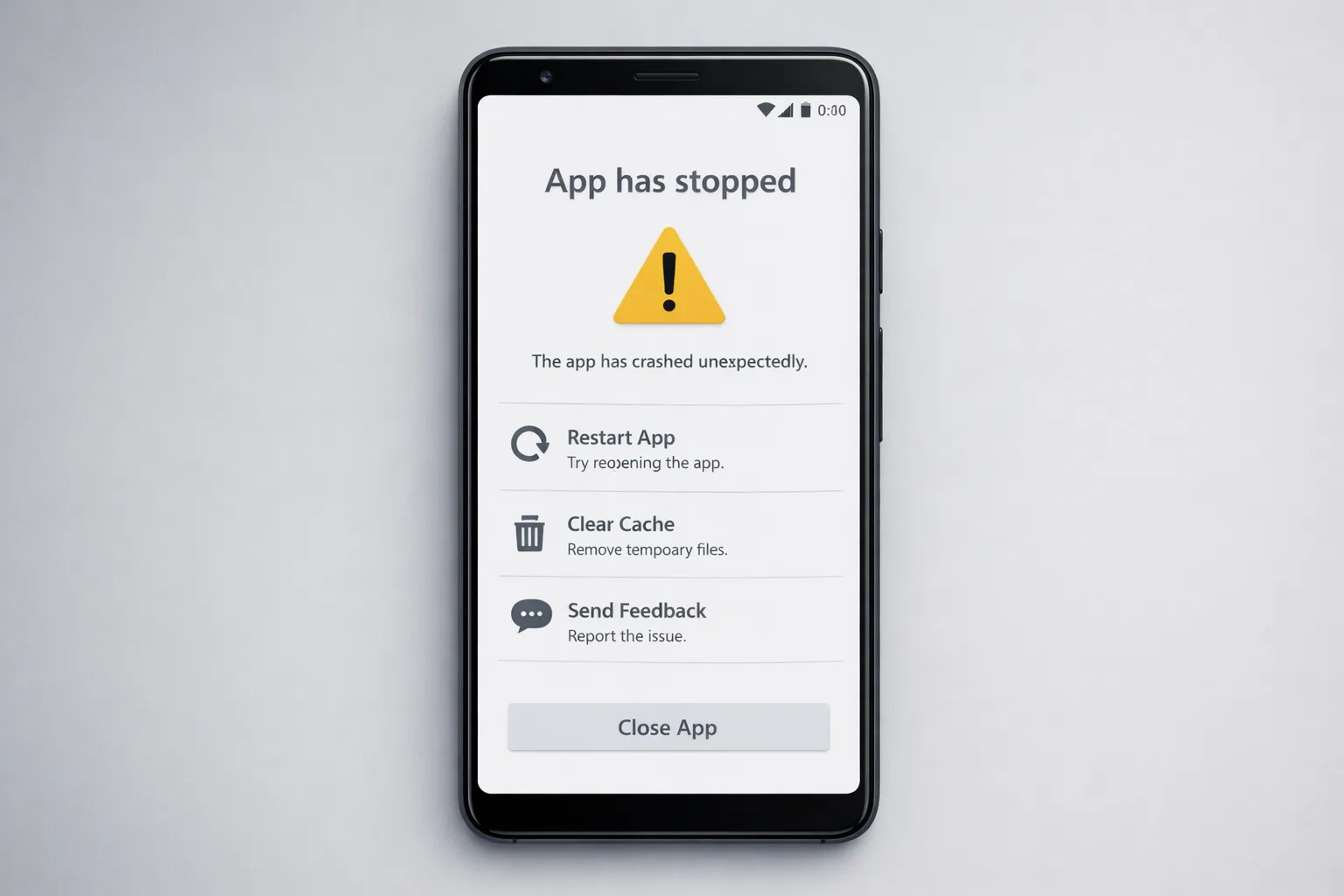
- Frequent app crashes and force-close errors.
- Slow performance or excessive lag caused by third-party apps.
- Random device restarts or freezing.
- Battery drain caused by installed applications.
- Phone overheating due to background apps.
- Launcher or home screen crashes.
- Unexpected pop-up ads or suspicious application behavior.
- Problems occurring immediately after installing a new app.
If these issues disappear while your phone is in Safe Mode, you can confidently focus on recently installed applications instead of assuming your device has a hardware fault.
What Safe Mode Cannot Fix
Although Android Safe Mode is an excellent troubleshooting tool, it cannot solve every type of problem. Its primary purpose is to identify issues caused by third-party applications. If your phone continues to experience the same problems even while running in Safe Mode, the cause is likely related to the Android operating system, damaged hardware, storage failure, battery health, or another system-level issue rather than an installed app.
Safe Mode also cannot repair a physically damaged display, malfunctioning charging port, broken buttons, faulty battery, or corrupted firmware. Likewise, if your device has been infected by deeply embedded malware with system-level privileges or has undergone unsupported modifications such as rooting, additional recovery steps may be required. If you suspect your Google account or personal information has been compromised, review this Google Account Security Checklist before making further changes to your device.
Safe Mode Cannot Fix
- Broken or damaged hardware components.
- Battery wear caused by aging hardware.
- Display, touchscreen, or charging port failures.
- Corrupted Android firmware or failed system updates.
- Storage chip or motherboard problems.
- System modifications caused by rooting or custom ROMs.
If your phone behaves the same in both Safe Mode and normal mode, professional diagnosis or advanced Android recovery methods may be necessary.
Common Mistakes to Avoid
While using Android Safe Mode is straightforward, many users make mistakes that lead to unnecessary troubleshooting or even data loss. One of the biggest misconceptions is assuming that Safe Mode automatically fixes problems. In reality, it only helps identify whether a third-party app is responsible. You still need to remove, update, or troubleshoot the app that caused the issue after exiting Safe Mode.
Another common mistake is uninstalling multiple apps at once. Doing so makes it difficult to determine which application was actually causing the problem. Instead, remove or disable one suspicious app at a time and test your device after each change. If your phone feels slow even after resolving the issue, you can learn how to speed up your Android phone. It's also a good idea to review app permissions regularly to prevent problematic or potentially unsafe apps from affecting your device again.
Mistakes to Avoid
- Assuming Safe Mode fixes the issue automatically.
- Performing a factory reset before identifying the cause.
- Deleting multiple apps without testing after each removal.
- Ignoring Android system updates.
- Reinstalling the same problematic application immediately.
- Overlooking suspicious app permissions and background activity.
- Ignoring hardware symptoms that continue in Safe Mode.
Following a step-by-step troubleshooting approach will help you identify the actual cause of the problem while keeping your personal data safe and avoiding unnecessary repairs.
Additional Android Troubleshooting Tips
While Android Safe Mode is an excellent tool for identifying software-related issues, it's only one part of effective device troubleshooting. After determining whether a third-party app is causing the problem, you should follow a few additional maintenance steps to keep your phone stable, secure, and running efficiently. Regular software updates, proper storage management, and careful app installation can prevent many common Android issues before they occur.
If your phone still experiences slow performance, unexpected app crashes, or battery drain after exiting Safe Mode, continue troubleshooting one step at a time instead of immediately performing a factory reset. Start by uninstalling unnecessary applications, clearing app cache, updating Android, and checking available storage. If the issue persists, our complete Android phone problems and fixes guide covers advanced solutions for a wide range of Android issues. You can also learn how to speed up your Android phone and follow our guide to fix Android app crashes if specific applications continue causing trouble.
Best Practices for Keeping Your Android Phone Healthy
- Keep Android and all installed apps updated.
- Install applications only from trusted sources such as Google Play.
- Remove apps you no longer use.
- Clear app cache periodically to free temporary storage.
- Maintain sufficient free storage for smooth performance.
- Restart your phone occasionally to refresh system processes.
- Review app permissions and background activity regularly.
- Create regular backups of important data before making major system changes.
Following these habits can significantly reduce software conflicts, improve overall performance, and help your Android device remain fast, stable, and reliable over the long term.
Final Thoughts
Android Safe Mode is one of the most valuable built-in troubleshooting features available on every Android smartphone. It provides a safe environment where only essential system apps are allowed to run, making it easier to determine whether third-party applications are responsible for crashes, lag, overheating, battery drain, or other software-related issues. Because Safe Mode doesn't delete your personal files or installed apps, it offers a reliable way to diagnose problems without risking important data.
By understanding when to use Safe Mode, how to enter and exit it, and how to interpret the results, you can solve many common Android issues without performing an unnecessary factory reset or visiting a service center. If your device works normally in Safe Mode, focus on identifying and removing problematic apps. If the same issues continue even in Safe Mode, the problem is more likely related to Android itself or your phone's hardware, requiring further diagnosis.
Regularly updating your device, installing trusted apps, monitoring system performance, and following good maintenance practices will help keep your Android phone secure and running smoothly. Safe Mode should be viewed as the first step in troubleshooting—not the final solution—but when used correctly, it can save time, prevent unnecessary repairs, and quickly point you toward the real cause of many Android problems.