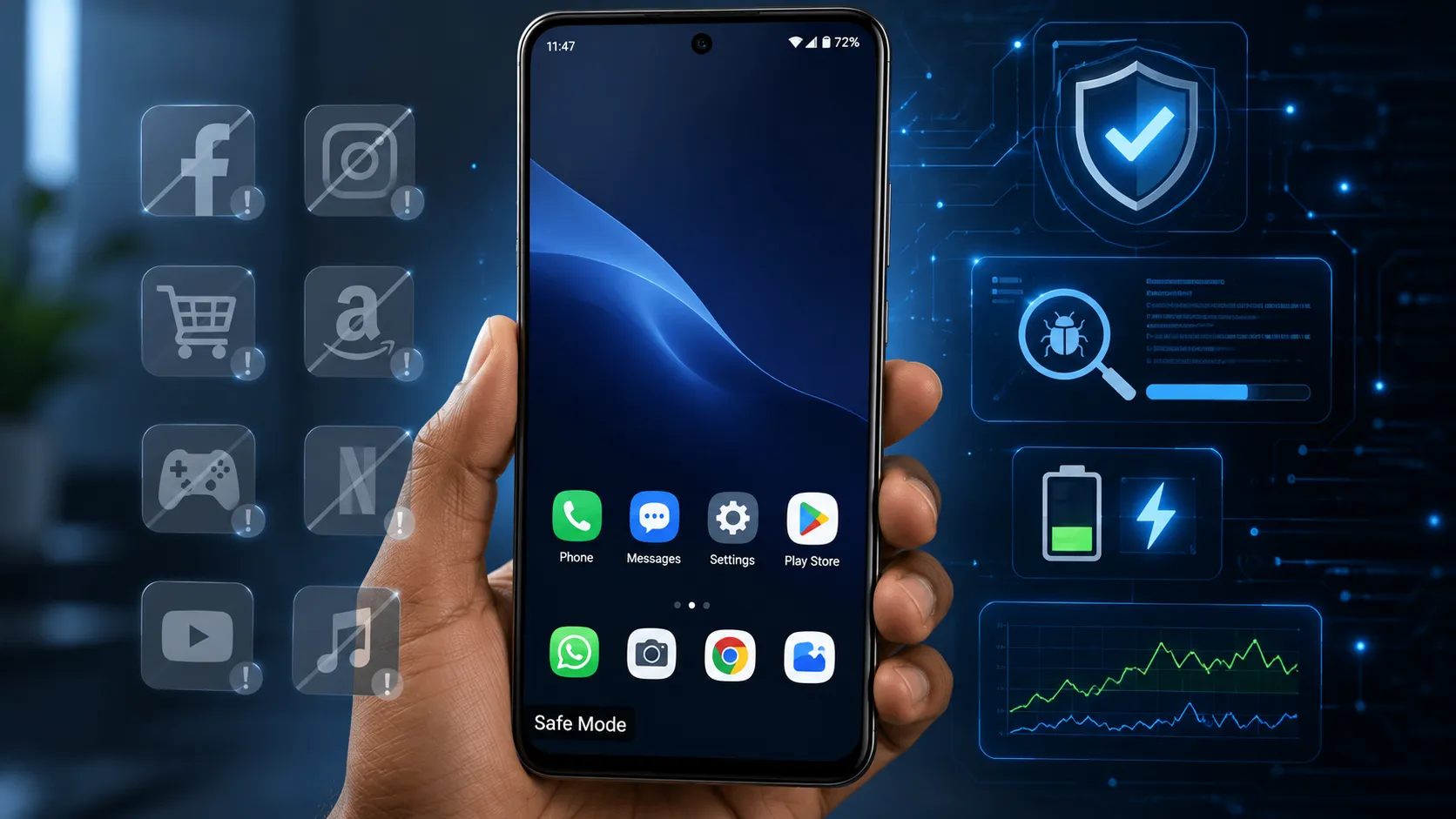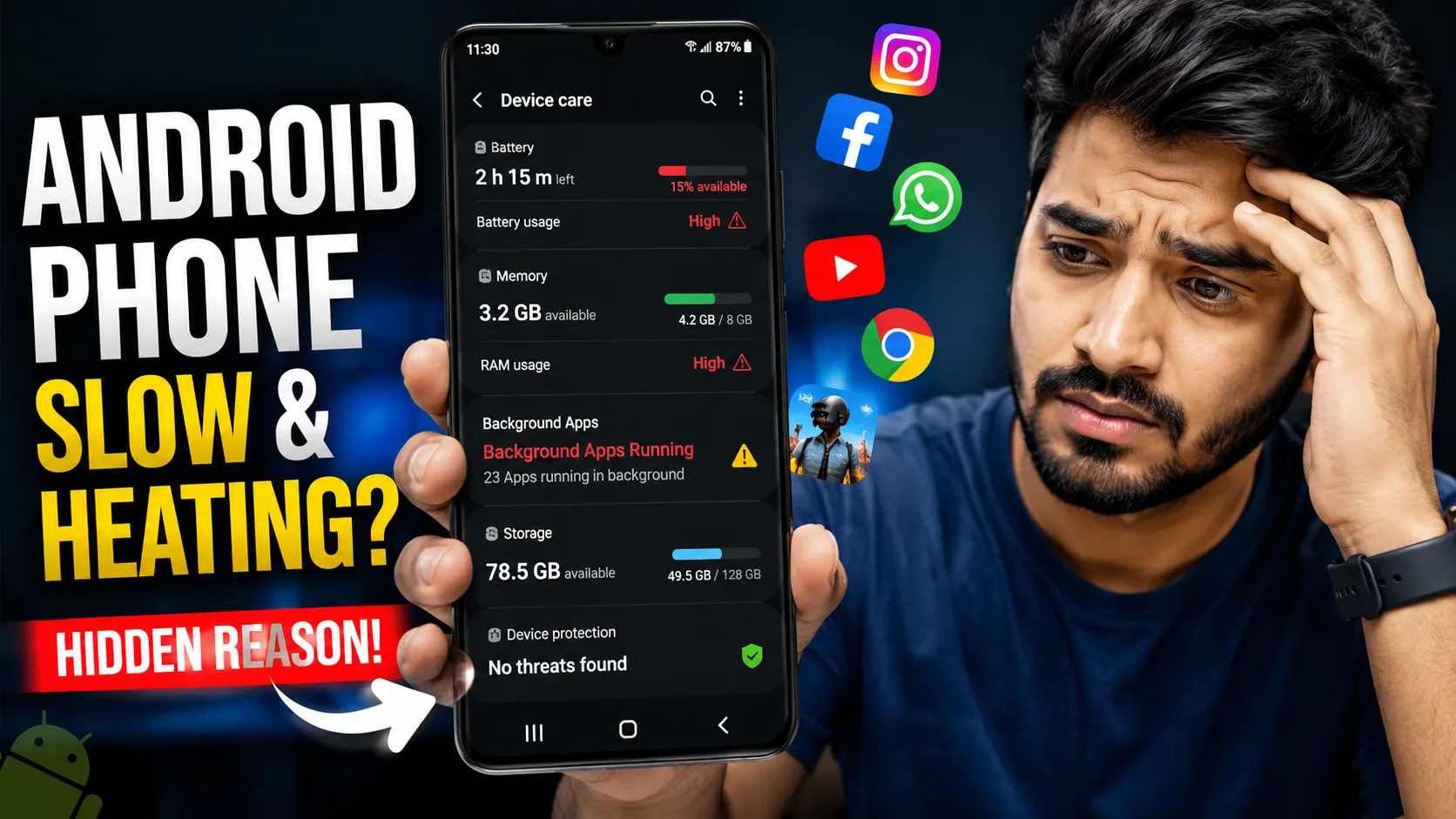
Learning how to disable background data for individual apps on Android is one of the easiest ways to reduce mobile data usage, improve battery life, and boost your phone's performance. Many Android apps continue using the internet in the background for syncing, notifications, updates, and advertisements, even when you're not actively using them. By restricting background data for selected apps, you can save data, extend battery backup, and prevent unnecessary network activity. In this complete 2026 Android guide, you'll learn what background data is, why apps use it, how to identify data-hungry apps, and the safest methods to disable background data without affecting essential notifications or important services.
Table of Contents
- Overview
- What Is Background Data?
- Why Apps Keep Using Background Data
- Problems Caused by Background Data
- How Background Data Affects Battery, Performance, and Data Usage
- How to Check Which Apps Are Using Background Data
- How to Disable Background Data for Individual Apps (Step-by-Step)
- Use Android Data Saver Mode for Better Control
- Which Apps Should You Restrict Background Data For?
- Common Mistakes to Avoid When Restricting Background Data
- Additional Tips to Save Mobile Data on Android
- Final Thoughts
Overview
If you've noticed your mobile data running out faster than expected, background data could be the reason. Many Android apps continue using the internet even when you're not actively using them. They refresh content, sync files, receive notifications, update feeds, and communicate with their servers in the background. While this behavior is useful for important apps like messaging or email, it can waste data, drain your battery, and reduce your phone's overall performance.
Fortunately, Android allows you to disable background data for individual apps, giving you better control over how each app accesses the internet. Instead of blocking all background activity, you can choose which apps are allowed to use mobile data and which should only connect when you open them. This helps reduce unnecessary data consumption without affecting the apps you rely on every day.
Before changing any settings, it's helpful to see which apps are actually running in the background. This makes it easier to identify apps that consume data unnecessarily and decide whether they should be restricted.
In this complete 2026 guide, you'll learn:
- What background data is and how it works on Android.
- Why some apps continue using mobile data automatically.
- How background data affects battery life, performance, and internet usage.
- Step-by-step methods to disable background data for individual apps.
- How to use Android's built-in Data Saver feature effectively.
- Best practices for restricting background data without missing important notifications.
By the end of this guide, you'll know exactly how to reduce unnecessary mobile data usage, improve battery life, and keep your Android phone running more efficiently while maintaining access to the apps that matter most.
What Is Background Data?
Background data is the internet activity performed by an app while you are not actively using it. Instead of waiting until you open the app, Android allows many applications to connect to the internet in the background to sync information, download updates, refresh content, and send notifications. This ensures that your apps stay up to date and are ready to use whenever you launch them.
For example, messaging apps may check for new messages, cloud storage apps can sync your files, and social media platforms often refresh feeds automatically. While these background tasks improve convenience, they can also consume a significant amount of mobile data, especially if multiple apps are running simultaneously.
Some applications are designed to use very little background data, while others constantly communicate with their servers. If you notice unusually high internet usage, it is worth reviewing which apps consume the most mobile data behind the scenes. Likewise, apps that frequently access the internet often contribute to unnecessary battery usage, so it's also helpful to learn about common apps that reduce battery life while running in the background.
Background data is commonly used for:
- Receiving push notifications.
- Syncing emails, contacts, and calendars.
- Uploading photos and cloud backups.
- Refreshing social media feeds.
- Downloading app updates and new content.
- Location tracking and weather updates.
Although background data is essential for certain apps, not every application needs unrestricted internet access. Understanding how it works is the first step toward reducing unnecessary data usage, extending battery life, and improving your Android phone's overall performance without affecting important services.
Why Apps Keep Using Background Data
Many Android apps continue using background data because they are designed to stay updated without requiring you to open them manually. This allows apps to deliver notifications, sync information, refresh content, and provide a smoother user experience. While these background processes are useful for communication and productivity apps, they can also increase mobile data usage if left unmanaged.
Every time an app checks for new messages, downloads fresh content, backs up files, or synchronizes with cloud servers, it uses your internet connection in the background. On phones with dozens of installed apps, these small data transfers can quickly add up and consume a significant portion of your monthly data plan.
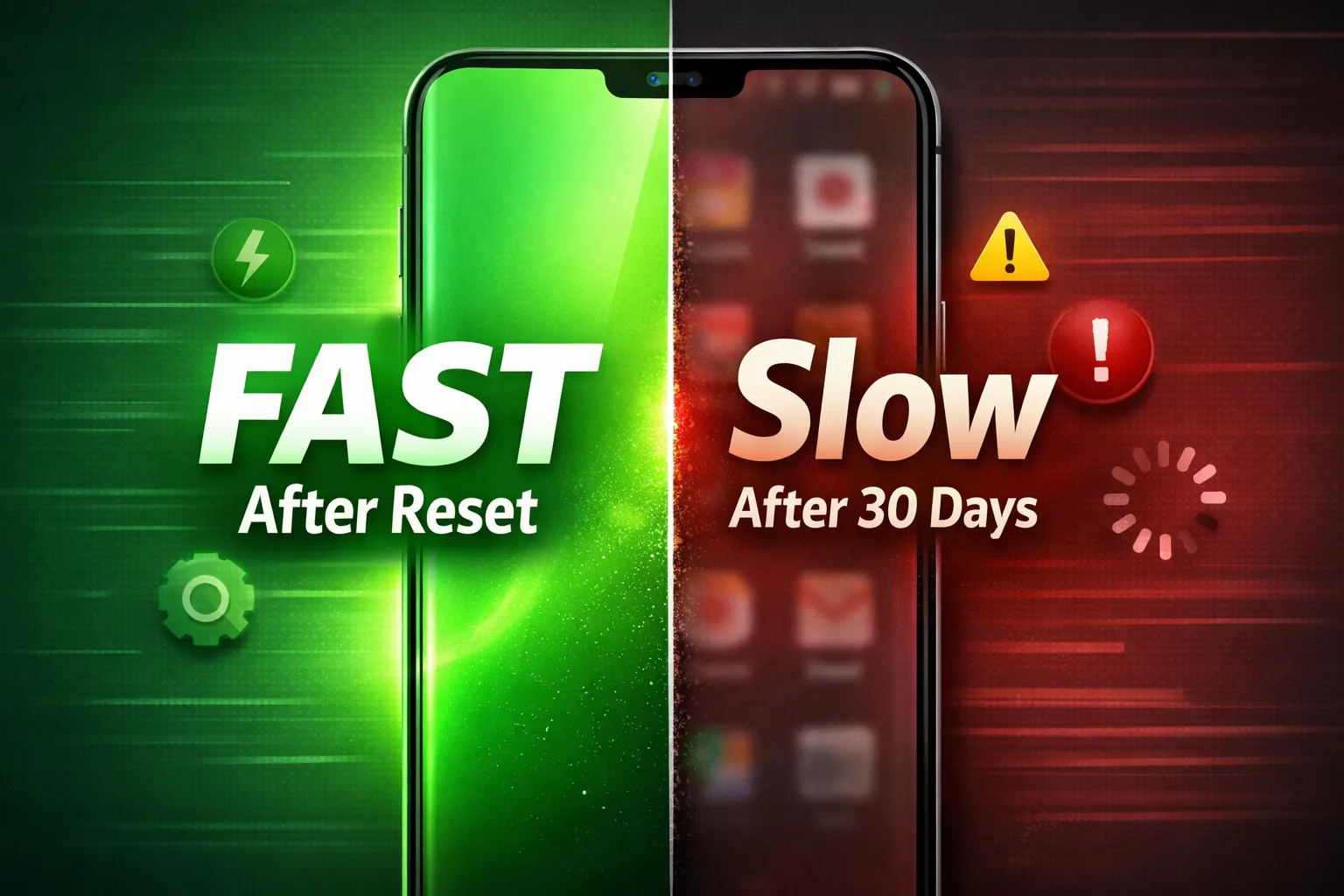
If you've ever wondered why your phone feels fast immediately after a factory reset but gradually slows down over time, background services are one of the contributing factors. You can learn more about this in our guide on why Android becomes slow again after a reset. Similarly, having more RAM doesn't always solve performance issues because background activity can still consume system resources. Our article explaining why phones feel slow even with 8GB or 12GB of RAM covers this in greater detail.
Common reasons apps use background data include:
- Receiving push notifications instantly.
- Syncing emails, contacts, and calendars.
- Uploading photos, videos, and cloud backups.
- Refreshing social media feeds and news updates.
- Downloading app updates and new content.
- Location tracking for navigation and weather apps.
- Displaying personalized ads and collecting usage analytics.
Although background activity is necessary for certain applications, many apps continue accessing the internet even when their services are not essential. Identifying these apps and limiting unnecessary background data can help reduce mobile data consumption, improve battery life, and keep your Android device running more efficiently.
Problems Caused by Background Data
Background data is useful for keeping apps updated, but unrestricted background activity can create several problems over time. When multiple apps continuously access the internet without your knowledge, they consume mobile data, increase battery usage, and place additional load on your phone's processor. On devices with limited system resources, this can lead to slower performance and a less responsive user experience.
Many users only notice the issue after their monthly data limit is reached sooner than expected or their phone's battery starts draining much faster than normal. Since background processes often run silently, it can be difficult to identify which apps are responsible unless you check Android's data usage settings.
Common problems caused by excessive background data include:
- Higher mobile data consumption, leading to faster exhaustion of your monthly data plan.
- Increased battery drain because apps frequently wake the processor and network connection.
- Slower overall phone performance due to continuous background activity.
- Higher CPU and RAM usage, especially when many apps sync at the same time.
- Reduced standby battery life even when the phone is idle.
- Extra network activity that may affect download and browsing speeds.
If you're also experiencing poor battery backup, background data may not be the only reason. Some built-in Android services continue consuming power even when you rarely use them. Our guide on reducing battery drain caused by Android system apps explains how to optimize these services safely without root access.
For users looking for additional battery optimization, you can also explore our recommendations for trusted Android battery saver apps that help monitor power usage and identify apps consuming excessive resources.
Managing background data for unnecessary apps is one of the simplest ways to reduce mobile data usage, extend battery life, and improve your Android phone's overall efficiency without affecting essential apps.
How Background Data Affects Battery, Performance, and Data Usage
Background data doesn't just consume your internet plan—it also affects your Android phone's battery life, performance, and overall efficiency. Every time an app connects to the internet in the background, your device wakes up network components, uses processing power, and may access storage or location services. While a single app uses only a small amount of resources, dozens of apps performing these tasks throughout the day can have a noticeable impact.
For example, social media, cloud storage, shopping, and news apps often refresh content automatically even when you haven't opened them for hours. This constant background activity keeps your phone busy, resulting in higher battery consumption and unnecessary mobile data usage.
If you're unsure which applications continue running after you close them, it's worth learning how to identify apps that remain active in the background. Finding these apps makes it much easier to decide which ones should have their background data restricted.
How Background Data Impacts Your Phone
- Consumes mobile data without your knowledge.
- Reduces battery backup by keeping network services active.
- Uses CPU and RAM resources for syncing and updates.
- May slow app launching and overall system responsiveness.
- Increases network activity, especially on limited mobile data plans.
- Can contribute to higher battery temperatures during continuous syncing.
It's important to remember that not every app should be restricted. Messaging, email, banking, and navigation apps often rely on background data to deliver real-time updates and notifications. Instead of disabling background data for every application, focus on apps that provide little value when running in the background.
Regularly reviewing your background data usage helps you maintain better control over your phone's resources. A few small adjustments can significantly improve battery life, reduce unnecessary internet consumption, and keep your Android device running smoothly without affecting essential features.
How to Check Which Apps Are Using Background Data
Before disabling background data for any app, it's important to identify which applications are actually consuming your mobile data. Android includes a built-in data usage monitor that shows how much data each app uses in both the foreground and the background. Reviewing these statistics helps you make informed decisions instead of restricting apps that genuinely need internet access.
The exact menu names may vary depending on your phone manufacturer, but the process is similar on most Android devices, including Samsung, Google Pixel, OnePlus, Xiaomi, Realme, Vivo, and Oppo.
Steps to Check Background Data Usage
- Open the Settings app.
- Tap Network & Internet or Connections.
- Select Data Usage or Mobile Data Usage.
- Tap App Data Usage or Mobile Data Usage by App.
- Select any application to view its Foreground and Background Data usage.
Pay special attention to apps showing unusually high background data despite being rarely used. These are usually the best candidates for restricting background access.
If you're trying to reduce overall internet consumption, you may also find our guide on saving mobile data without installing additional apps useful. It covers several built-in Android features that complement background data restrictions.
In addition, if your device is experiencing slow performance, battery drain, or unusual behavior alongside high data usage, our complete Android troubleshooting guide provides solutions for many common issues.
For a deeper understanding of how Android manages background tasks and optimizes app behavior, you can also refer to the official Android Developers documentation on background work. It explains why certain apps continue running in the background and how Android balances performance, battery life, and user experience.
How to Disable Background Data for Individual Apps (Step-by-Step)
Once you've identified the apps consuming unnecessary mobile data, the next step is to restrict their background internet access. Android lets you disable background data for individual apps, allowing them to use the internet only when you're actively using them. This is one of the most effective ways to reduce mobile data usage, improve battery life, and minimize unnecessary background activity without uninstalling the app.
The exact menu names may differ slightly depending on your device manufacturer, but the overall process is similar across Samsung, Google Pixel, Xiaomi, OnePlus, Vivo, Oppo, Motorola, and Realme phones.
Method 1: Disable Background Data for a Specific App
- Open the Settings app.
- Go to Apps or App Management.
- Select the app you want to restrict.
- Tap Mobile Data & Wi-Fi, Data Usage, or a similar option.
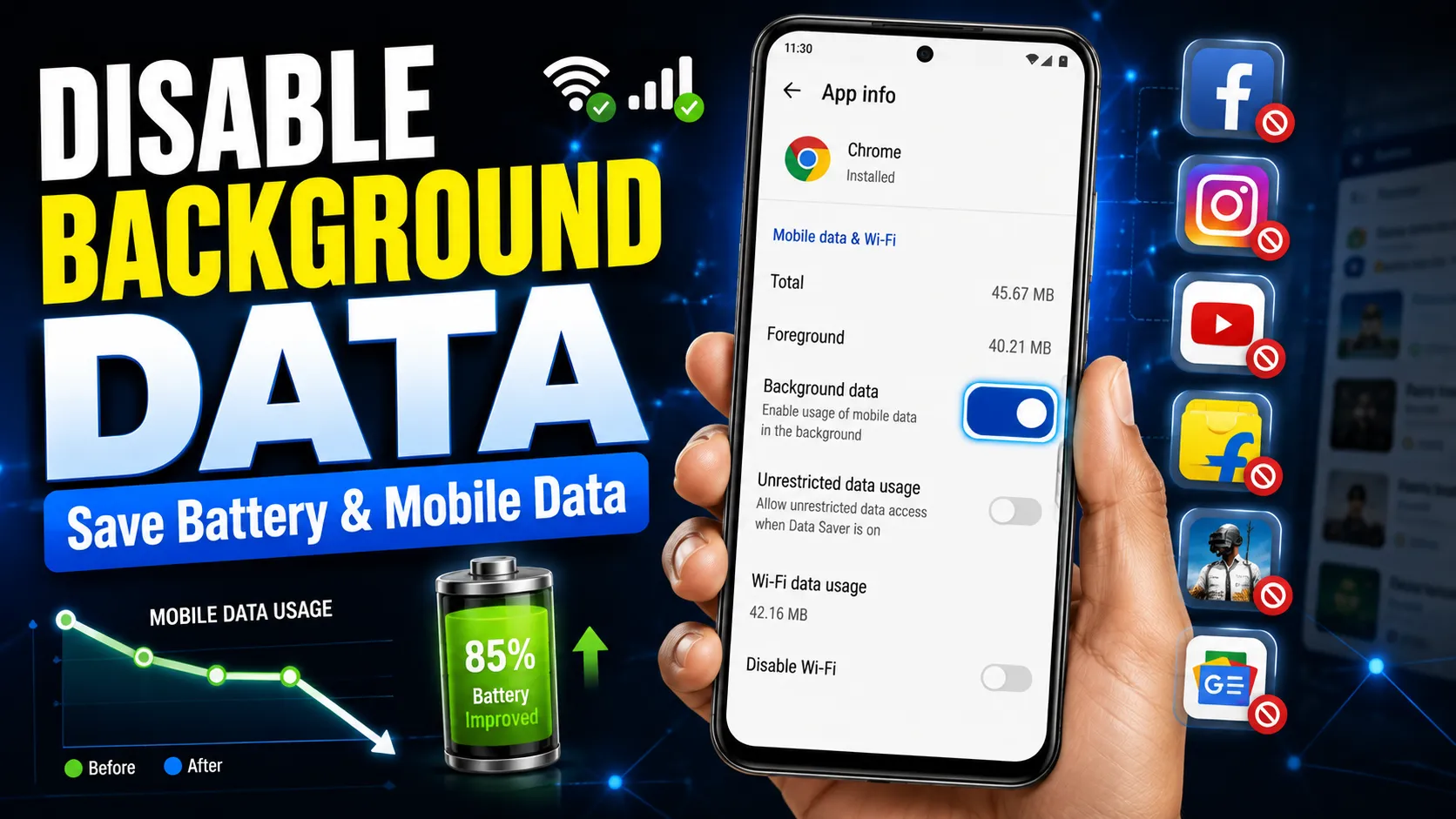
- Turn off Background Data or Allow Background Data Usage.
After this change, the selected app will continue working normally when opened, but it will no longer consume mobile data while running in the background.
Method 2: Use Data Saver for Better Control
If you want to reduce background internet usage across multiple apps, enable Android's built-in Data Saver mode:
- Open Settings.
- Tap Network & Internet or Connections.
- Select Data Saver.
- Turn the feature On.
- Add important apps, such as messaging or banking apps, to the unrestricted list if necessary.
If you're looking for even more ways to reduce internet consumption, check out our guide on saving mobile data using Android's built-in features. Combining those tips with background data restrictions can significantly lower monthly data usage while maintaining a smooth Android experience.
Use Android Data Saver Mode for Better Control
If you want to reduce mobile data usage without manually configuring every application, Android Data Saver is one of the most effective built-in features available. Instead of disabling background data individually for each app, Data Saver automatically limits background internet access for most applications while allowing you to choose exceptions for apps that require real-time connectivity.
When Data Saver is enabled, apps can still use mobile data normally while you are actively using them. However, background syncing, automatic updates, and other non-essential internet activity are restricted until you open the app. This makes Data Saver especially useful for users with limited monthly data plans or those who frequently rely on mobile networks.
How to Enable Data Saver Mode
- Open the Settings app.
- Go to Network & Internet or Connections.
- Select Data Saver.
- Turn Data Saver on.
- Tap Unrestricted Data Access if you want specific apps to continue using background data.
Benefits of Using Data Saver
- Reduces unnecessary mobile data consumption.
- Limits background syncing for non-essential apps.
- Helps improve battery life by reducing network activity.
- Prevents automatic downloads while using mobile data.
- Works without installing third-party applications.
Although Data Saver is highly effective, it's still a good idea to review apps that frequently consume battery in the background. Our guide covering common apps that drain battery while running in the background can help you identify unnecessary resource usage.
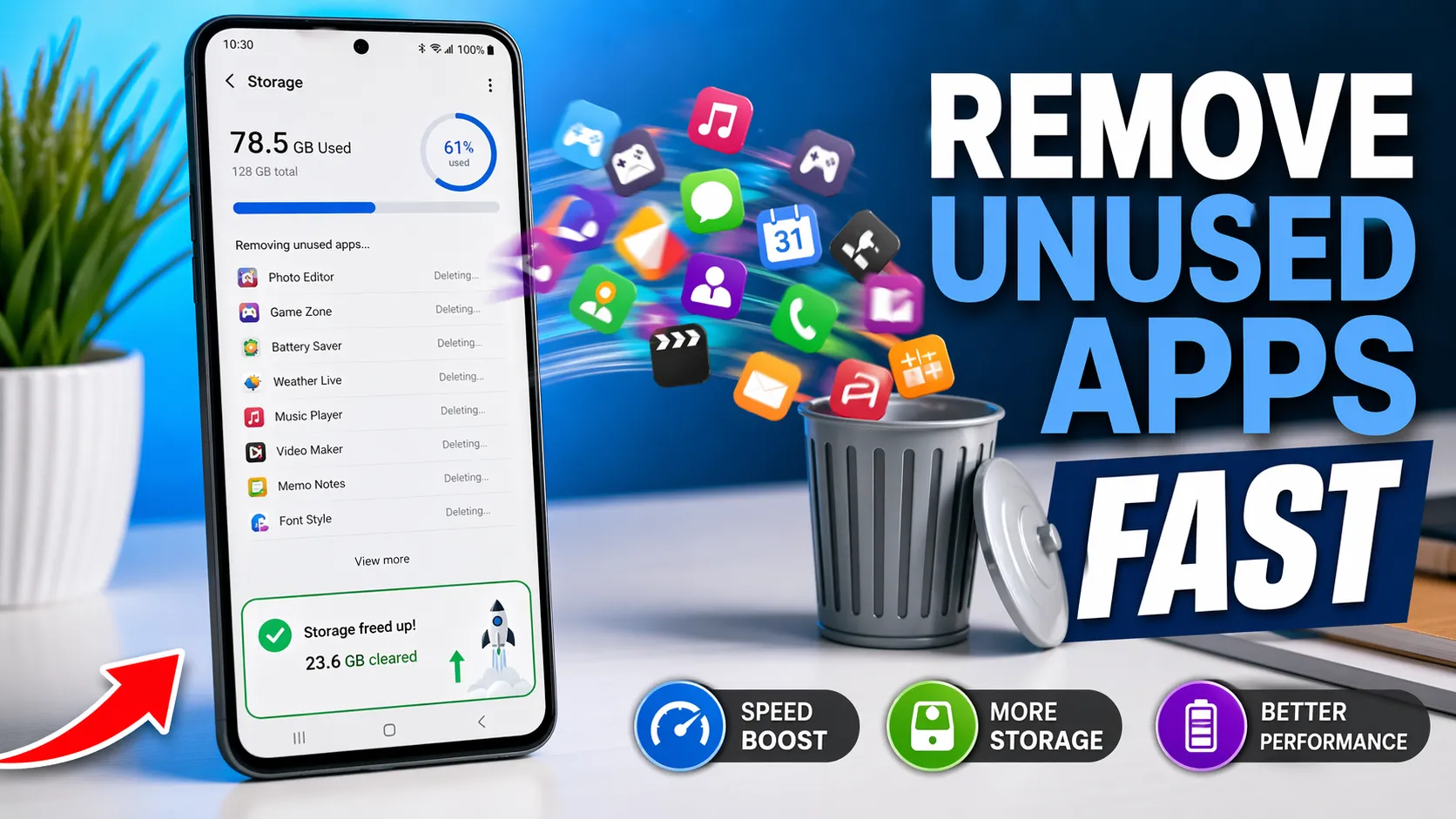
You should also remove applications you no longer use. Fewer installed apps mean fewer background services competing for data and battery. If you haven't cleaned up your device recently, follow our tutorial on quickly removing unused Android apps to free up resources and improve overall performance.
Which Apps Should You Restrict Background Data For?
Not every Android app needs unrestricted background internet access. While messaging, banking, and navigation apps rely on background data to deliver real-time notifications and important updates, many other applications continue syncing content even when you rarely use them. Restricting these non-essential apps can significantly reduce mobile data usage, improve battery life, and minimize unnecessary background activity.
Before disabling background data, consider how often you use the app and whether delayed updates would affect your experience. Apps that don't require instant notifications are usually safe to restrict.
Apps You Can Usually Restrict
- Social media apps that constantly refresh feeds.
- Shopping and e-commerce applications.
- Games that download advertisements or updates.
- Video and music streaming apps.
- News and magazine applications.
- Travel, food delivery, and booking apps that you use occasionally.
Apps You Should Usually Leave Unrestricted
- WhatsApp, Telegram, Signal, and other messaging apps.
- Email applications used for work or personal communication.
- Banking and payment apps that require security alerts.
- Google Maps and navigation apps.
- Two-factor authentication (2FA) applications.
- Emergency or safety-related applications.
Keep in mind that restricting background data may delay notifications until you open the affected app. For this reason, avoid limiting apps that provide important security alerts or time-sensitive information.
It's also a good practice to regularly review your phone's security settings. If you're unsure whether installed apps have unnecessary permissions or background access, our Google Account Security Checklist explains how to improve your account's protection and reduce privacy risks associated with connected apps.
A balanced approach works best: restrict background data only for apps that don't need constant internet access while allowing essential apps to continue syncing normally. This helps optimize data usage without affecting your daily Android experience.
Common Mistakes to Avoid When Restricting Background Data
Restricting background data is an effective way to reduce mobile data usage and improve battery life, but applying it incorrectly can lead to delayed notifications, interrupted syncing, and apps that don't function as expected. Instead of disabling background access for every app, it's important to understand which apps genuinely require continuous internet connectivity.
Many users enable restrictions without checking how an app works, which often results in missed messages, delayed emails, or failed cloud backups. Taking a few minutes to review each app's purpose can help you avoid these issues while still saving data.
Common Mistakes to Avoid
- Restricting messaging apps: Apps like WhatsApp, Telegram, and Signal rely on background data for instant message delivery.
- Blocking banking and payment apps: These apps often require background connectivity for fraud alerts, transaction notifications, and security verification.
- Disabling background data for navigation apps: Google Maps and similar apps may not update location information properly during active use.
- Ignoring built-in optimization features: Android already provides tools such as Data Saver and Battery Optimization, which often work better than manually restricting every app.
- Using aggressive battery-saving apps: Some third-party apps promise dramatic improvements but may interfere with normal Android processes. If you're considering one, choose from our list of trusted battery saver apps for Android.
- Restricting system apps unnecessarily: Some Android system components are essential for stability. Before changing their settings, read our guide on reducing battery drain caused by Android system apps safely.
For additional information about managing mobile broadband usage and making the most of your data plan, you can also refer to the official FCC Mobile Broadband Consumer Guide.
The best approach is to review each app individually and only restrict background data where it provides little benefit. This ensures you save mobile data and battery life without affecting essential features or your overall Android experience.
Additional Tips to Save Mobile Data on Android
Restricting background data is one of the most effective ways to reduce internet usage, but it's only part of a complete data-saving strategy. Android includes several built-in features that help you minimize mobile data consumption without affecting your everyday experience. By combining these settings with smart usage habits, you can make your monthly data plan last much longer.
If you frequently stream videos, browse social media, or download large files using mobile data, the following tips can help reduce unnecessary internet usage while maintaining good performance.
Best Ways to Save Mobile Data on Android
- Enable Data Saver to automatically restrict background activity for most apps.
- Use Wi-Fi whenever possible for app updates, cloud backups, and large downloads.
- Disable automatic app updates over mobile data in the Google Play Store.
- Reduce video streaming quality on platforms like YouTube, Netflix, and Instagram.
- Download music, maps, and videos over Wi-Fi for offline access.
- Remove apps that you no longer use, as many continue syncing data in the background.
- Regularly review app data usage to identify applications consuming excessive mobile data.
If your phone feels slow while using multiple apps, optimizing system performance can also improve overall efficiency. Our guide on speeding up your Android phone includes additional performance tips that complement background data management.
For broader troubleshooting, you can explore our complete Android problems and fixes guide, which covers battery, storage, performance, and connectivity issues. It's also worth reviewing which apps consume excessive mobile data in the background so you can identify the biggest contributors to your monthly data usage.
Developing a few good habits—such as monitoring data usage, removing unused apps, and limiting unnecessary background activity—can significantly reduce mobile data consumption while helping your Android device run faster, stay cooler, and deliver better battery life.